
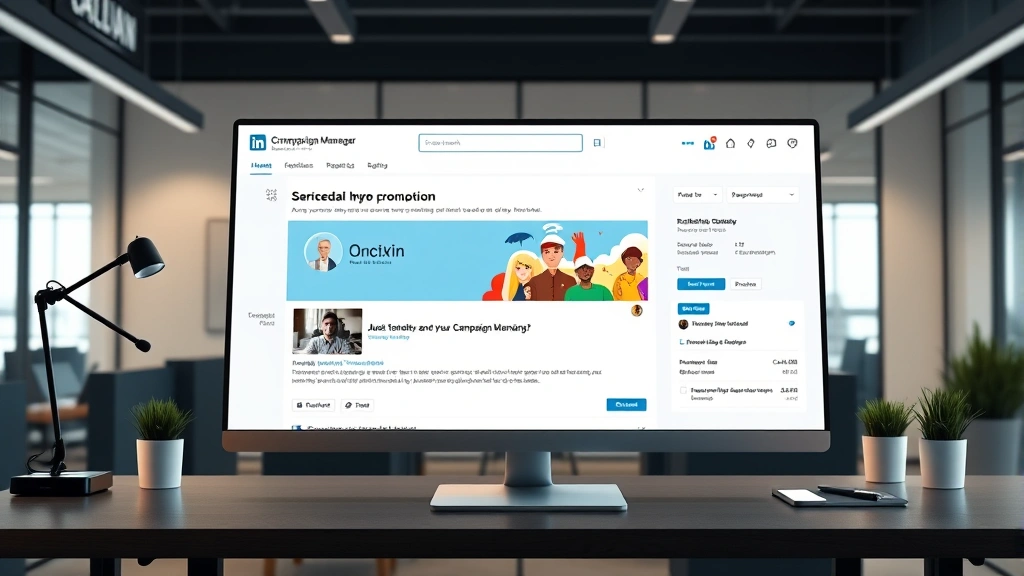
Learning how to add a promotion on LinkedIn is one of the smartest moves you can make for your professional brand. Whether you’re launching a new product, announcing a special offer, or highlighting a career milestone, LinkedIn promotions help you reach your network with credibility and polish. Let me walk you through this process step-by-step so you can get your message in front of the right people without any confusion.
Table of Contents
Why Promote on LinkedIn?
LinkedIn isn’t just another social platform—it’s where professionals spend their time looking for opportunities, insights, and solutions. When you add a promotion on LinkedIn, you’re tapping into an audience that’s actively engaged and ready to take action. Unlike passive scrolling on other platforms, LinkedIn users are in a professional mindset, making them more likely to engage with relevant content.
Think of it like this: you wouldn’t try to sell a business solution at a beach party, right? LinkedIn is the professional equivalent of a networking event. Your promotions reach people who care about your industry, your products, or your services. The platform’s targeting capabilities are incredibly granular, meaning you can reach exactly who you want to reach.
Before You Start Promoting
Before you jump into adding a promotion, you need to have your ducks in a row. First, make sure you have a LinkedIn Page set up—not just a personal profile. A business page gives you access to LinkedIn’s advertising tools and looks more professional to potential customers.
Next, clarify what you’re actually promoting. Are you promoting a job opening, a new service, a product launch, or a specific piece of content? Your goal should be crystal clear. As the folks at LinkedIn’s official help center explain, the clearer your objective, the better your results will be.
You’ll also want to have some budget set aside. LinkedIn promotions aren’t free, but they’re incredibly cost-effective when done right. Start with a modest budget—even $5-10 per day can generate meaningful results for small businesses or personal brands.
Step-by-Step Promotion Guide
Here’s the actual process of adding a promotion on LinkedIn. I’m breaking this into five clear steps so you can follow along without getting lost.
Step 1: Access Your Campaign Manager
Log into your LinkedIn Page and look for the “Advertise” button or navigate to LinkedIn Campaign Manager. This is your command center for all promotions. If you haven’t used it before, don’t panic—the interface is pretty straightforward once you get the lay of the land.
Step 2: Create a New Campaign
Click “Create campaign” and you’ll be asked to choose your objective. LinkedIn offers several options: awareness, consideration, or conversion. For most promotions, you’ll want either consideration (if you’re promoting content or building interest) or conversion (if you want direct action like clicks, sign-ups, or purchases).
Step 3: Define Your Target Audience
This is where the magic happens. You can target by job title, industry, company size, seniority level, skills, and even specific companies. If you’re promoting career opportunities, you might target people in adjacent roles. The more specific you are, the better your results will be.
Step 4: Set Your Budget and Schedule
Decide how much you want to spend daily and for how long. LinkedIn uses either cost-per-click (CPC) or cost-per-impression (CPM) bidding. For most promotions, I recommend starting with automatic bidding and letting LinkedIn optimize for you.
Step 5: Create Your Ad Creative
Upload your image, write your headline and description, and add a call-to-action button. Your creative should be eye-catching but professional. Remember, LinkedIn users are scanning their feed quickly, so make every word count.
Writing Effective Promotion Copy
Your copy is the difference between someone scrolling past and someone clicking through. Start with a hook—something that makes people stop and pay attention. Don’t bury your value proposition; put it right up front.

Use conversational language. You’re talking to real professionals, not robots. Avoid corporate jargon unless it’s specific to your industry. Keep your headline punchy (around 100 characters), and your description should expand on the headline without repeating it.
Include a clear call-to-action. “Learn more,” “Sign up,” “Get started,” or “Apply now” tells people exactly what you want them to do. Ambiguity kills conversions, so be direct.
Targeting Your Audience Right
LinkedIn’s targeting options are extensive, and that’s both a blessing and a curse. You can get so specific that you’re only reaching 100 people, which might not be enough volume. Conversely, you can be so broad that you’re wasting money on irrelevant clicks.
Start with your core audience: people who would actually benefit from what you’re promoting. Then expand slightly to include adjacent audiences. For example, if you’re promoting a project management tool, target project managers, but also consider team leads and business operations managers.
Test different audience segments. Run one campaign to your primary target and another to a secondary audience. This gives you real data on who responds best to your promotion. Much like how getting a CDL requires understanding different vehicle classes, understanding your audience segments takes some learning.
Budget and Bidding Strategy
LinkedIn’s bidding system can seem intimidating, but it’s actually pretty logical. You set a maximum you’re willing to pay per click or per thousand impressions. LinkedIn’s algorithm then shows your ad to people most likely to engage, within your budget.
For beginners, I recommend starting with automatic bidding. LinkedIn will optimize your bids to get you the best results within your budget. Once you have some data, you can switch to manual bidding if you want more control.
Budget allocation depends on your goals. If you’re testing, start small—$100-200 for the first week. If you’re seeing positive results, gradually increase. If you’re not seeing what you want, pause the campaign and adjust your targeting or creative before throwing more money at it.
Monitoring Campaign Performance
After you launch your promotion, don’t just set it and forget it. Check your campaign dashboard regularly. LinkedIn provides metrics like impressions, clicks, click-through rate, and conversions (if you’ve set up conversion tracking).
Look for patterns. Which audience segments are performing best? Which creatives are getting the most engagement? What time of day are you getting the most clicks? This data is gold for optimizing future campaigns.
Give your campaign at least a few days to gather data before making major changes. LinkedIn’s algorithm needs time to learn and optimize. Jumping to conclusions after 24 hours will lead to poor decisions.
Common Mistakes to Avoid
The most common mistake I see is targeting too broadly. People think bigger audience equals better results, but that’s backwards. A smaller, highly targeted audience almost always outperforms a massive, unfocused one.
Another mistake is neglecting mobile optimization. Over 70% of LinkedIn users access the platform on mobile, so your image and copy need to look great on a small screen. Test your ad on your phone before launching.
Don’t ignore your landing page. Your promotion is just the first step—where you send people matters enormously. Make sure your landing page is relevant to your ad, loads quickly, and has a clear next step. As Forbes notes, the landing page experience can make or break your campaign ROI.
Finally, don’t set unrealistic expectations. LinkedIn promotions work best for building awareness and generating qualified leads, not for overnight viral success. Be patient, test, and iterate.
Frequently Asked Questions
How much does it cost to add a promotion on LinkedIn?
LinkedIn promotions work on a pay-per-click or pay-per-impression basis. You set your daily budget and maximum bid. Most campaigns range from $5-50+ per day depending on your industry, audience size, and bidding strategy. Start small and scale up as you see results.
Can I promote a post directly from my LinkedIn Page?
Yes! You can click the “Promote” button directly under any post on your LinkedIn Page. This is simpler than using Campaign Manager but offers fewer customization options. For more control over targeting and budget, use Campaign Manager instead.
How long does it take to see results from a LinkedIn promotion?
You’ll typically see clicks and impressions within hours of launching. However, meaningful data takes 3-7 days to accumulate. Don’t judge success based on the first 24 hours—give your campaign time to gather data and optimize.
What’s the difference between promoting a post and running a LinkedIn ad?
Promoting a post amplifies an existing piece of content on your Page. Running a LinkedIn ad through Campaign Manager gives you more flexibility with creative, targeting, and objectives. For most serious promotions, Campaign Manager is the better choice.
Can I target specific companies with LinkedIn promotions?
Absolutely. You can target people who work at specific companies, which is incredibly powerful for B2B promotions. You can include or exclude up to 500 companies in a single campaign.
Final Thoughts
Adding a promotion on LinkedIn is straightforward once you understand the basics. The key is being intentional about your targeting, creative, and budget. Don’t overthink it—start with a small campaign, gather data, and optimize based on what you learn.
Remember that LinkedIn is a professional network, so your promotion should reflect that. Keep it professional, make your value clear, and give people a compelling reason to click. Whether you’re promoting a service, product, job opening, or piece of content, these principles apply.
Start small, test different approaches, and scale what works. Your first promotion might not be perfect, and that’s okay. Each campaign teaches you something new about your audience and what resonates with them. Before you know it, you’ll be running promotions like a pro.


