
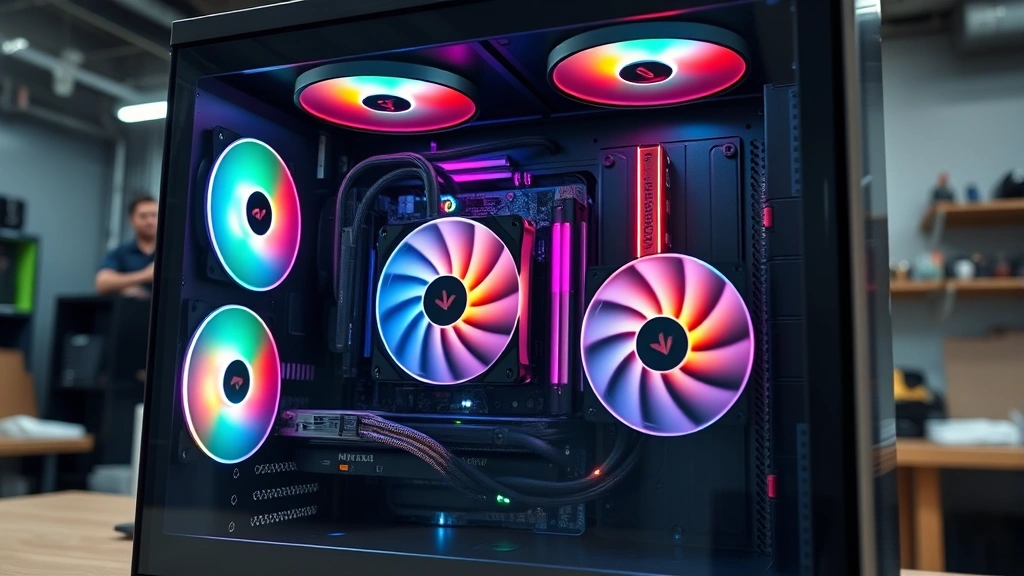
Learning how to check PC temps is one of the smartest moves you can make as a computer owner. Your processor and graphics card generate heat during operation, and if that heat builds up too much, you’re looking at throttled performance, crashes, or even permanent hardware damage. The good news? Checking your PC temperatures takes just a few minutes, and I’m going to walk you through five reliable methods that work whether you’re a tech novice or someone who’s been building rigs since the dial-up days.
Table of Contents
Why Monitor Your PC Temps
Before we dive into the methods, let’s talk about why this matters. Your CPU and GPU operate within specific temperature ranges. When they get too hot, a few things happen: your system automatically throttles performance to cool down (making everything sluggish), your fans ramp up to maximum speed (creating noise), or in worst cases, your PC shuts down to protect itself. Chronic overheating can shorten your hardware’s lifespan significantly.
Think of it like checking your car’s oil. You don’t need to do it obsessively, but regular checks catch problems before they become expensive. The same principle applies here. If you’re dedicating more RAM to gaming applications or pushing your system hard, monitoring temps becomes even more important.
Windows Task Manager Method
Here’s the easiest entry point: Windows Task Manager. This built-in tool now displays GPU temperatures on newer Windows versions (Windows 10 build 20348 and later, or Windows 11). It won’t show CPU temps directly, but it’s a quick way to check your graphics card.
Here’s how:
- Right-click your taskbar and select “Task Manager” (or press Ctrl+Shift+Esc)
- Click the “Performance” tab
- Select “GPU 0” or your graphics card from the left sidebar
- Look for the temperature reading in the top-right corner
This method works great for a quick check while you’re gaming or running demanding applications. However, if you’re running an older Windows version, you’ll need to move to the next method for CPU temperatures. You can verify your Windows installation details by learning how to check Windows version.
Checking Temps in BIOS
Your motherboard’s BIOS firmware displays real-time temperature readings with no software required. This method is reliable because you’re reading data directly from your hardware sensors, not through any operating system layer.
To access BIOS:
- Restart your computer
- Immediately press Delete, F2, F10, or F12 (varies by motherboard—check your manual or boot screen)
- Navigate to “System Information,” “PC Health,” or “Monitor” section (naming varies)
- Look for CPU temperature, core temperatures, and fan speeds
The BIOS method is perfect for checking idle temperatures or verifying your cooling setup is working properly. However, BIOS readings are static—you’re seeing temps at that moment, not under load. For gaming or heavy workload monitoring, you’ll want a real-time tracking solution.
HWiNFO: The Gold Standard
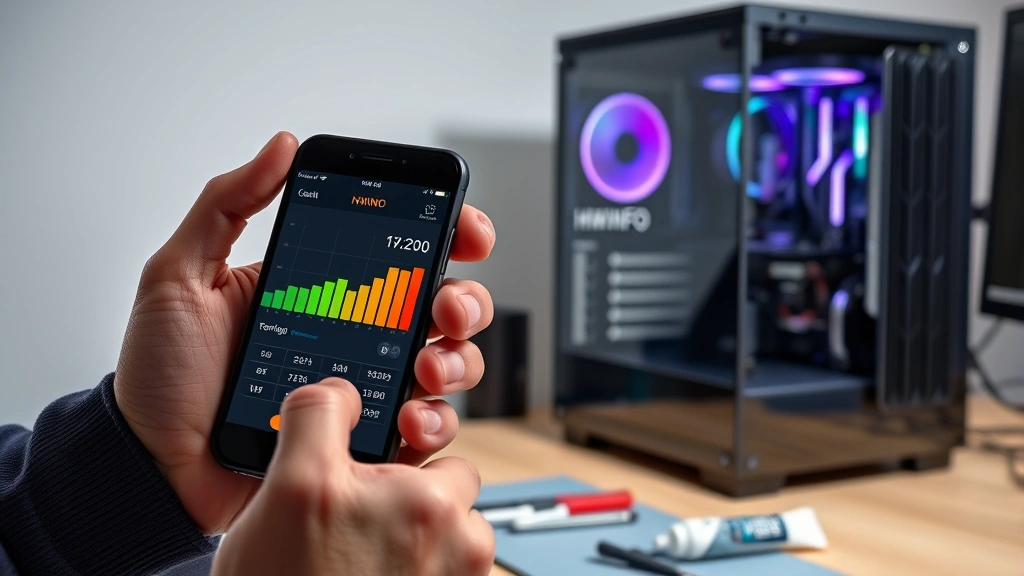
If you want the most accurate, detailed temperature monitoring, HWiNFO is the tool that professional overclockers and system builders use. It’s free, lightweight, and gives you granular control over what you’re monitoring.
Getting started with HWiNFO:
- Download HWiNFO from their official website (hwinfo.com)
- Run the installer and choose “Sensors-only” mode (unless you want the full dashboard)
- Launch the application
- You’ll immediately see all your temperatures: CPU cores, GPU, chipset, storage devices
- Right-click any sensor to customize alerts or logging
What makes HWiNFO special is its ability to log temperature data over time, set custom alerts, and display temperatures in your system tray. You can minimize it and let it run in the background, giving you real-time notifications if temps spike dangerously. This is particularly useful if you’re troubleshooting cooling issues or stress-testing your system.
GPU Temperature Monitoring
Your graphics card generates its own heat, separate from your CPU. If you’re a gamer or do any 3D rendering work, monitoring GPU temps is crucial. Here are your best options:
NVIDIA GPUs: Download NVIDIA GeForce Experience or use GPU-Z (a lightweight third-party tool). Both show real-time GPU temperature, memory usage, and clock speeds.
AMD GPUs: AMD’s Adrenalin software includes temperature monitoring. Alternatively, GPU-Z works with AMD cards too.
Intel Arc GPUs: Use Intel Arc Control software or HWiNFO for temperature data.
GPU temperatures typically run higher than CPU temps—80-85°C under load is normal for most modern cards. If you’re seeing 90°C or higher consistently, you might need better case airflow or to clean dust filters. When you’re optimizing system performance, consider checking how to disable hardware acceleration in Chrome if you’re dealing with browser-related thermal issues.
Other Reliable Tools
Beyond HWiNFO, several other applications deserve mention:
GPU-Z: Specialized for graphics card monitoring. Extremely lightweight, shows detailed GPU info including memory type and bandwidth.
Speccy: Piriform’s system information tool displays temperatures alongside your complete hardware configuration. Great for getting a full system overview in one place.
Open Hardware Monitor: Open-source alternative to HWiNFO. Free, customizable, and works on Windows and Linux.
Afterburner: MSI’s overclocking utility includes excellent temperature monitoring. Even if you don’t plan to overclock, it’s useful for tracking performance metrics.
My recommendation? Start with HWiNFO for comprehensive monitoring, and keep GPU-Z handy for quick graphics card checks. Both are free and won’t bloat your system.
Safe Temperature Ranges
Now that you know how to check your temps, what numbers should you be looking for? Here’s the breakdown:
CPU Temperatures:
- Idle (no programs running): 30-50°C
- Light use (browsing, documents): 40-60°C
- Gaming/heavy workload: 70-85°C
- Maximum safe limit: 90-100°C (varies by processor)
GPU Temperatures:
- Idle: 30-45°C
- Gaming: 70-85°C
- Maximum safe limit: 90-95°C
If you’re consistently seeing temps above these ranges, don’t panic yet—but do investigate. It’s usually a simple fix like dust buildup or poor case airflow. If you want to ensure your system is running optimally, make sure you’re not running unnecessary background processes. You might also want to explore how to hide Windows taskbar and close unnecessary system elements to reduce resource usage.
Fixing High Temperatures
Found that your PC is running hot? Here’s your action plan:
First steps: Clean your case. Dust is the #1 culprit behind high temperatures. Use compressed air to blow out your heatsinks, fans, and radiators. This alone fixes 70% of overheating issues.
Check airflow: Make sure your case isn’t blocked. Ensure intake fans are pulling cool air in and exhaust fans are pushing hot air out. A simple rearrangement can make a huge difference.
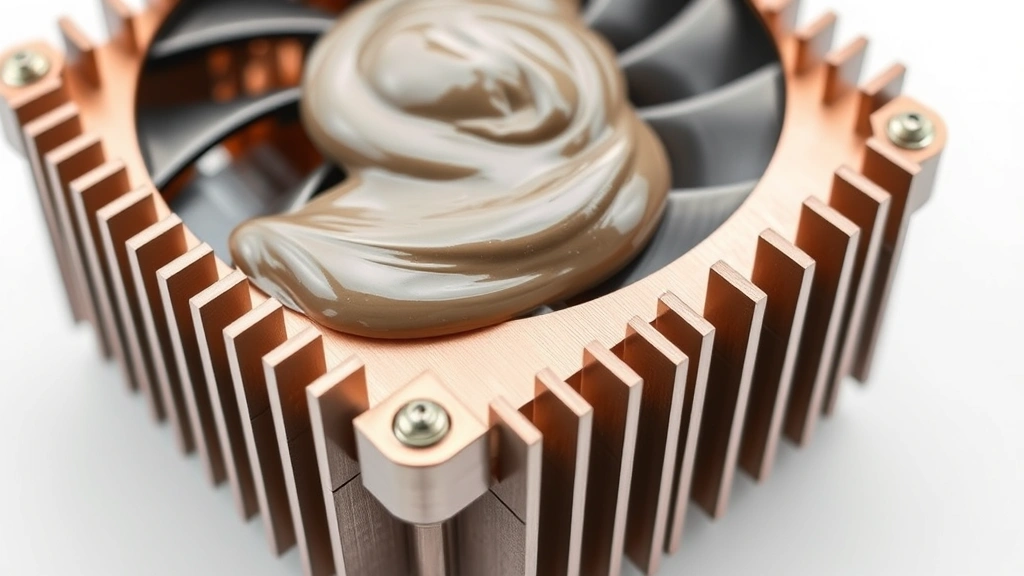
Verify thermal paste: If you’ve had your PC for several years, the thermal paste between your CPU and cooler may have degraded. Reapplying thermal paste is a weekend project that can drop temps by 5-10°C.
Upgrade cooling: If you’ve done everything above and temps are still high, your cooler might be undersized. Upgrading to a better CPU cooler or adding case fans is relatively inexpensive and effective.
Reduce ambient temperature: If your room is consistently hot, your PC will run hotter too. Better air conditioning or moving your setup away from heat sources helps.
If you’re building a new system or troubleshooting connectivity issues while you’re at it, remember the basics like how to connect printer to computer so your workspace is fully optimized.
Frequently Asked Questions
What’s the difference between CPU and GPU temperatures?
Your CPU (processor) and GPU (graphics card) have separate temperature sensors. CPUs typically run cooler than GPUs under gaming loads because gaming puts more stress on the graphics card. Both need monitoring, but they’re independent systems with different safe temperature ranges.
How often should I check my PC temperatures?
If your system is stable and running well, check temps monthly. If you’re overclocking, stress-testing, or troubleshooting issues, check daily or even continuously with monitoring software running in the background. Most people benefit from setting up automatic alerts rather than manual checks.
Is 80°C too hot for a CPU?
Not necessarily. 80°C under heavy gaming or rendering load is normal for most modern CPUs. However, if you’re seeing 80°C during light browsing or idle time, something’s wrong. Context matters—load level determines whether a temperature is acceptable.
Can I check temperatures on a laptop?
Absolutely. HWiNFO, Speccy, and GPU-Z all work on laptops. However, laptops run hotter than desktops by design because of space constraints. Laptop CPUs often thermal throttle at 90-95°C, which is normal behavior, not a malfunction. If your laptop is consistently hot, ensure vents aren’t blocked and consider using a cooling pad.
Why do temperatures spike suddenly?
Sudden spikes usually mean a process just started using your CPU or GPU heavily. Check Task Manager to see what’s running. Windows updates, antivirus scans, or background applications can cause spikes. If spikes happen randomly with nothing running, you might have a sensor malfunction or thermal paste degradation.
Is HWiNFO safe to use?
Yes. HWiNFO is open-source, widely trusted, and used by professionals worldwide. It only reads sensor data—it doesn’t modify anything on your system. Download only from the official hwinfo.com website to avoid counterfeit versions.
Wrapping Up
Learning how to check PC temps is straightforward, and you’ve now got five solid methods to choose from. Start with Task Manager for a quick GPU check, graduate to HWiNFO for serious monitoring, and use BIOS as your baseline reference. Check your temperatures at least monthly, keep an eye on your safe ranges, and don’t ignore high readings—they’re your PC’s way of asking for help.
Temperature management is preventative maintenance. Spend 10 minutes now setting up proper monitoring, and you’ll avoid expensive hardware failures later. Your future self will thank you when your PC is still running strong five years from now.


