
Learning how to change MC username is one of those tasks that seems way more complicated than it actually is—kind of like figuring out which wrench you need when you’ve got a whole toolbox staring at you. Whether you’re rebranding yourself in the Minecraft community or just tired of that username you created at 2 AM, we’ve got you covered with a straightforward, no-nonsense walkthrough.
Table of Contents
Why Change Your Username
Maybe you’ve outgrown your old gaming identity. Maybe you want something that better reflects who you are now. Or maybe—let’s be honest—you just cringe every time you see that old name pop up on screen. Whatever your reason, changing your Minecraft username is totally doable and doesn’t require any special tools or technical wizardry.
The good news? Minecraft makes this process relatively painless compared to other gaming platforms. You’re not locked into a username for life, and you don’t need to start from scratch with a new account. Your worlds, your progress, your achievements—they all stay with you.
Account Requirements First
Before you dive in, you need to understand what type of account you’re working with. This is crucial because the process differs between Java Edition and Bedrock Edition, and it matters whether you’ve migrated to a Microsoft account yet.
Java Edition players need a Microsoft account (if you haven’t migrated yet, now’s the time). Bedrock Edition users also require a Microsoft account. If you’re still rocking an old Minecraft launcher account, you’ll need to migrate first—think of it as updating your toolkit before starting the job.
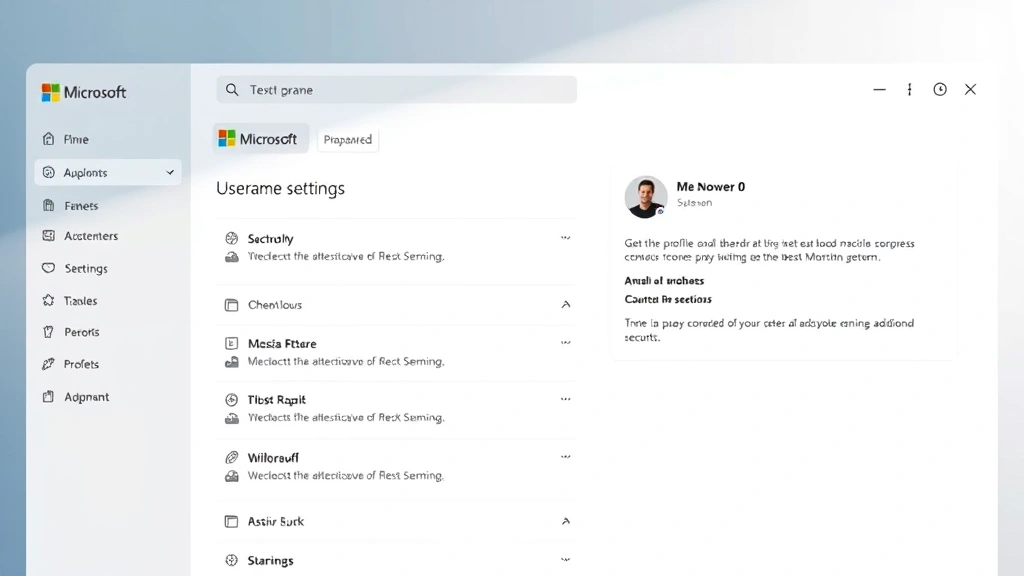
Head to Microsoft’s account page and make sure you’re logged in. This is your control center for everything username-related.
Step-by-Step Process
Here’s where the rubber meets the road. The actual process of changing your username is straightforward:
Step 1: Access Your Microsoft Account
Log into your Microsoft account at account.microsoft.com. You’ll see your profile picture and account name at the top right—click that.
Step 2: Navigate to Your Profile
Select “View profile” or “Manage your Microsoft account.” You’re looking for the section that says “Your info” or similar. This is where your personal details live.
Step 3: Find the Username Section
Look for “Minecraft username” or “Gaming profile.” Some accounts show this under a “Gaming” tab. If you’re having trouble locating it, try searching “username” in the account settings search bar.
Step 4: Click Edit or Change
You’ll see a button or link that lets you edit your current username. Click it. The system will show you your current name and give you a field to enter your new one.
Step 5: Enter Your New Username
Type in your desired new username. Keep in mind these rules: 3-16 characters, letters and numbers only (no spaces or special characters), and it must be unique—someone else can’t already be using it.
Step 6: Confirm the Change
Hit that confirm or save button. The system will verify your new name is available and then lock it in. You’ll usually get a confirmation message immediately.
Java Edition Specifics
Java Edition players, listen up. Your username change is tied directly to your Microsoft account, which means it affects how you appear in-game and on multiplayer servers. When you change your username through the Microsoft account portal, it updates everywhere—single-player worlds, multiplayer servers, everything.
One thing to note: if you’ve been playing on servers that track player data by old usernames, server admins might need to update their records. This is especially true for whitelisted servers or servers with custom plugins. Give the server admin a heads-up if you’re on a private server.
If you’re interested in teleporting around your world with your new identity firmly established, check out our guide on how to teleport to coordinates in Minecraft—it’s a solid skill to have once you’re settled into your new name.
Bedrock Edition Guide
Bedrock Edition (that’s Minecraft on Windows 10/11, consoles, mobile, and VR) handles usernames slightly differently. Your Bedrock username is also tied to your Microsoft account, but the process is essentially identical to Java Edition.
The difference is that Bedrock Edition uses your Microsoft account gamertag as your in-game name on most platforms. If you’re playing on Switch, PlayStation, or Xbox, your console’s account username might also factor in, but the Microsoft account change will take priority in most cases.
After you change your username, you might notice a slight delay before it updates across all Bedrock platforms—usually just a few minutes, but sometimes up to an hour. Don’t panic if your old name still shows briefly; it’ll sync up.
Common Issues & Fixes
“Username Already Taken”
This means someone else claimed that name first. Try variations—add numbers, abbreviations, or combine words differently. The username you want might be reserved by Mojang or Microsoft, too.
“Change Not Showing Up”
Give it time. Sometimes it takes 15-30 minutes for the change to propagate across all servers. If it’s been longer, try logging out completely and logging back in. Clear your launcher cache if you’re using Java Edition.
“Can’t Change Username”
You might have changed it too recently. Microsoft enforces a waiting period—typically 30 days between changes. Check your account history to see when you last changed it.
“Old Name Still Showing on Servers”
Server caches can lag. Contact the server admin or wait 24 hours for the server to refresh its player data.
Timing Considerations Matter
Here’s a pro tip: timing your username change strategically can save you headaches. If you’re in the middle of a big multiplayer project or playing on a server with active admins, give them a heads-up before you change. It’s courteous and prevents confusion.
Also, if you’re planning to take a break from Minecraft, now might be a good time to rebrand. You won’t be disrupting anyone mid-game, and you’ll come back fresh with your new identity.
If you’re into more advanced gameplay, like curing zombie villagers, you might want to establish your new name before starting those kinds of long-term projects so everything’s consistent from the start.
Protecting Your New Name
Once you’ve changed your username, you own it—but only as long as you keep your Microsoft account secure. Use a strong password, enable two-factor authentication, and don’t share your login credentials with anyone.
Minecraft usernames are valuable in the community. Rare or desirable names can attract attention, so protecting your account is protecting your identity. Think of your account security like locking up your workshop—nobody gets in without permission.
If you ever suspect someone’s trying to access your account, change your password immediately and review your recent account activity on the Microsoft account dashboard.
Frequently Asked Questions
How often can I change my Minecraft username?
You can change your username once every 30 days. Microsoft enforces this cooldown period to prevent abuse and account-takeover chaos. Mark your calendar if you think you might want to change it again soon.
Do I lose my worlds when I change my username?
Absolutely not. Your worlds, inventory, achievements, and progress stay exactly where they are. The username change is purely cosmetic—it’s what other players see you as, not what you’ve built or accomplished.
Will my old username become available for someone else?
Yes, but not immediately. There’s usually a grace period of 30 days before your old username enters the pool of available names. This prevents someone from quickly snatching your old name.
Can I change my username on console versions?
For Bedrock Edition on consoles, the process is the same—you change it through your Microsoft account. The change will sync to your console automatically once you log in.
What if my desired username contains special characters?
Minecraft usernames only support letters (A-Z, a-z) and numbers (0-9). No spaces, hyphens, underscores, or other special characters allowed. Keep it simple and straightforward.
How long does the username change take effect?
Usually instantly, but it can take up to an hour to fully propagate across all Minecraft servers and platforms. Most of the time you’ll see it updated within minutes.
Can I revert to my old username?
Technically yes, but you’d have to wait 30 days after your initial change, then change it back. It’s the same cooldown rule. Plan your username change carefully so you don’t regret it.
Final Thoughts
Changing your Minecraft username isn’t rocket science—it’s actually one of the simpler account management tasks in gaming. Head to your Microsoft account, find the username section, pick something you love, and you’re done. Your worlds stay with you, your progress stays with you, and you get a fresh start with a name that actually represents who you are now.
The whole process takes maybe five minutes from start to finish. No downloads, no mods, no complicated workarounds. Just you, your account, and a new identity ready to take on the blocky world ahead.
So go ahead and make that change. Your future self will thank you every time you log in and see a username you actually like. That’s what it’s all about.


