
Knowing how to change the time of a Fitbit is one of those quick wins that’ll save you from wearing a watch that’s stuck in yesterday. Whether you’ve crossed time zones, switched to daylight saving time, or just noticed your tracker’s running slow, we’ve got you covered with the simplest methods to sync that display back to reality.
Table of Contents
Auto-Sync Through Your Phone
The easiest path to fixing your Fitbit’s time is letting the device do the heavy lifting itself. Most modern Fitbit trackers automatically sync with your smartphone’s time whenever they connect to the Fitbit app. This means if your phone shows the correct time, your Fitbit should follow suit within minutes of pairing.
Here’s the deal: open your Fitbit app on your phone, make sure Bluetooth is enabled, and let the devices chat for a moment. The sync happens in the background, and boom—your tracker updates to match your phone’s time. It’s genuinely that straightforward for about 80% of users. If you’re one of the unlucky 20%, don’t worry; we’ll walk through manual fixes next.
Manual Time Adjustment Steps
Sometimes you need to take control. Manual adjustment works best when auto-sync isn’t cooperating, and it’s surprisingly simple on most Fitbit models. Start by opening your Fitbit app and navigating to your device’s settings—usually found by tapping your device tile at the top of the screen.
Look for “Clock” or “Time” settings in that menu. You’ll see options to adjust hours and minutes manually. Use the plus and minus buttons to dial in the correct time, just like you’re setting an alarm on your phone. Once you’ve got it right, confirm the changes. The tracker should update within seconds. This method works on Fitbit Charge, Versa, Inspire, and most other current models.
Finding Time Settings in App
Navigating the Fitbit app can feel like exploring a new city if you haven’t done it before. The good news is the time settings are tucked in a logical spot. Open the Fitbit app, tap your profile icon (usually bottom right), then select your device from the list. You’ll see a gear icon or “Settings” option—that’s your gateway.
Once you’re in device settings, scroll down until you spot “Clock,” “Time,” or “Date & Time.” The exact wording varies by device model, but it’s always nearby other display settings like brightness or watch face selection. Tap that option, and you’re ready to make adjustments. The interface is intuitive—most folks figure it out without thinking twice.
Handling Timezone Changes
Traveling across time zones? Your Fitbit’s got your back if you let it. The smartest approach is enabling automatic timezone detection in your Fitbit app settings. This feature pulls your phone’s location data and adjusts the tracker’s time accordingly. No manual fiddling required when you land in a new city.
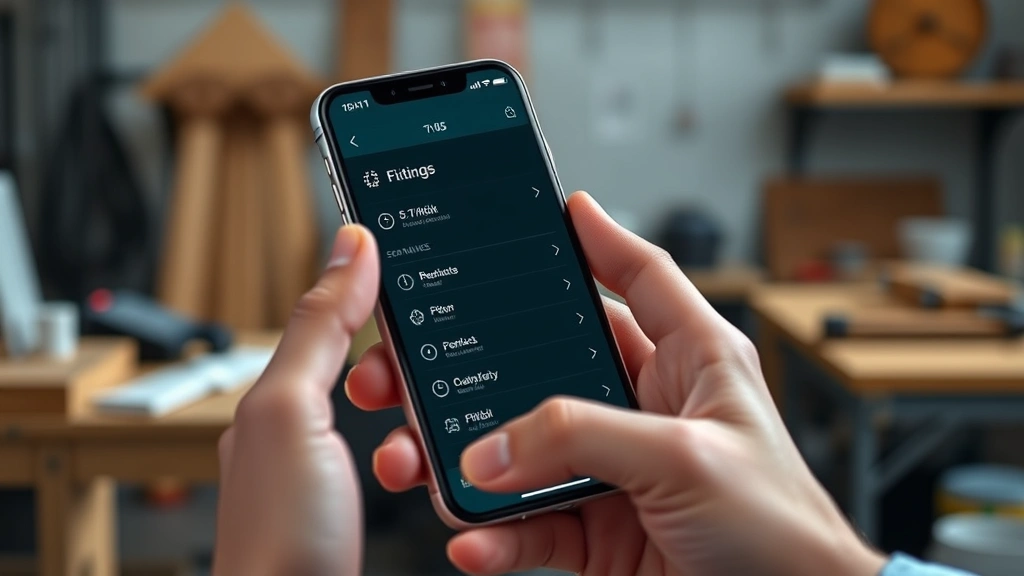
If you prefer not to share location data or automatic updates aren’t working, you can manually change your timezone in the app. Go to Settings, find “Timezone” or “Location,” and select your current zone from the dropdown. Your tracker syncs the change the next time it connects to your phone. This is perfect for frequent flyers or remote workers juggling multiple time zones.
Daylight Saving Time Updates
Daylight saving time catches everyone off guard twice a year. The good news is your Fitbit handles most of the work automatically if your phone’s already adjusted. Since the tracker syncs with your smartphone, it picks up on DST changes without you lifting a finger. Make sure your phone’s time is set correctly first, then let the devices sync.
If your Fitbit still shows the old time after your phone updates, manually trigger a sync by opening the Fitbit app and waiting for the connection to complete. Sometimes it takes a few seconds longer during these transitions. If you’re really impatient, you can manually adjust the time through the steps we covered earlier. Either way, you’ll be back on schedule in minutes.
Troubleshooting Sync Problems
When auto-sync refuses to cooperate, there are several quick fixes worth trying. First, restart both your Fitbit and your phone—seriously, this solves about 60% of Bluetooth connection issues. Turn off your tracker completely, wait 10 seconds, then power it back on. Do the same with your phone. It sounds basic, but it works.
Next, check your Bluetooth connection. Unpair your Fitbit from your phone’s Bluetooth settings and re-pair it fresh. Go to your phone’s Settings, find Bluetooth, and forget the device. Then open the Fitbit app and pair again from scratch. This often clears out any communication hiccups that were preventing proper syncing. Also, make sure your phone’s time is actually correct before expecting the Fitbit to match it—that’s a common oversight.
Different Models, Different Methods
Not all Fitbits work exactly the same way, though the core process is similar across the lineup. Fitbit Versa and Versa Lite have touchscreen interfaces that make manual adjustments feel natural. Fitbit Charge models use a smaller screen but still offer the same settings access through the app. Fitbit Inspire is the simplest, with minimal on-device controls but full app support.
Older Fitbit models (like the original Charge or Blaze) might have slightly different menu navigation, but they all sync through the Fitbit app. If you’re using a discontinued model, the app will still walk you through the process—just follow the on-screen prompts. The core principle remains unchanged: phone time syncs to tracker time through the app connection.
Keeping Time Accurate Going Forward
Once you’ve got your Fitbit showing the right time, you’ll want to keep it that way. The best defense is keeping automatic sync enabled in your Fitbit app settings. This ensures your tracker stays in sync with your phone whenever you’re near each other. Most users never have to manually adjust time again if they leave this feature on.
Also, make sure your phone’s time is set to automatic updates. Go to your phone’s Settings, find Date & Time, and enable “Automatic” or “Set Automatically.” This keeps your phone accurate, which means your Fitbit stays accurate by extension. It’s a one-time setup that pays dividends for months. For additional help with device syncing, check out our guide on how to put Beats in pairing mode, which covers similar Bluetooth pairing principles.
Frequently Asked Questions
Why does my Fitbit time keep changing?
Your Fitbit time might change if automatic timezone detection is enabled and your location data shifts (like when traveling). It could also change if your phone’s time updates and your tracker syncs. If it’s changing unexpectedly without travel, check your timezone settings in the app and toggle automatic timezone on or off depending on your preference.
Can I change the time on my Fitbit without the app?
Most modern Fitbits require the app to change time settings. However, some older models with more robust on-device menus might allow direct time adjustment through the tracker’s interface. Check your device’s manual, but for 99% of current Fitbit users, the app is the way to go. If you’re having app issues, try how to turn vibrate on iPhone to ensure your notifications are working properly during troubleshooting.
How often does my Fitbit sync with my phone?
Fitbits sync with your phone whenever they’re in Bluetooth range and the app is running or in the background. For most users, this happens multiple times throughout the day. If you want to force a sync, open the Fitbit app and pull down to refresh. The tracker updates immediately if it’s within range.
What if my Fitbit won’t sync at all?
Start with the basics: restart both devices, check Bluetooth is enabled, and forget/re-pair the connection. Make sure your phone’s time is correct first. If it’s still not working, try uninstalling and reinstalling the Fitbit app. If problems persist, contact Fitbit support—your device might have a deeper connectivity issue that needs professional help.
Does my Fitbit automatically adjust for daylight saving time?
Yes, your Fitbit automatically adjusts for daylight saving time as long as your phone adjusts first and the devices sync. Your tracker pulls the updated time from your smartphone, so there’s no manual work required. Just make sure your phone’s time is set to update automatically.


