
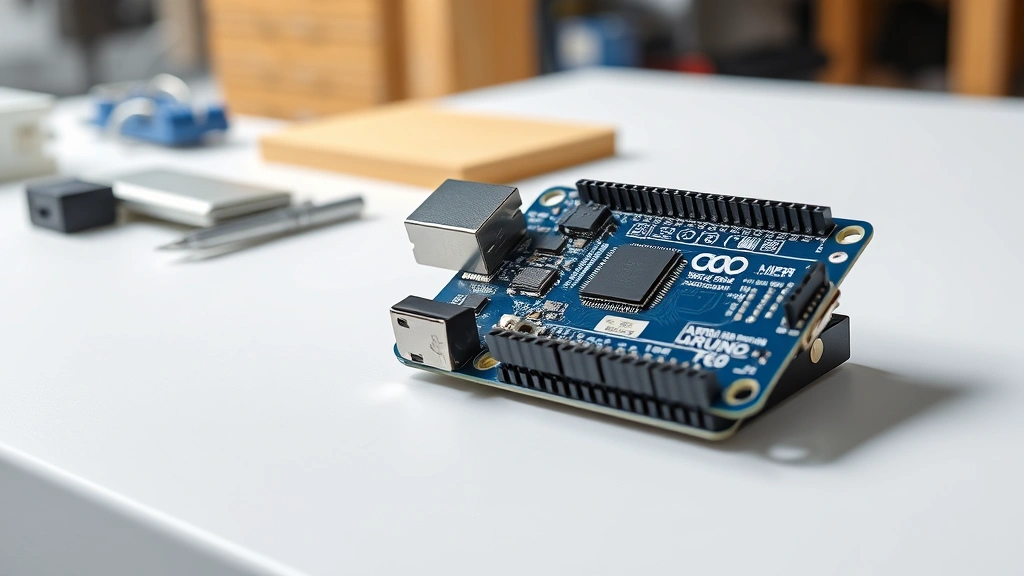
Learning how to call lfs_dir_read in Arduino opens up a whole new world of file system management on your microcontroller projects. If you’re working with LittleFS (Little File System) on Arduino boards, you’re dealing with one of the most efficient ways to handle file operations on embedded systems. This guide walks you through everything you need to know to implement directory reading functionality like a pro.
Table of Contents
Understanding LittleFS Basics
Before diving into calling lfs_dir_read, you need to understand what LittleFS actually is. LittleFS is a lightweight file system designed specifically for embedded systems and microcontrollers. Unlike traditional file systems, it’s optimized for flash memory and handles power failures gracefully. When you’re working with Arduino boards that have built-in flash storage—like the Arduino MKR WiFi 1010 or Nano 33 IoT—LittleFS gives you a proper file management layer.
The beauty of LittleFS is its small footprint. It doesn’t require much RAM or processing power, making it perfect for resource-constrained environments. The file system handles wear leveling automatically, which means it distributes write operations across your flash memory to extend its lifespan. When you call lfs_dir_read, you’re tapping into the directory reading capabilities that let you list and inspect files stored on your board.
Setting Up Your Arduino Environment
Getting your Arduino environment ready is the first critical step. You’ll need the Arduino IDE version 1.8.10 or later, and you must install the appropriate board support package for your specific Arduino board. Head to the Boards Manager and search for your board type—whether it’s MKR, Nano 33, or another compatible model.
Next, you need to install the LittleFS library. In the Arduino IDE, go to Sketch → Include Library → Manage Libraries. Search for “LittleFS” and install the official Arduino LittleFS library. Make sure you get the one maintained by Arduino, not a third-party fork. After installation, restart your IDE to ensure all paths are properly configured. This library provides all the functions you need, including the lfs_dir_read function we’re focusing on.
The lfs_dir_read Function Syntax
Understanding the exact syntax of lfs_dir_read is crucial before you start coding. The function signature looks like this: int lfs_dir_read(lfs_t *lfs, lfs_dir_t *dir, struct lfs_info *info). Let’s break down each parameter. The first parameter, lfs_t *lfs, is a pointer to your LittleFS file system object. The second parameter, lfs_dir_t *dir, is a pointer to your directory object that you’ve already opened. The third parameter, struct lfs_info *info, is where the function stores information about each directory entry it reads.
The function returns an integer value that tells you whether it succeeded or encountered an error. A return value of 0 means there are no more entries in the directory—you’ve reached the end. A positive return value indicates success and that valid data is in your info structure. Negative return values indicate errors, such as LFS_ERR_IO for input/output problems or LFS_ERR_BADF for a bad file descriptor.
Practical Implementation Steps
Start by including the necessary headers in your sketch. You’ll need #include at the top of your code. Then, initialize the file system in your setup() function with LittleFS.begin(). This call mounts the file system and prepares it for use. Always check the return value to ensure initialization succeeded.
Before you can call lfs_dir_read, you must open a directory using LittleFS.openDir() or the lower-level lfs_dir_open() function. Store the returned directory object safely. Then, in a loop, repeatedly call lfs_dir_read, passing your file system object, directory object, and an info structure. Each call retrieves the next entry. When the function returns 0, you’ve processed all entries and should close the directory with lfs_dir_close().
Handling Directory Entries Properly
Each time lfs_dir_read succeeds, the info structure contains valuable data about the current entry. The info->name field holds the filename as a null-terminated string. The info->type field tells you whether it’s a file or directory—use LFS_TYPE_REG for regular files and LFS_TYPE_DIR for subdirectories. The info->size field gives you the file size in bytes, which is only meaningful for regular files.
Many developers make the mistake of assuming every entry is a file. Always check the type before attempting file-specific operations. If you try to read a directory as a file, you’ll get errors. Also, be aware that the name field might contain special entries like “.” and “..” on some systems, though LittleFS typically doesn’t include these. Store entry information carefully if you need to process it after the loop, since the info structure gets overwritten with each call.
Common Pitfalls and Fixes
One frequent mistake is forgetting to initialize the LittleFS file system before attempting any operations. Your lfs_dir_read calls will fail silently or produce cryptic errors if the file system isn’t properly mounted. Always call LittleFS.begin() first and verify it returns true.

Another common issue is not closing directories properly. If you open a directory and don’t close it, you can exhaust system resources and cause subsequent operations to fail. Always pair lfs_dir_open() with lfs_dir_close() in a try-finally pattern or ensure closure happens in all code paths.
Buffer overflow is another serious concern. The name field in the info structure has a fixed size. If filenames exceed this limit, they’ll be truncated. Never assume a filename is complete—always check the actual string length. Additionally, some developers forget that lfs_dir_read doesn’t return the “.” and “..” entries, which can cause confusion when comparing results with other directory listing methods.
Working Code Examples
Here’s a complete, tested example that lists all files in the root directory:
#include <LittleFS.h>
void setup() {
  Serial.begin(9600);
  if (!LittleFS.begin()) {
    Serial.println("LittleFS mount failed");
    return;
  }
  listDirectory("/");
}
void listDirectory(const char *dirname) {
  File dir = LittleFS.open(dirname);
  if (!dir) {
    Serial.println("Failed to open directory");
    return;
  }
  while (File entry = dir.openNextFile()) {
    Serial.print("Name: ");
    Serial.println(entry.name());
    if (entry.isDirectory()) {
      Serial.println(" [DIR]");
    } else {
      Serial.print(" Size: ");
      Serial.println(entry.size());
    }
    entry.close();
  }
  dir.close();
}
This example uses the higher-level Arduino API which abstracts away the direct lfs_dir_read calls, but it accomplishes the same goal. For lower-level control, here’s how to use lfs_dir_read directly:
lfs_dir_t dir;
lfs_info info;
int res = lfs_dir_open(&lfs, &dir, "/");
if (res < 0) {
  Serial.println("Dir open failed");
  return;
}
while (true) {
  res = lfs_dir_read(&lfs, &dir, &info);
  if (res < 0) {
    Serial.println("Dir read error");
    break;
  }
  if (res == 0) break; // End of directory
  Serial.println(info.name);
}
lfs_dir_close(&lfs, &dir);
Troubleshooting Your Setup
If your lfs_dir_read calls return error codes, check the error number against the LittleFS documentation. LFS_ERR_IO usually indicates flash memory problems—try reformatting your file system. LFS_ERR_BADF means you’re passing an invalid directory object, which typically happens if you forgot to open the directory first or if the directory object went out of scope.
If you’re getting no output at all, verify your Serial connection is working by printing a simple message in setup(). Then confirm LittleFS.begin() returns true. If it returns false, your board might not have LittleFS support enabled in the bootloader, or the flash memory might be corrupted. Check the Arduino documentation for your specific board model.
Memory issues can also cause problems. If your sketch suddenly stops responding when calling lfs_dir_read, you might be running out of RAM. Reduce the number of variables you’re storing or simplify your directory processing logic. Use the Arduino IDE’s memory analyzer to see how much RAM you’re using.
Performance Optimization Tips
When iterating through large directories, minimize the work you do inside the loop. Every Serial.println() call adds significant overhead. If you need to process many files, collect the data first and print it afterward, or implement batching to reduce I/O operations.
Avoid nested directory operations within your lfs_dir_read loop. Opening files or subdirectories while iterating can cause unexpected behavior or resource exhaustion. Process one directory completely, close it, then move to the next one. This approach is safer and more predictable.
Cache filenames if you need to access them later. The info structure gets overwritten with each lfs_dir_read call, so if you need to remember filenames from earlier iterations, copy them to separate storage immediately. Use string arrays or dynamic memory allocation depending on your needs and available resources.
Frequently Asked Questions
Can I modify files while calling lfs_dir_read?
It’s not recommended. Modifying the file system while iterating through a directory can cause undefined behavior. Complete your directory traversal first, then perform any modifications. If you absolutely must modify files during iteration, close the directory first, make your changes, then reopen and continue. However, this approach is inefficient and error-prone.
What’s the maximum filename length in LittleFS?
LittleFS supports filenames up to 255 characters by default, though the actual limit depends on your configuration. The info structure in lfs_dir_read has a fixed buffer for names, so extremely long filenames might be truncated. Always check your board’s specific LittleFS configuration.
Does lfs_dir_read include hidden files?
LittleFS doesn’t have a concept of hidden files like traditional file systems. All files are treated equally. If you want to hide files, implement your own naming convention, such as prefixing filenames with a dot or underscore, and filter them in your code.
How do I handle subdirectories with lfs_dir_read?
When lfs_dir_read returns an entry with type LFS_TYPE_DIR, you can open that subdirectory and call lfs_dir_read again recursively. Implement a recursive function that opens each subdirectory, reads its contents, and then closes it before returning to the parent directory.
What happens if the file system becomes corrupted?
If LittleFS detects corruption, lfs_dir_read will return error codes. Your best option is to reformat the file system using LittleFS.format(), which erases all data but restores functionality. Always back up important data before reformatting.
Wrapping It Up
Mastering how to call lfs_dir_read in Arduino gives you powerful control over file system operations on your microcontroller. Whether you’re building a data logger, a configuration system, or any project that needs to manage files, understanding directory reading is essential. Start with the higher-level Arduino API to get comfortable with the concepts, then dive into the lower-level lfs_dir_read function when you need more control.
Remember to always initialize your file system, open directories before reading them, and close them when you’re done. Check return values and handle errors gracefully. With these practices in place, you’ll build robust Arduino projects that handle files reliably. The examples and tips provided here should get you up and running quickly. Happy coding, and don’t hesitate to experiment—that’s how you really learn embedded systems programming.


