
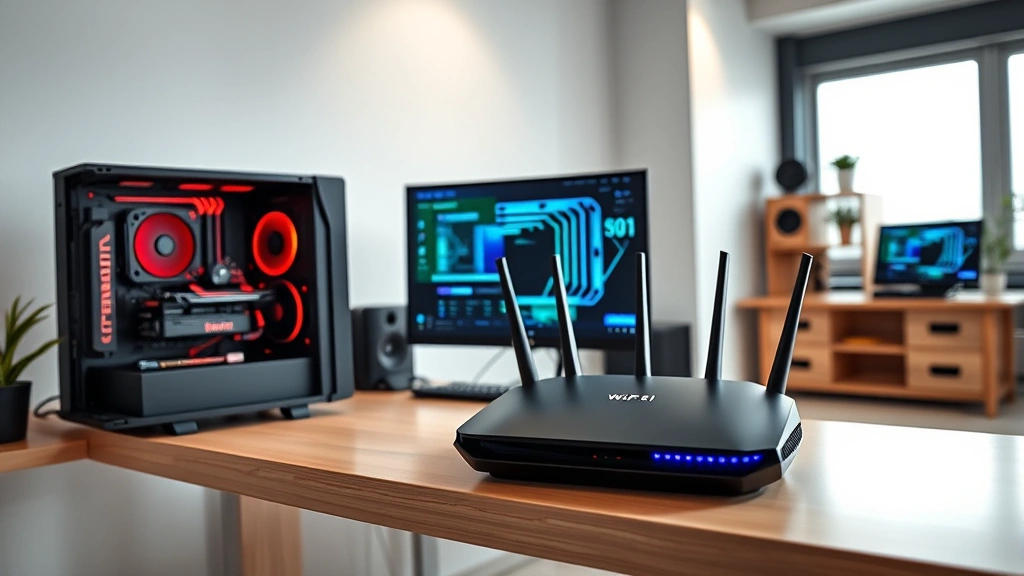
How to build a gaming network at home is one of the smartest investments you can make if you’re serious about gaming. Whether you’re looking to crush competitive matches with zero lag, stream your gameplay, or just want your squad to have a smooth experience during couch co-op sessions, a solid home gaming network is your foundation. Let me walk you through this like we’re setting up in my workshop—practical, no nonsense, and built to last.
Table of Contents
Assess Your Gaming Needs
Before you drop cash on equipment, figure out what you’re actually doing. Are you playing competitive shooters where milliseconds matter? Streaming to Twitch while gaming? Running a LAN party for friends? Each scenario demands different bandwidth and latency priorities.
Casual gaming—think turn-based strategy or single-player titles—can live with 10-20 Mbps and 50ms ping. But competitive online multiplayer? You’ll want 25-50 Mbps download and sub-30ms latency. Streaming while playing bumps that to 50+ Mbps. Write down your must-haves: number of simultaneous gamers, game types, streaming plans, and how many other devices will share your network (smart TVs, phones, laptops). This becomes your spec sheet.
Understand Network Basics
Here’s the real talk: your internet speed is only one piece. Latency (ping), packet loss, and jitter matter just as much. Ping is the time it takes for data to travel to the server and back—measured in milliseconds. Jitter is when that time fluctuates. Packet loss is when data gets dropped. All three ruin your gaming experience.
Your router is the quarterback. It manages traffic between your devices and the internet. A cheap router treats all traffic equally—your gaming data competes with someone’s Netflix stream. A gaming-focused router prioritizes gaming packets. You’ll also want to understand bandwidth: this is your total data capacity. If your ISP gives you 300 Mbps but five devices are streaming, everyone gets less.
Choose the Right Router
This is where most people mess up. They buy whatever’s on sale. Don’t. Your router is the heart of your gaming network at home setup.
Look for WiFi 6 (802.11ax) routers—they’re faster and handle more devices without choking. Dual-band routers split traffic between 2.4GHz (longer range, slower) and 5GHz (shorter range, faster). Gaming? Live on 5GHz. Tri-band routers add a third 5GHz channel for heavy-traffic situations. Check for Quality of Service (QoS) settings—this lets you prioritize gaming traffic. ASUS, Netgear, TP-Link, and Linksys make solid gaming routers. Budget $150-300 for something that’ll last 4-5 years. Skip the $50 bargain basement units—they’ll cost you in frustration.
Wired vs Wireless Setup
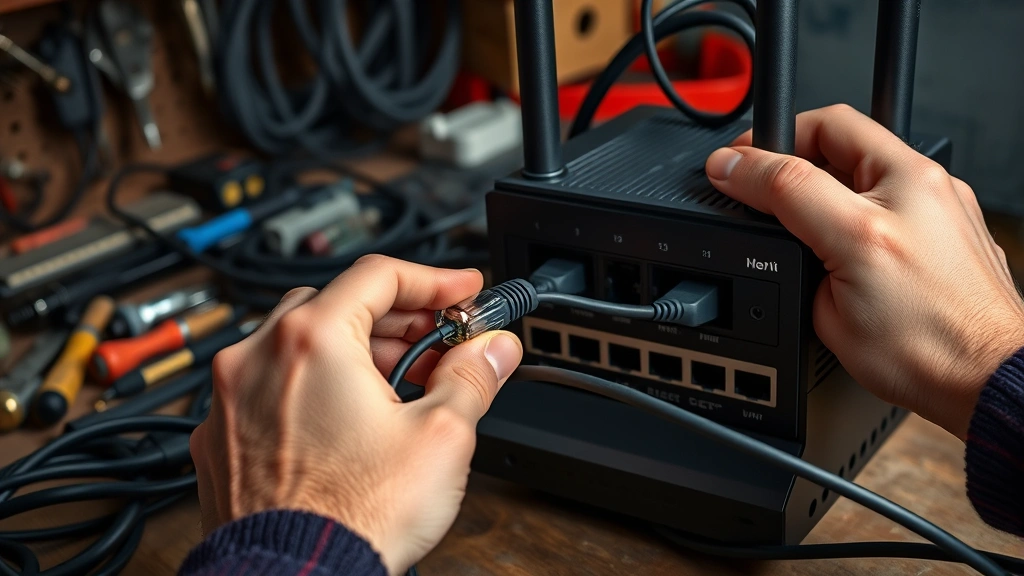
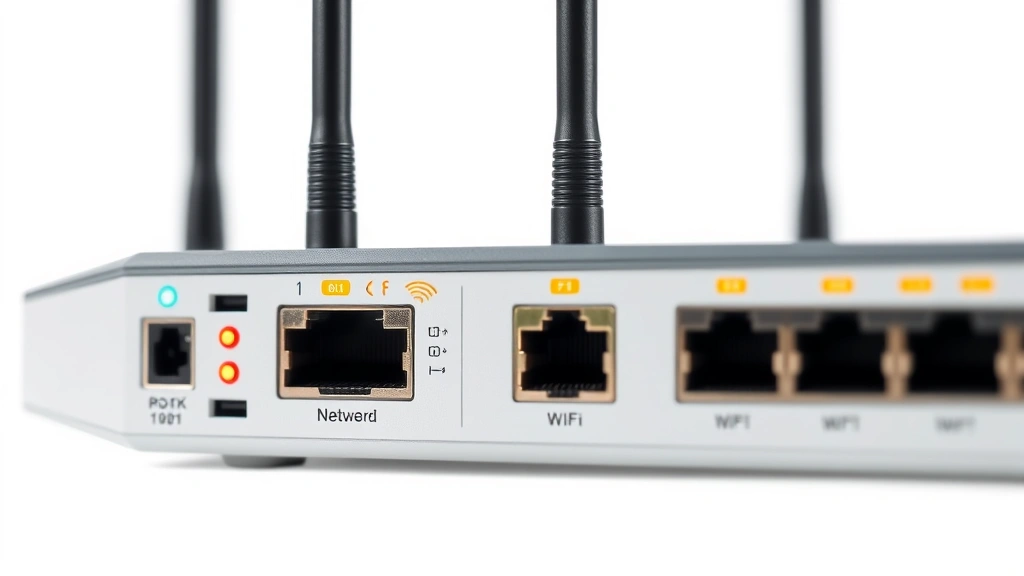
Ethernet cables beat WiFi every single time for gaming. Wired connections are faster, more stable, and have lower latency. If your gaming PC or console can reach your router with a cable, do it. Cat6 or Cat6a cables handle gigabit speeds without breaking a sweat.
But let’s be real—not everyone can run cables through walls. WiFi is convenient. If you’re going wireless, position yourself close to the router, away from obstacles. 5GHz band is your friend for gaming—it’s faster but doesn’t penetrate walls as well. A mixed setup works great: hardwire your main gaming rig, use WiFi for secondary devices. Some gamers use WiFi mesh systems (like Eero or Orbi) to blanket their home with strong signal, then hardwire the main gaming station.
Optimize WiFi Placement
Router placement is like tool organization—where you put it matters. Mount your router in a central, elevated location. High shelves beat floor placement. Avoid closets, cabinets, or enclosed spaces—walls kill signal strength. Keep it away from microwaves, cordless phones, and baby monitors—they broadcast on the same 2.4GHz frequency and cause interference.
If you’re in a multi-story home, place the router on the middle floor. Angle antennas: one vertical, one horizontal. This creates better coverage in different directions. If your gaming setup is far from the router, consider a WiFi extender or mesh system. Extenders repeat the signal but cut bandwidth in half. Mesh systems are better—they create a unified network that hands off your connection seamlessly as you move around.
Reduce Network Lag Fast
Lag kills gaming. Here’s how to crush it. First, enable QoS in your router settings. This prioritizes gaming traffic over everything else. When your roommate starts downloading torrents, your game stays smooth.
Second, reduce interference. Switch to a less-congested WiFi channel. Download a WiFi analyzer app—it shows which channels nearby networks use. Pick one that’s clear. Third, close background applications. Windows updates, cloud syncs, and auto-downloads steal bandwidth. Disable them during gaming sessions. Fourth, reduce the number of connected devices. Every device on your network consumes bandwidth. Disconnect smart speakers, security cameras, and phones if they’re not needed.
Fifth, update your router firmware regularly. Manufacturers release updates that improve performance and security. Check your router’s admin panel monthly. Sixth, consider a gaming VPN if you’re getting throttled by your ISP—though this adds latency, so test it first.
Setup Gaming Devices
Once your network is solid, configure your devices. For PCs and consoles, hardwire them if possible. If wireless is your only option, connect to the 5GHz band. Forget the 2.4GHz band for gaming—it’s crowded and slow.
Configure DNS settings. Instead of using your ISP’s DNS, try Cloudflare (1.1.1.1) or Google (8.8.8.8). Faster DNS means quicker server connections. In your router, disable features you don’t need: WPS (WiFi Protected Setup) is a security risk, UPnP can cause issues, and guest networks consume bandwidth. Enable WPA3 encryption for security without tanking speed.
For multiple gaming devices, create a dedicated gaming WiFi network if your router supports it. This isolates gaming traffic from household streaming and browsing. Some routers let you set bandwidth limits per device—useful if someone’s hogging the connection.
Monitor Bandwidth Usage
You can’t optimize what you don’t measure. Log into your router’s admin panel (usually 192.168.1.1 or 192.168.0.1) and check bandwidth usage. Most routers show which devices are consuming data.
Run a speed test using Speedtest.net or Fast.com. Do this at different times—early morning, afternoon, and evening. ISPs throttle during peak hours. If you’re getting significantly less than your advertised speed, contact your provider. Also test your ping and jitter. Ideal gaming ping is under 50ms. If it’s consistently above 100ms, you’ve got a problem.
Keep a log. Screenshot your tests weekly. This gives you a baseline. If performance degrades, you’ll notice. Some routers have built-in traffic monitoring—use it. It shows you exactly what’s consuming bandwidth when your game lags.
Test Network Performance
Before inviting friends over for a LAN party, stress-test your network. Download a tool like NetLimiter or TMeter. These simulate heavy traffic and show you where things break.
Run multiple speed tests simultaneously. Open a video stream on one device while gaming on another. See how your network handles it. Play online games and watch your ping. Use Discord—voice chat adds latency. Notice any stuttering or disconnects? That’s your baseline for problems.
Test different locations in your home if you’re using WiFi. Gaming from your bedroom versus the living room might show huge differences. This helps you identify dead zones. If certain areas have weak signal, plan accordingly. You might need a mesh system or WiFi extender.
Troubleshoot Common Issues
High ping? Check your WiFi channel. Interference from neighbors’ networks causes lag. Switch channels. Restart your modem and router—unplug them for 30 seconds, plug back in. This clears cached data and often fixes mysterious issues.
Disconnects? Check if your router is overheating. Routers need airflow. Don’t stack things on top of it. Update your network drivers on your PC. Old drivers cause connection drops. If you’re on WiFi, move closer to the router or switch to wired.
Packet loss? This is serious. Run a ping test: open Command Prompt (or Terminal on Mac) and type “ping 8.8.8.8 -c 100”. If you see packet loss, your connection is unstable. This could be your ISP, your router, or interference. Try a different channel first. If it persists, contact your ISP.
For those using Android devices for gaming, ensure your WiFi settings aren’t reverting to power-saving modes. Also, if you’re using gaming peripherals like Wii remotes or FireStick remotes, make sure they’re on the same network band as your gaming device.
Frequently Asked Questions
What internet speed do I need for gaming?
For casual gaming, 10-20 Mbps is fine. Competitive multiplayer needs 25-50 Mbps. Streaming while gaming requires 50+ Mbps. These are download speeds. Upload speed matters for streaming—aim for 5-10 Mbps upload minimum.
Is WiFi 6 worth the money?
Yes, if you have multiple devices. WiFi 6 handles congestion better and has lower latency. For a single gaming rig, WiFi 5 works fine. But if you’re building a future-proof gaming network at home, WiFi 6 is the smart choice.
Should I use a gaming router or regular router?
Gaming routers have QoS built-in and prioritize gaming traffic. Regular routers treat all traffic equally. If you’re serious about gaming, a gaming router pays for itself in reduced lag. Budget routers are false economy.
Can I improve my ping?
Ping depends on your distance to the game server and your ISP’s routing. You can’t change server location, but you can reduce network latency by using wired connections, closing background apps, and enabling QoS. A VPN might help if your ISP is throttling, but it usually adds latency.
How often should I restart my router?
Restart monthly for maintenance. If you’re experiencing issues, restart immediately. Some people restart weekly during gaming season—it’s harmless and often fixes mysterious problems.
What’s the best gaming router under $200?
ASUS RT-AX12 or Netgear RAX40 offer solid WiFi 6 performance under $200. TP-Link Archer AX11000 is excellent if you can stretch to $250. These have good QoS, multiple bands, and gaming-focused features.
Final Thoughts
Building a gaming network at home isn’t complicated, but it requires attention to detail. Start with a solid router, prioritize wired connections where possible, and optimize your setup through testing and monitoring. Your network is only as strong as its weakest link—whether that’s your router, your ISP, or interference from neighbors.
Don’t rush it. Spend time testing different configurations. Move your router around. Try different channels. Monitor your bandwidth. The investment in time now saves you from rage-quitting later. Once you’ve got a locked-in setup, document it. Write down your router settings, channel choice, and QoS configuration. If something breaks, you’ll know exactly how to rebuild it.
For additional tech troubleshooting, check out guides on keyboard shortcuts on different systems and managing gaming software. These skills complement your network setup.
Your gaming network is the invisible infrastructure that makes everything else possible. Build it right, and you’ll have years of smooth, lag-free gaming ahead. Build it wrong, and you’ll spend every session cursing your connection. Choose wisely, test thoroughly, and game on.
External Resources: For detailed networking advice, check out Family Handyman’s tech guides, This Old House’s home technology section, and Bob Vila’s electronics recommendations for authoritative third-party perspectives on home networking equipment.


