
Learning how to block your number when calling is one of those practical skills that comes in handy more often than you’d think. Whether you’re calling a business, protecting your privacy, or just don’t want callbacks to your personal line, hiding your caller ID is straightforward once you know your options. Let me walk you through every method available—from the simplest tricks to the more technical approaches.
Table of Contents
Block Your Number on iPhone
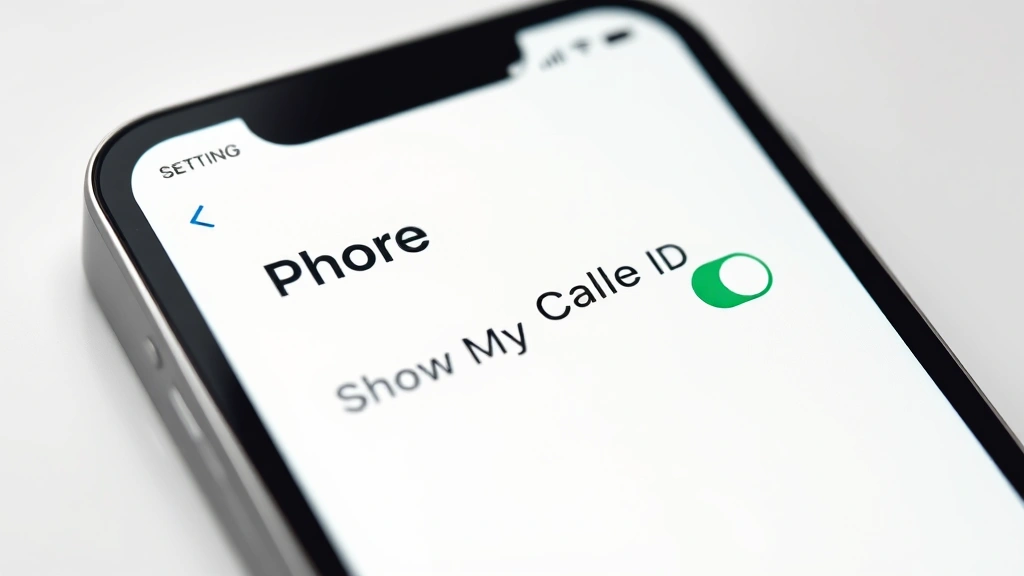
If you’re an iPhone user, you’ve got a built-in option that works beautifully. Open the Settings app and navigate to Phone. Look for a toggle labeled “Show My Caller ID” and switch it off. That’s it—your number stays hidden on every call you make going forward. The recipient will see “Unknown” or “Private Number” instead of your digits.
Want to get more granular? You can also use the FaceTime settings to hide your number on video calls. Just go to Settings > FaceTime and toggle off “Show My Caller ID.” This method works across WiFi and cellular, making it incredibly reliable for privacy-conscious folks.
One thing to note: some businesses and government agencies won’t accept calls from blocked numbers. You might get a message asking you to reveal your number before they’ll connect you. If that happens, you can temporarily re-enable caller ID in settings, make the call, and turn it back off.
Block Your Number on Android
Android users have similar options, though the exact steps vary depending on your phone manufacturer and Android version. For most devices, head to Phone > Settings > Call Settings > Additional Settings > Caller ID. Select “Hide Number” and you’re done.
On Samsung devices specifically, go to Phone app > Menu > Settings > Call > Supplementary Services > Show My Caller ID and toggle it off. Google Pixel phones have their own interface under Phone > Settings > Calls > Caller ID.
The beauty of Android is that many phones also let you block your number on a per-call basis. Before you dial, look for a menu option that says “Hide Number” or “Private Number.” Not all carriers support this, but it’s worth checking your phone’s dialer app for the option.
Using *67 for Quick Blocking
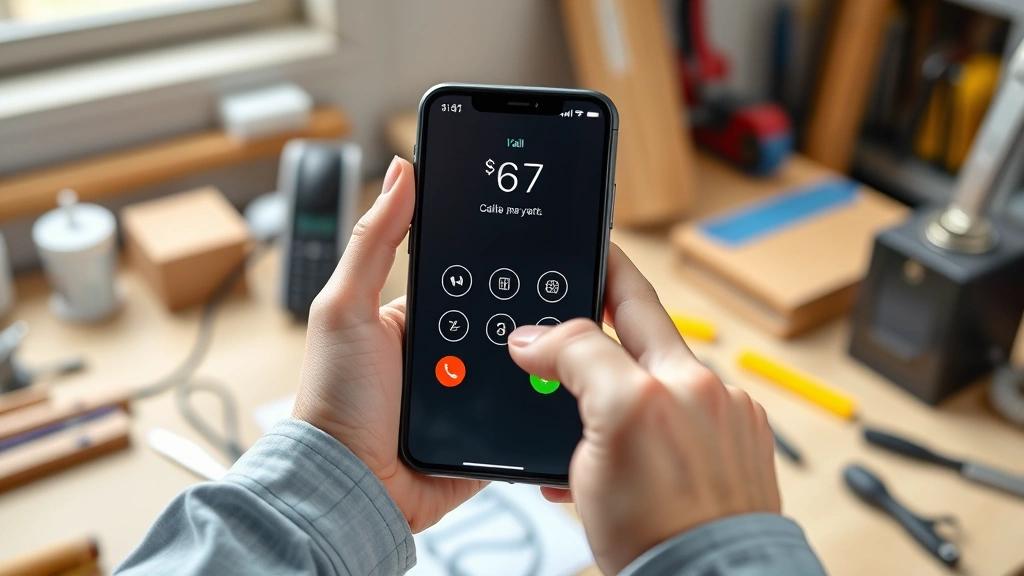
Here’s the old-school trick that still works on most landlines and many cell phones: dial *67 before the number. Punch in *67, then the phone number you want to call. Your caller ID gets blocked for that single call only.
This method is perfect when you only occasionally need to hide your number. No settings to change, no apps to download—just a quick prefix. The person receiving the call will see “Anonymous,” “Blocked,” or “Unknown Number” on their end.
Fair warning: not every carrier supports *67, and some newer VoIP services have phased it out. If it doesn’t work, you’ll hear a message saying the feature isn’t available. Also, like the permanent blocking methods, some businesses and government offices will reject *67 calls.
Carrier-Level Call Blocking
Your mobile carrier—whether it’s Verizon, AT&T, T-Mobile, or another provider—usually offers caller ID blocking services. These are often part of your existing plan or available for a small monthly fee. Contact your carrier’s customer service to ask about their specific options.
Verizon calls theirs “Caller ID Blocking,” AT&T has “Anonymous Call Rejection,” and T-Mobile offers similar services. Once activated through your carrier, your number stays hidden on every outgoing call. The advantage here is that it’s carrier-wide and works reliably across all networks.
Carrier-level blocking can sometimes be more reliable than phone settings because it operates at the network level, not just your device. However, it typically costs money and requires a phone call or online account management to set up.
VoIP Services and Apps
If you regularly need to make calls with a hidden number, consider using a VoIP (Voice over Internet Protocol) service. Apps like Google Voice, Skype, and specialized privacy apps give you temporary phone numbers that mask your real identity. You can use these numbers for calling, and the recipient never sees your actual number.
Google Voice is particularly useful because it’s free and integrates well with your existing contacts. You get a separate phone number that you can use for calls, and you control exactly what information gets shared. Some people use it specifically for calling businesses where they don’t want their real number recorded.
Specialized privacy apps take this further, offering disposable numbers that expire after a set time. These are handy if you’re selling something online or need temporary anonymity. Just download the app, get a number, make your call, and let it disappear.
Permanent vs Temporary Blocking
You’ve got two main approaches: permanently hiding your number on all calls, or blocking it just for specific calls. Permanent blocking (through phone settings or carrier services) is convenient if privacy is your default preference. You change it once and forget about it.
Temporary blocking using *67 or per-call settings is better if you only occasionally need anonymity. This way, most of your calls show your number (which helps people recognize and accept your calls), but you can hide it when needed.
Think about your actual use case. Are you hiding your number from most people, or just specific contacts? That answer determines which method makes the most sense for you. Some folks use a combination—permanent blocking on their phone, but they’ll disable it for calls to trusted contacts or employers.
Legal Considerations Matter
Here’s the important part: blocking your caller ID is legal in most situations, but there are exceptions. You cannot legally hide your number when calling emergency services (911), and many states have laws against blocking your number when calling government agencies or businesses if you’re conducting official business.
Some states also prohibit blocking your caller ID when making telemarketing calls or debt collection calls. If you’re calling for legitimate business purposes, check your local laws first. The FCC has specific rules about caller ID spoofing (pretending to be a different number), which is illegal, but hiding your real number is generally fine for personal use.
When in doubt, err on the side of transparency. Most legitimate calls don’t need to be anonymous. If you’re hesitant about revealing your number, that might be a sign you should reconsider making the call at all.
Troubleshooting Common Issues
Your blocked number isn’t working? First, confirm that your carrier actually supports caller ID blocking. Some prepaid plans and older services don’t offer it. Call your carrier’s support line to verify your account has the feature enabled.
If *67 isn’t working, try adding a 1 before the area code: *67-1-555-123-4567. Some systems require the full format. Still not working? Your carrier might have disabled the feature, or you might be using a VoIP service that doesn’t support it.
Getting rejected calls even with your number blocked? Some businesses use technology to reject anonymous calls automatically. In those cases, you’ll need to let your number show or try calling from a different number. There’s no way around a system that’s specifically designed to block anonymous calls.
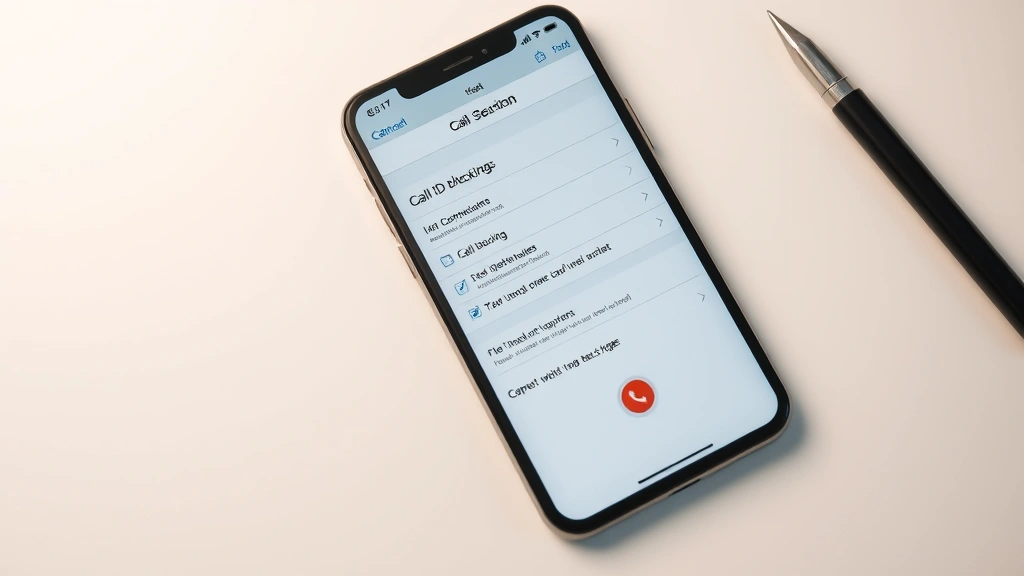
If you’ve enabled “Hide My Caller ID” on your iPhone but it’s still showing, try toggling it off and back on. Sometimes a glitch requires a refresh. On Android, restart your phone if the setting doesn’t seem to take effect.
Frequently Asked Questions
Can I block my number on all calls permanently?
Yes. On iPhone, go to Settings > Phone > Show My Caller ID and toggle it off. On Android, navigate to Phone Settings > Call Settings > Caller ID and select “Hide Number.” You can also contact your carrier to enable caller ID blocking on your account.
Will the person receiving my call know I blocked my number?
They’ll see that your number is hidden—it might show as “Unknown,” “Private Number,” “Blocked,” or “Anonymous.” They won’t know specifically that you blocked it; they’ll just know you chose not to share your number.
Does *67 work on all phones?
It works on most landlines and traditional cell phone plans, but not all carriers support it anymore. VoIP services, prepaid plans, and some newer services have phased it out. If it doesn’t work, you’ll get a message from your carrier.
Is blocking your number legal?
Yes, in most situations. However, you cannot legally block your number when calling 911, and some states have laws against blocking when calling government agencies or certain businesses. Check your local regulations if you’re unsure.
Can I block my number just for one call?
Absolutely. Use *67 before dialing, or check your phone’s dialer app for a “Hide Number” option. This blocks your number for just that single call, then returns to your normal settings.
What’s the difference between blocking and spoofing?
Blocking your number hides your real caller ID. Spoofing makes it appear like you’re calling from a different number entirely. Blocking is legal; spoofing is illegal in most cases.
Will blocking my number prevent callbacks to my phone?
Yes. If your number is hidden, the recipient can’t call you back. Some businesses will ask you to reveal your number before proceeding with the call. If you need them to be able to reach you, you might need to show your number.
Can I use a VoIP app to block my number?
VoIP apps like Google Voice and Skype don’t technically “block” your number—they give you a different number to call from. The recipient sees the VoIP number, not your personal cell number. This is a form of anonymity but works differently than caller ID blocking.
Final Thoughts
You’ve now got the complete toolkit for blocking your number when calling. Whether you choose the simplicity of iPhone settings, the flexibility of *67, the reliability of carrier services, or the anonymity of VoIP apps, you can control exactly what information you share on outgoing calls. The method you pick depends on your specific situation—occasional privacy needs versus regular anonymity, and whether you’re using a smartphone or traditional phone.
Remember that most people and businesses expect to see your caller ID, so use these tools thoughtfully. They’re great for protecting your privacy when you genuinely need it, but transparency builds trust. For more on digital privacy, check out how to send an encrypted email in Outlook if you want to extend privacy to your email communications, or learn about how to comment anonymously on Facebook groups for online privacy.
If you’re concerned about your overall digital security and want to keep your information safe, understanding caller ID blocking is just one piece of the puzzle. The techniques here work reliably across all major carriers and phone types, so you’ve got options regardless of what device you’re using.


