
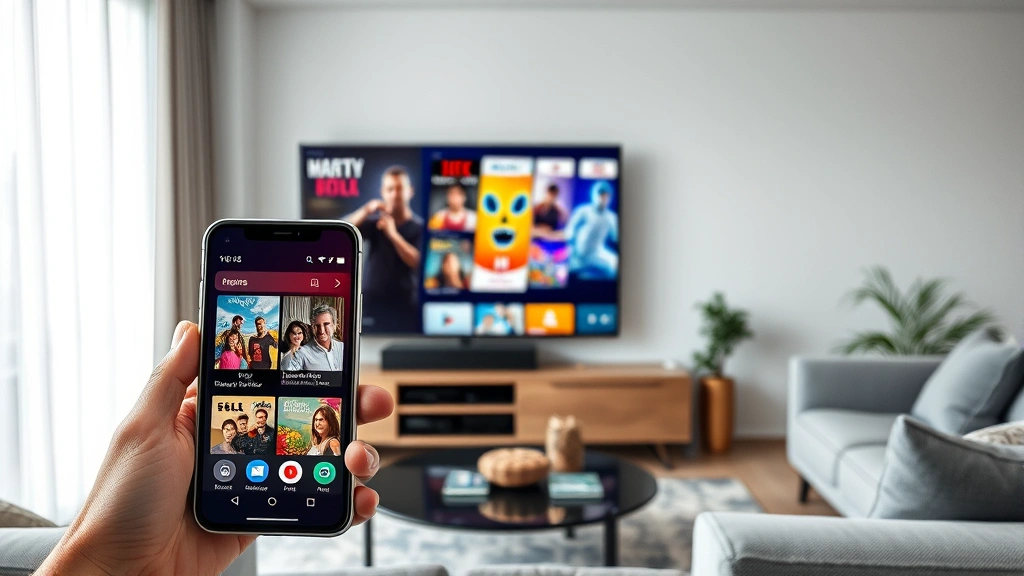
Wondering how do i connect my phone to my tv? You’re not alone—this is one of the most common questions I get in the workshop, and honestly, it’s easier than you think. Whether you want to show photos from your vacation, stream your favorite show, or mirror your entire phone screen, there are multiple ways to make it happen. In this guide, I’ll walk you through five reliable methods that work with most phones and TVs, from wireless casting to good old-fashioned HDMI cables.
Table of Contents
Wireless Casting Setup
The easiest way to connect your phone to your TV is through wireless casting, and it’s my go-to method for everyday use. This works by sending a signal from your phone directly to your TV without any cables cluttering up your living room. Most modern smart TVs have built-in casting capabilities, which means you’re probably already set up to go.
Start by making sure both your phone and TV are on the same WiFi network—this is crucial. Then, grab your phone and look for the casting option in your settings or quick menu. On Android devices, you’ll typically find this labeled as “Cast” or “Screen Cast.” On iPhones, it’s called “AirPlay.” The process takes about 30 seconds, and once connected, your phone’s screen appears on your TV almost instantly. According to Family Handyman, wireless casting has become the standard method for most households because it requires zero additional equipment beyond what you already own.
HDMI Cable Connection
If wireless casting isn’t working or you need a rock-solid connection, the HDMI cable method is your backup plan. This is the old-school approach, but it’s incredibly reliable and works with virtually every TV manufactured in the last 15 years. You’ll need an HDMI cable and an adapter specific to your phone type.

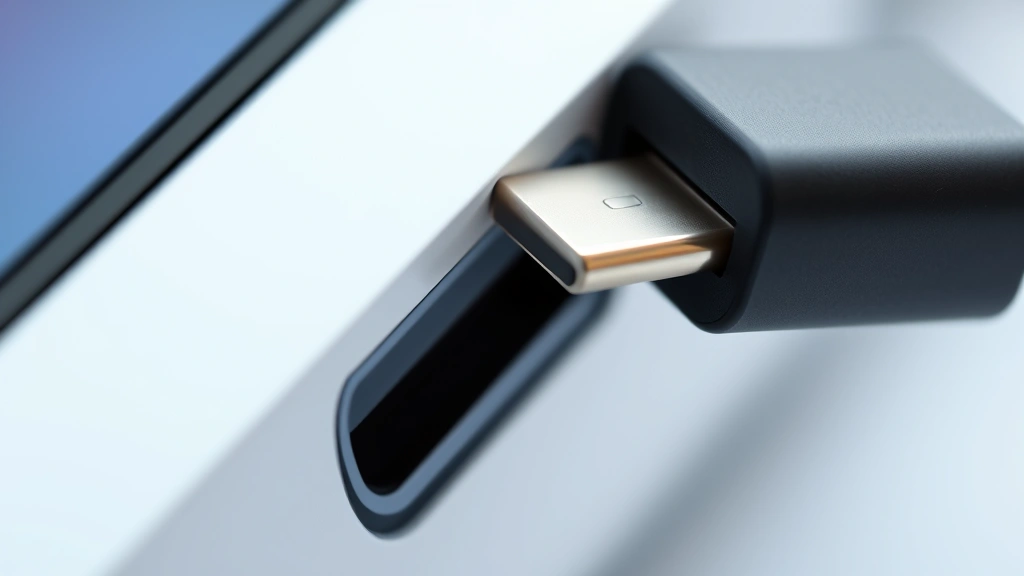
For Android phones, grab a USB-C to HDMI adapter (or Micro-USB if you have an older phone). For iPhones, you’ll need a Lightning to HDMI adapter. Plug the adapter into your phone, connect the HDMI cable, and plug the other end into your TV’s HDMI port. Switch your TV to the correct input, and boom—you’re connected. The advantage here is that you get a stable, lag-free connection perfect for gaming or watching videos. This method also charges your phone simultaneously, which is a nice bonus during longer viewing sessions.

AirPlay for Apple Devices
Apple users have it pretty sweet with AirPlay, which is Apple’s proprietary wireless casting technology. If you’ve got an iPhone, iPad, or Mac, connecting to an Apple TV or AirPlay-compatible smart TV is seamless. Swipe down from the top-right corner of your iPhone to access Control Center, then tap the Screen Mirroring option. Your TV should appear in the list within seconds.
The beauty of AirPlay is that it’s optimized specifically for Apple devices, so you get excellent performance and minimal lag. You can mirror your entire screen for presentations and gaming, or just stream audio if you prefer. According to This Old House, many homeowners are integrating AirPlay into their smart home setups for seamless entertainment throughout their homes. Make sure your Apple TV or compatible smart TV is on the same WiFi network, and you’re golden.
Roku and Chromecast Devices
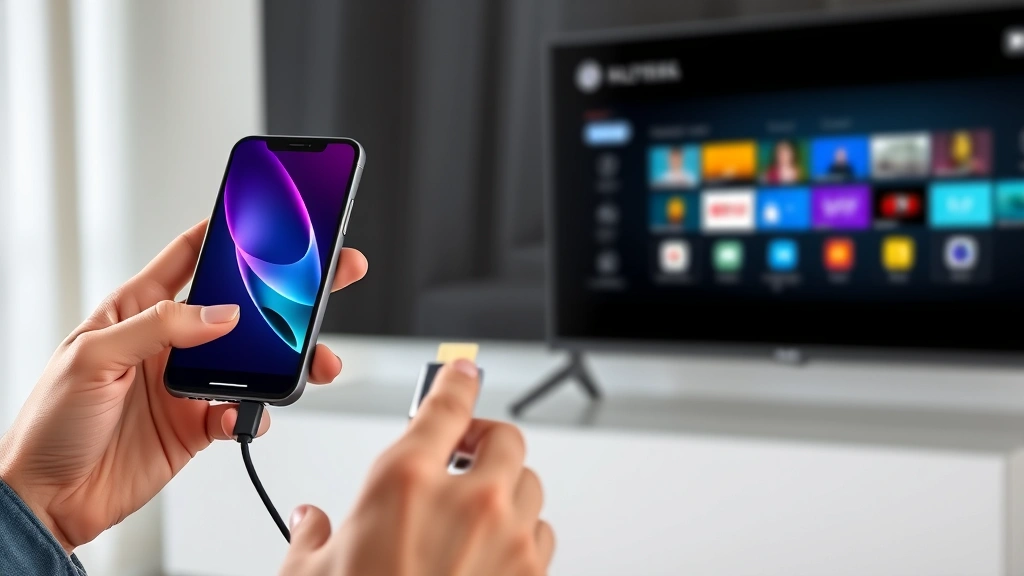
Google Chromecast and Roku streaming devices are game-changers if you don’t have a smart TV or want more casting flexibility. These small devices plug into your TV’s HDMI port and create a casting receiver that works with almost any phone. Chromecast works beautifully with Android phones and can even cast from iPhones, though with slightly fewer features.
Setting up Chromecast is straightforward: plug it in, download the Google Home app on your phone, and follow the setup wizard. Once connected, you can cast apps, videos, music, and your entire screen. Roku devices work similarly but use the Roku app instead. These devices are affordable (usually $30-50) and add professional-grade casting capabilities to any older TV. The Bob Vila team recommends these devices for anyone looking to upgrade an older TV without replacing it entirely.
Miracast for Android Phones
Android users have Miracast, which is the Android equivalent of AirPlay. This wireless standard works directly with many modern TVs without needing a separate streaming device, though compatibility varies by manufacturer. To use Miracast, go into your Android phone’s settings, find the Display or Connected Devices section, and look for Screen Mirroring or Miracast.

The process is similar to other wireless methods: your TV should appear in the available devices list, and you tap to connect. Miracast is particularly useful if your TV already supports it because you don’t need any extra hardware. However, compatibility can be hit-or-miss depending on your TV’s age and manufacturer, so test it before relying on it for important presentations. If Miracast doesn’t work, you can always fall back to Chromecast or a USB-C HDMI adapter.

Troubleshooting Common Issues
Even with the best methods, sometimes things don’t work perfectly on the first try. Here’s what I do when I run into problems. First, restart both your phone and TV—this solves about 70% of connection issues. Make sure both devices are on the same WiFi network; if you’re on a guest network, that might be the culprit. Some home networks have devices isolated for security reasons.

If casting still isn’t working, try forgetting the WiFi network on your phone and reconnecting. Update your phone’s operating system and any casting apps you’re using; outdated software is a common source of compatibility problems. For HDMI connections, try a different HDMI cable or port on your TV—sometimes cables go bad or ports fail. If you’re using an adapter, make sure it’s a quality one; cheap adapters are notorious for causing connection drops and video glitches.
Choosing Your Best Option
So which method should you use? Here’s my workshop logic: if you want simplicity and have a modern smart TV, go wireless casting. It’s fast, requires no extra equipment, and works reliably. If you’re dealing with an older TV or need a bulletproof connection, invest in a Chromecast or Roku device—they’re cheap and incredibly versatile. For HDMI cables, keep one in your tech drawer as a backup when wireless fails.
If you’re an Apple user, AirPlay is your native solution and works beautifully with Apple products. For Android users without a smart TV, Chromecast is the most practical choice. Consider your TV’s age, your phone type, and how often you’ll be connecting before choosing your primary method. Many people actually use multiple methods depending on the situation—I keep a Chromecast plugged in, but I also have an HDMI adapter handy for emergencies.

Frequently Asked Questions
Do I need WiFi to connect my phone to my TV?
Not necessarily. HDMI cable connections work without WiFi, and they’re actually faster since they don’t rely on your network. However, wireless casting methods like Chromecast, AirPlay, and Miracast do require WiFi. If your WiFi is unreliable, stick with the wired HDMI method.

Can I connect an Android phone to an Apple TV?
Android phones can’t use AirPlay natively, but you can use third-party apps or Chromecast instead. Some Android apps have built-in casting features that work with Apple TV if it supports AirPlay from third-party sources, but it’s not straightforward. Your best bet is using a Chromecast device or HDMI adapter.

What’s the difference between mirroring and casting?
Mirroring duplicates your entire phone screen on the TV, including notifications and everything you do. Casting is more selective—you choose what app or content to send to the TV while keeping your phone private. AirPlay and Miracast can do both, while Chromecast is primarily casting-focused.
Why is my connection lagging or dropping?
Lag usually happens due to WiFi interference or distance from your router. Try moving closer to your router or switching to a less crowded WiFi channel. If you’re using HDMI and experiencing issues, try a different cable or adapter. Outdated software on either device can also cause problems.
Can I charge my phone while using HDMI?
Yes! HDMI adapters pass through power, so you can plug a charging cable into your phone while it’s connected via HDMI. This is one of the advantages of the wired method for longer viewing sessions.
Do all smart TVs support wireless casting?
Most modern smart TVs (made in the last 8-10 years) have built-in casting, but not all. Check your TV’s manual or settings menu to confirm. If your TV doesn’t support casting, a Chromecast or Roku device adds that functionality for under $50.
Final Thoughts
Connecting your phone to your TV isn’t complicated—you’ve got five solid methods to choose from, and at least one will work for your situation. Start with wireless casting if your TV supports it, and keep an HDMI adapter in your drawer as backup. Whether you’re showing photos, streaming videos, or gaming, you now have the knowledge to make it happen without frustration. Pick the method that fits your setup best, and you’ll be enjoying your phone’s content on the big screen in minutes.


