
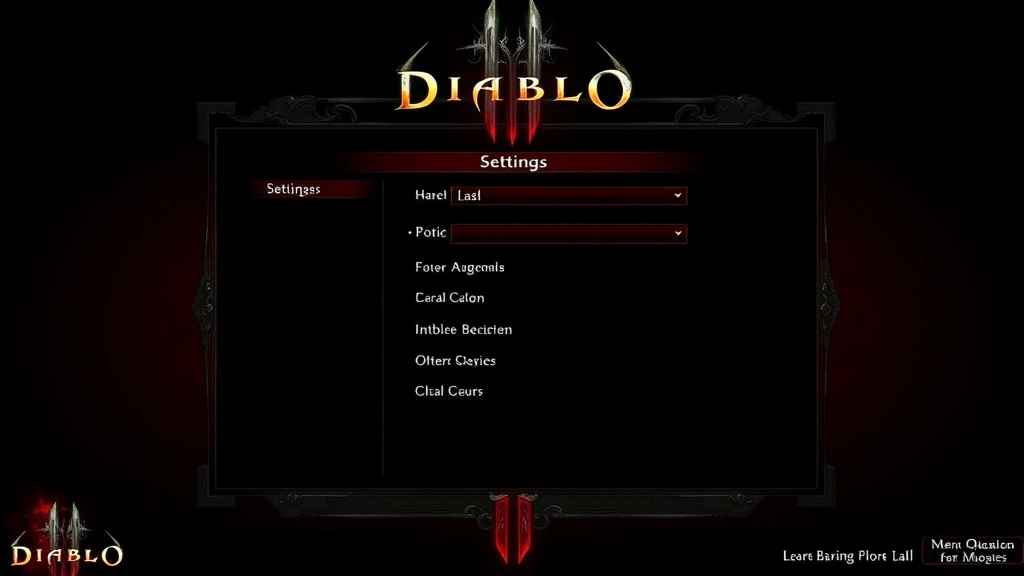
Learning how to turn off the chat box in Diablo 3 PC is one of those quality-of-life tweaks that can seriously improve your gaming experience. Whether you’re tired of spam, distracted by constant messages, or just want a cleaner screen to focus on demon slaying, disabling the chat interface takes just a few clicks. Let me walk you through this straightforward process that’ll have your chat box hidden faster than you can say “Diablo.”
Table of Contents
Access Your Game Settings
The first step in turning off your chat box involves getting into the right menu. When you’re in Diablo 3, look at the top-right corner of your screen where you’ll see several icons. Click on the gear icon (settings) to open your options menu. This is your gateway to all the customization features that’ll let you control your interface. Think of this like opening your toolbox before starting any project—you need to get to the right place first.
Once you click that settings icon, a menu will drop down with several categories. You’re looking for “Options” or “Settings”—the exact wording depends on your game version, but it’s usually pretty obvious. Don’t worry if it takes a second to find; the interface is designed to be intuitive. Some players miss this step and spend time searching elsewhere, so make sure you’ve got the right menu open before moving forward.
Locate the Interface Options
Now that you’re in the settings menu, you need to find the “Interface” tab. This is where Blizzard keeps all the visual customization options for your game. Look for tabs or sections labeled “Interface,” “UI,” or “Display.” The interface settings control everything from your health bar placement to your skill buttons to—you guessed it—your chat box visibility.
The interface menu is typically organized into subcategories. You might see options for “Gameplay,” “Graphics,” “Sound,” and “Interface.” Click directly on “Interface” to expand those options. This section is where all the magic happens for customizing how your game looks and feels. If you’re having trouble finding it, remember that most games organize these settings in a logical order, so checking the alphabetical options usually works.
Disable Chat Display Completely
Here’s where you’ll find the actual chat box toggle. Within the Interface settings, look for an option labeled “Chat” or “Chat Box” or “Show Chat Window.” You’ll typically see a checkbox next to this option. To turn off your chat box completely, simply uncheck this box. It’s that simple—one click and your chat interface disappears from your screen.
When you uncheck this option, your chat window will immediately vanish from your gameplay screen. Some players worry this means they won’t receive messages, but that’s not the case. Messages will still be logged in your chat history; they just won’t display on screen. This is perfect if you want to maintain communication without the visual clutter. Apply these settings, and you’re essentially done with the basic process.
Toggle Chat During Gameplay
Here’s a pro tip that many players don’t realize: you can toggle your chat box on and off during gameplay without returning to settings. While you’re in-game, simply press the “Enter” key on your keyboard. This will bring up your chat input box temporarily. When you’re done typing or if you want to dismiss it, press “Escape.” This gives you flexibility—you can keep the chat box hidden most of the time but bring it up whenever you need to communicate with your group.
This toggle feature is incredibly useful for group play or when you’re in a party. You don’t need the chat box visible at all times, but when you need to coordinate with teammates or send a quick message, it’s right there. Think of it like having a walkie-talkie you can pull out when needed rather than wearing a headset all day. This hybrid approach works great for players who want a clean screen but still need occasional communication.
Customize Chat Filters Instead
If you don’t want to completely disable the chat box, consider using chat filters instead. Many players find that filtering out spam or specific message types is more useful than hiding the entire chat window. In your Interface settings, look for “Chat Filters” or “Message Filters.” Here you can choose which types of messages appear in your chat box—trade spam, system messages, friend notifications, and more.
You can filter out specific channels or message types that annoy you most. For example, if trade spam is your main complaint, you can filter out the Trade channel specifically while keeping Party and Friends channels visible. This approach gives you control without losing all communication functionality. It’s like installing a screen door instead of boarding up the window—you still get airflow and light, but you’re blocking the bugs.
Troubleshoot Persistent Chat Problems
Sometimes the chat box doesn’t stay disabled, or it reappears after logging out and back in. If you’re experiencing this issue, try these troubleshooting steps. First, make sure you’ve applied your settings by clicking “Apply” or “OK” before closing the settings menu. Some players close the menu without saving, which resets their changes.
If the problem persists, try verifying your game files through the Battle.net launcher. Occasionally, corrupted game files can cause settings to not save properly. Right-click on Diablo 3 in your launcher, select “Options,” and click “Scan and Repair.” This process checks your installation and fixes any issues without requiring a full reinstall. After this completes, your settings should stick properly. You might also check if you’re running any mods or overlays that could be interfering with your interface settings—Discord overlay, streaming software, or third-party tools sometimes conflict with game settings.
Chat Box and Performance Impact
One question many players ask: does disabling the chat box actually improve performance? The honest answer is that it has minimal impact on most systems. The chat box is a lightweight UI element that doesn’t consume significant resources. However, if you’re running on an older computer or experiencing frame rate issues, every little bit helps. Disabling the chat box won’t transform your gaming experience from laggy to smooth, but it’s one small optimization in a larger toolkit.
The real benefit of disabling chat isn’t performance—it’s mental clarity. A cleaner screen means fewer distractions, which lets you focus on the action. You can concentrate on dodging attacks, managing your resources, and executing your strategy without your attention being pulled to the chat window. This psychological benefit often matters more than the minimal performance gain.
How to Restore Chat Settings
If you’ve disabled your chat box and later want to turn it back on, the process is just as simple. Head back to Settings > Interface and look for that same chat box option. Check the box this time instead of unchecking it, apply your settings, and your chat window will reappear. You can also reset all interface settings to default if you’ve made multiple changes and want to start fresh.
Restoring default settings is sometimes the best solution if you’ve made several interface tweaks and things feel off. In your Interface settings, look for a “Reset to Default” button. This will restore all your UI elements to their original positions and visibility states. It’s like hitting the reset button on your workshop setup—sometimes starting fresh is easier than trying to remember what you changed.
Frequently Asked Questions
Will I miss important messages if I disable chat?
No, messages are still logged in your chat history even when the chat box is hidden. You can press Enter anytime to view recent messages or bring up the chat window temporarily. Party chat and important notifications still come through via other means like party notifications.
Can I disable only certain chat channels?
Yes, absolutely. Instead of disabling the entire chat box, use the chat filter options to hide specific channels like Trade or General while keeping Party and Friends visible. This gives you more control than a complete disable.
Does disabling chat improve frame rates?
The performance impact is minimal since the chat box is a lightweight UI element. The main benefit is visual clarity and reduced distraction rather than significant FPS improvements. However, on very old systems, every optimization helps.
Why did my chat box reappear after logging out?
This usually means your settings didn’t save properly. Make sure you click “Apply” before closing the settings menu. If it keeps happening, verify your game files through the Battle.net launcher to fix any corrupted settings files.
Can I rebind the chat toggle key?
Yes, in your Interface settings you can customize your keybindings. Look for the “Keybinds” section and search for “Chat” to reassign it to a different key if you prefer something other than Enter.
Is disabling chat the same as muting players?
No, they’re different features. Disabling the chat box hides the entire interface. Muting individual players only blocks messages from specific people. You can do both if needed.
Final Thoughts
Turning off your Diablo 3 chat box is genuinely one of the easiest interface tweaks you can make, and it can significantly improve your gaming experience. Whether you’re bothered by trade spam, distracted by constant messages, or just want a cleaner screen for those intense boss fights, this simple adjustment takes less than a minute to implement. The beauty of this feature is its flexibility—you can completely disable the chat box, use filters to hide specific channels, or toggle it on and off as needed.
Remember that this is a personal preference, and there’s no “right” way to configure your interface. Some players love having chat visible for community interaction, while others prefer the focused, distraction-free experience of a hidden chat box. The great news is that Blizzard has built enough customization options that you can set things up exactly how you want them. If you ever change your mind, restoring the chat box is just as quick and easy. Happy demon hunting, and enjoy your cleaner, more focused gameplay experience!


