
Let’s be honest—we’ve all been there. It’s 2 AM, you’re thinking about a friend’s birthday tomorrow, and you want to send them a message first thing in the morning. Or maybe you’re juggling time zones and need to text someone at a specific hour when they’re actually awake. The problem? You either set a reminder and forget, or you send the message now and look overeager. That’s where learning how to send a scheduled text on iPhone becomes a game-changer for real life.
The good news: iOS has built-in scheduling features that make this incredibly simple. No third-party apps needed. No complicated workarounds. Just native iPhone functionality that’s been hiding in plain sight for most users. In this guide, I’ll walk you through exactly how to send a scheduled text on iPhone, troubleshoot common hiccups, and show you some pro moves that’ll make you look like you’ve got your life together.
Native iPhone Text Scheduling (iOS 16+)
Here’s the real talk: Apple finally made this easy in iOS 16. Before that, you needed workarounds. Now? It’s built right into the Messages app. If you’re running iOS 16 or later, you have native scheduling capability without installing anything extra. This is the method I recommend 99% of the time because it’s reliable, it’s native, and Apple maintains it.
The feature works with SMS, iMessage, and group chats. You can schedule texts days in advance. Your iPhone doesn’t even need to stay unlocked—the message queues on your device and sends at the exact time you specified. Think of it like setting a timer, except instead of a beep, your message goes out automatically.
Before we dive into the steps, check your iOS version. Go to Settings > General > About and look for the iOS version number. If you’re on iOS 16.1 or later, you’re golden. If you’re on an older version, you’ll want to update your iPhone first.
Step-by-Step: How to Schedule a Text Message on iPhone
Let me break this down into the exact steps. This is the most straightforward method for how to send a scheduled text on iPhone.
- Open Messages app. Tap the Messages icon on your home screen or in your app library.
- Start a new message or open an existing conversation. If you’re texting someone new, tap the compose button (pencil and paper icon) in the top-right corner. If you’re replying to an existing conversation, just open it.
- Type your message. Write whatever you want to say. Don’t hold back—this is just like composing a regular text.
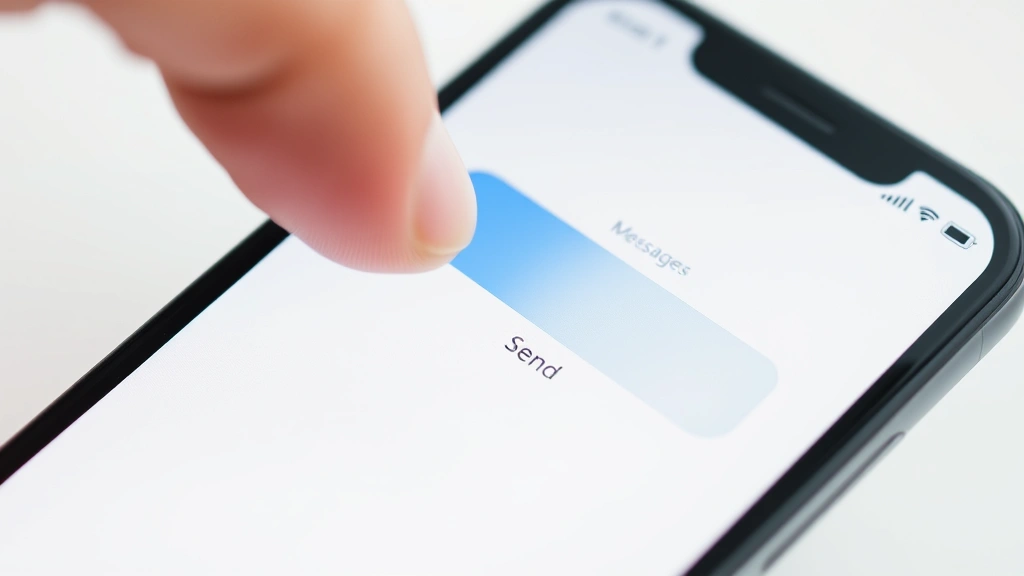
- Press and hold the send button. Here’s the key: don’t just tap the blue send arrow. Press and hold it for about 2 seconds. A menu will pop up with options.
- Tap “Send Later.” You’ll see this option appear in the popup menu. This is what triggers the scheduling interface.
- Choose your date and time. A time picker will appear. Use the scroll wheels to select the exact date and time you want the message sent. The default is usually tomorrow at 9 AM, but you can customize it completely.
- Confirm by tapping “Send.” Once you’ve set your preferred time, tap the Send button again. Your message is now scheduled.
That’s it. Seriously. Three taps (compose, hold send, set time) and you’re done. The message lives in your Drafts folder until the scheduled time arrives, then it sends automatically. You don’t need to do anything else. Your phone can even be off, and the message will still send when you turn it back on after the scheduled time.
Using Siri Shortcuts for Advanced Scheduling
If you want more control or you’re running an older iOS version, Siri Shortcuts is your workaround. It’s not as seamless as native scheduling, but it works, and it’s surprisingly powerful once you get the hang of it.
Siri Shortcuts is basically Apple’s automation tool. You can create custom workflows that do multiple things in sequence. For scheduling texts, you’d set up a shortcut that triggers at a specific time and sends a message to a contact.
Here’s the basic approach:
- Open the Shortcuts app (comes pre-installed on modern iPhones).
- Tap the “+” icon to create a new shortcut.
- Search for and add the “Send Message” action.
- Configure the recipient and message content.
- Add a “Wait” action to delay execution (this is your scheduling mechanism).
- Set the wait duration (e.g., “5 hours” or “until 9 AM tomorrow”).
- Save your shortcut and run it when you want to queue up the message.
The downside? You have to actually run the shortcut yourself. It doesn’t automatically trigger at a future time unless you set up an automation, which requires the shortcut to run in the background. For simple scheduling, native Messages scheduling is cleaner. But if you need conditional logic (like “send this message only if I haven’t texted back by 8 PM”), Shortcuts gives you that flexibility.
Third-Party Apps That Work Great
Not every iPhone user is on iOS 16+. If you’re stuck on an older version, third-party apps are your best friend. There are several solid options, and I’ll be honest about which ones actually deliver.
Scheduled: This is probably the most straightforward third-party option. It’s simple, it works, and it doesn’t try to do too much. You compose a message, set a time, and it sends. The free version has limitations, but the paid version ($4.99) is reasonable.
Later: A bit more feature-rich. It lets you schedule multiple messages, set recurring reminders, and even schedule to different platforms (though for SMS/iMessage, the core functionality is what matters).
Send Me: Another solid option with a clean interface. It integrates with Siri Shortcuts, which means you can get creative with automations if you want to go deep.
The reality? All of these require you to grant them access to your contacts and messaging capabilities. That’s a privacy consideration worth thinking about. If you’re comfortable with it, they work. If you’re not, stick with native iOS 16+ scheduling or Siri Shortcuts.
One more thing: check reviews before downloading. App quality varies, and some scheduling apps have been abandoned by their developers. Look for recent updates and active user ratings.
Troubleshooting Common Issues
“Send Later” option doesn’t appear when I hold the send button.
This is the most common issue. The fix is simple: you’re on iOS 15 or earlier. The native scheduling feature only exists in iOS 16 and later. Update your iPhone, and the option will appear. Go to Settings > General > Software Update and follow the prompts. If you’re having trouble with the update process, sometimes restarting your device helps.
My scheduled message didn’t send at the right time.
A few possible causes: First, check that your iPhone was connected to the internet (WiFi or cellular) at the scheduled time. Messages need connectivity to send. Second, verify you didn’t accidentally enable Do Not Disturb or Airplane Mode. Third, confirm the time zone in Settings > General > Date & Time is correct. If you scheduled a message for 9 AM in your home time zone but then traveled, the message might send at an unexpected local time.
I scheduled a message but can’t find it to edit or delete it.
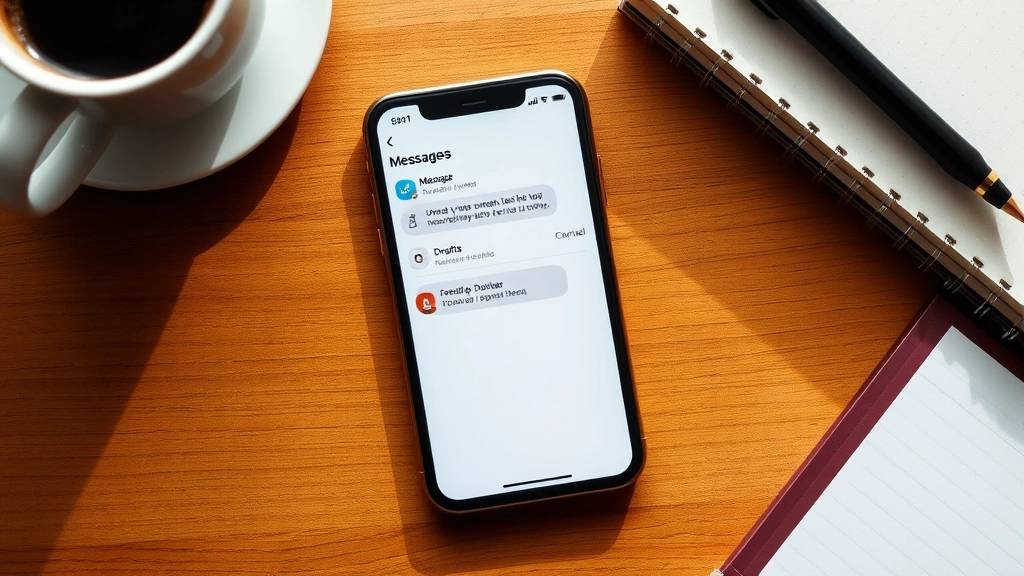
Scheduled messages live in your Drafts folder in the Messages app. Swipe left on the conversation in your chat list, and you’ll see options to delete or edit the scheduled message. If you want to reschedule it, delete it and create a new scheduled message with the updated time.
The app keeps crashing when I try to schedule a message.
This usually means the Messages app needs to be refreshed or updated. Close the app completely (swipe up from the bottom of the screen and hold on the app preview, then swipe up to close it). Reopen it. If that doesn’t work, check the App Store to see if there’s a Messages update available. Apple regularly pushes bug fixes.
I’m using a third-party app, and it’s not sending messages.
Most third-party apps require specific permissions. Go to Settings > Apps (or Privacy, depending on your iOS version) and make sure the app has permission to access Contacts and Messages. Also, restart the app and your iPhone. Sometimes third-party apps have server-side issues too—check the app’s social media or support page to see if others are reporting problems.
Best Practices & Pro Tips
Pro Tip: Schedule important messages for when you know the recipient will see them. If you’re texting a coworker, don’t schedule it for 11 PM. Schedule it for 8 AM when they’re checking their phone. Timing matters.
Here are some real-world scenarios where scheduling texts saves the day:
Birthday messages: Schedule a text to send at midnight on someone’s birthday. You’ll be the first person to wish them happy birthday without having to stay up late.
Time zone coordination: Working with someone in a different time zone? Schedule your message to arrive during their business hours, not yours. This is especially useful if you’re coordinating with international teams.
Relationship maintenance: Schedule a “thinking of you” text to send when you know someone is on their lunch break or heading home from work. It shows thoughtfulness without requiring you to remember at the exact moment.
Appointment reminders: Schedule a text to yourself as a reminder. Wait, you can’t text yourself on iPhone… but you can schedule a message to a friend and ask them to remind you. Or better yet, use the Reminders app for this.
Follow-up messages: After a conversation, schedule a follow-up message for the next day. This keeps momentum going without seeming pushy.
Avoiding “too eager” vibes: If you’re messaging someone you’re interested in, scheduling a message for a reasonable hour (instead of sending it at 1 AM when you’re thinking about them) keeps things casual and appropriate.
Safety Warning: Don’t schedule sensitive or emotional messages when you’re upset. Write the message, schedule it for 2 hours later, and revisit it before it sends. You can edit or delete scheduled messages from your Drafts folder. This prevents regrettable texts.
Another pro move: if you’re coordinating communication across multiple platforms, learn how to delay sending emails in Outlook too. The same principle applies—timing your messages strategically makes you look more organized.
Know Your Limitations
Before you go all-in on scheduled texting, understand what it can’t do:
It only works on iPhone. If you’re using an Android phone, you won’t have access to Apple’s native scheduling. Android has its own solutions (Google Messages has scheduling in some regions), but they’re not the same.
It requires iOS 16.1 or later for native scheduling. Older iPhones don’t have the “Send Later” feature in Messages. You’re stuck with third-party apps or Siri Shortcuts workarounds.
The message must be composed on your iPhone. You can’t schedule a text from iCloud.com or another device. You have to use the Messages app on the actual iPhone that will send it.
Scheduled messages don’t work if your iPhone is permanently off. The phone needs to be powered on at or after the scheduled time. If you turn off your iPhone 15 and leave it off past the scheduled send time, the message won’t go out.
Group messages have limitations. You can schedule group texts, but if someone leaves the group or changes their number before the message sends, you might get delivery errors.
Media scheduling is tricky. Scheduling photos or videos is possible, but the file needs to stay in your Photos app. If you delete the photo before the message sends, the message might fail or send without the attachment.
These aren’t deal-breakers—just realities to plan around. For 95% of text scheduling needs, native iOS scheduling handles it perfectly.
Frequently Asked Questions
Can I schedule a text to multiple people at once?
– Not in a single scheduled message. You’d need to schedule individual messages to each person, or create a group chat and schedule a message there. If you need to send the same message to multiple people at the same time, scheduling a group message is your best bet. Just remember that everyone in the group will see that it’s a group message.
What happens if my iPhone dies before the scheduled time?
– The message stays queued in your Drafts folder. When you turn your iPhone back on, it will send at the next available moment after the originally scheduled time. You won’t lose the message, but the timing might be slightly off.
Can I schedule a text to send in 5 minutes?
– Technically yes, but it’s not practical. The scheduling interface is designed for scheduling messages hours or days in advance. If you just want to delay a message by a few minutes, it’s easier to just send it now. The scheduling feature is really meant for more significant time gaps.
Do scheduled texts use my data plan or WiFi?
– Whichever connection is available at the time of sending. If you’re on WiFi when the message sends, it goes through WiFi. If you’re on cellular data, it uses that. The iPhone automatically uses whatever’s available, just like a regular text.
Can I schedule a message to send at a specific time every day?
– Not with native iOS scheduling. The “Send Later” feature is for one-time scheduled messages. If you need recurring scheduled messages, you’d need to use Siri Shortcuts with automation or a third-party app that supports recurring schedules.
Is there a limit to how far in advance I can schedule a message?
– No hard limit, but practically speaking, you can schedule messages weeks or even months in advance. I’ve scheduled messages 6 months out without issues. Just remember that your iPhone needs to be powered on (or turned on by that date) for the message to send.
Will scheduled messages work if I switch to a new iPhone?
– If you restore from a backup, your scheduled messages should transfer over. If you set up your new iPhone as a new device without restoring a backup, you’ll lose any scheduled messages. Always restore from backup to preserve scheduled messages.
Can I schedule messages to contacts who have blocked me?
– You can schedule the message, but it won’t deliver. The message will fail to send when the scheduled time arrives, and you’ll get a delivery failure notification. It’s better to check your contact list and make sure the person hasn’t blocked you before scheduling.
Does the recipient know the message was scheduled?
– No. There’s no indicator that a message was scheduled. It looks like a regular text from your perspective, and from their perspective, it just appears in their inbox at that time. They have no way of knowing you scheduled it in advance.
What if I want to cancel a scheduled message?
– Open the Messages app, find the conversation with the scheduled message, and swipe left on it. You’ll see options to delete or edit. Tap the delete option (trash icon), and the scheduled message is cancelled. It won’t send.


