
Okay, real talk: figuring out how to see someone’s emotes on Roblox shouldn’t be this confusing, but Roblox doesn’t exactly make it obvious. You’re in a game, someone does a cool dance or gesture, and you think, “How did they do that?” Or maybe you just want to know what emotes your friends have equipped so you can unlock the same ones. Either way, you’re not alone in wondering.
The truth is, seeing someone’s emotes on Roblox involves a few different methods depending on whether you’re trying to view them in-game, check their profile, or figure out where to buy the ones you want. This guide walks you through every approach so you can stop guessing and start understanding exactly how the emote system works.
What Are Roblox Emotes?
Before we dive into how to see someone’s emotes on Roblox, let’s clarify what we’re actually looking at. Emotes are animations that your character performs—think dances, gestures, laughs, or other character expressions. They’re cosmetic items that don’t affect gameplay but let players express themselves and show off their style.
Roblox has several types of emotes:
- Dance Emotes: Full-body dancing animations, often set to music or rhythm
- Gesture Emotes: Shorter animations like waving, saluting, or pointing
- Emote Wheels: Special emote packs that let you access multiple animations quickly
- Limited Emotes: Rare or seasonal emotes that are only available for a short time
Some emotes are free, while others cost Robux (the in-game currency). Some come from the Roblox catalog, while others are exclusive to specific games or events. Understanding the difference matters because it affects whether you can actually get that emote you saw someone else using.
Viewing Emotes in Game: The Direct Method
The most straightforward way to see someone’s emotes on Roblox is to watch them perform the emote in-game. But here’s the thing—you can’t just look at someone and magically know which emote they’re using. You have to actually see them do it, and then figure out what it is.
Step-by-Step: Watching Emotes in Real Time
- Join a game where the player is active. Make sure you’re in the same server or game instance as the person whose emotes you want to see.
- Watch for emote animations. When a player performs an emote, their character will stop moving and play the animation. This is your cue that an emote is happening.
- Note the animation details. Pay attention to the style, movements, and any music or sound effects. This helps you identify it later.
- Ask the player directly. Honestly, the easiest method is to just ask in chat: “What emote is that?” Most players are happy to tell you.
- Search the Roblox catalog. Once you have a description or name, visit the Roblox catalog and search for similar emotes to find a match.
This method works, but it’s not foolproof. Some emotes are game-specific, meaning they only work in certain games and won’t show up in the main Roblox catalog. If you ask a player and they tell you the emote name but you can’t find it in the catalog, that’s usually why.
Checking a Player’s Profile for Their Equipped Emotes
Here’s where things get interesting. You can actually visit a player’s profile and see which emotes they have equipped—though Roblox doesn’t make this super obvious. Here’s how:
How to Access a Player’s Equipped Emotes
- Find the player in-game or through a friend list. You need their username or a direct link to their profile.
- Click on their avatar or username. This opens their profile card (a quick preview) or their full profile page.
- Look for the “Emotes” section. On their full profile, scroll down to see what emotes they have equipped. Not all profiles display this clearly, but many do.
- Alternatively, visit their profile directly. Go to roblox.com, search for their username, and click their profile. Once there, look for sections showing their equipped items, which may include emotes.
Pro Tip: If you’re on a Mac and need to navigate Roblox menus more efficiently, check out our guide on how to right-click on a Mac. Right-clicking player names or profile elements can sometimes reveal additional options.
The challenge here is that not every player has their emotes publicly visible. Some players keep their inventory private, which means you won’t be able to see their equipped emotes even if you visit their profile. This is a privacy setting on their end, and there’s no way around it.
Finding Where Emotes Come From and How to Get Them
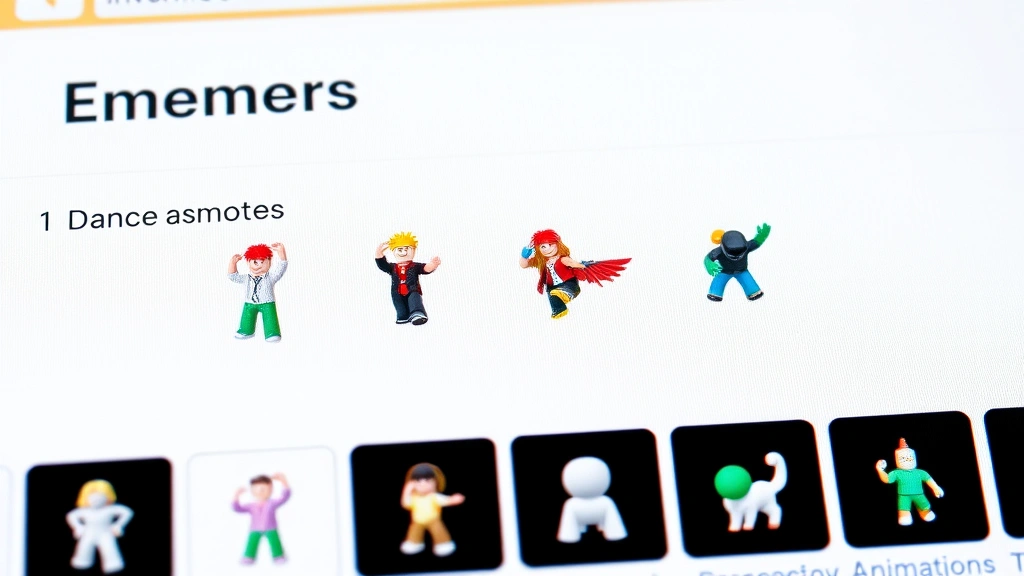
Once you’ve identified an emote you want, the next step is figuring out where to get it. This is where understanding the different sources of emotes really matters.
The Roblox Catalog (Official Emotes)
The easiest place to find and purchase emotes is the official Roblox catalog. Here’s how to access it:
- Log into your Roblox account.
- Click on the shopping bag icon or “Catalog” in the top menu.
- Use the search bar to type “emotes” or the specific emote name.
- Filter results by “Emotes” to narrow down your search.
- Click on an emote to see its price, description, and preview animation.
- If you want it, click “Buy” and confirm the purchase with Robux.
Most catalog emotes range from 50 to 500 Robux, though some limited or exclusive ones cost more. The preview animation shows you exactly what the emote looks like before you buy, so you know what you’re getting.
Game-Specific Emotes
Some games create their own exclusive emotes that only work within that game. These won’t appear in the main Roblox catalog. To find them:
- Play the specific game where you saw the emote.
- Look for an in-game shop or emote menu (usually accessible via a button or menu option).
- Search for the emote by name or browse the available options.
- Purchase it using Robux or in-game currency if required.
Game-specific emotes are often cheaper than catalog emotes, but they only work in that one game. If you switch games, you won’t have access to them.
Limited and Event Emotes
Roblox occasionally releases limited-time emotes during events, holidays, or special promotions. These are only available for a short window, and once they’re gone, they’re gone. If you missed one, your only option is to find a player who has it and see if they’re willing to trade (though Roblox doesn’t have an official trading system for emotes like it does for other items).
Safety Warning: Be careful with third-party websites claiming to offer “free emotes” or “emote generators.” These are almost always scams designed to steal your Roblox account credentials. Stick to the official Roblox catalog and in-game shops.
Equipping and Managing Your Own Emotes
Now that you understand how to see someone’s emotes on Roblox, let’s talk about setting up your own emote loadout so others can see what you’ve got.
How to Equip Emotes
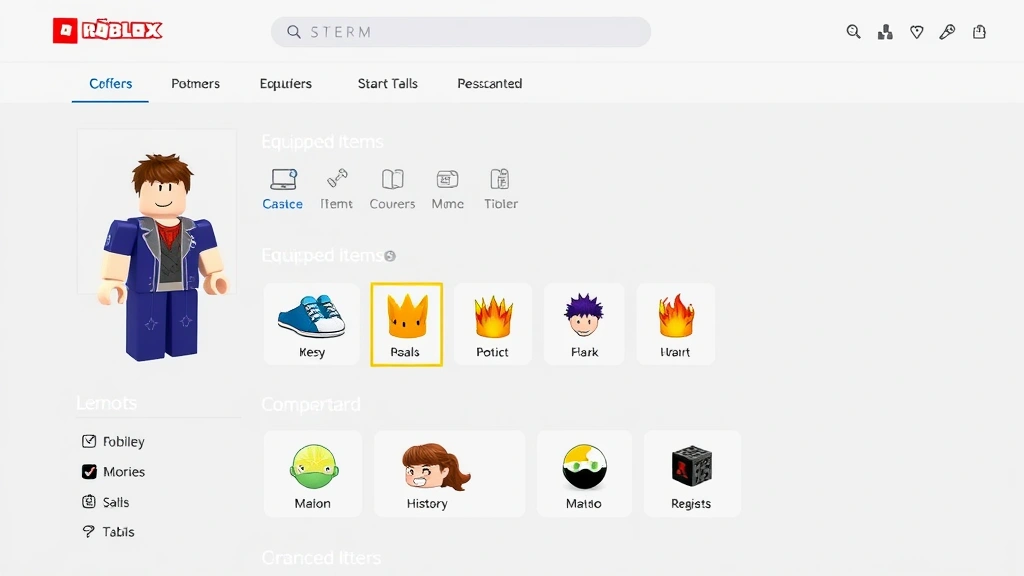
- Open your Roblox inventory. Click on your avatar in the top-right corner and select “Inventory.”
- Find the Emotes section. Look for “Emotes” in your inventory categories.
- Select which emotes to equip. Most players can equip 6-8 emotes at a time, which appear on an emote wheel in-game.
- Confirm your selections. Save your emote loadout.
- Test them in-game. Load into a game and press the emote hotkey (usually E or a menu button) to access your equipped emotes.
Different games may have different emote systems. Some use the standard Roblox emote wheel, while others have custom emote menus. Check the game’s controls or settings to see how to access emotes in that specific game.
Managing Your Emote Collection
As you collect more emotes, you’ll want to manage them efficiently:
- Favorite your most-used emotes. This makes them easier to find and equip.
- Organize by theme. Group dance emotes together, gesture emotes together, etc., so you can quickly find what you want.
- Check rarity. Limited emotes are worth keeping equipped if you have them—they show off your status as an early adopter.
- Update seasonally. Swap out your emotes for seasonal or holiday-themed ones when appropriate.
Your emote selection says something about your style and personality in Roblox, so don’t be shy about customizing it to match your vibe.
Troubleshooting Common Emote Problems
Sometimes things don’t work as expected. Here are the most common issues when trying to see or use emotes on Roblox, and how to fix them.
“I Can’t See Other Players’ Emotes in Game”
If you’re in a game and other players are performing emotes but you’re not seeing them:
- Check your graphics settings. Lower graphics settings sometimes hide animations. Try increasing your graphics quality in the game settings.
- Verify the game supports emotes. Not all Roblox games have emote functionality enabled. Check the game’s description or settings.
- Restart the game. Sometimes a simple restart fixes rendering issues.
- Update your Roblox client. Make sure you’re running the latest version of Roblox. Visit the official Roblox website to download the latest version if needed.
“I Bought an Emote but Can’t Equip It”
If you purchased an emote but it’s not showing up in your inventory:
- Refresh your inventory. Close and reopen the inventory menu to sync your recent purchases.
- Check if it’s game-specific. Game-specific emotes only appear in that particular game’s emote menu, not in your main inventory.
- Verify the purchase went through. Check your Robux balance to confirm the transaction was completed.
- Contact Roblox support. If the emote was purchased but didn’t appear, Roblox support can help resolve the issue.
“An Emote I Want Isn’t in the Catalog”
If you’ve identified an emote but can’t find it anywhere:
- It might be limited and no longer available. Check when it was released and whether it had a limited availability window.
- It could be game-exclusive. Some emotes only exist within specific games and never appear in the main catalog.
- Search with different keywords. Try variations of the emote name or description. “Dance” might show different results than “dancing.”
- Check the player’s game. If you saw it in a specific game, look for it in that game’s emote shop first.
Pro Tip: If you’re trying to document or share information about emotes you find, consider taking a screenshot. On most devices, you can capture what’s on screen. If you’re on an iPhone 16, check out our guide on how to screenshot on iPhone 16 for the latest method.
“Emotes Aren’t Showing Up on My Profile”
If you’ve equipped emotes but they’re not visible on your profile:
- Check your privacy settings. You may have your inventory set to private. Adjust your profile privacy settings to allow others to see your equipped items.
- Make sure emotes are actually equipped. Go back to your inventory and confirm you’ve saved your emote selections.
- Wait a few minutes for the update. Sometimes it takes a moment for profile changes to sync across Roblox servers.
Frequently Asked Questions
Can I see all of a player’s emotes if their profile is private?
– No. If a player has set their inventory or profile to private, you won’t be able to see their equipped emotes or their full collection. You can only see what they’ve chosen to make public.
Are there free emotes available on Roblox?
– Yes, Roblox occasionally offers free emotes, especially during events or promotions. These appear in the catalog marked as “Free.” Additionally, some games include free emotes as part of their in-game progression or rewards.
What’s the difference between catalog emotes and game-specific emotes?
– Catalog emotes work across all Roblox games and appear in your main inventory. Game-specific emotes only function within a particular game and exist only in that game’s emote shop. Game-specific emotes are usually cheaper but less versatile.
Can I trade emotes with other players?
– Roblox doesn’t have an official trading system for emotes like it does for some other items. You can’t directly trade emotes with other players. Your only option is to purchase them yourself from the catalog or in-game shops.
Why can’t I find an emote I saw someone else using?
– There are several reasons: it might be limited and no longer available, it could be exclusive to a specific game, it might be a developer-created emote that was never released publicly, or the player might have purchased it during a limited-time event. Ask the player directly for the most accurate answer.
How do I know if an emote is limited or will expire?
– Check the emote’s description in the catalog or in-game shop. Limited emotes usually have a countdown timer or a note saying “Limited Time” or “Expires on [date].” Once the timer runs out, the emote is no longer available for purchase.
Can I use the same emote in multiple games?
– Catalog emotes work across all games, so yes. Game-specific emotes, however, only work in the game they were purchased from. If you want to use an emote in different games, make sure it’s a catalog emote.
What do I do if I accidentally purchased the wrong emote?
– Roblox has a limited refund policy. If you made a mistake, you may be able to request a refund within a short window (usually 30 days). Contact Roblox support with your purchase details and explain the situation.
Do emotes affect gameplay or give any competitive advantage?
– No. Emotes are purely cosmetic and have no impact on gameplay mechanics, stats, or competitive advantage. They’re just for fun and self-expression.
How many emotes can I equip at once?
– Most players can equip 6-8 emotes at a time, which appear on an emote wheel. Some games may have different limits, so check the specific game’s settings. You can always swap out your equipped emotes whenever you want.
Understanding how to see someone’s emotes on Roblox opens up a whole new dimension of the game—one where you can appreciate the creativity and style of other players and build your own unique collection. Whether you’re hunting for that perfect dance move or just curious about what your friends are equipped with, you now have all the tools to find exactly what you’re looking for. The emote system might seem complex at first, but once you get the hang of it, you’ll be customizing your character like a pro.
For more helpful guides on navigating technology and digital platforms, check out our resources on how to right-click on a Chromebook and how to check what Windows version you have. And if you’re curious about online safety and privacy, our guide on how to know if someone blocked you on Snapchat covers similar privacy concerns on other platforms.


