
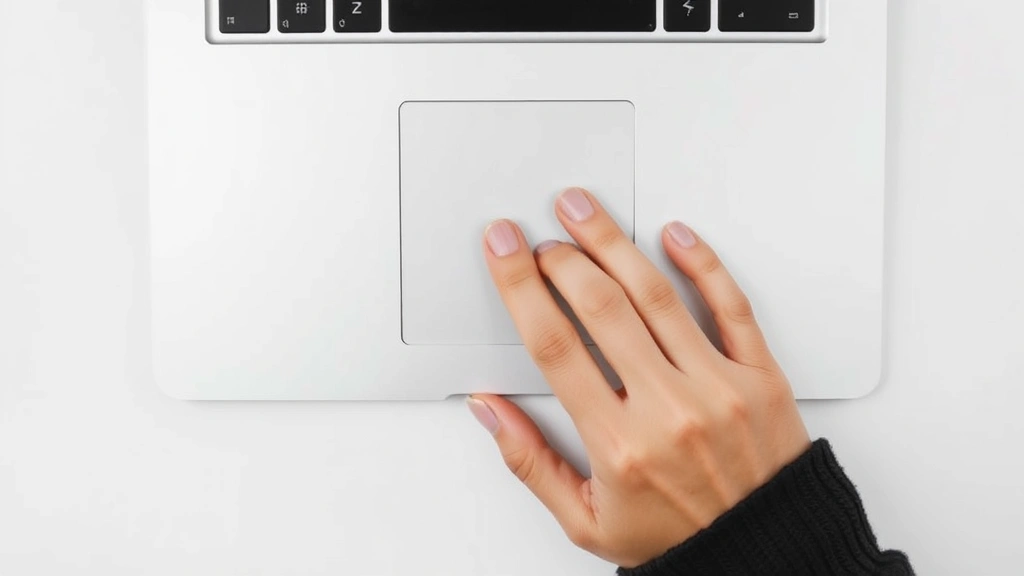
If you’re new to MacBook or just switched from Windows, scrolling can feel weirdly unintuitive at first. The trackpad behavior is nothing like a traditional mouse, and the gestures aren’t always obvious. Here’s the real talk: once you nail how to scroll on MacBook, you’ll wonder how you ever lived without it. The trackpad is actually one of the best features Apple built into these machines—it just needs the right approach.
This guide walks you through every scrolling method, from basic two-finger scrolling to advanced gesture tricks that’ll make you look like you actually know what you’re doing. Whether your trackpad feels sluggish, you’re not sure if you’re scrolling right, or you want to unlock hidden features, we’ve got you covered.
Basic Two-Finger Scrolling on MacBook
The foundation of how to scroll on MacBook starts with two fingers. This is the bread and butter of trackpad navigation, and it’s dead simple once you get the muscle memory down.
Here’s the method:
- Place two fingers (typically your index and middle finger) on the trackpad
- Move both fingers upward to scroll down the page (counterintuitive, right?)
- Move both fingers downward to scroll up the page
- Use the same two-finger motion left and right to navigate back and forward in browsers
The key detail people miss: you’re not clicking. Your fingers should glide smoothly across the surface. Think of it like you’re pushing the content with your fingertips, not dragging it. The trackpad senses the motion and translates it into scrolling action.
One thing that trips people up—MacBook trackpads don’t require much pressure. You don’t need to press hard. Light contact with smooth motion is all it takes. If you’re pressing down like you’re trying to dent the aluminum, you’re working too hard.
Pro tip: The speed of your scroll depends on how fast you move your fingers. Quick flicks scroll faster; slow deliberate movements give you precise control. This is perfect for reading long articles or carefully reviewing spreadsheets.
Adjusting Trackpad Settings for Your Preference
Not everyone’s hands are the same size, and not everyone likes the default scroll speed. macOS gives you granular control over how scrolling behaves, and it’s worth spending five minutes here to dial it in.
Here’s how to access trackpad settings:
- Click the Apple menu (top-left corner)
- Select System Settings (or System Preferences on older macOS versions)
- Click Trackpad
- Select the Scrolling & Zoom tab
Inside this menu, you’ll find several adjustable options:
- Scroll direction: Natural scrolling (default) mimics iOS—your fingers move up to scroll down. You can toggle this off if you prefer traditional scrolling (up scrolls up). Most people stick with natural scrolling after a day or two.
- Scroll speed: Ranges from slow to fast. The default is usually fine, but if you find yourself making huge finger movements to scroll small distances, bump it up.
- Zoom in or out: Pinch with two fingers to zoom. You can enable or disable this separately from scrolling.
The Scrolling & Zoom tab is where the magic happens for customizing how to scroll on MacBook to match your workflow. If you’re doing detailed design work, you might want slower, more controlled scrolling. If you’re browsing long documents, faster scrolling saves time.
Safety note: If you disable natural scrolling, make sure everyone else using the MacBook knows about it. Muscle memory is real, and a family member or colleague will get confused fast.
Advanced Scrolling Gestures You Didn’t Know About
Once basic two-finger scrolling feels natural, there are hidden gestures that make navigation faster. These aren’t essential, but they’re the kind of moves that make you look like you’ve been using a Mac for years.
Three-finger swipes: Use three fingers to swipe left or right to navigate between full-screen apps or spaces. This is different from scrolling but uses the same trackpad real estate.
Four-finger swipes: Swipe up with four fingers to open Mission Control (shows all open windows). Swipe down to show the desktop. These are less about scrolling and more about workspace navigation, but they’re worth knowing.
Pinch to zoom: Place two fingers on the trackpad and pinch inward to zoom out, or spread them apart to zoom in. This works in browsers, photos, maps, and most Apple apps. It’s intuitive once you try it—your brain already knows what pinching does.
The reason these gestures matter: they keep your hands on the trackpad instead of reaching for the mouse or keyboard. In a workflow where you’re constantly switching between apps or adjusting zoom levels, these gestures save seconds that add up to minutes over a day.
Understanding Momentum Scrolling and Inertia

MacBook scrolling has a feature called momentum scrolling (or inertial scrolling). When you flick your fingers upward on the trackpad, the page keeps scrolling after you lift your fingers, gradually slowing down. It’s like flicking a marble across a table—it coasts before stopping.
This is on by default and honestly, it’s one of the best parts of MacBook trackpads. Once you get used to it, scrolling on other devices feels clunky.
Here’s what’s happening: you’re not dragging the page. You’re giving it momentum, and physics (well, software physics) takes over. A quick flick scrolls through entire paragraphs. A slow, deliberate swipe gives you pixel-perfect control.
If momentum scrolling feels weird to you, you can adjust it:
- Go to System Settings > Trackpad > Scrolling & Zoom
- Look for scroll speed settings
- Lowering the scroll speed reduces momentum; raising it increases it
Real talk: most people hate momentum scrolling for about 30 minutes, then it becomes second nature. Your brain adapts faster than you think. If you’re coming from Windows, give it a full week before deciding you don’t like it.
Troubleshooting Common Scroll Problems
Sometimes how to scroll on MacBook stops working smoothly. Here are the most common issues and actual fixes that work.
Trackpad not scrolling at all: First, check if scrolling is enabled. Go to System Settings > Trackpad > Scrolling & Zoom and make sure the option isn’t unchecked. If it’s already enabled, restart your Mac. Seriously. Most trackpad issues vanish after a restart.
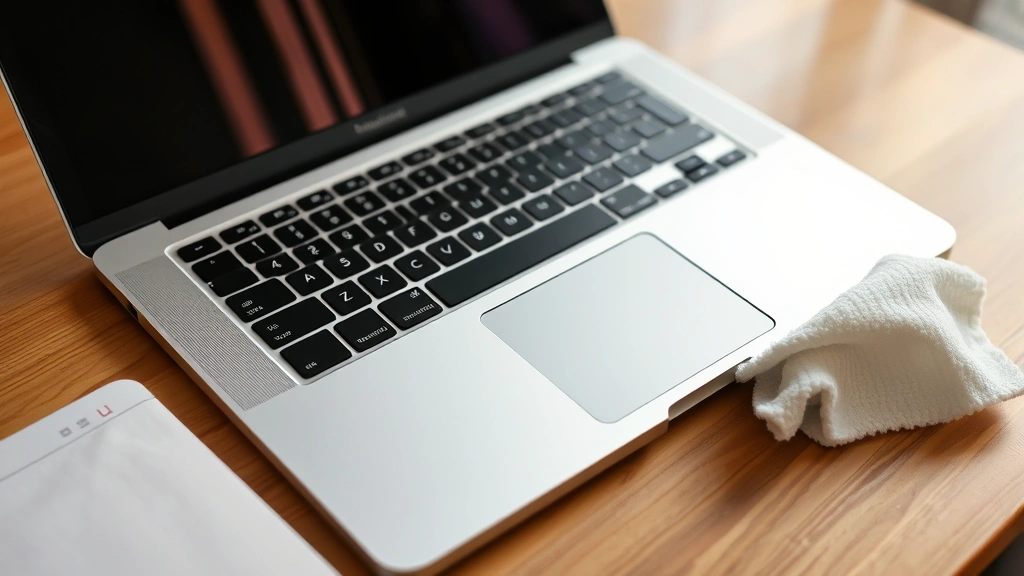
Scrolling feels slow or laggy: This usually means your trackpad needs cleaning. Dust and skin oils build up over time. Use a soft, slightly damp microfiber cloth and gently wipe the trackpad surface. For a deeper clean, check out how to wash mousepad—the same principles apply to MacBook trackpads.
Scrolling direction is reversed (or feels wrong): Toggle natural scrolling on and off in System Settings > Trackpad > Scrolling & Zoom. Your muscle memory might just need adjustment.
Trackpad responds inconsistently: This could mean the trackpad needs recalibration. Restart your Mac and try again. If the problem persists, Apple’s official support page has advanced troubleshooting steps.
One area of trackpad doesn’t respond: Your trackpad might have a dead zone. Try using a different part of the trackpad. If scrolling works elsewhere, the problem is localized. Restart your Mac. If that doesn’t work, you might need trackpad service—this isn’t a DIY fix.
Pro tip: If you use your MacBook on a desk most of the time, consider an external mouse or trackpad. Your wrists will thank you, and you’ll avoid the repetitive strain that comes from constant trackpad use. It’s not a weakness; it’s ergonomics.
Scrolling with an External Mouse on MacBook
Sometimes the built-in trackpad isn’t enough. Maybe you’re doing heavy design work, or you just prefer a mouse. MacBooks play nicely with external mice, and scrolling behavior is slightly different.
When you connect a wireless or Bluetooth mouse to your MacBook, scrolling works the traditional way: scroll wheel up scrolls up, scroll wheel down scrolls down. No natural scrolling by default (though you can change this in settings).
Here’s how to pair a mouse:
- Go to System Settings > Bluetooth & Devices
- Make sure Bluetooth is on
- Put your mouse in pairing mode (usually a button on the bottom)
- Click Pair when your mouse appears in the list
Once paired, you can customize mouse scrolling in System Settings > Mouse. Options include scroll speed and direction (natural vs. traditional). If you’re using a mouse from another brand—Logitech, Razer, Microsoft—check their software. Many mice have their own control panels that override macOS settings.
For heavy work, ergonomic mice are worth the investment. Your hands spend hours on these devices. Comfort matters.
Keyboard Shortcuts for Scrolling Without the Trackpad
In a pinch, you can scroll using the keyboard. This isn’t as smooth as trackpad scrolling, but it works.
- Page Up: Scrolls up one page
- Page Down: Scrolls down one page
- Home: Jumps to the top of a page
- End: Jumps to the bottom of a page
- Spacebar: Scrolls down one page (in most browsers and apps)
- Shift + Spacebar: Scrolls up one page
These shortcuts are lifesavers if your trackpad stops working temporarily or if you’re in a situation where trackpad scrolling isn’t practical. They’re also faster for jumping large distances compared to trackpad scrolling.
If you want even more control, Apple publishes a complete list of macOS keyboard shortcuts that includes navigation commands for different apps.
Frequently Asked Questions
Why does my MacBook scroll in the opposite direction from my Windows laptop?
– MacBooks use natural scrolling by default, which mimics how you interact with touchscreen devices. Your fingers move up to push content down, just like on an iPhone. Windows uses traditional scrolling (scroll wheel up moves content up). You can disable natural scrolling in System Settings > Trackpad > Scrolling & Zoom if it bothers you, but most people adapt within a few days.
Can I scroll horizontally on MacBook?
– Yes. Use two fingers and move them left or right to scroll horizontally. In browsers, this also navigates back and forward through pages. Some apps use horizontal scrolling for image galleries or timeline views. The gesture is the same as vertical scrolling—just change the direction.
What’s the difference between scrolling and swiping on MacBook?
– Scrolling moves content within a single window (two fingers, up/down). Swiping switches between windows or apps (three or four fingers). The trackpad recognizes how many fingers you’re using and applies the appropriate action. They feel similar but serve different purposes.
Is natural scrolling bad for my wrists?
– Not inherently. The motion is gentle and doesn’t require much pressure. However, if you’re using your trackpad for hours every day, any repetitive motion can cause strain. Consider taking breaks, adjusting your desk height, and using an external mouse or trackpad for long sessions. Check out OSHA’s ergonomics guidelines for workstation setup best practices.
Why does scrolling feel faster on some MacBooks than others?
– Scroll speed is adjustable in System Settings, and different models might ship with different defaults. Also, trackpad sensitivity varies slightly between MacBook generations. Older trackpads might feel different from newer ones. If you’re used to a newer MacBook, an older one will feel slower. Adjust the scroll speed setting to match your preference.
Can I scroll in Finder windows?
– Absolutely. Two-finger scrolling works in Finder just like any other app. If you have a list of files and you’re viewing them in column view or list view, scrolling works normally. If you’re in icon view with many files, scrolling moves through the icons. Same trackpad gesture, different visual result.
Does scrolling speed affect battery life?
– No. Scrolling is a trackpad input—it doesn’t consume significant battery regardless of how fast you’re doing it. Battery life is affected by screen brightness, app usage, and processor load. Scrolling speed is purely a preference setting with no performance impact.
What if my trackpad stops responding to scrolling after an update?
– This occasionally happens after a macOS update. First, restart your Mac. If that doesn’t work, go to System Settings > Trackpad and verify scrolling is enabled. If it’s already enabled, try toggling natural scrolling off and back on. If nothing works, check Apple’s support documentation for your specific macOS version.
Can I use scroll settings that work differently for different apps?
– Not natively in macOS. Scroll settings are system-wide. However, some third-party apps like BetterTouchTool allow app-specific trackpad customization. If you need different scrolling behavior for different apps, explore those options. For most people, the default settings work fine across all apps.
Is there a way to make scrolling more precise?
– Yes. Slow down your finger movements on the trackpad. The slower you move your fingers, the more precise your scrolling becomes. You can also lower the scroll speed in System Settings for finer control. For pixel-perfect scrolling, use keyboard shortcuts (Page Up/Down) or arrow keys instead.
What’s the best way to clean my trackpad for better scrolling?
– Use a soft, lint-free microfiber cloth slightly dampened with water. Gently wipe the trackpad surface in circular motions. Never use harsh chemicals or excessive water. Let it dry completely before using. For stubborn grime, a 50/50 mix of isopropyl alcohol and water works, but test on a small area first. Regular cleaning keeps your trackpad responsive and prevents the sluggish feeling that makes scrolling feel broken.


