
Your screen flickers. Games stutter. Videos won’t play smoothly. Before you panic and think your GPU is dying, here’s the real talk: most of these issues stem from a corrupted or outdated graphics driver. The good news? Knowing how to reset graphics driver can fix 80% of these problems in under 30 minutes. This guide walks you through every method—from the safest rollback to the nuclear option—so you can get back to work or gaming without losing your mind.
What Is a Graphics Driver & Why Reset It?
Think of your graphics driver like the translator between your operating system and your GPU. Your Windows or macOS doesn’t speak GPU language natively—the driver converts commands into instructions your graphics card understands. When that translator gets corrupted, glitchy, or outdated, everything visual goes haywire.
A graphics driver reset isn’t the same as a fresh Windows install. You’re not nuking your entire system. Instead, you’re either rolling back to a known-good version or completely removing the driver and letting Windows reinstall a clean, default version. It’s like replacing a faulty transmission fluid—you’re not replacing the whole car, just clearing out the junk.
According to Microsoft’s official documentation, driver issues account for roughly 35% of Windows performance complaints. Graphics drivers specifically cause display corruption, gaming crashes, and video playback issues more often than any other driver type.
Pro Tip: Before you reset anything, create a system restore point. Go to Settings > System > System Protection > Create. This takes 2 minutes and could save your bacon if something goes wrong.
Signs Your Graphics Driver Needs a Reset
Not every visual glitch means your driver is toast. But these specific symptoms usually point directly to a driver problem:
- Screen flickering during gaming, video playback, or even idle desktop time
- Artifacts (weird colored lines, squares, or distortions) appearing on screen
- Games crashing with generic error messages like “Display Driver Stopped Responding”
- Video playback stuttering or freezing while audio continues
- High GPU temperatures without increased load (driver bug causing GPU to work harder)
- Resolution resets unexpectedly or won’t stay at your preferred setting
- Black screens after Windows update or driver installation
- No display output on secondary monitors
If you’re seeing one or two of these, a driver reset has a 70% success rate. If you’re seeing five or more, you almost definitely need to reset.
Here’s what’s not a driver issue: slow internet speed, CPU overheating, or RAM problems. Those need different fixes. But if your screen looks broken while everything else seems fine, your graphics driver is the culprit.
Method 1: Rollback to Previous Driver (Safest)
This is the “undo” button. If your driver worked fine last week and today it’s acting weird, rolling back is your first move. It’s the safest because you’re not removing anything—just going back to what worked.
For Windows (NVIDIA or AMD):
- Right-click your desktop and select NVIDIA Control Panel or AMD Radeon Settings
- Look for a tab labeled Help or Support
- Find System Information or Driver Version to see your current version
- Open Device Manager (right-click Start menu, select it)
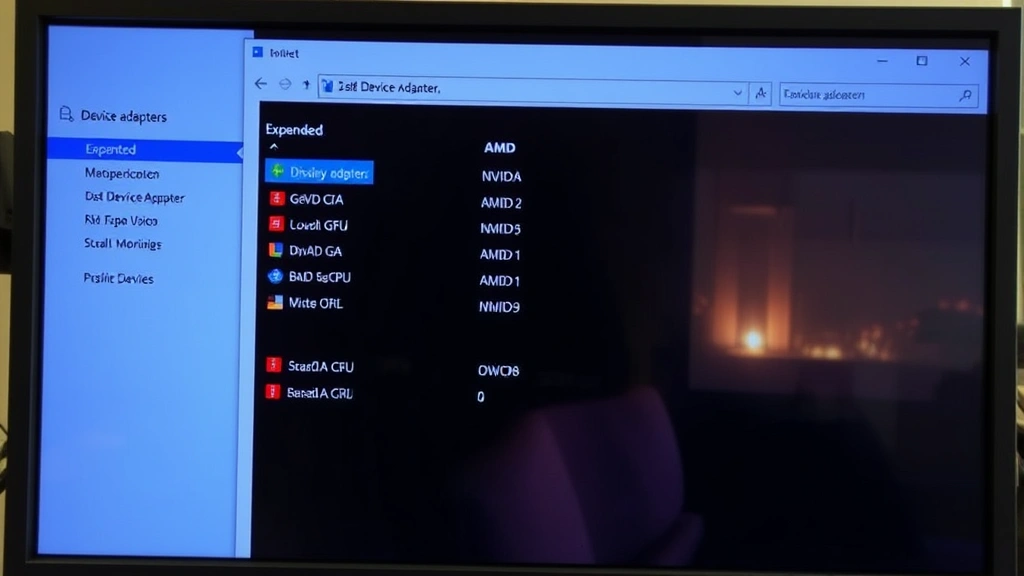
- Expand Display adapters
- Right-click your GPU (usually says “NVIDIA GeForce” or “AMD Radeon”)
- Select Properties
- Click the Driver tab
- Click Roll Back Driver (this button only appears if a previous version exists)
- Choose a reason (doesn’t matter which) and confirm
- Restart your PC
The rollback process takes about 5 minutes total. Your PC will restart, and Windows will load the older driver automatically. Test your display immediately after restart—if the flickering or crashes stop, you’ve found your culprit.
Real Talk: If the “Roll Back Driver” button is grayed out, you don’t have a previous version saved. Move to Method 2 or Method 3 instead.
Method 2: Clean Uninstall with DDU (Most Thorough)
DDU stands for Display Driver Uninstaller, and it’s the nuclear option that actually works. Unlike normal uninstall processes, DDU removes every trace of your graphics driver, including registry entries and leftover files that cause conflicts.
This method is more involved but guaranteed to work. It’s what professional PC builders and IT technicians use when a driver is truly corrupted.
Step 1: Download and Prepare
- Go to Guru3D’s DDU download page (the official source)
- Download the latest version (usually a .zip file)
- Extract the .zip to a folder on your Desktop
- Open Device Manager again and note your exact GPU model (right-click it, Properties)
Step 2: Boot into Safe Mode
This is crucial. Windows Safe Mode disables most services, so your driver won’t try to load while you’re uninstalling it. Here’s how:
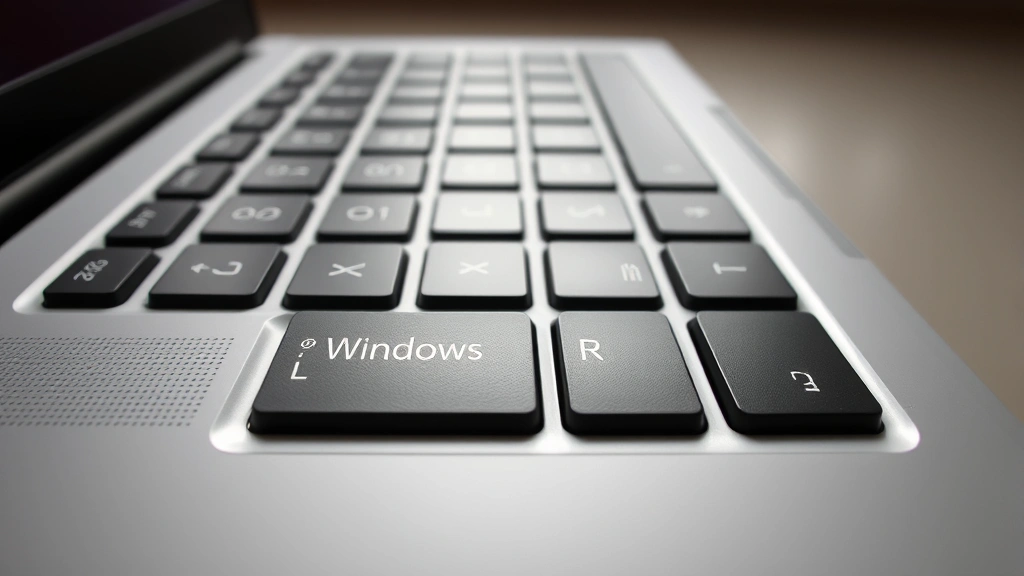
- Press Windows Key + R
- Type msconfig and press Enter
- Click the Boot tab
- Check Safe Mode (select “Minimal” if you see options)
- Click OK and restart
Your PC will boot into Safe Mode (text-only interface, low resolution). This is normal.
Step 3: Run DDU
- Navigate to your Desktop and open the DDU folder
- Run DDU.exe (right-click, Run as Administrator)
- Select your GPU manufacturer from the dropdown (NVIDIA, AMD, or Intel)
- Click Clean and Restart
- DDU will uninstall the driver and automatically restart your PC
The restart takes longer than usual—don’t panic. Windows is rebuilding its display drivers from scratch.
Step 4: Exit Safe Mode and Reinstall
- After restart, press Windows Key + R again
- Type msconfig
- Uncheck Safe Mode in the Boot tab
- Click OK and restart again
Windows will now boot normally. You’ll notice your resolution is lower and your desktop looks basic—that’s Windows using a generic display driver.
Step 5: Install Fresh Driver
- For NVIDIA: Go to nvidia.com/Download, enter your GPU model, download the latest driver, and run the installer
- For AMD: Go to amd.com/support, search your GPU, download the driver package, and run it
- For Intel: Visit intel.com/support for integrated graphics drivers
The installation takes 5-10 minutes. Restart when prompted. Your display will snap back to full resolution once the new driver loads.
This method works 95% of the time. The only reason it might fail is if your GPU itself is failing, which is a hardware problem.
Method 3: Reset Driver in Safe Mode (Windows Only)
If DDU feels too technical, here’s a middle-ground approach. Windows Safe Mode lets you uninstall the driver the normal way without it interfering. It’s less thorough than DDU but faster and simpler.
The Process:
- Boot into Safe Mode (follow the msconfig steps from Method 2)
- Open Device Manager (right-click Start menu)
- Expand Display adapters
- Right-click your GPU and select Uninstall device
- Check the box that says “Delete the driver software for this device” (critical step)
- Click Uninstall
- Restart your PC normally
- Windows will detect your GPU and install a generic driver automatically
- Install your manufacturer’s driver fresh (NVIDIA, AMD, or Intel)
This takes about 15 minutes total and avoids the Safe Mode boot cycle. It’s the Goldilocks option—not as aggressive as DDU, not as gentle as rollback.
Method 4: Reset via NVIDIA or AMD Control Panel
Both NVIDIA and AMD have built-in reset options within their control panels. These are less nuclear than DDU but more targeted than a full uninstall.
For NVIDIA:
- Right-click desktop and open NVIDIA Control Panel
- Look for Help menu (top right)
- Select Reset all settings to defaults
- Confirm the warning
- Restart your PC
For AMD:
- Right-click desktop and open AMD Radeon Settings
- Click the Gear icon (Settings)
- Look for System or Advanced
- Find Reset to Default or Factory Reset
- Confirm and restart
This resets your GPU’s custom settings (overclocking, color profiles, etc.) back to factory defaults. It doesn’t remove the driver itself, so if your driver is deeply corrupted, this won’t fix it. But if the problem is a bad setting or configuration, this is the quickest fix.
Think of it like resetting your router—you’re not replacing it, just clearing out the bad configuration.
Post-Reset Checklist & Optimization
After you’ve reset your graphics driver using any method, don’t just assume everything’s fixed. Follow this checklist to make sure the reset actually worked and to prevent future issues.
Immediate Testing (First 30 Minutes):
- Open a video on YouTube and let it play for 5 minutes—watch for stuttering or artifacts
- If you game, load your most demanding game and play for 15 minutes—monitor for crashes or flickering
- Open multiple browser tabs and scroll rapidly—check for display corruption
- Check your monitor’s refresh rate (right-click desktop, Display Settings, scroll down to Advanced Display Settings, confirm it matches your monitor’s spec)
If any of these tests fail, your driver reset didn’t work. Go back and try Method 2 (DDU) if you haven’t already.
Configuration & Optimization:
- Update Windows: Go to Settings > Update & Security > Check for updates. Outdated Windows can cause driver conflicts. According to Microsoft’s support pages, Windows updates often include driver compatibility fixes.
- Disable automatic driver updates: Go to Device Manager > Display adapters > Right-click GPU > Properties > Driver > Disable automatic driver updates (optional, but prevents future conflicts)
- Monitor temperatures: Download GPU-Z (free tool) and check your GPU temperature under load. Should stay under 80°C during gaming. If it’s hotter, your driver reset may have exposed a cooling issue.
- Set power settings: Right-click desktop > Display Settings > Scroll to Power Saving Settings > Set to “Balanced” or “High Performance” (depends on your needs)
- Clear DNS cache: If you’re experiencing network-related display issues, clearing your DNS cache can help resolve conflicts between your network and GPU drivers
Long-Term Prevention:
- Check for driver updates monthly: NVIDIA and AMD release updates regularly. Set a calendar reminder to check once a month.
- Keep Windows updated: Don’t skip Windows updates—they include security patches that prevent malware from corrupting drivers.
- Monitor your GPU: Use GPU-Z or HWiNFO to track temperatures and clock speeds. Unusual spikes indicate driver problems brewing.
- Avoid driver conflicts: If you have multiple GPUs (integrated + discrete), make sure only one is active in BIOS. Conflicts between them cause driver crashes.
- Use driver management tools: Tools like GeForce Experience (NVIDIA) or AMD Adrenalin automatically manage updates and settings. They’re not perfect, but they’re better than manual management.
Real talk: most people don’t maintain their drivers at all, then wonder why their PC goes haywire after 6 months. Spending 5 minutes monthly on driver updates saves you from spending 2 hours troubleshooting later.
If you’re experiencing broader system issues beyond graphics, you might also want to check whether your other devices need restarting or if there are security threats affecting your network.
Frequently Asked Questions
Will resetting my graphics driver delete my games or files?
– No. Resetting your graphics driver only affects the driver software itself—not your games, files, documents, or any other data. Your Steam library, game saves, and personal files remain untouched. The driver is just the communication layer between Windows and your GPU.
How long does a graphics driver reset take?
– Rollback takes 5 minutes. Safe Mode reset takes 15 minutes. DDU clean uninstall takes 20-30 minutes. Installing a fresh driver takes another 5-10 minutes. Total time depends on your method, but expect 30-45 minutes maximum. Most of that is waiting for restarts.
Can I reset my graphics driver on a laptop?
– Yes, all these methods work on laptops. One caveat: laptops often have both integrated graphics (Intel or AMD) and discrete graphics (NVIDIA or AMD). Make sure you’re resetting the right one. Check Device Manager to see both. Usually, you want to reset the discrete GPU, not the integrated one.
What if my screen goes black after resetting my driver?
– Don’t panic. Boot into Safe Mode (press F8 repeatedly during startup, or use msconfig), uninstall the driver completely, and restart. Windows will load a basic display driver. Then download and install a fresh driver from your GPU manufacturer’s website. Black screens during driver installation are common and usually resolve after a restart.
Should I update my driver immediately after resetting, or wait?
– Update immediately. After a reset, install the latest stable driver from your GPU manufacturer. Don’t wait. A fresh, up-to-date driver is more stable than an older one. The only exception: if a specific driver version is causing problems, skip it and install the previous version instead.
Can a graphics driver reset fix gaming lag or low FPS?
– Sometimes. If lag is caused by a driver bug (like incorrect power settings or thermal throttling), a reset can help. But if you’re getting low FPS because your GPU is simply underpowered for your games, a driver reset won’t help. Check your GPU usage in Task Manager while gaming—if it’s at 100%, it’s a hardware limitation, not a driver issue.
Is DDU safe to use, or will it damage my GPU?
– DDU is completely safe. It’s been around since 2009 and is used by professionals worldwide. It doesn’t touch your GPU hardware—it only removes software. The worst that can happen is you need to reinstall your driver, which takes 10 minutes. There’s no risk of hardware damage.
Do I need to reset my graphics driver if I’m not gaming?
– Yes. Graphics driver issues affect video playback, web browsing, and even basic desktop display. If your screen flickers while watching videos or scrolling the web, your driver needs a reset regardless of whether you game.
What’s the difference between resetting and updating my graphics driver?
– Resetting removes the driver (or rolls it back) and reinstalls it. Updating downloads a newer version of the driver. Resetting fixes corrupted drivers. Updating fixes bugs in older versions and adds new features. If your driver is broken, reset it. If it’s just outdated, update it.
Can malware cause graphics driver problems?
– Rarely, but yes. Malware can corrupt driver files or prevent them from loading properly. If you suspect malware, run a full antivirus scan before resetting your driver. Windows Defender (built-in) is usually sufficient, but Malwarebytes offers a more thorough scan if you’re concerned.


