
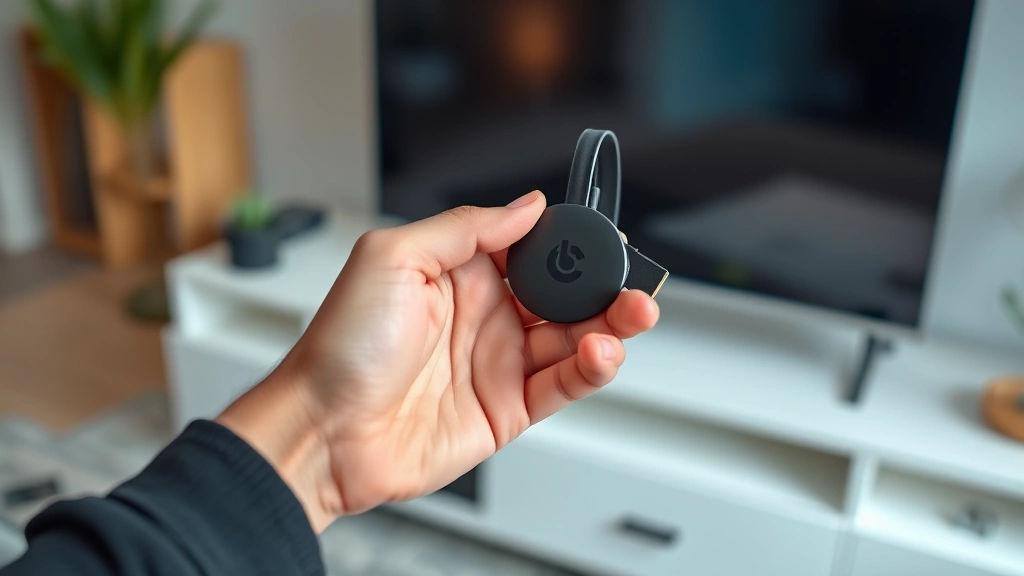
Your Chromecast was working fine yesterday, and now it won’t connect to anything. Frustrating, right? Before you toss it in the trash or buy a replacement, know this: how to reset Chromecast is one of the easiest fixes you can do yourself—and it solves about 80% of the problems people run into. Whether your device is frozen, won’t pair with your phone, or just acting weird, a reset is often the nuclear option that gets things working again. The good news? It takes about two minutes and requires zero technical skills.
Why You Might Need to Reset Your Chromecast
Before we dive into how to reset Chromecast, let’s talk about why you’re here in the first place. Your device might need a reset for several reasons. Maybe it won’t connect to your Wi-Fi network anymore. Maybe it’s stuck in a boot loop, or it’s not showing up in your Google Home app. Sometimes it won’t cast videos from Netflix, YouTube, or your phone. Other times, it’s just painfully slow or unresponsive to commands.
The thing about Chromecast devices—whether you have a Chromecast, Chromecast with Google TV, or a Chromecast Audio—is that they’re small, connected gadgets that live in your entertainment setup. Like any connected device, they can get confused, lose their network settings, or accumulate digital junk that slows them down. A reset clears all that out and brings the device back to factory condition.
Think of it like restarting your computer when it’s running slow. Sometimes you just need to wipe the slate clean.
Pro Tip: Before you reset, try unplugging your Chromecast for 30 seconds and plugging it back in. This soft restart fixes about half of all issues without losing your settings. If that doesn’t work, then move on to a full reset.
Soft Reset Method (Try This First)
A soft reset is the gentlest way to fix your Chromecast. You’re not erasing anything—you’re just turning it off and back on. This is like when you restart your phone to clear out temporary glitches.
Here’s how to do a soft reset:
- Unplug the power cable from the back of your Chromecast device.
- Wait 30 seconds. Seriously, count it out. This gives the device time to fully power down.
- Plug the power cable back in.
- Wait for the device to boot up. You’ll see the Google logo appear on your TV screen.
- Try using your Chromecast again to see if the issue is resolved.
This works surprisingly often. If your Chromecast is just being sluggish or won’t respond to casting commands, a soft reset can fix it in under a minute. The device will remember your Wi-Fi network and all your settings, so you don’t have to set it up again.
If the soft reset doesn’t work, move on to the next method.
Factory Reset Method (The Nuclear Option)
Now we’re getting into the real how to reset Chromecast territory. A factory reset erases everything—your Wi-Fi settings, paired devices, preferences, everything. The device goes back to the exact state it was in when it came out of the box. Use this when a soft reset doesn’t work, or when you’re selling or giving away your Chromecast.
Method 1: Using the Reset Button (Physical Reset)
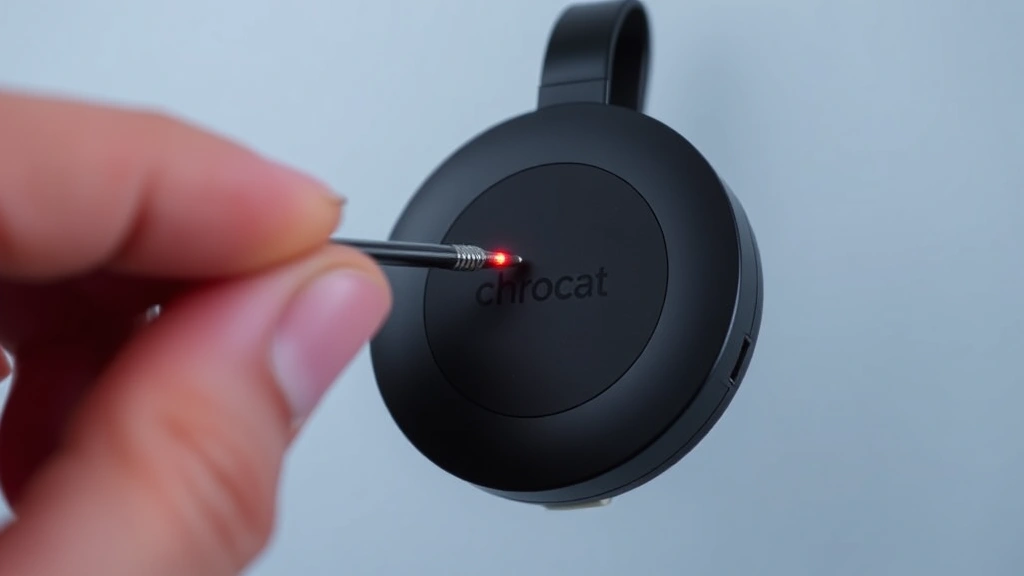
Most Chromecast devices have a physical reset button. Here’s how to find and use it:
- Locate the small reset button on your Chromecast. On the standard Chromecast, it’s a tiny recessed button on the back of the device. On Chromecast with Google TV, it’s also on the back. You might need a pen or paperclip to press it.
- Make sure your Chromecast is powered on and connected to power.
- Using a pen, paperclip, or similar thin object, press and hold the reset button for about 10-15 seconds.
- You’ll see the LED light on the device start to blink. Keep holding the button until the light turns solid again or goes out.
- Release the button. Your Chromecast is now resetting. This process takes about 1-2 minutes.
- Wait for the device to fully restart. You’ll see the Google logo and setup screen appear on your TV.
This is the most reliable way to do a factory reset because you’re not relying on network connectivity or app functionality. Even if your device won’t connect to Wi-Fi or your phone, the physical button will still work.
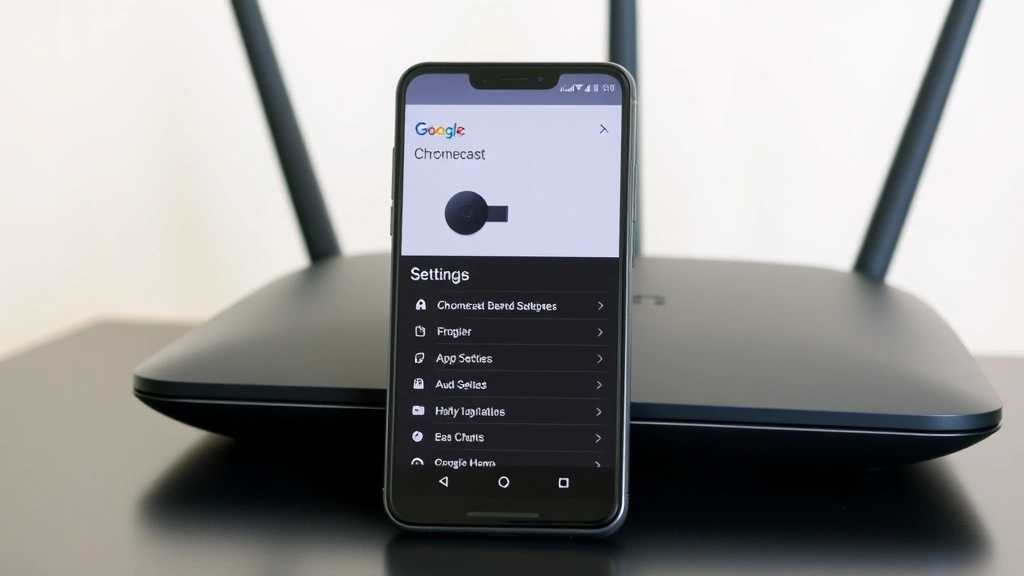
Method 2: Using the Google Home App
If you can still access your Chromecast through the Google Home app (even if it’s not working perfectly), you can reset it from there. This is less reliable than the physical button, but it works if you can’t reach the button for some reason.
- Open the Google Home app on your phone or tablet.
- Find your Chromecast device in the list of devices.
- Tap the settings icon (gear icon) next to your device name.
- Scroll down and look for “Factory Reset” or “Reset.”
- Tap it and confirm that you want to reset the device.
- The device will restart and go through the setup process.
This method requires your Chromecast to be connected to your Wi-Fi network and recognizable by the Google Home app. If it’s completely unresponsive, the physical reset button is your best bet.
Resetting via Google Home App: The Digital Approach
If your Chromecast is still connected to your network but not working right, the Google Home app gives you the most control over the reset process. This method is useful because it lets you see exactly what’s happening and you can cancel if needed.
Step-by-step instructions:
- Make sure your phone or tablet is connected to the same Wi-Fi network as your Chromecast.
- Open the Google Home app.
- Look for your Chromecast device. It should show up with its name (like “Living Room” or “Bedroom”).
- Long-press on the device tile or tap the three-dot menu icon.
- Select “Settings” from the menu.
- Scroll all the way down to the bottom of the settings page.
- Tap “Factory Reset.”
- A confirmation dialog will appear asking if you’re sure. Tap “Yes” or “Confirm.”
- The app will send the reset command to your device. The Chromecast will disconnect from the app and begin restarting.
- On your TV, you’ll see the device reboot and show the setup screen.
One advantage of using the app is that you can see the status updates in real time. If something goes wrong, you’ll get an error message that might help you troubleshoot. However, if your device is completely offline or not showing up in the app, you’ll need to use the physical reset button instead.
Safety Warning: When you reset your Chromecast, you lose all your settings. If you’ve set up multiple rooms, linked accounts, or customized preferences, you’ll need to redo all that after the reset. Write down your Wi-Fi password before you start, because you’ll need it during the setup process.
What to Do After Resetting Your Chromecast
After you’ve completed the reset, your Chromecast is basically a blank slate. Here’s what you need to do to get it working again:
- Plug it in and wait. Make sure the power cable is connected and the device has finished booting. You should see the Google setup screen on your TV.
- Open the Google Home app. On your phone or tablet, open the Google Home app. Make sure you’re on the same Wi-Fi network as your Chromecast.
- Add the device. The app should automatically detect your Chromecast. Tap “Set up device” and follow the on-screen instructions.
- Choose your Wi-Fi network. Select the network you want to connect to and enter your password. This is why writing down your Wi-Fi password beforehand is smart.
- Name your device. Give it a name like “Living Room” or “Bedroom” so you can identify it later.
- Link your Google account. Sign in with the Google account you want to use with this device.
- Customize your settings. Choose your language, time zone, and any other preferences.
- Test it out. Try casting something from your phone to make sure everything is working.
The whole setup process takes about 5-10 minutes. Once you’re done, your Chromecast should be working like new. If you run into issues during setup, check your Wi-Fi connection first—that’s the most common culprit.
Troubleshooting: When Reset Isn’t Enough
Sometimes even a factory reset doesn’t fix the problem. If you’re still having issues after resetting your Chromecast, here are some other things to try.
Won’t Connect to Wi-Fi After Reset
If your Chromecast won’t connect to your Wi-Fi network during setup, the issue might be with your router or network settings. According to Google’s official support documentation, Chromecast devices need a 2.4 GHz Wi-Fi network to connect properly. Some modern routers use 5 GHz by default. Check your router settings and make sure you have a 2.4 GHz band available. You might also need to restart your router by unplugging it for 30 seconds.
Device Not Showing Up in Google Home App
If your Chromecast isn’t appearing in the Google Home app after reset, make sure:
- Your phone and Chromecast are on the same Wi-Fi network.
- Your phone has the latest version of the Google Home app installed.
- Your Chromecast has finished booting (the LED should be solid, not blinking).
- Your router isn’t blocking the device (check if your router has a device limit or MAC filtering enabled).
Casting Still Doesn’t Work
If you can set up your Chromecast but casting still doesn’t work, try these steps:
- Make sure your phone is on the same Wi-Fi network as the Chromecast.
- Close and reopen the app you’re trying to cast from (Netflix, YouTube, etc.).
- Restart your phone.
- Check that you’re using the latest version of the casting app.
- Try casting from a different app to see if the problem is app-specific.
According to Family Handyman’s troubleshooting guide, most casting issues are caused by Wi-Fi connectivity problems rather than hardware issues. If you’re still having trouble, try moving your Chromecast closer to your router or checking if other devices can connect to your Wi-Fi without problems.
Chromecast Won’t Turn On
If your Chromecast won’t power on at all, the issue might be with the power supply or cable:
- Try a different USB cable or power adapter if you have one available.
- Check that the power outlet is working by plugging in another device.
- Make sure the cable is fully inserted into the back of the Chromecast.
- If you’re using a USB cable connected to your TV, try using a power adapter instead. Some TVs don’t provide enough power through USB.
If none of these work, your device might have a hardware problem and may need to be replaced.
Overheating Issues
Chromecast devices can overheat if they’re in a hot environment or if airflow is blocked. If your device feels very hot to the touch or keeps shutting off:
- Make sure it’s not in direct sunlight or near a heat source.
- Don’t cover the device with anything.
- Make sure there’s at least a few inches of space around it for air circulation.
- Unplug it and let it cool down for 30 minutes before using it again.
According to This Old House’s technology guides, proper ventilation is crucial for any connected device. Treat your Chromecast like you would any other electronic—keep it in a cool, dry place with good airflow.
If you’re interested in resetting other devices, you might find our guides on how to reset AirTag or how to pair Beats headphones helpful for managing your other tech. And if you’re having broader tech issues, checking how to check CPU temp on your computer might help diagnose overheating problems there too.
Frequently Asked Questions
Will resetting my Chromecast delete my Google account information?
– No, resetting your Chromecast only removes the settings on that specific device. Your Google account itself is not affected. However, you will need to sign in again on the device after the reset.
How long does a factory reset take?
– A factory reset typically takes 1-2 minutes from the time you press the reset button until the device finishes restarting. The setup process afterward takes another 5-10 minutes.
Can I reset my Chromecast if it’s not connected to Wi-Fi?
– Yes. The physical reset button works even if your device isn’t connected to any network. This is why it’s the most reliable reset method.
What’s the difference between a soft reset and a factory reset?
– A soft reset (unplugging and plugging back in) restarts the device but keeps all your settings. A factory reset erases everything and returns the device to its original state. Start with a soft reset and only do a factory reset if that doesn’t work.
Do I need to reset my Chromecast if I’m selling it?
– Absolutely. Always do a factory reset before giving your Chromecast to someone else. This removes your Google account and all your personal settings from the device.
Why won’t my Chromecast stay connected after I reset it?
– This is usually a Wi-Fi issue. Make sure your router is broadcasting a 2.4 GHz network (not just 5 GHz). Also check that your Wi-Fi password is correct and that your router isn’t too far from the device.
Can I reset my Chromecast with Google TV the same way?
– Yes, the reset process is the same for Chromecast with Google TV. Use the physical reset button on the back of the device, or go to Settings > System > About > Reset in the Google TV interface.
What should I do if the reset button doesn’t work?
– If the physical button isn’t responding, try the Google Home app method. If that doesn’t work either, your device might have a hardware problem. Contact Google support or consider replacing the device.


