
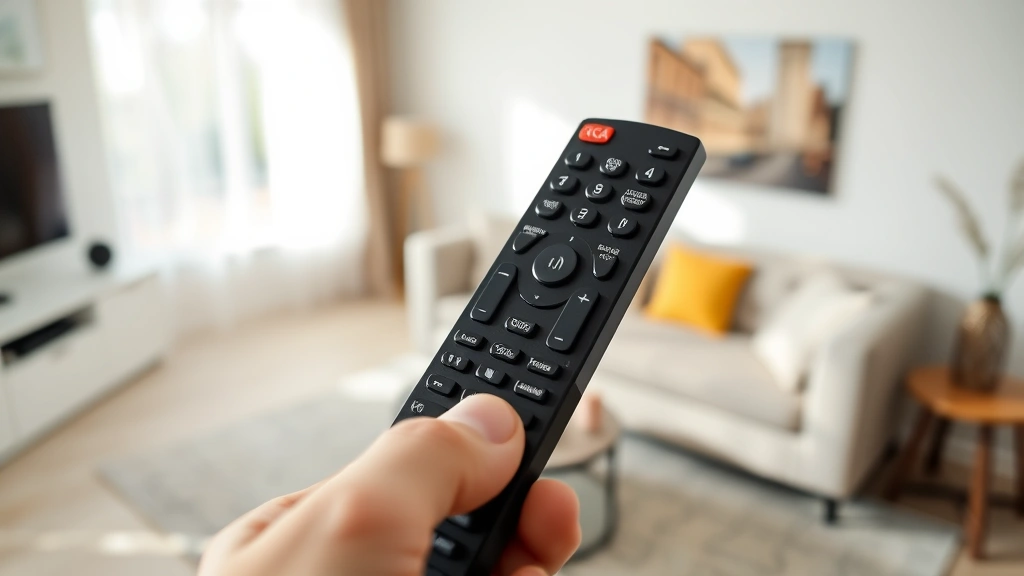
Universal remotes are supposed to make life easier, but when you’re staring at an RCA remote with a dozen buttons and no idea which codes work with your TV, it feels like the opposite. Here’s the real talk: learning how to program RCA universal remote isn’t hard once you know the method. Most people give up after one failed attempt, but the process is actually straightforward once you understand the two main programming approaches.
In this guide, I’ll walk you through both the auto search method and manual code entry so you can get your RCA universal remote working with your TV, soundbar, or streaming device in minutes. We’ll also cover troubleshooting when things don’t cooperate, because sometimes they don’t.
What You Need to Get Started
Before you start programming your RCA universal remote, gather these items:
- Your RCA universal remote (obviously)
- Fresh batteries for the remote
- Your TV, soundbar, or other device you want to control
- The original remote for your device (optional but helpful)
- Your device’s model number or manual
- A pen or stylus for pressing small buttons
Dead batteries are the #1 reason people think their remote isn’t working. Seriously. Replace them first. I’ve seen people spend 30 minutes troubleshooting when all they needed was fresh batteries.
The RCA universal remote works by sending infrared signals to your devices. When you program it, you’re essentially teaching the remote which codes correspond to which devices and buttons. Think of it like loading a dictionary—the remote needs to know what language your TV speaks.
Pro Tip: Keep your original remote nearby during programming. If something goes wrong, you can still control your device while you troubleshoot.
Auto Search Method: The Easiest Way
The auto search method is the path of least resistance for how to program RCA universal remote successfully. This is where most people should start because it requires zero code lookups.
Here’s the step-by-step process:
- Press and hold the “Setup” button on your RCA remote until the LED light turns on (usually 3-5 seconds). The light should change from red to green or stay lit.
- Press the device button you want to program (TV, DVD, Cable, etc.). The LED should blink to confirm.
- Press the “Power” button repeatedly. The remote will start sending codes to your device. Your device will turn off when the correct code is found.
- When your device powers off, immediately press the “Select” or “Enter” button to lock in that code.
- Test the remote by pressing other buttons like volume and channel up/down.
This method works because the remote cycles through its entire database of codes automatically. It’s like having someone try every key on a keychain until one opens the door.
The auto search method typically takes 1-3 minutes per device. If your TV turns off after 30 seconds, you’ve found the right code. If it takes longer and you’re not sure, keep pressing the Power button until something happens. Patience is your friend here.
One thing to watch: some devices respond slowly. If your TV doesn’t turn off immediately, keep the remote pointed at it and keep pressing Power. The signal might need a few tries to register.
Manual Code Entry: When Auto Search Fails
If auto search doesn’t work after 5 minutes, it’s time to try manual code entry. This method requires you to find the specific code for your device, but it’s still faster than troubleshooting an auto search that won’t cooperate.
Here’s how to manually program your RCA universal remote:
- Press and hold the “Setup” button until the LED turns on.
- Press the device button (TV, DVD, Cable Box, etc.).
- Enter the 3 or 4-digit code for your device. The LED should blink with each digit.
- Press the “Select” or “Enter” button to confirm. The LED should turn off.
- Test the remote immediately.
The tricky part here is finding the right code. RCA remotes typically use 3 or 4-digit codes, and different manufacturers have different codes. A Sony TV might be 002, while an LG TV could be 010. It’s not random—it’s organized by manufacturer.
If you enter a code and the LED blinks three times, that code didn’t work. Try the next one. If the LED blinks once and turns off, you’ve got a match.
Safety Warning: Don’t hold the Setup button for more than 10 seconds. Some RCA remotes will enter a reset mode if you hold it too long, and you’ll lose all your programming.
Finding Your Device Codes
This is where most people get stuck. You need the actual code for your device to use the manual entry method. Here’s where to find them:
Option 1: Check the RCA Remote Manual
Most RCA universal remotes come with a code list printed in the manual or on a card. It’s usually organized by device type (TV, DVD, Cable) and then by manufacturer. Look for your brand and write down the codes. If you lost your manual, don’t panic—we have other options.
Option 2: RCA’s Official Website
RCA maintains a database of codes for their universal remotes. Visit their support page and search for your specific remote model. You’ll find a PDF with complete code lists. This is the most reliable source because it’s straight from the manufacturer.
Option 3: Search Online Device Code Databases
Websites like Remote Code List and manufacturer support pages (Sony, LG, Samsung, Vizio) often have universal remote codes listed. Search “RCA universal remote codes [your device brand]” and you’ll usually find results within seconds.
Option 4: Check Your Device’s Original Remote
Some original remotes have a code number printed on the back. If you still have your TV’s original remote, flip it over. You might find the code right there.
Pro tip: Write down 3-5 codes for your device brand before you start programming. If the first code doesn’t work, you can try the next without searching again.
Testing Your Remote After Programming
Once you’ve programmed your RCA universal remote, testing is crucial. Don’t assume it’s working just because the LED blinked correctly.
Test these functions in order:
- Power: Press the Power button. Your device should turn on or off.
- Volume: Press Volume Up and Down. The volume should change on your device.
- Channel/Input: Press Channel Up and Down (or Input if applicable).
- Menu: Press Menu. Your device’s menu should appear.
- Number Pad: Press a few numbers. Your device should respond.
If all these work, you’re golden. If some buttons work and others don’t, you might have a partial code match. This happens occasionally—the code works for basic functions but not for everything. You can either live with it or try the next code in your list.
If nothing works, the code is wrong. Go back and try the next code on your list using the manual entry method again.
Common Programming Issues and Fixes
Even when you follow every step correctly, sometimes things don’t cooperate. Here are the most common problems and real solutions:
Issue 1: Remote Won’t Enter Setup Mode (LED Won’t Light Up)
– Replace the batteries immediately. This is almost always the culprit.
– Check that the batteries are inserted correctly (+ side up).
– Try holding Setup for a full 10 seconds. Some remotes are slow to respond.
– If the LED still won’t light, your remote might be defective. Test it with different batteries first.
Issue 2: Auto Search Cycles Through Codes But Nothing Happens
– Make sure the remote is pointed directly at your device.
– Check that your device is powered on. The remote can’t turn off a device that’s already off.
– Move closer to the device. Infrared signals weaken with distance.
– Try auto search again. Sometimes you miss the exact moment the device powers off.
Issue 3: Code Entry Doesn’t Work (LED Blinks Three Times)
– You entered the wrong code. Try the next one on your list.
– Your device brand might use a different code set. Check if there are alternate codes for your manufacturer.
– Some older devices aren’t compatible with universal remotes. This is rare, but it happens.
Issue 4: Remote Works for Some Buttons But Not Others
– You have a partial code match. The basic functions work, but not all. This is actually common.
– Try the next code in your list for a more complete match.
– Some buttons might not be programmable depending on your remote model.
Issue 5: Remote Worked, Then Stopped Working
– Your batteries died. Replace them.
– Your device’s settings changed. Some devices can disable infrared control in their settings.
– The remote got bumped and exited programming mode. Reprogram it.
Pro Tip: If you’re having persistent issues, check Family Handyman’s universal remote guide for additional troubleshooting specific to your remote model.
Advanced Setup: Controlling Multiple Devices
Once you’ve mastered programming a single device, controlling multiple devices is straightforward. Most RCA universal remotes have buttons for TV, DVD, Cable, Aux, and sometimes more.
Here’s how to set up multiple devices:
- Program your TV first using the TV button (this is your foundation).
- Press Setup, then press the DVD button. Program your DVD player using the same method.
- Press Setup, then press the Cable button. Program your cable box.
- Repeat for any other devices you want to control.
The key is pressing the correct device button before entering the code. The remote remembers which code is assigned to which button. When you press the TV button, it uses the TV code. When you press Cable, it switches to the cable box code.
This is where the RCA universal remote really shines. Instead of juggling three remotes, you’ve got one that controls everything. Just press the device button, then use the standard buttons (Volume, Channel, Power) and it communicates with that specific device.
Some advanced RCA remotes also have a “Macro” or “Favorite” feature that lets you create custom button combinations. For example, you could program one button to turn on your TV, switch to HDMI 3, and set the volume to 20. Check your remote’s manual to see if this feature is available on your model.
If you want to reprogram a device button later, just repeat the setup process for that button. The new code will overwrite the old one. No harm done.
Frequently Asked Questions
Can I use an RCA universal remote with any TV?
– Mostly yes, but not always. Most modern TVs (Sony, LG, Samsung, Vizio, Insignia, etc.) work with RCA universal remotes. Very old TVs or obscure brands might not have codes available. If your TV was made in the last 20 years by a major manufacturer, you’re almost certainly fine.
What if my device brand isn’t listed in the code list?
– Try searching online for your specific brand and the RCA remote model number. Sometimes codes are available online but not in the printed manual. If you still can’t find it, contact RCA support directly—they maintain the most complete databases.
Do I need to reprogram the remote if I change batteries?
– No. Programming is stored in the remote’s memory, not in the batteries. Changing batteries won’t erase your codes. You’ll only need to reprogram if you perform a factory reset or if the remote malfunctions.
Why does the auto search method take so long sometimes?
– The remote is cycling through its entire code database. Some devices respond slowly, so the remote might take extra time to detect when the correct code is found. If it’s taking more than 5 minutes, try manual code entry instead.
Can I program custom buttons or macros?
– This depends on your specific RCA remote model. Some advanced models support custom programming, but basic models don’t. Check your manual or contact RCA support to see if your remote has this capability. If you’re interested in this feature, This Old House’s universal remote review covers models with advanced customization options.
What’s the difference between RCA and other universal remote brands?
– RCA universal remotes are reliable and widely compatible, but they’re not dramatically different from other brands. The programming process is almost identical for Philips, GE, and other universal remotes. If you’re familiar with how to program RCA universal remote, you can program most other brands.
Is there a reset button if I mess up the programming?
– Yes. Most RCA remotes have a factory reset option. Usually, you hold Setup for 10+ seconds until the LED blinks multiple times. This erases all programming and returns the remote to factory defaults. You’ll need to reprogram everything after a reset, but it’s a good nuclear option if you’re stuck.
Can I program the same device code to multiple buttons?
– Technically yes, but it’s not useful. If you program your TV code to both the TV and DVD buttons, you won’t be able to control your DVD player. Stick to one device per button for maximum flexibility.
What if my remote is too old and codes aren’t available?
– Old RCA remotes sometimes have limited code databases. If your remote is more than 15 years old and you can’t find codes, it might be time for an upgrade. Modern universal remotes are cheap (usually $15-30) and work with way more devices. If you need help resetting other remotes, check out our guide on how to reset Firestick remote for similar troubleshooting steps.
Can I control streaming devices like Roku or Fire Stick with an RCA universal remote?
– Some newer RCA universal remotes have codes for streaming devices, but not all. Check your code list for Roku, Amazon Fire, or Apple TV codes. If your remote doesn’t have them, you might need a newer model or a specialized remote for your streaming device.
Why won’t my remote work after I programmed it correctly?
– Check your batteries first (seriously, this solves 80% of problems). Then verify your device’s infrared receiver isn’t blocked by anything. Some TVs have IR receivers on the front, others on the side. Make sure nothing is covering it. If you’re still stuck, try checking your device’s manual for any infrared disable settings in the menu.
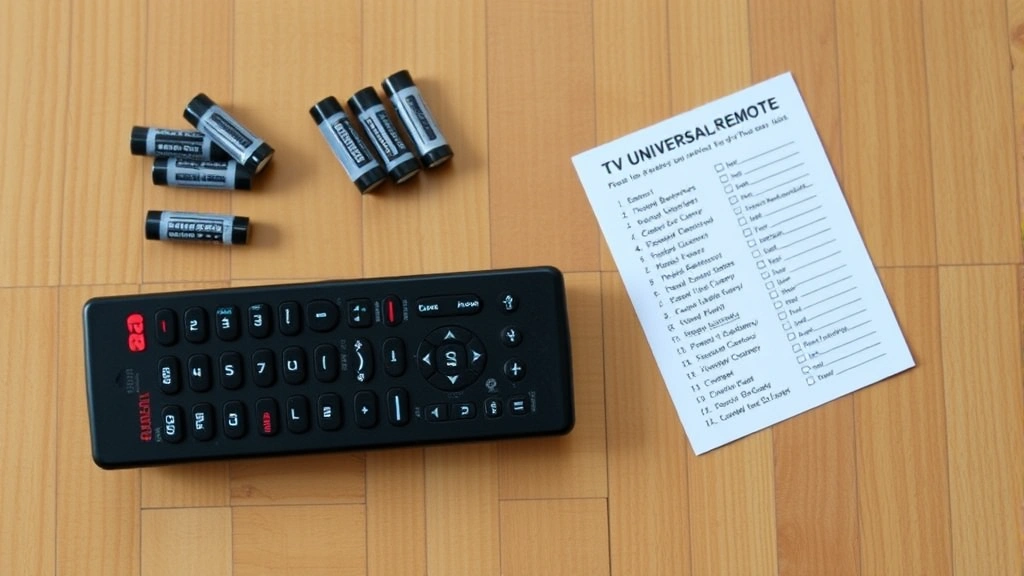
Is there a way to program the remote without the code list?
– Yes, that’s the auto search method. It cycles through codes automatically until it finds the right one. This is actually the best approach if you don’t have access to a code list, though it takes longer.
Learning how to program RCA universal remote is genuinely one of the easiest tech skills you can master. Most people get it right on the first try once they understand the process. Start with auto search, use fresh batteries, and don’t overthink it. If something doesn’t work immediately, it’s usually a dead battery or the wrong code—both of which are easy fixes. You’ve got this.


