
Skullcandy headphones are solid gear—great sound, durable build, and they work with basically everything. But here’s the real talk: the first time you try to pair them, it can feel like you’re defusing a bomb. You’ve got the headphones in hand, your phone’s Bluetooth menu is open, and… nothing happens. Or worse, they connect to the wrong device. Frustrating, right?
The good news? Learning how to pair Skullcandy headphones is actually straightforward once you know the process. Whether you’re dealing with wireless earbuds, over-ear cans, or true wireless models, the fundamentals are the same. This guide walks you through every scenario so you can get your how to pair Skullcandy headphones working in minutes, not hours.
Before You Start: Quick Prep
Before diving into how to pair Skullcandy headphones, take 30 seconds to set yourself up for success.
- Check the battery. Low battery is the silent killer of pairing attempts. Charge your headphones for at least 15 minutes before starting.
- Enable Bluetooth on your device. This sounds obvious, but it’s the #1 reason pairing fails. Go into Settings → Bluetooth and flip it on.
- Clear old pairings if you’re switching devices. If your Skullcandy headphones are already paired to another phone or laptop, you may need to unpair them first (we’ll cover this below).
- Keep your device close. Bluetooth works best within 10 feet. Move away from walls and other electronics that might interfere.
- Have the manual handy (or a photo of it). Different Skullcandy models have slightly different button placements. A quick reference helps.
Think of this prep work like making sure your workspace is clean before starting a project. It takes two minutes and saves you 20 minutes of frustration.
How to Pair Skullcandy Headphones for the First Time
The process for pairing Skullcandy headphones varies slightly depending on the model type, but the core steps are nearly identical. Here’s the universal approach:
Step 1: Put Your Headphones in Pairing Mode
This is the critical first move. Most Skullcandy headphones enter pairing mode automatically when you turn them on for the first time. If they’re already powered on, you’ll need to manually activate pairing mode:
- Locate the power button (usually on the earcup or side of the case).
- Press and hold the power button for 5-10 seconds until you see a light flash (usually blue or white) or hear a voice prompt saying “pairing mode.”
- Some models require you to hold the button even longer—up to 15 seconds. Don’t give up too early.
- You’ll typically hear a beep or see alternating LED flashes indicating the headphones are broadcasting their Bluetooth signal.
Pro Tip: If your headphones have a dedicated pairing button (separate from power), use that instead. It’s usually smaller and located on the back or underside of the device. Check your manual to be sure.
Step 2: Open Bluetooth Settings on Your Device
On your phone, tablet, or laptop:
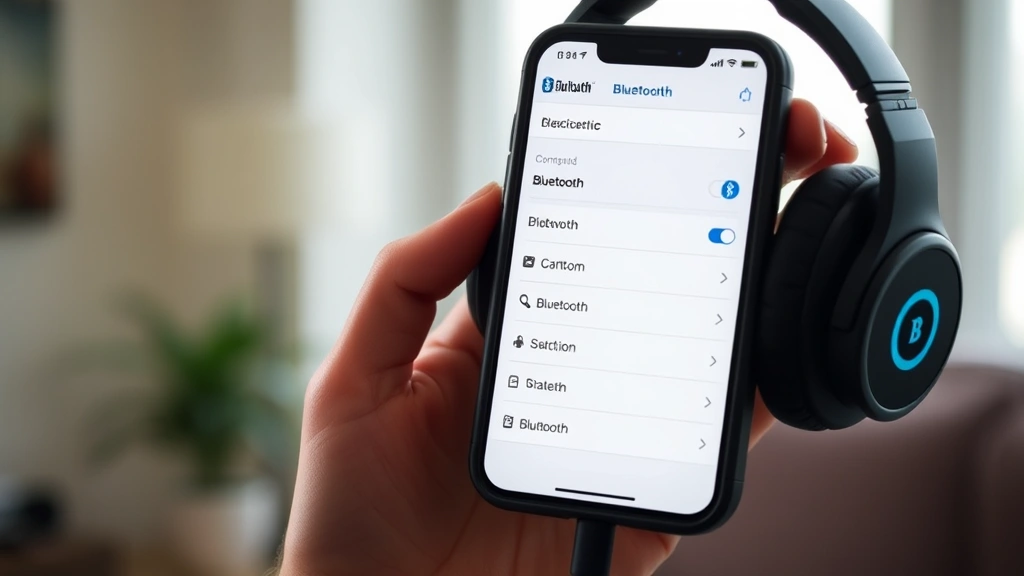
- iPhone/iPad: Settings → Bluetooth → toggle ON. Wait 2-3 seconds for the device to scan.
- Android: Settings → Connected Devices (or Bluetooth) → toggle ON. You may need to tap “Pair New Device.”
- Windows: Settings → Devices → Bluetooth & Other Devices → toggle ON. Click “Add Bluetooth or other device.”
- Mac: System Preferences → Bluetooth → toggle ON. Your Mac will scan automatically.
Your device is now actively searching for Bluetooth devices in range.
Step 3: Select Your Skullcandy Headphones from the List
Within 10-15 seconds, your Skullcandy headphones should appear in the available devices list. The name will typically be something like “Skullcandy Crusher,” “Skullcandy Dime,” or “Skullcandy Jib.” Tap or click on it.
If you don’t see them listed:
- Make sure the headphones are still in pairing mode (the LED should still be flashing).
- Move closer to your device.
- Restart pairing mode by holding the power button again.
- Toggle Bluetooth off and back on your device, then try again.
Step 4: Confirm the Pairing
Once you tap the device name, your phone or computer will attempt to connect. You may see a prompt asking “Pair with [Device Name]?” or requesting a PIN code. Most Skullcandy headphones don’t require a PIN—just confirm the pairing.
You’ll know it worked when:
- The LED light on the headphones stops flashing and turns solid (usually blue).
- Your device shows “Connected” next to the headphones name.
- You hear a confirmation beep or voice prompt from the headphones.
Congratulations—you’ve successfully paired your Skullcandy headphones. Test the connection by playing audio. If you hear it through the headphones, you’re golden.
Pairing Skullcandy Headphones to Multiple Devices
Here’s where it gets interesting. Most Skullcandy headphones can remember multiple devices (usually 5-8), but they can only actively connect to one at a time. This is called “multipoint pairing” on some models, and it’s a real convenience feature.
Adding a Second Device
Once you’ve paired your headphones to your first device (let’s say your phone), adding a second device (like your laptop) is even easier:
- Put your Skullcandy headphones back into pairing mode (hold the power button 5-10 seconds).
- Go to the Bluetooth settings on your second device.
- Select your Skullcandy headphones from the available devices list.
- Confirm the pairing.
Your headphones now “remember” both devices. The next time you turn on the headphones, they’ll try to connect to whichever device you used them with most recently.
Switching Between Paired Devices
If your Skullcandy model supports it, you can switch between devices without re-pairing:
- Disconnect the headphones from the current device (turn off Bluetooth or manually disconnect).
- Enable Bluetooth on the second device.
- The headphones will automatically search for and connect to the available device.
- If they don’t connect automatically, manually select them from the Bluetooth menu on the new device.
Real Talk: Some older Skullcandy models don’t support seamless device switching. If your headphones disconnect from one device when you enable Bluetooth on another, you may need to manually disconnect and reconnect each time. It’s annoying, but it’s a limitation of the hardware, not user error.
Troubleshooting Connection Issues
Not everything goes smoothly. Here are the most common problems and how to fix them:
Headphones Won’t Enter Pairing Mode
The problem: You’re holding the power button, but the LED isn’t flashing and you don’t hear a pairing mode announcement.
The fix:
- Check the battery. If the headphones are completely dead, they won’t enter pairing mode. Charge them for at least 30 minutes.
- Try a different button. Some models have a dedicated pairing button (not the power button). Consult your manual.
- Hold the button longer. Some Skullcandy models require 10-15 seconds of holding. Count it out.
- Try a reset (see the section below on resetting).
Headphones Appear in Bluetooth List but Won’t Connect
The problem: You can see your Skullcandy headphones in the available devices, but tapping them does nothing, or you get an error message.
The fix:
- Forget the device and try again. On your phone, go to Bluetooth settings, find your Skullcandy headphones, and select “Forget” or “Unpair.” Then restart pairing from scratch.
- Restart both devices. Power off your headphones and your phone/computer, wait 10 seconds, and turn them back on.
- Check for interference. Move away from WiFi routers, microwaves, and other wireless devices. Bluetooth operates on the 2.4 GHz frequency, which is crowded.
- Update your device’s Bluetooth drivers (on Windows or Mac). Outdated drivers can cause connection issues.
Headphones Connect but Audio Won’t Play
The problem: Your Skullcandy headphones show as “Connected,” but you don’t hear any sound.
The fix:
- Check your device’s volume. It’s easy to miss—your phone volume might be muted or set to silent.
- Verify the audio output is set to the headphones. On your device, go to Bluetooth settings and ensure the headphones are selected as the audio output device (not your speakers).
- Restart the audio app. Close Spotify, Apple Music, or whatever you’re using and reopen it.
- Disconnect and reconnect. Turn off Bluetooth, wait 5 seconds, and turn it back on.
- Check the headphone cable or charging port for debris. If there’s lint or dust blocking the connection, gently clean it with a dry cloth.
Headphones Keep Disconnecting
The problem: Your Skullcandy headphones connect fine, but they randomly drop the connection every few minutes.
The fix:
- Move closer to your device. If you’re more than 30 feet away, the signal weakens and can drop.
- Reduce interference. Turn off other Bluetooth devices nearby (smartwatch, fitness tracker, etc.). Each one competes for bandwidth.
- Update your headphones’ firmware. Check the Skullcandy app (if available for your model) to see if a firmware update is available. Updating apps on your device can also help resolve compatibility issues.
- Clear the Bluetooth cache on your device. On Android, go to Settings → Apps → Show System Apps → Bluetooth → Storage → Clear Cache. On iPhone, this isn’t an option, but restarting your phone helps.
- Reset the headphones (see below).
When to Reset Your Skullcandy Headphones
A factory reset clears all paired devices and returns your headphones to their original state. Use this as a last resort when pairing issues persist.
How to Reset Skullcandy Headphones
The reset process varies by model, but here’s the most common method:
- Power off the headphones completely.
- Locate the power button and any other buttons on the device.
- Press and hold the power button (and sometimes a secondary button, like the volume down button) for 10-15 seconds.
- You’ll see the LED flash rapidly (usually red and blue alternating) or hear a voice prompt saying “resetting.”
- Release the buttons and wait 30 seconds. The headphones will power off and then back on automatically.
- The headphones are now reset to factory settings. All previous pairings have been erased.
Warning: A factory reset erases all your custom settings, EQ adjustments, and paired devices. Only do this if you’ve exhausted other troubleshooting options. Check your specific model’s manual for exact instructions—some Skullcandy headphones have different reset procedures.
After resetting, you’ll need to pair your headphones again from scratch using the steps outlined earlier in this guide.
Device-Specific Pairing Instructions
While the general process is universal, here are some device-specific notes:
iPhone and iPad
Pairing Skullcandy headphones with Apple devices is straightforward:
- Open Settings → Bluetooth.
- Toggle Bluetooth ON.
- Put your Skullcandy headphones in pairing mode.
- Tap the headphones name when it appears.
- If prompted, tap “Pair.”
Once paired, your iPhone will automatically connect to your Skullcandy headphones whenever Bluetooth is on and the headphones are nearby. If you’re using multiple Apple devices (iPhone and iPad), you may be able to use the same pairing across all of them if they’re signed into the same iCloud account. For more on managing Apple device connections, check out our guide on how to connect Apple Pencil to iPad, which covers similar Bluetooth pairing principles.
Android Devices
Android pairing is nearly identical to iPhone:
- Open Settings → Connected Devices (or Bluetooth, depending on your Android version).
- Toggle Bluetooth ON.
- Tap “Pair New Device” or “Add Device.”
- Put your Skullcandy headphones in pairing mode.
- Select the headphones from the list.
Android is generally more flexible with Bluetooth pairing, so you shouldn’t encounter many issues. If you do, clearing the Bluetooth cache (as mentioned earlier) usually resolves it.
Windows Computers
Windows 10 and 11 make pairing relatively painless:
- Open Settings → Devices → Bluetooth & Other Devices.
- Toggle Bluetooth ON.
- Click “Add Bluetooth or Other Device.”
- Select “Bluetooth.”
- Put your Skullcandy headphones in pairing mode.
- Select the headphones from the list and click “Done.”
If your Windows computer doesn’t have built-in Bluetooth, you’ll need a USB Bluetooth adapter. These are cheap (under $20) and work well with most Skullcandy headphones.
Mac Computers
Mac pairing is super simple:
- Click the Apple menu → System Preferences → Bluetooth.
- Click “Turn Bluetooth On.”
- Put your Skullcandy headphones in pairing mode.
- Your Mac will scan and display available devices. Select your Skullcandy headphones.
- Click “Connect.”
Macs handle Bluetooth well, and once paired, your headphones will auto-connect whenever they’re in range.
Smart TVs and Gaming Consoles
Pairing with a TV or console (PlayStation, Xbox, Nintendo Switch) follows the same basic steps, but the menu locations differ:
- Smart TV: Look for “Bluetooth” or “Wireless Devices” in the Settings menu. Put your headphones in pairing mode, then select them from the available devices list.
- PlayStation 5: Settings → Accessories → Controllers → Bluetooth Devices. Put your headphones in pairing mode and select them.
- Xbox Series X/S: Settings → Devices & Connections → Bluetooth & Other Devices. Select “Add Device,” then “Bluetooth.” Put your headphones in pairing mode.
- Nintendo Switch: Settings → Bluetooth Audio. Put your headphones in pairing mode and select them from the list.
Note: Not all Skullcandy models work with all gaming consoles. Check your headphones’ specs or manual to confirm compatibility before attempting to pair.
Keeping Your Connection Stable
Once your Skullcandy headphones are paired and working, here’s how to keep them running smoothly:
Regular Charging
A weak battery can cause connection drops. Charge your headphones regularly—ideally when the battery dips below 20%. Most Skullcandy models take 1-2 hours to fully charge.
Keep Firmware Updated
If your Skullcandy headphones have a companion app, check it regularly for firmware updates. These often include Bluetooth stability improvements. Much like updating apps on your iPhone, firmware updates are worth doing.
Minimize Interference
Bluetooth operates on the 2.4 GHz frequency, which is shared by WiFi, microwaves, and many other wireless devices. If you’re experiencing frequent disconnects:
- Move away from your WiFi router.
- Avoid using your headphones near a microwave while it’s running.
- Turn off other Bluetooth devices if you’re not using them.
- Use your headphones in a different location to see if the problem persists.
Clean the Charging Contacts
Dust and debris can accumulate on the charging contacts of your headphones or case. Every month or so, wipe them gently with a dry, lint-free cloth. This ensures a solid charging connection.
Store Properly
When not in use, store your Skullcandy headphones in a cool, dry place. Extreme heat or humidity can damage the battery and internal components. If your headphones came with a case, use it.
Avoid Overcharging
Modern lithium-ion batteries (which Skullcandy uses) can handle overcharging, but it’s still not ideal. Don’t leave your headphones plugged in for days on end. Unplug them once they’re fully charged.
For similar device maintenance principles, check out guides like how to clear app cache on iPhone, which covers keeping your devices running smoothly in general.
Frequently Asked Questions
Why won’t my Skullcandy headphones pair with my device?
– The most common reasons are: (1) low battery on the headphones, (2) the headphones aren’t in pairing mode, (3) Bluetooth is turned off on your device, or (4) the headphones are already paired to another device. Try charging the headphones, manually entering pairing mode by holding the power button for 10+ seconds, and ensuring Bluetooth is enabled on your device. If they’re paired to another device, unpair them first.
Can Skullcandy headphones connect to multiple devices at once?
– Most Skullcandy headphones can be paired to multiple devices (usually 5-8), but they can only actively connect to one device at a time. Some newer models support “multipoint” pairing, which allows simultaneous connection to two devices (like your phone and laptop). Check your specific model’s manual to see if it supports this feature.
How do I forget a Skullcandy device from my phone?
– On iPhone: Go to Settings → Bluetooth, find your Skullcandy headphones, tap the “i” icon, and select “Forget This Device.” On Android: Go to Settings → Connected Devices → Bluetooth, find your headphones, and tap “Forget” or “Unpair.” On Windows: Settings → Devices → Bluetooth & Other Devices, find the headphones, click them, and select “Remove Device.”
What should I do if my Skullcandy headphones keep disconnecting?
– This usually indicates interference or a weak signal. Try moving closer to your device, turning off other Bluetooth devices nearby, and moving away from WiFi routers or microwaves. If the problem persists, try forgetting the device and re-pairing from scratch. As a last resort, perform a factory reset (hold the power button for 15 seconds until the LED flashes red and blue).
Do Skullcandy headphones work with all devices?
– Skullcandy headphones work with any device that has Bluetooth, including phones, tablets, computers, smart TVs, and gaming consoles. However, some older or less common devices may have compatibility issues. Check your headphones’ specifications or manual to confirm compatibility with your specific device. For reference, pairing processes are similar across device types—much like how pairing an Amazon Fire Stick remote follows standard Bluetooth protocols.
How long does it take to pair Skullcandy headphones?
– The actual pairing process takes 30 seconds to 2 minutes, depending on your device. The longest part is usually putting the headphones in pairing mode and waiting for them to appear in your device’s Bluetooth list. Once you select them, the connection is usually established within 10-15 seconds.
Can I pair my Skullcandy headphones if the battery is completely dead?
– No. Your headphones need at least some charge to power on and enter pairing mode. If the battery is completely dead, charge them for at least 30 minutes before attempting to pair. Even a small amount of charge is enough to get them into pairing mode.
What’s the difference between pairing and connecting?
– Pairing is the one-time process of telling your device about your headphones so they “know” each other. Connecting is what happens every time you turn on the headphones and they link to a previously paired device. Once paired, your Skullcandy headphones will automatically connect to your device whenever both have Bluetooth enabled.
Why does my Skullcandy app say “pairing failed”?
– This can happen if the Skullcandy app is outdated or if your headphones’ firmware is out of sync with the app. Try updating both the app and your headphones’ firmware. You can also try uninstalling and reinstalling the app, or using your headphones without the app entirely (they’ll still work via standard Bluetooth pairing).
Can I use Skullcandy headphones without pairing them?
– No. Bluetooth headphones must be paired with a device before they can communicate with it. However, once paired, they’ll automatically connect to that device in the future without needing to repeat the pairing process. If you want to use your headphones with a different device, you’ll need to pair them to that device first.
How do I reset my Skullcandy headphones to factory settings?
– Power off the headphones, then press and hold the power button (and sometimes a secondary button) for 10-15 seconds until the LED flashes rapidly in red and blue. Release the buttons and wait 30 seconds. The headphones will reset to factory settings, erasing all paired devices. You’ll need to pair them again to use them. Note: The exact reset procedure varies by model, so check your manual for specific instructions.
—
Learning how to pair Skullcandy headphones shouldn’t be a hassle. Follow the steps in this guide, and you’ll have them connected in minutes. And if something goes wrong, you now have the troubleshooting knowledge to fix it. The key is patience—Bluetooth pairing is reliable once you understand the process. Good luck, and enjoy your music.


