
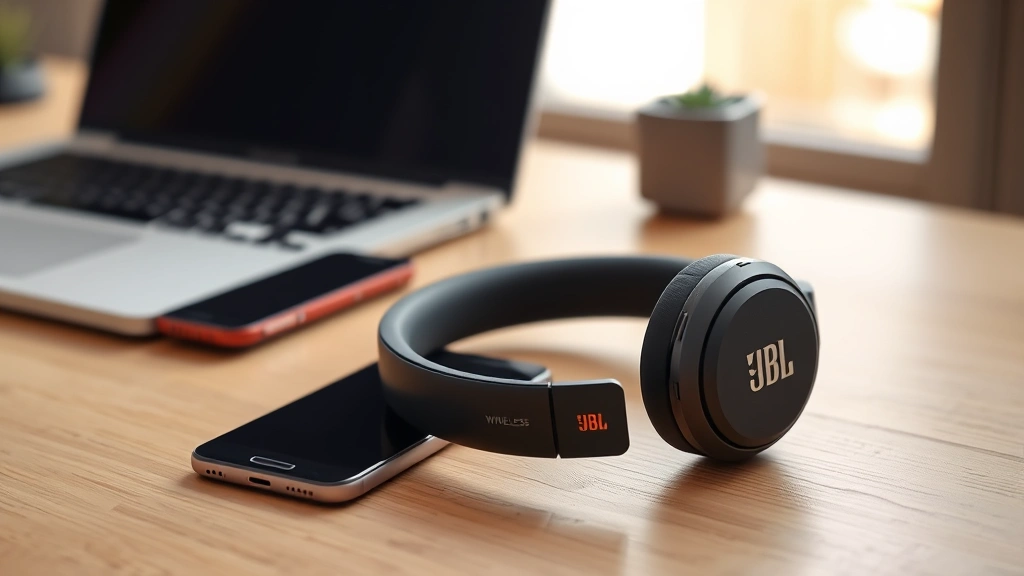
Pairing JBL headphones should be simple. And honestly, it usually is—until it isn’t. You hit that Bluetooth button, nothing happens, and suddenly you’re wondering if your headphones are broken or if you’re just doing it wrong. The good news: you’re probably doing it right, and there’s a fix. This guide walks you through how to pair JBL headphones with any device, troubleshoots the weird stuff that goes wrong, and gets you listening to music in minutes instead of hours.
Understanding JBL Bluetooth Pairing Basics
Before we jump into the step-by-step stuff, let’s talk about what’s actually happening when you pair headphones. JBL headphones use Bluetooth—a wireless protocol that lets devices talk to each other over short distances. When you pair for the first time, the headphones and your device are essentially introducing themselves and agreeing to trust each other. After that initial handshake, they remember each other and connect automatically (most of the time).
Here’s the thing: every JBL model is slightly different. The JBL Tune series works a little differently than the JBL Live series, which is different from the JBL Flip speaker. But the core principle is the same across all of them. You’ll be looking for a power button, a pairing button (sometimes combined into one), and a Bluetooth indicator light.
Pro Tip: Check your JBL headphone model’s manual first. You can usually find it on JBL’s official website or in the original box. The manual will tell you exactly which button does what on your specific model. Saves a lot of guessing.
Most JBL headphones enter pairing mode automatically when you turn them on for the first time. The light usually flashes blue and red (or just blue, depending on the model), which is the universal “I’m ready to pair” signal. If your headphones are already paired with another device, you’ll need to either unpair them first or put them into pairing mode manually.
One more thing: Bluetooth range matters. Most JBL headphones work up to about 30 feet away from your device, but walls, metal objects, and other wireless devices can interfere. If you’re trying to pair from across the house, move closer to your device. It’s not glamorous, but it works.
How to Pair JBL Headphones with Your Phone
This is the most common scenario. You’ve got new JBL headphones and an iPhone or Android phone. Let’s get them talking.
For iPhone Users:
- Turn on your JBL headphones. Press and hold the power button until you see the LED light flash. For most JBL models, this takes about 3-5 seconds. The light should flash blue and red alternately, indicating pairing mode is active.
- Open your iPhone’s Settings app. Tap “Settings” from your home screen.
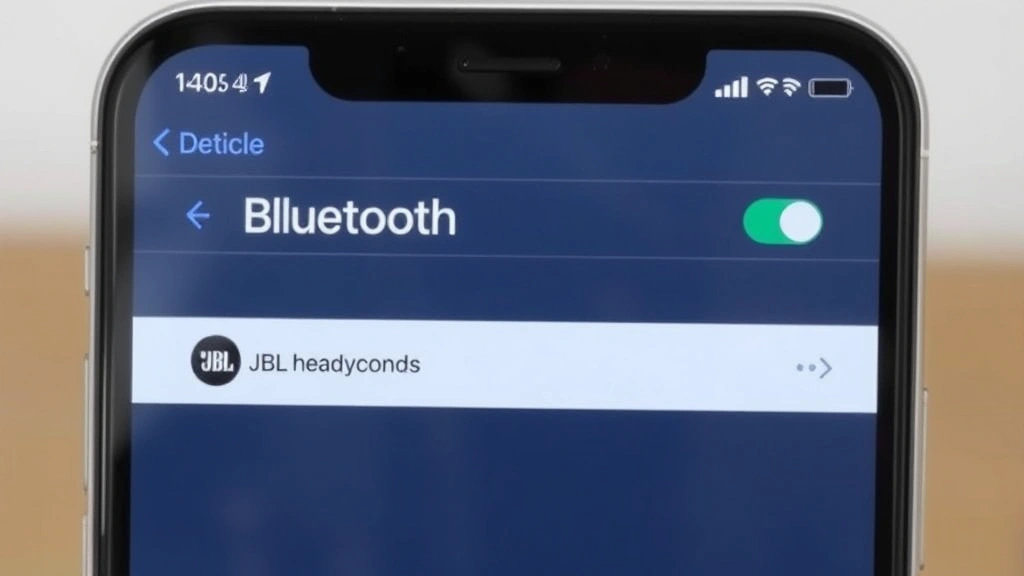
- Go to Bluetooth. Scroll down and tap “Bluetooth.” Make sure it’s toggled ON (the switch should be green).
- Wait for your JBL headphones to appear. Under “Other Devices,” you should see your JBL headphones listed by their model name (like “JBL Tune 750” or “JBL Live Pro”). If they don’t appear within 30 seconds, try turning the headphones off and on again.
- Tap the JBL headphones name. Once you see them listed, tap on them. Your iPhone will automatically attempt to pair.
- Confirm the pairing. You might see a popup asking to confirm. Tap “Pair” or “Connect.” Some JBL models require you to press a button on the headphones to confirm—check your manual if you’re unsure.
- You’re paired! Once connected, you’ll see “Connected” under the headphones name, and the LED light on your headphones should stop flashing and stay solid blue or off (depending on the model).
For Android Users:
- Turn on your JBL headphones and enter pairing mode. Same as above—hold the power button until the LED flashes.
- Open your Android phone’s Settings. Swipe down from the top of your screen to access Quick Settings, or open the Settings app directly.
- Tap Bluetooth. Make sure Bluetooth is ON. You should see a toggle or switch.
- Tap “Pair new device” or “Search for devices.” This varies by Android version and manufacturer, but look for something that says “Pair,” “Add device,” or “Search.”
- Select your JBL headphones. When your headphones appear in the list, tap them.
- Confirm pairing if prompted. Android might ask you to confirm the pairing code. Usually it’s just “0000” for JBL headphones, but follow any on-screen prompts.
- Done. Once you see “Connected” next to your headphones, you’re good to go.
Here’s a real-world tip: if your phone has previously been paired with another set of JBL headphones, your phone might try to auto-connect to the old pair instead of the new one. Go into Bluetooth settings and “Forget” the old device before pairing the new ones. This prevents a lot of frustration.
Pairing JBL Headphones with Laptops and Computers
Pairing with a Mac or Windows laptop is almost identical to pairing with a phone, but the menus look different. The principle is the same: turn on Bluetooth, put headphones in pairing mode, and select them from the list.
Windows Laptop:
- Put JBL headphones in pairing mode. Hold the power button until the LED flashes.
- Open Windows Settings. Click the Start button and type “Bluetooth” in the search bar. Click “Bluetooth and other devices settings.”
- Make sure Bluetooth is ON. You should see a toggle at the top of the window.
- Click “Add device” or “Pair a new device.” This is usually a blue button near the top.
- Select “Bluetooth” from the popup menu.
- Wait for your JBL headphones to appear. This can take 10-15 seconds. Once they show up, click on them.
- Follow any pairing prompts. Windows might ask you to confirm a code or authorize the connection. Just click “Next” or “Pair.”
- Check the connection.** Once paired, you should see “Connected” under your headphones name in the Bluetooth settings.
Mac:
- Put JBL headphones in pairing mode. Same as before—flashing LED.
- Open System Preferences. Click the Apple menu in the top-left corner and select “System Preferences” (or “System Settings” on newer Macs).
- Click Bluetooth. You should see a list of available Bluetooth devices.
- Look for your JBL headphones in the list. Click the “Connect” button next to them.
- Confirm if prompted. Mac might ask you to confirm the pairing code. Just follow the on-screen instructions.
- You’re connected. Once paired, your headphones will show as “Connected” in the Bluetooth menu.
One thing to watch out for on laptops: if you’ve got multiple Bluetooth devices (mouse, keyboard, another set of headphones), your computer might get confused about which one to use as the audio output. After pairing, right-click the speaker icon in your system tray (Windows) or check Sound settings (Mac) and make sure your JBL headphones are set as the default audio device. Otherwise, sound might still come out of your laptop speakers.
Pairing Multiple Devices (Multipoint Connection)
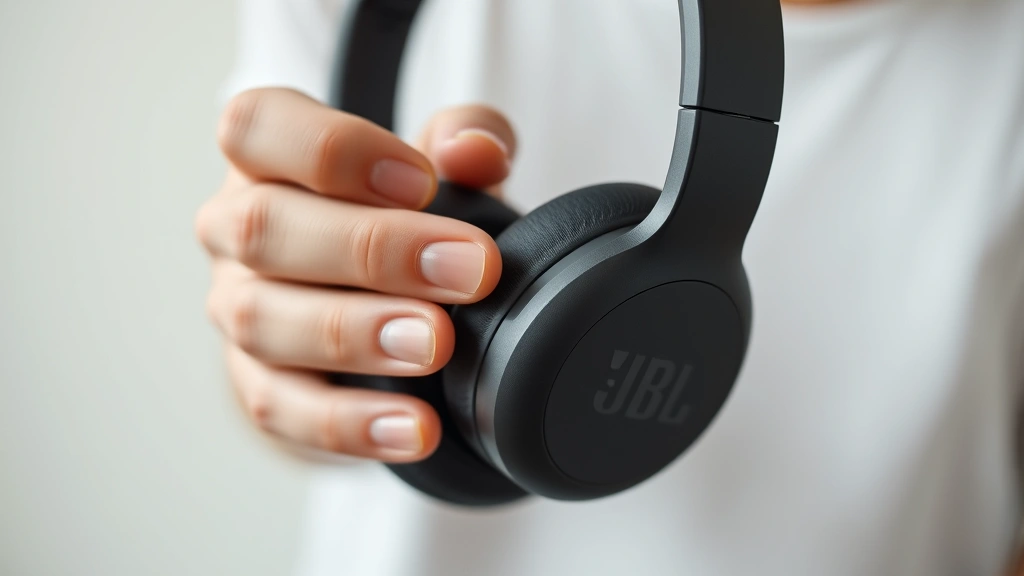
This is where things get cool. Many newer JBL headphones support multipoint Bluetooth, which means they can be paired with multiple devices at once and switch between them automatically. Imagine being on a Zoom call on your laptop and getting a call on your phone—the headphones can switch over automatically. Not all JBL models support this, so check your manual, but if yours does, here’s how to set it up.
The process is simple: just pair your headphones with one device using the steps above, then repeat the pairing process with your second device. Your headphones will remember both. The tricky part is managing which device is “active” at any given moment.
Most JBL headphones with multipoint will automatically switch to whichever device is trying to use them. If you’re listening to music on your laptop and your phone rings, the headphones will pause the music and switch to the call. Once the call ends, they’ll switch back to the laptop. If you want to manually switch between devices, you usually do this from the Bluetooth settings on each device—just select your headphones again to make that device the active one.
Pro Tip: If multipoint isn’t working smoothly, try unpairing one device, restarting your headphones (power off and on), and then re-pairing. Sometimes the Bluetooth connection gets confused, and a fresh start fixes it.
Resetting JBL Headphones When Pairing Fails
Sometimes pairing just doesn’t work. Your headphones won’t show up in the Bluetooth list, or they pair and then immediately disconnect, or they’re stuck paired to an old device and won’t let go. This is where a reset comes in handy.
A reset wipes all the pairing information from your JBL headphones and brings them back to factory settings. It’s like giving them amnesia—they’ll forget every device they’ve ever been paired with, and you can start fresh.
Here’s the catch: every JBL model has a different reset procedure. Some use a specific button combination, others use a dedicated reset button. Your manual will have the exact steps, but here are the most common methods:
- Hold the power button for 10+ seconds: On many JBL models, holding the power button for 10-15 seconds (even longer than the normal power-on sequence) will trigger a reset. The LED light might flash rapidly or change color to indicate the reset is happening.
- Press power and Bluetooth button simultaneously: Some JBL headphones require you to hold both buttons at once for 5-10 seconds.
- Use the JBL app: Newer JBL models can be reset through the JBL app (available on iOS and Android). Download the app, connect to your headphones via Bluetooth, and look for a “Reset” or “Factory Reset” option in the settings.
- Charge to full and wait: If your headphones are completely dead, charge them fully first. A dead battery can prevent reset procedures from working.
After a reset, your headphones will be back in pairing mode automatically. You can then pair them fresh with your device. This solves about 90% of pairing issues.
Common Pairing Problems and Fixes
Let’s troubleshoot the weird stuff that happens.
Problem: Headphones Won’t Show Up in Bluetooth List
The issue: You’ve turned on your JBL headphones, but they’re not appearing in your device’s Bluetooth menu.
The fix:
- Make sure the headphones are in pairing mode. The LED should be flashing. If it’s not, hold the power button longer (5-10 seconds) and look for the flashing light.
- Make sure your phone or laptop’s Bluetooth is actually ON. Sounds obvious, but it’s easy to miss.
- Move closer to your device. Bluetooth has a range limit, and obstacles matter.
- Restart your headphones. Turn them off completely, wait 10 seconds, and turn them back on.
- Restart your phone or laptop. Sometimes the Bluetooth stack gets stuck, and a restart fixes it.
- If you’re on Android, check if you need to give your phone permission to access Bluetooth. Go to Settings > Apps > Permissions and make sure Bluetooth permissions are enabled.
Problem: Pairing Starts But Then Fails or Disconnects
The issue: Your headphones appear in the Bluetooth list and you tap to pair, but then it fails or disconnects immediately.
The fix:
- Check the battery level on your headphones. If they’re critically low, pairing might fail. Charge them fully and try again.
- Forget the device from your headphones’ memory (if they have a button for this—check your manual) and try pairing again.
- Unpair on your phone/laptop side too. Go to Bluetooth settings, find your JBL headphones, and select “Forget” or “Unpair.” Then try pairing from scratch.
- Check for interference. Microwaves, Wi-Fi routers, and other wireless devices can interfere with Bluetooth. Move away from these devices and try again.
- Try pairing with a different device to see if the headphones work at all. If they pair fine with one device but not another, the issue is likely with that specific device’s Bluetooth hardware.
Problem: Headphones Pair But No Sound Comes Out
The issue: The headphones are connected, but you’re not hearing anything.
The fix:
- Check the volume on your headphones. Most JBL headphones have volume buttons on the ear cup or a physical dial. Make sure it’s not turned all the way down.
- Check the volume on your device. Your phone or laptop might be muted or set to zero volume.
- Make sure your JBL headphones are set as the audio output device. On your phone, go to Bluetooth settings and look for an audio or output option. On Windows, right-click the speaker icon in the system tray and select your JBL headphones as the default device. On Mac, go to System Preferences > Sound and select your headphones as the output device.
- Try playing a different app or audio source. Sometimes one app has its own volume control that’s separate from the system volume.
- If you just updated your phone’s OS, restart your device and re-pair the headphones. OS updates sometimes reset Bluetooth connections.
Problem: Headphones Keep Disconnecting
The issue: Your headphones pair fine, but they disconnect randomly or keep losing connection.
The fix:
- Check the distance. If you’re more than 30 feet away from your device, or if there are multiple walls between them, the connection might drop. Move closer.
- Reduce interference. Turn off other Bluetooth devices nearby, or move away from Wi-Fi routers and microwaves.
- Update your headphones’ firmware. Many JBL models have firmware updates available through the JBL app. These updates often fix connectivity issues.
- Forget and re-pair. Sometimes a stale pairing causes constant disconnections. Unpair completely and pair again from scratch.
- Check if your headphones are set to auto-sleep. Some JBL models turn off after a period of inactivity to save battery. If this is too aggressive, check the JBL app for power-saving settings you can adjust.
- If you’re on iPhone, check if “Bluetooth Sharing” is enabled in Settings > General > Handoff. Sometimes this causes connection issues with certain headphones.
Problem: Headphones Paired to Wrong Device and Won’t Switch
The issue: Your headphones are stuck connected to your old phone or laptop and won’t pair with your new device.
The fix:
- Put the headphones in pairing mode and try pairing with the new device. Sometimes the new device can override an old connection.
- Unpair from the old device first. If you still have access to the old phone/laptop, go to Bluetooth settings and “Forget” the headphones. Then try pairing with the new device.
- Reset the headphones completely. Use the factory reset procedure (see section above) to clear all pairing data. Then pair with your new device.
- If the old device is lost or inaccessible, a factory reset is your best bet. There’s no way to unpair from a device you don’t have access to.
Maintaining Your JBL Headphones for Reliable Pairing
Once you’ve got your JBL headphones paired and working, here’s how to keep them in good shape so pairing stays reliable.
Keep firmware updated. Download the JBL app and check for firmware updates regularly. These updates improve connectivity and fix bugs. It only takes a few minutes and can prevent a lot of headaches down the road.
Clean the charging contacts. If you’ve got a wired JBL model or headphones that charge via USB-C or Lightning, keep the charging contacts clean. Dirt and debris can prevent proper charging, which can lead to Bluetooth issues. Use a dry cloth or a slightly damp cotton swab. If you need more detailed help, check out our guide on how to clean iPhone charging ports—the same principles apply to headphone charging contacts.
Manage your Bluetooth devices. If you pair your headphones with many different devices, occasionally go through your Bluetooth settings and forget devices you no longer use. Too many paired devices can slow down Bluetooth scanning and cause connection issues. Think of it like clearing out your closet—you don’t need to keep every old pairing hanging around.
Store headphones properly. Keep them in a case or pouch when not in use. This protects the Bluetooth antenna and keeps dust out of the ports. A damaged antenna can cause weak Bluetooth signals and pairing issues.
Restart periodically. Once a week or so, power off your headphones completely and let them sit for 10 seconds before turning them back on. This clears the Bluetooth cache and can prevent connection drift over time. It’s like rebooting your computer—simple but effective.
Check battery health. If your headphones are a few years old and you’re experiencing constant disconnections, the battery might be degrading. Lithium batteries lose capacity over time, and a weak battery can cause Bluetooth instability. If you’re having persistent issues and the headphones are out of warranty, it might be time to consider a replacement.
According to Family Handyman, proper device maintenance is key to long-term reliability. The same principle applies to electronics—regular upkeep beats emergency fixes.
Frequently Asked Questions
Why do my JBL headphones keep disconnecting from my phone?
– This usually comes down to distance, interference, or a stale pairing. First, try staying within 20 feet of your phone with no obstacles between them. If that doesn’t help, go to your phone’s Bluetooth settings, forget the headphones, and pair them again from scratch. If the problem persists, check if your headphones’ battery is low—a weak battery can cause disconnections. You can also try updating your headphones’ firmware through the JBL app, which often fixes connectivity bugs.
Can I pair my JBL headphones with multiple devices at the same time?
– Many newer JBL models support multipoint Bluetooth, which lets them stay paired with multiple devices simultaneously and switch between them automatically. However, not all models have this feature. Check your headphones’ manual or look in the JBL app to see if multipoint is supported. If it is, just pair with one device, then repeat the pairing process with your second device. The headphones will remember both.
Do I need the JBL app to pair my headphones?
– No, the JBL app is optional. You can pair your headphones using your phone or computer’s native Bluetooth settings without the app. The app is useful for firmware updates, customizing sound settings, and accessing advanced features, but it’s not required for basic pairing and use.
How long does it take to pair JBL headphones?
– If everything goes smoothly, pairing should take less than a minute. Turn on the headphones, put them in pairing mode (10-15 seconds), then select them from your device’s Bluetooth menu (10-20 seconds). If you’re having trouble, troubleshooting might take longer, but the actual pairing process itself is quick.
What if my JBL headphones won’t enter pairing mode?
– First, make sure you’re holding the power button long enough. Most JBL models require 5-10 seconds of continuous pressure. If the headphones still won’t enter pairing mode, check the battery level—if they’re completely dead, charge them first. If the battery is fine and they still won’t pair, try a factory reset by holding the power button for 15+ seconds or using the JBL app’s reset feature.
Can I pair JBL headphones with a smartwatch or tablet?
– Yes, JBL headphones work with any device that has Bluetooth, including smartwatches and tablets. The pairing process is identical to pairing with a phone or laptop. Just turn on the headphones, put them in pairing mode, and select them from the device’s Bluetooth settings.
Why won’t my JBL headphones pair with my Mac?
– Make sure Bluetooth is enabled on your Mac (System Preferences > Bluetooth). If it is, try restarting your Mac and your headphones. If that doesn’t work, forget the headphones from your Mac’s Bluetooth settings and try pairing again. On older Macs, there can sometimes be compatibility issues with newer Bluetooth devices, so if pairing still fails, check if your Mac’s OS is up to date.
Do I have to re-pair my JBL headphones every time I turn them on?
– No, once you pair them the first time, your headphones should automatically reconnect to the device every time you turn them on (as long as Bluetooth is enabled on your device). If they’re not auto-connecting, make sure they’re not in pairing mode. If they keep entering pairing mode automatically, check your headphones’ settings in the JBL app—there might be a setting that’s forcing pairing mode on startup.
What’s the difference between “pairing” and “connecting”?
– Pairing is the one-time setup where your headphones and device introduce themselves and agree to trust each other. Connecting happens every time you turn on the headphones and they link to a device they’ve already been paired with. Once paired, devices usually connect automatically. If you unpair, you have to go through the pairing process again.
Can I pair my JBL headphones with two phones at the same time?
– If your headphones support multipoint Bluetooth, yes. You can pair with both phones, and the headphones will automatically switch between them based on which one is trying to use them. If your headphones don’t support multipoint, they can only be actively connected to one device at a time. However, they can still be “paired” with multiple devices—you’d just have to manually switch which one is active through Bluetooth settings.
Why does my phone keep trying to connect to my old JBL headphones?
– Your phone remembers the old pairing and tries to auto-connect. Go to your phone’s Bluetooth settings, find the old headphones, and select “Forget” or “Unpair.” After that, your phone won’t try to connect to them automatically. If you want to pair with new JBL headphones, just follow the pairing steps in this guide.


