
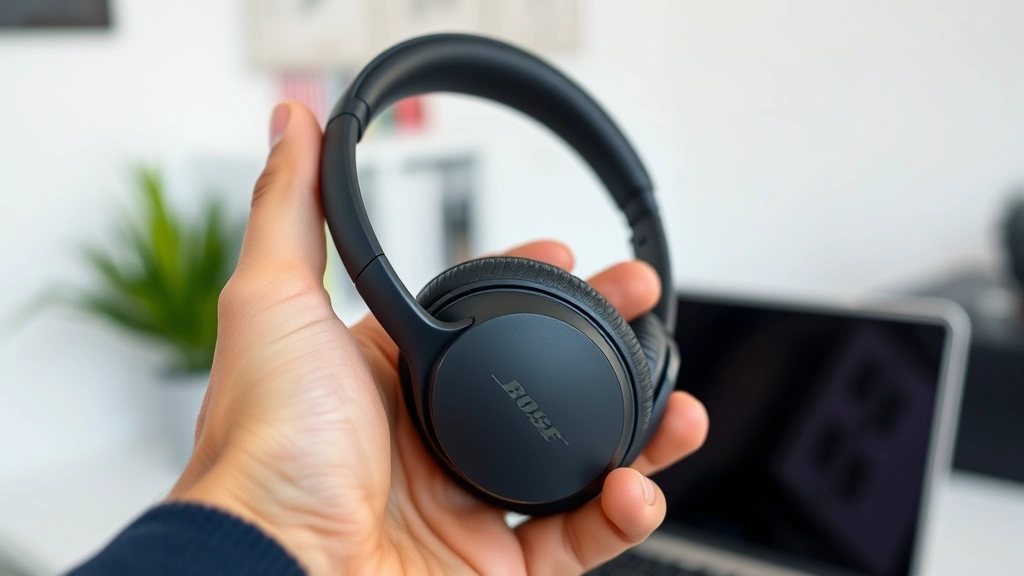
Bose headphones are fantastic—until they won’t connect. You’ve charged them, you’ve got your phone ready, and nothing happens. The pairing screen stares back at you like a puzzle with missing pieces. Sound familiar?
Here’s the real talk: how to pair Bose headphones is usually dead simple, but when it doesn’t work on the first try, frustration sets in fast. The good news? Most pairing issues come down to a few basic steps that take less than two minutes. Whether you’re connecting to an iPhone, Android, Mac, or Windows device, this guide walks you through every scenario—including the weird ones that catch people off guard.
I’ve spent years helping people troubleshoot audio gear, and I can tell you that Bose makes some of the most reliable Bluetooth headphones on the market. The pairing process is intentionally straightforward. Once you nail the fundamentals, you’ll never struggle again.
Before You Start: The Basics
Before diving into how to pair Bose headphones, let’s get the foundation right. Bluetooth pairing works like introducing two strangers—they need to be in the same room, both ready to connect, and neither one distracted by someone else.
What you need to know:
- Battery level matters. Your Bose headphones need at least 20% battery. A dead or dying headset won’t enter pairing mode properly. Charge them fully before attempting to pair, especially if they’ve been sitting unused for weeks.
- Bluetooth needs to be ON. This sounds obvious, but it’s the #1 culprit. Your phone or computer’s Bluetooth radio must be enabled. Many people have Bluetooth off by default to save battery.
- Clear the area of interference. Microwaves, WiFi routers, and older wireless devices can interfere with Bluetooth signals. If you’re struggling to pair, move away from these sources temporarily.
- Forget old pairings if needed. If your Bose headphones were previously paired with another device, they might try to reconnect to that device instead. You may need to “forget” the old pairing first (we’ll cover this below).
- Distance is important. Keep your headphones within 3 feet of the device you’re pairing with. Bluetooth works best at close range during the initial pairing handshake.
Think of pairing like a handshake: both parties need to be present, willing, and focused. Distractions break the deal.
How to Pair Bose Headphones for the First Time
The first-time pairing process is the most straightforward scenario. New Bose headphones come out of the box in “pairing mode,” which means they’re actively looking for a Bluetooth connection.
Step-by-step process:
- Charge your Bose headphones. Plug them in for at least 30 minutes. Most Bose models ship partially charged, but a full charge ensures stability.
- Power on the headphones. Press and hold the power button for 2-3 seconds until you hear a voice prompt or see an LED indicator flash. Different Bose models have slightly different indicators (blue light, white light, or a specific tone), so check your manual if you’re unsure.
- Enable Bluetooth on your phone or device. Go to Settings and toggle Bluetooth ON. Your device will begin scanning for nearby Bluetooth devices.
- Look for your Bose model in the list. You should see a name like “Bose QuietComfort 45” or “Bose Sport Earbuds” appear in your device’s Bluetooth menu within 10-15 seconds.
- Tap to pair. Select the Bose headphones from the list. Your device will attempt to connect.
- Confirm the pairing. You may see a prompt asking to “Pair” or “Connect.” Confirm it. Once successful, you’ll hear a tone or voice confirmation from the headphones, and the LED indicator will change (usually to a steady blue light).
That’s it. You’re done. From this point on, your Bose headphones will automatically reconnect to that device whenever Bluetooth is enabled on both.
Pairing with iPhone and iPad
iPhones and iPads are among the most common devices paired with Bose headphones. The process is nearly identical to the first-time pairing, but there are a few iPhone-specific nuances worth knowing.
Detailed iPhone pairing steps:
- Open Settings on your iPhone or iPad.
- Tap Bluetooth.
- Toggle the Bluetooth switch to ON (it should turn green).
- Make sure your Bose headphones are powered on and in pairing mode. If you just turned them on for the first time, they’ll automatically enter pairing mode. If they’ve been paired before, you may need to hold the power button for 5-10 seconds to re-enter pairing mode.
- Wait for your Bose model to appear in the “Available Devices” list.
- Tap the Bose headphones name.
- If prompted, tap Pair.
Pro tip for iPhone users: If you’re having trouble connecting, try turning off Find My iPhone temporarily. While rare, some iOS security features can interfere with Bluetooth pairing. Additionally, if you’ve recently updated your iOS, restarting your iPhone often resolves pairing glitches.
Reconnecting after pairing: Once paired, your Bose headphones will automatically reconnect to your iPhone when you turn them on and Bluetooth is enabled. You don’t need to repeat the pairing process. If they don’t reconnect automatically, just open Bluetooth settings and tap the headphones name—it should connect within seconds.
Unpairing from iPhone: If you need to remove the pairing (to pair with a different device or to troubleshoot), go to Bluetooth settings, find your Bose headphones, tap the “i” icon next to the name, and select “Forget This Device.” This clears the pairing from your iPhone’s memory.
One thing many iPhone users don’t realize: Bose headphones can be paired with multiple Apple devices simultaneously, but they’ll only actively connect to one at a time. If you’re wearing them while connected to your iPhone and someone calls on your iPad, the headphones might switch to the iPad automatically. You can manage this in Bluetooth settings by adjusting which device has priority.
Pairing with Android Devices
Android pairing follows the same principle as iPhone, but the menu structure varies slightly depending on your phone manufacturer (Samsung, Google Pixel, OnePlus, etc.). Here’s the universal approach that works on any Android device.
How to pair Bose headphones with Android:
- Open Settings on your Android phone.
- Navigate to Bluetooth or Connected Devices (varies by manufacturer).
- Toggle Bluetooth to ON.
- Ensure your Bose headphones are powered on and in pairing mode.
- Your Android device will display available Bluetooth devices. Tap your Bose model name.
- Confirm the pairing request if prompted.
- Wait for the connection to establish. You’ll see a “Connected” status next to your headphones name.
Android-specific notes: Some Android devices require you to confirm a PIN or pairing code, though most Bose headphones don’t use this. If prompted, the default code is usually 0000 or 1234. Check your headphones’ manual for specifics.
If you’re using a Samsung device, you might see an option to “Set as Media Audio” or “Set as Call Audio.” This determines whether the headphones will handle music, calls, or both. Select the appropriate option for your needs.
Troubleshooting Android pairing: Android devices sometimes cache Bluetooth data aggressively. If pairing fails, try clearing your Bluetooth cache (though this guide focuses on iPhone, the principle applies to Android as well—go to Settings > Apps > Show System Apps > Bluetooth > Storage > Clear Cache).
Pairing with Mac and Windows Computers
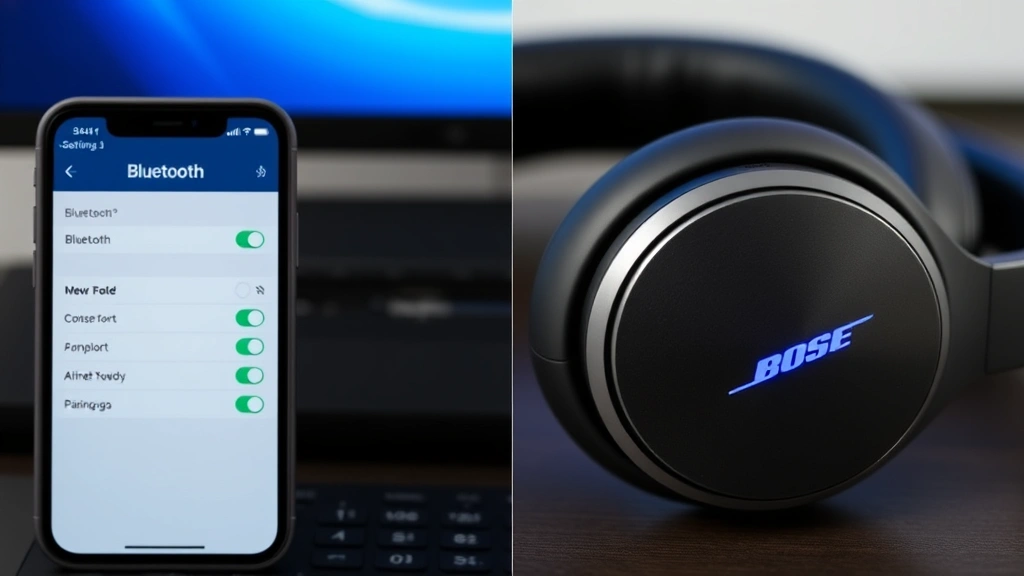
Pairing Bose headphones with a computer is just as easy as pairing with a phone, but the process differs between Mac and Windows. Both platforms handle Bluetooth similarly, but the menu locations are different.
Pairing with Mac:
- Click the Apple menu in the top-left corner.
- Select System Preferences (or System Settings on newer macOS versions).
- Click Bluetooth.
- Make sure Bluetooth is ON. You’ll see a list of nearby Bluetooth devices.
- Ensure your Bose headphones are powered on and in pairing mode.
- Click your Bose model name in the list.
- Click Connect if prompted.
Pairing with Windows:
- Click the Start menu and open Settings.
- Go to Devices > Bluetooth & other devices.
- Toggle Bluetooth to ON.
- Click Add Bluetooth or other device.
- Select Bluetooth.
- Ensure your Bose headphones are in pairing mode and wait for them to appear in the list.
- Click your Bose model name.
- Click Done once the pairing is complete.
Computer-specific considerations: Computers often have more aggressive Bluetooth settings than phones. If your Mac or Windows PC keeps disconnecting from your Bose headphones, check the Bluetooth settings for an option to “stay connected” or “reconnect automatically.” Most modern systems have this enabled by default, but older computers might not.
One advantage of pairing with a computer: many Bose headphones work with the official Bose Connect app (available for Mac and Windows). This app gives you more granular control over settings like noise cancellation levels, EQ adjustments, and firmware updates. Download it from the official Bose website if you want to unlock these features.
Troubleshooting Common Pairing Problems
Sometimes how to pair Bose headphones isn’t straightforward. Here are the most common problems and real solutions that actually work.
Problem 1: Headphones won’t enter pairing mode
Symptom: You press the power button, but the headphones don’t show any pairing indicators (no flashing light, no voice prompt).
Solution:
- Check the battery. Plug in your Bose headphones and charge for at least 30 minutes. A completely dead battery won’t respond to button presses.
- Try a hard reset. For most Bose models, hold the power button for 10+ seconds (sometimes up to 20 seconds) until you hear a voice prompt or see the light blink differently. Different models have different reset procedures, so check your manual if this doesn’t work.
- Look for a dedicated pairing button. Some Bose models (like the Sport Earbuds) have a small button on the case or a long-press action on the headphones themselves. Consult your manual for the exact procedure.
Problem 2: Headphones appear in the list but won’t connect
Symptom: You see your Bose headphones in the Bluetooth list, but clicking “Connect” or “Pair” doesn’t work. The connection times out or fails repeatedly.
Solution:
- Forget and re-pair. Go to your device’s Bluetooth settings, find your Bose headphones, and select “Forget” or “Remove.” Then restart both the headphones and your device, and attempt to pair again from scratch.
- Restart your device. Power off your phone, tablet, or computer completely, wait 10 seconds, and turn it back on. This clears temporary Bluetooth glitches.
- Move closer. Bluetooth pairing sometimes fails if devices are too far apart. Get within 3 feet and try again.
- Check for interference. Microwaves, WiFi routers, and wireless speakers can jam Bluetooth signals. Move to a different room and try pairing again.
Problem 3: Headphones keep disconnecting after pairing
Symptom: Pairing works fine initially, but the headphones disconnect after a few minutes or hours of use.
Solution:
- Update firmware. Many Bose headphones have firmware updates available through the Bose Connect app or the official Bose website. Outdated firmware is a common culprit for disconnection issues. Connect your headphones to a computer, download the latest firmware, and follow the update instructions.
- Disable other Bluetooth devices. If you have multiple Bluetooth devices nearby (smartwatch, fitness tracker, another set of headphones), they might be competing for the connection. Turn off or move away from these devices.
- Reduce Bluetooth range stress. Some devices struggle to maintain Bluetooth connections if you’re at the edge of the range (30+ feet away). Stay closer to your paired device.
- Check device settings. On some phones, “Battery Saver” or “Low Power Mode” can aggressively disconnect Bluetooth. Disable these modes and see if the problem persists.
Problem 4: Headphones won’t pair with a second device
Symptom: Your Bose headphones pair fine with your phone, but when you try to pair them with your computer or tablet, it fails.
Solution:
- Disconnect from the first device. Go to your phone’s Bluetooth settings and “Disconnect” (not “Forget”) your Bose headphones. They’ll remain paired but won’t actively connect.
- Attempt to pair with the new device. Now try pairing with your computer or tablet. Once successful, the headphones will prioritize whichever device is closer or was most recently used.
- Understand Bluetooth prioritization. Bose headphones can be paired with multiple devices, but they typically connect to the device they were last used with. If you want to switch devices, you may need to manually select the headphones in the new device’s Bluetooth menu.
Problem 5: “Pairing failed” error message
Symptom: You see an error message like “Pairing failed” or “Unable to connect.”
Solution:
- Factory reset your headphones. This is the nuclear option, but it works. The exact method varies by model, but it often involves holding multiple buttons simultaneously for 10-15 seconds. Check your manual for the specific procedure. Warning: this erases all pairings, so you’ll need to re-pair with all your devices.
- Check for known issues. Visit the official Bose support website and search for your specific model. There may be known compatibility issues or troubleshooting steps specific to your device.
- Ensure compatibility. Older Bose headphones might not work with very new devices or vice versa. Check the product specifications to confirm Bluetooth compatibility.
Advanced Tips and Multi-Device Pairing
Once you’ve mastered basic pairing, there are some advanced techniques that make using Bose headphones across multiple devices seamless.
Multi-device pairing strategy:
Most Bose headphones can be paired with up to 8 devices simultaneously (though the exact number varies by model). This means you can pair them with your iPhone, iPad, Mac, Windows PC, and even a smartwatch all at once. The headphones will automatically connect to whichever device is closest or was most recently used.
How to manage multiple pairings:
- Pair your primary device first (usually your phone).
- Put the headphones back in pairing mode (hold the power button for 5-10 seconds).
- Pair your second device (tablet, computer, etc.).
- Repeat for additional devices.
- Use the Bose Connect app to manage which device has priority or to manually switch between devices.
Switching between devices manually:
If your headphones are paired with multiple devices but connected to the wrong one, you have a few options:
- Disconnect from the current device by going to its Bluetooth settings and selecting “Disconnect.” The headphones will then attempt to connect to the next available device.
- Use the Bose Connect app (if available for your model) to manually select which device you want to connect to.
- Put the headphones in pairing mode and select the desired device from its Bluetooth menu.
Using Bose Connect app for pairing:
The official Bose Connect app (available for iOS, Android, Mac, and Windows) simplifies pairing and adds extra features. You can:
- Pair devices directly through the app instead of going to Bluetooth settings.
- Switch between paired devices with a single tap.
- Adjust noise cancellation levels and EQ settings.
- Check battery status and receive firmware update notifications.
- Locate your headphones if you’ve misplaced them (if your model supports this).
If you’re using Bose headphones regularly across multiple devices, the Bose Connect app is worth downloading. It’s free and makes the experience much more streamlined.
Dealing with pairing conflicts:
Sometimes your headphones might try to connect to the “wrong” device—like connecting to your smartwatch instead of your phone when you want to take a call on your phone. This happens because Bluetooth devices prioritize based on proximity and last-used status.
To minimize this:
- Turn off Bluetooth on devices you’re not actively using.
- Use the Bose Connect app to manually select your primary device.
- Forget pairings with devices you no longer use regularly.
- Keep your primary device (phone) closest to the headphones.
Pairing with older Bluetooth devices:
If you’re trying to pair Bose headphones with an older car stereo, older computer, or legacy device, the process might be slightly different. Most devices from before 2015 have less advanced Bluetooth stacks. You might need to:
- Manually enter a PIN code (default is often 0000 or 1234).
- Hold the pairing button longer to give the old device time to respond.
- Check whether the old device supports your specific Bose model’s Bluetooth profile (A2DP for audio, HFP for calls).
If an older device absolutely won’t pair, it might be a Bluetooth version mismatch. Check both the device and headphones’ specifications to confirm they’re compatible.
Frequently Asked Questions
How long does it take to pair Bose headphones?
– The actual pairing process takes 30 seconds to 2 minutes. Most of that time is spent waiting for your device to detect the headphones. Once you tap the headphones name in your Bluetooth menu, the connection usually establishes within 5-10 seconds. If it takes longer than 2 minutes, something’s wrong—try the troubleshooting steps above.
Do I have to pair Bose headphones every time I use them?
– No. Once paired, your Bose headphones will automatically reconnect to your device whenever both are turned on and Bluetooth is enabled. You only pair once. If they don’t auto-reconnect, check that Bluetooth is enabled on your device and that the headphones are in range.
Can I pair Bose headphones with multiple devices at the same time?
– Yes, most Bose models support pairing with 6-8 devices simultaneously. However, they can only actively play audio from one device at a time. If you’re listening to music on your iPhone and someone calls on your iPad, the headphones might switch to the iPad (depending on your settings and which device is closer).
What if I forgot which devices my Bose headphones are paired with?
– Factory reset your headphones. The exact process varies by model, but it usually involves holding the power button and another button simultaneously for 10-20 seconds. This erases all pairings. Then you can pair with just the devices you want. Check your manual for the specific reset procedure for your model.
Why won’t my Bose headphones pair with my car?
– Car Bluetooth systems can be finicky. First, make sure your car’s Bluetooth is in pairing mode (check your car’s manual—sometimes it’s a button on the stereo or in the infotainment menu). Then put your Bose headphones in pairing mode. If it still doesn’t work, try forgetting the pairing from both devices and starting fresh. Some older car systems have compatibility issues with newer Bose models.
Is it normal for Bose headphones to take a while to connect after being turned on?
– It depends. If they take 5-10 seconds, that’s normal. If they take 30+ seconds or fail to connect entirely, there might be an issue. Try restarting both the headphones and your device. Also check that Bluetooth is enabled on your device—if it was off, it might take a moment to scan for available devices.
Can I pair Bose headphones with two phones at the same time?
– Yes, you can pair with both phones, but the headphones will only actively connect to one at a time. They’ll typically connect to whichever phone was used most recently or is closest. To switch, manually disconnect from one phone and connect to the other through its Bluetooth settings.
What does it mean if my Bose headphones keep showing as “not paired” even after I paired them?
– This usually means the pairing didn’t complete successfully. Go to your device’s Bluetooth settings, forget the Bose headphones, restart both devices, and try pairing again from scratch. If this persists, your headphones might need a factory reset.
Do I need WiFi to pair Bose headphones?
– No. Bluetooth and WiFi are completely separate technologies. You don’t need WiFi to pair or use Bose headphones. However, if you want to use the Bose Connect app for advanced features or firmware updates, you’ll need WiFi or mobile data. For basic pairing and audio playback, WiFi is not required.
How do I know if my Bose headphones are in pairing mode?
– Most Bose headphones show a visual indicator (flashing blue or white light) and/or a voice prompt that says something like “Ready to pair” or “Pairing mode.” The specific indicator varies by model. Check your manual for your specific model’s pairing indicators. If you don’t see or hear anything after pressing the power button, the battery might be low.
Can I pair Bose headphones with a smartwatch?
– Yes, if both your smartwatch and Bose headphones support Bluetooth. The pairing process is the same: put the headphones in pairing mode, go to the smartwatch’s Bluetooth settings, and select the headphones. However, not all smartwatches support audio playback through Bluetooth headphones—check your smartwatch’s specifications first.
What’s the difference between “pairing” and “connecting”?
– Pairing is a one-time setup that stores the connection information on both devices. Connecting is the actual act of linking the devices together to share audio. You pair once; you connect every time you turn on the headphones. If headphones are paired but not connected, it means they remember each other but aren’t actively communicating.
Why does my device show my Bose headphones as “paired” but “not connected”?
– This means the devices remember each other from a previous pairing, but they’re not currently linked. The headphones might be off, out of range, or connected to a different device. Turn on the headphones, move closer to your device, or manually select them from the Bluetooth menu to initiate a connection.
Pro Tip: Keep your Bose headphones’ firmware updated. Outdated firmware is responsible for many pairing and connectivity issues. Use the Bose Connect app or visit the official Bose website to check for updates. Most updates take just a few minutes and can resolve problems you didn’t even know you had.
Final Thoughts
Learning how to pair Bose headphones is genuinely straightforward once you understand the fundamentals. The process is nearly identical across all Bose models and all device types: enable Bluetooth, put the headphones in pairing mode, and select them from your device’s list. That’s it.
The tricky part comes when something goes wrong—and that’s where this guide shines. Most pairing failures boil down to low battery, Bluetooth being disabled, or previous pairing conflicts. A quick factory reset or “forget device” action fixes 90% of problems.
If you’re dealing with other audio tech, check out our guide on how to connect Beats headphones for a similar process with a different brand. And if you’re setting up your home audio system, you might also want to learn how to connect a printer to WiFi—the Bluetooth pairing principles apply to many wireless devices.
One last piece of advice: bookmark this guide or save the troubleshooting section. When pairing issues pop up (and they will, eventually), you’ll have a reliable reference that actually solves the problem instead of just repeating “turn it off and back on” advice.
Your Bose headphones are built to last. With proper pairing and basic maintenance, they’ll serve you well for years. Now go enjoy your music—you’ve earned it.


