
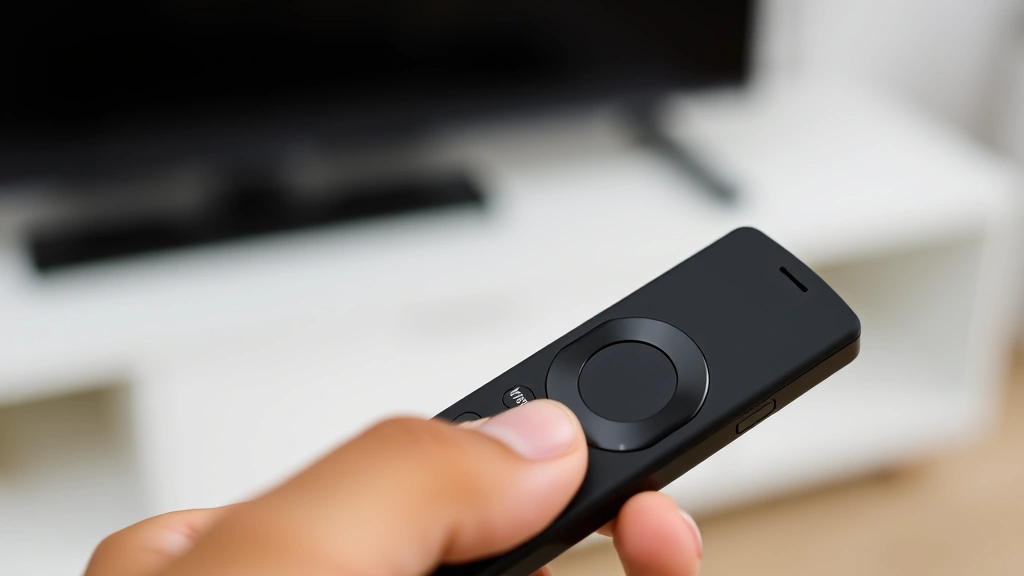
Nothing kills the vibe faster than a Firestick remote that won’t respond. You’re sitting on the couch, ready to binge your show, and the remote just… doesn’t work. Before you panic and think you need a replacement, take a breath. Learning how to pair a Firestick remote is genuinely one of the easiest tech fixes you can do, and I’m going to walk you through it step by step. Most pairing issues resolve in under five minutes, even if you’ve never done this before.
Whether your remote got unpaired somehow, you just pulled a new Fire TV device out of the box, or you’re trying to sync a replacement remote, the process is straightforward. I’ve helped countless people get their remotes working again, and the solution is almost always simpler than they expect.
Quick Pairing Steps (The Fast Way)
If you’re in a hurry, here’s the no-nonsense version of how to pair a Firestick remote:
- Locate the Home button on your Firestick remote (the one with the house icon)
- Press and hold the Home button for 10 seconds until you see a pairing notification on your TV screen
- Release the button and wait for the confirmation message
- Your remote should now be paired
Done. That’s it for most situations. If this didn’t work, don’t worry—we’re going deeper below, and I’ll help you figure out what’s actually happening.
Why Firestick Remotes Unpair in the First Place
Before we get into the full pairing process, let’s talk about why your Firestick remote might have unpaired. Understanding the cause helps prevent it from happening again.
Dead or dying batteries are the number-one culprit. When the battery voltage drops too low, the remote can’t maintain its Bluetooth connection to your Fire TV device. Replace the batteries (usually AA or AAA, depending on your remote model) and you might be done. Always use fresh alkaline batteries—cheap ones die fast and cause all kinds of weird pairing issues.
Physical distance and interference matter more than people think. If your Fire TV device is stuffed in an entertainment center behind other electronics, or if you’ve got a router, microwave, or cordless phone nearby, Bluetooth signals get scrambled. Move the Fire TV device to a more central location during pairing, and keep it away from sources of electromagnetic interference.
Software updates occasionally cause temporary disconnections. Amazon pushes updates to Fire TV devices regularly, and sometimes the remote loses its pairing during the process. This usually fixes itself, but if it doesn’t, the pairing process below will get you back on track.
Too many paired devices can cause issues too. If you’ve paired multiple remotes or Bluetooth devices to the same Fire TV, the system can get confused. We’ll cover managing multiple devices later in this guide.
Hardware damage is less common but possible. If you’ve dropped the remote or spilled something on it, the Bluetooth module might be damaged. But before assuming the worst, try the pairing steps—sometimes a hard reset is all you need.
Detailed Pairing Guide for Different Remote Types
Firestick remotes come in a few different flavors, and the pairing process is slightly different for each. Let me break this down by remote type so you’re pairing the right way.
Standard Firestick Remote (Bluetooth)
This is the most common remote—the basic one that comes with most Fire TV devices. It’s a Bluetooth remote, which means it communicates wirelessly without needing a direct line of sight to your device.
- Make sure your Fire TV device is powered on and your TV is displaying the Fire TV home screen
- Hold the Home button (the one with the house icon) for 10 seconds
- Watch your TV screen for a pairing notification. You should see a message like “Pairing Remote” or “Searching for Remote”
- Keep holding the Home button until the notification disappears and you see a confirmation
- Test the remote by pressing the menu button or navigating through the home screen
The key here is patience. Don’t release the Home button early—give it the full 10 seconds. I’ve seen people release after 5 seconds and assume it didn’t work, when really they just needed to hold it longer.
Firestick Remote with Voice Control (Alexa Remote)
These remotes have a microphone and are designed to work with Alexa voice commands. The pairing process is identical to the standard remote, but there’s an extra step to activate voice features.
- Follow the same Home button pairing process as above
- Once paired, go to Settings > Remotes & Bluetooth Devices > Your Remote on your Fire TV
- Enable voice recognition if prompted
- Grant microphone permissions when asked
Voice remotes need those extra permissions to work properly. If you skip this step, the remote will pair but voice commands won’t function.
Fire TV Cube Remote
The Cube remote is slightly different because it pairs with the Cube device itself, not just through Bluetooth. Here’s the process:
- Ensure your Fire TV Cube is plugged in and turned on
- Press and hold the Home button for 10 seconds
- The Cube’s LED ring will light up to indicate pairing mode
- Wait for the confirmation on your screen
The Cube is more forgiving than standard Fire TV devices when it comes to pairing. The visual feedback from the LED ring also helps you know the device is in pairing mode.
Third-Party or Replacement Remotes
If you’re using a replacement remote purchased separately, the process is the same, but make sure it’s actually compatible with your Fire TV device. Check the product listing or manual to confirm compatibility. Some older Fire TV devices don’t work with newer remote models, and vice versa.
Troubleshooting: When Your Remote Won’t Pair
Okay, you’ve tried the pairing steps and nothing happened. Let’s troubleshoot systematically.
Step 1: Check Your Batteries
This sounds obvious, but it’s the most common cause of pairing failure. Replace the batteries with fresh ones. Use quality alkaline batteries—don’t use rechargeable batteries for Firestick remotes, as they often have lower voltage and cause connection issues. After replacing, wait 30 seconds before attempting to pair again.
Step 2: Restart Your Fire TV Device
A simple restart often clears up pairing issues. Go to Settings > Device & Accessories > About > Restart on your Fire TV. Wait for the device to fully boot up (this takes about 30-60 seconds), then try pairing the remote again.
Step 3: Reset the Remote
If the remote has been paired before and won’t pair again, it might be “stuck” on the old device. You need to reset it. How to reset your Firestick remote is covered in detail in our dedicated guide, but the quick version: hold the Home and Back buttons together for 10 seconds. The remote will vibrate (if it has haptic feedback) to confirm the reset. Then try pairing again.
Step 4: Clear Bluetooth Interference
Move your Fire TV device away from other electronics during the pairing process. Routers, microwaves, cordless phones, and even some USB 3.0 devices emit signals that interfere with Bluetooth. Create a clear 6-foot radius around your Fire TV during pairing. Once paired, you can move it back to its original location.
Step 5: Unpair All Other Bluetooth Devices
If you have multiple Bluetooth devices paired to your Fire TV (like a Bluetooth speaker or gaming controller), they can interfere with remote pairing. Go to Settings > Remotes & Bluetooth Devices and unpair any other devices. Try pairing your remote, then re-pair the other devices afterward.
Step 6: Check for Software Updates
Make sure your Fire TV device is running the latest software. Go to Settings > Device & Accessories > About > Check for System Update. If an update is available, install it and restart. Then try pairing again.
Step 7: Factory Reset (Last Resort)
If nothing else works, you might need to factory reset your Fire TV device. Warning: This erases all your settings and apps. Only do this if you’re comfortable setting up your device from scratch. Go to Settings > Device & Accessories > Reset to Factory Defaults. After the reset completes, set up your Fire TV again and pair the remote during the initial setup process.
Understanding Bluetooth vs. IR Remotes
There’s an important distinction between Bluetooth and infrared (IR) remotes, and understanding this can save you a lot of frustration.
Bluetooth remotes (the standard Firestick remote) communicate wirelessly without needing a direct line of sight. You can point the remote at the ceiling, the floor, or even behind your back, and it’ll still work. Bluetooth remotes need to be paired, which is what we’re covering in this guide.
IR remotes (older remote models or universal remotes set to IR mode) use infrared light and require a direct line of sight to the Fire TV device. They don’t need pairing in the traditional sense—they just need to be programmed with the right codes. If you’re using an IR remote, the pairing process is different. You’d typically program it using a code lookup or learning mode, not the Home button pairing method.
Most modern Fire TV devices only support Bluetooth remotes, so if you’re reading this, you almost certainly have a Bluetooth remote. But if you’re trying to use an older universal remote with your Fire TV, you might need to switch to IR mode and program it instead. Check your remote’s manual to see if it supports both modes.
Pairing Multiple Remotes to One Device
Maybe you have two Fire TV devices in your house, or you want a backup remote for your main one. Good news: you can pair multiple remotes to the same Fire TV device. Here’s how:
- Pair your first remote using the standard Home button method
- Once confirmed, grab your second remote
- Press and hold the Home button on the second remote for 10 seconds
- The Fire TV device will recognize it and pair it automatically
- You can pair up to 4 remotes to a single Fire TV device
All paired remotes will work interchangeably. If one remote’s batteries die, just grab another one. They’re not locked to specific remotes—any paired remote will control the device.
However, if you want to use the same remote with multiple Fire TV devices, that’s a different story. You’ll need to unpair it from one device before pairing it with another. You can’t use a single remote to control two different Fire TV devices simultaneously.
Keeping Your Remote Paired (Maintenance Tips)
Once you’ve got your remote paired, here’s how to keep it that way and avoid future pairing issues.
Replace batteries proactively. Don’t wait until the remote stops responding. If you notice sluggish performance or delayed button presses, swap in fresh batteries. I replace mine every 6-8 months, even if they seem fine. It’s cheap insurance against pairing problems.
Keep the remote clean. Dust and debris can interfere with the Bluetooth antenna. Gently wipe the remote with a dry cloth every month or so. If you spill something on it, let it dry completely before using it again. Don’t use water or cleaning solutions—just a dry cloth.
Store the remote in a safe place. Dropping remotes on hard floors can damage the Bluetooth module internally, even if the remote looks fine from the outside. Keep it on a soft surface or in a drawer when you’re not using it.
Avoid extreme temperatures. Leaving your remote in a hot car or a freezing garage can damage the battery contacts and the internal circuitry. Store it at room temperature.
Keep your Fire TV software updated. Amazon regularly releases updates that improve stability and Bluetooth performance. Enable automatic updates if you haven’t already. Go to Settings > Device & Accessories > About > Automatic System Updates and toggle it on.
According to Amazon’s official Fire TV support documentation, keeping your device and remote firmware current is one of the best ways to prevent connectivity issues.
Frequently Asked Questions
How long does it take to pair a Firestick remote?
– The actual pairing process takes about 10-15 seconds. You hold the Home button for 10 seconds, and the Fire TV device pairs it immediately after. If it takes longer than 30 seconds total, something’s wrong and you should troubleshoot using the steps above.
Can I pair a Firestick remote without a TV?
– No, you need the Fire TV device powered on and connected to a TV (or monitor) to see the pairing confirmation. The remote needs to communicate with the device, and the device needs to display confirmation on the screen. If your TV is off or the HDMI cable is disconnected, pairing won’t work.
Why does my remote keep unpairing?
– Repeated unpairing usually means either your batteries are dying, there’s Bluetooth interference in your environment, or your Fire TV device needs a software update. Try fresh batteries first, then restart your Fire TV device. If the problem persists, check for system updates.
What’s the difference between pairing and programming a remote?
– Pairing is what we’re doing here—establishing a wireless connection between the remote and your Fire TV device. Programming typically refers to setting up a universal remote with specific codes to control different devices. For Firestick remotes, you’re pairing, not programming.
Can I use a Firestick remote with a different Fire TV device?
– Yes, but you need to unpair it from the old device first. Hold the Home button for 10 seconds on the old device to unpair, then pair it with the new device using the same method. One remote can only be actively paired to one Fire TV device at a time.
Do I need WiFi to pair a Firestick remote?
– No, you don’t need WiFi for the pairing process itself. The remote communicates with the Fire TV device via Bluetooth, which is separate from WiFi. However, your Fire TV device does need to be powered on and displaying content for pairing to work.
My remote is paired but buttons don’t work. What’s wrong?
– Check your batteries first—low battery voltage can cause intermittent button response. If batteries are fine, restart your Fire TV device. If specific buttons don’t work (like the volume buttons), try resetting the remote by holding Home and Back together for 10 seconds, then re-pairing.
How do I know if my remote is actually paired?
– When you press any button on a paired remote, your Fire TV device responds immediately. You should also see the remote listed under Settings > Remotes & Bluetooth Devices on your Fire TV. If the remote doesn’t appear there and buttons don’t work, it’s not paired.

Can I pair a Fire TV Stick remote to an older Fire TV box?
– This depends on the specific models. Newer Firestick remotes are usually backward compatible with older Fire TV devices, but not always. Check the product listing or manual for your Fire TV device to confirm compatibility. If you’re unsure, contact Amazon customer support.
What if I lost my original remote?
– You can purchase a replacement Firestick remote from Amazon or other retailers. Make sure it’s compatible with your specific Fire TV device (there are different versions for Firestick, Fire TV Cube, etc.). Once you have the replacement, pair it using the standard Home button method described in this guide.


