
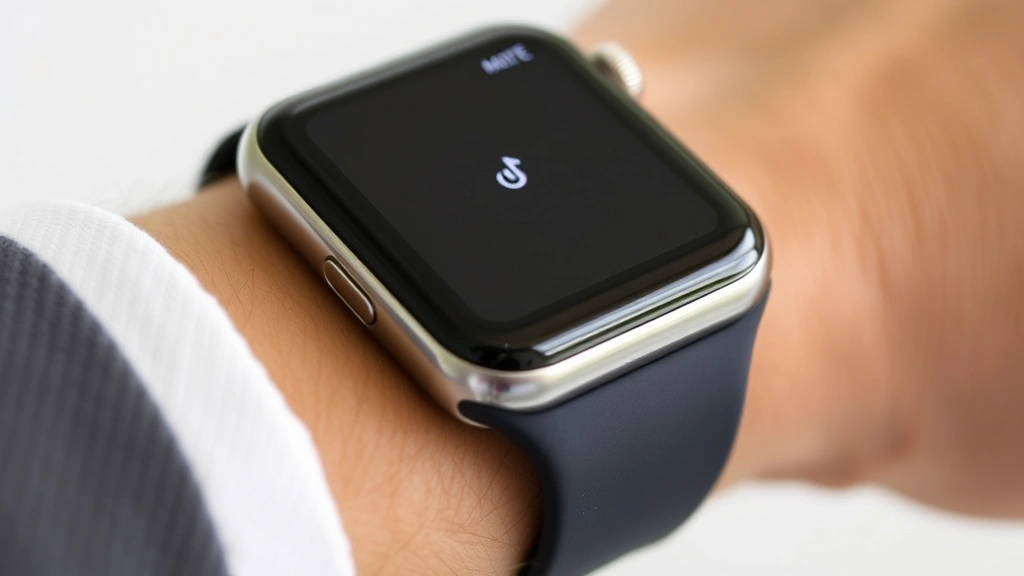
Your Apple Watch is buzzing during a meeting. Again. Or maybe you’re trying to focus and those constant notifications are driving you up the wall. The truth is, knowing how to mute Apple Watch isn’t just about hitting a button—it’s about understanding the different ways your watch communicates and taking control of when and how it does that.
Most people don’t realize there are multiple ways to silence your Apple Watch, and each one works differently depending on your situation. Some methods mute just the sounds while keeping haptic feedback. Others silence everything. Some are temporary. Some stick around until you change them again. This guide walks you through all of them so you can pick the right approach for whatever you’re doing.
Let’s be real: Apple’s notification system can be overwhelming. But once you understand the muting options, you’ll actually feel in control of your device instead of the other way around.
Using the Mute Button (Silent Mode)
This is the fastest way to silence your Apple Watch, and it’s been there since the beginning. Your watch has a physical mute button on the side—it’s the one that looks like a speaker with a line through it. Press it once, and your watch goes silent. That’s it.
Here’s what happens when you activate silent mode:
- All sounds are muted (alarms, notifications, calls)
- Haptic feedback (the little vibrations) still works
- You’ll see a bell with a slash icon in the status bar
- Your watch will still buzz when you get notifications
The beauty of silent mode is that it’s instant and reversible. You can toggle it on and off without thinking about it. It’s perfect for meetings, quiet environments, or anytime you want to keep your watch from making noise but still feel when something important arrives.
Pro tip: Silent mode on your Apple Watch is independent from your iPhone’s silent mode. You can have your phone ringing while your watch is silent, or vice versa. This matters more than you’d think if you’re trying to manage notifications across multiple devices.
Controlling Sound via Control Center
If you want more granular control than just the mute button, the Control Center is your friend. Swipe down from the top of your Apple Watch screen to open it. You’ll see a speaker icon with a volume slider.
From here you can:
- Lower the volume without fully muting
- Adjust the volume level with the slider
- See your current volume setting at a glance
This approach is useful when you don’t want complete silence but need things quieter. Maybe you’re in a library and want your watch to still alert you, just more softly. Or you’re at home and want to reduce the notification volume without losing all audio feedback.
The volume control in the Control Center affects notification sounds and alerts. It doesn’t affect things like alarms or timers, which have their own volume settings. This is actually a smart design choice—you might want notifications quiet but alarms loud enough to actually wake you up.
One thing worth knowing: if you’ve adjusted the volume in Control Center and then activate silent mode with the physical button, the volume setting is still there. When you turn silent mode off, your watch returns to that previous volume level. Think of it like layers—silent mode overrides everything, but your volume preference stays in the background.
Do Not Disturb Mode Explained
Do Not Disturb (DND) is different from silent mode, and this distinction matters. While silent mode just mutes sounds, Do Not Disturb actually blocks most notifications from reaching your watch in the first place.
To activate Do Not Disturb on your Apple Watch:
- Open Control Center (swipe down from the top)
- Look for the moon icon (this is Do Not Disturb)
- Tap it to activate
- You’ll see the moon icon appear in your status bar
When Do Not Disturb is on:
- Notifications are silenced and hidden
- Incoming calls show on your screen but don’t ring
- Your watch still tracks activity and time
- Alarms and timers still work normally
- You can still manually open apps and use your watch
Here’s the real-world difference: silent mode is like turning down the volume on a TV. Do Not Disturb is like putting the TV on mute and also hiding the notification bar. One silences the noise. The other prevents the interruption entirely.
You can also set Do Not Disturb to activate automatically during certain times. Go to Settings > Do Not Disturb and enable “Scheduled.” Then set the times you want it active. This is killer for sleep—your watch won’t buzz you awake with notifications if you have DND scheduled for your sleep hours.
Safety Warning: Be careful with Do Not Disturb during times when you might need to receive emergency calls. Some critical contacts can still reach you through Do Not Disturb if they’re marked as favorites, but it’s worth double-checking your settings.
Managing Individual App Notifications

Sometimes you don’t want to mute your entire watch. You just want to silence specific apps. This is where notification management comes in, and it’s honestly one of the most underused features on Apple Watch.
To control notifications per app:
- Open the Apple Watch app on your iPhone
- Go to Notifications
- Scroll through the list and find the app you want to manage
- Toggle “Allow Notifications” off for that app
- Or tap the app and customize its alert style
You have several options for how each app notifies you:
- Prominent: The app sends notifications and they appear on your screen
- Silent: Notifications arrive but don’t make sound or vibration
- Off: No notifications from this app at all
This granular approach means you can keep critical apps (like Messages or Phone) loud while silencing less important ones (like news apps or games). It’s the difference between a watch that respects your attention and one that’s constantly demanding it.
Here’s a workflow that actually works: go through your installed apps and ask yourself, “Do I really need to be interrupted by this?” For most apps, the answer is no. Social media? Silent. Email? Depends on your job, but probably silent unless you’re waiting on something urgent. Messages? Probably prominent. Calendar? Probably silent unless you set custom alerts for important meetings.
Using Focus Modes for Smart Silencing
Focus modes are Apple’s way of letting your watch understand context. Instead of manually muting every time you enter a meeting or start working, you can set up Focus modes that automatically adjust your notifications.
Your Apple Watch can use the same Focus modes you set up on your iPhone. Common ones include:
- Work: Only allows work-related notifications
- Personal: Only allows personal contacts and apps
- Do Not Disturb: Blocks everything except emergencies
- Sleep: Silences notifications during sleep hours
To set up a Focus mode:
- Go to Settings > Focus on your iPhone
- Create a new Focus or edit an existing one
- Choose which apps and contacts can notify you
- Set a schedule for when it activates automatically
- Your Apple Watch will sync these settings
The magic happens when you set Focus modes to activate automatically. You can have Work Focus turn on during business hours, Sleep Focus activate at bedtime, and Personal Focus take over in the evenings. Your watch adjusts its notification behavior without you having to do anything.
One advanced move: set different Focus modes for different locations. You can have a “Gym” Focus that silences notifications while you’re exercising, and it activates automatically when your iPhone detects you’re at the gym. This is the closest thing to true “set it and forget it” notification management.
Theater Mode: When You Really Need Quiet
Theater Mode is the nuclear option for silencing your Apple Watch. It’s designed for situations where you absolutely cannot have any notifications, sounds, or vibrations.
To activate Theater Mode:
- Swipe down from the top to open Control Center
- Look for the theater masks icon
- Tap it to activate
- You’ll see the icon appear in your status bar
What Theater Mode does:
- Silences all sounds
- Disables haptic feedback (no vibrations)
- Prevents the screen from waking up when you get notifications
- Keeps your watch from making any noise or movement
This is genuinely useful in specific situations: watching a movie in a theater (hence the name), attending a concert, sitting in a quiet library, or any situation where even a tiny vibration would be inappropriate. It’s the most aggressive silencing option available.
The downside is that you’ll miss notifications entirely—you won’t even feel them. So Theater Mode isn’t something you use for your entire workday. Use it for specific events or short periods when you need complete silence.
Controlling Haptic Feedback Separately
Here’s something most people don’t realize: you can control sound and haptic feedback independently. Your Apple Watch can buzz you without making noise, or make noise without buzzing.
To adjust haptic feedback:
- Open Settings on your Apple Watch
- Go to Sounds & Haptics
- You’ll see separate controls for different types of alerts
- Adjust each one individually
Some people prefer haptic feedback only—they get notified through vibration but don’t want any sound. Others prefer the opposite. This is especially useful if you’re in a situation where sound is disruptive but you still want to know when something arrives.
You can also control haptic strength:
- Weak: Subtle vibration, easy to miss
- Medium: Standard vibration, noticeable
- Strong: Aggressive vibration, hard to miss
If you have hearing loss or work in loud environments, strong haptic feedback might be more reliable than sound. If you work in quiet environments or have sensory sensitivities, weak haptic feedback or no feedback at all might be better.
This is one area where Apple Watch really shines compared to other smartwatches. The haptic engine is sophisticated enough that you can feel different types of notifications—a phone call feels different from a message, which feels different from a calendar alert. Once you learn these patterns, you can often tell what’s happening without even looking at your watch.
Frequently Asked Questions
Can I mute my Apple Watch without muting my iPhone?
– Yes, absolutely. Your Apple Watch’s silent mode is completely independent from your iPhone’s silent mode. You can have your phone ringing while your watch is silent, or any other combination. This is one of the best features for managing notifications across devices.
Will alarms still go off if my Apple Watch is in silent mode?
– Alarms will still vibrate (haptic feedback), but they won’t make sound. If you need your alarm to be audible, you’ll need to turn off silent mode. However, if you just want the vibration to wake you up, silent mode works fine for that.
What’s the difference between silent mode and Do Not Disturb?
– Silent mode mutes the sounds but notifications still arrive and vibrate your watch. Do Not Disturb blocks most notifications from appearing at all. Silent mode is about volume control. Do Not Disturb is about preventing interruptions.
Can I set up automatic muting on a schedule?
– Yes, through Do Not Disturb and Focus modes. You can schedule Do Not Disturb to turn on automatically during certain hours, or set up Focus modes with schedules. This is perfect for sleep hours or regular meeting times.
If I mute notifications from an app, will I miss important messages?
– You won’t get notifications, but you can still open the app and see messages manually. For truly critical apps like Messages, you might want to keep notifications on but set them to “Silent” instead of completely off. This way you’ll see the notification if you look at your watch, but it won’t interrupt you.
Does Theater Mode turn off automatically?
– No, Theater Mode stays on until you manually turn it off. You need to swipe down to Control Center and tap the theater icon again to deactivate it. This is intentional—you don’t want it accidentally turning off during a movie.
Can I customize which contacts can reach me during Do Not Disturb?
– Yes, through Focus modes on your iPhone. You can set up specific contacts as favorites or exceptions so they can still reach you even when Do Not Disturb is active. This is useful for family members or work contacts who might need to reach you in emergencies.
What happens to my notifications when I’m in Focus mode?
– Notifications from apps and contacts not allowed in that Focus mode will be silenced and held until the Focus mode ends. You can still manually check them, but they won’t interrupt you. When the Focus ends, you might see a summary of what you missed.


