
Your Mac battery dies at the worst possible moment. You plug in the charger, but nothing happens—or does it? You stare at the screen wondering: how to know if my mac is charging. It’s frustrating because sometimes the signs aren’t obvious, and you’re left guessing whether your machine is actually juicing up or if something’s broken.
Here’s the real talk: checking if your Mac is charging should be simple, but Apple makes it harder than it needs to be. Unlike some laptops with blinking lights or loud notifications, Macs use subtle visual cues that you can easily miss if you don’t know where to look. This guide walks you through every method to confirm your Mac is actually charging—and what to do when it isn’t.
Check the Menu Bar Battery Icon
The fastest way to know if your Mac is charging is looking at the battery icon in the top-right corner of your menu bar. This tiny icon tells you almost everything you need to know in about two seconds.
Here’s what to look for:
- A lightning bolt symbol inside or next to the battery icon means your Mac is actively charging
- The battery percentage number next to it shows your current charge level
- If there’s no lightning bolt, your Mac is running on battery power
That’s it. Sounds simple, right? But here’s where people get confused: sometimes the icon is so small you miss the lightning bolt entirely, especially if your Mac’s battery is already pretty full. If your battery is at 95% or higher, the icon might look like a solid bar with barely any visible empty space, making the lightning bolt harder to spot.
To make this easier, click on the battery icon itself. A dropdown menu appears showing your current charge status with clearer text. You’ll see something like “Battery Charging” or “Battery Not Charging” in plain English. No guessing required.
Pro Tip: If you’re having trouble seeing the menu bar icon clearly, try adjusting your display brightness or moving closer to the screen. Sometimes glare from windows or overhead lights makes the icon nearly invisible.
Look at the Battery Status in System Settings
Want the most detailed information about your Mac’s charging status? System Settings (or System Preferences on older Macs) is your answer. This is where Apple stores all the nitty-gritty battery data.
Here’s how to access it:
- Click the Apple menu in the top-left corner
- Select “System Settings” (or “System Preferences” on older macOS versions)
- Look for “Battery” or “Power” in the sidebar
- Click it and you’ll see a detailed breakdown of your charging status
In this menu, you’ll find information like:
- Charging Status: Clearly states if your Mac is “Charging” or “Not Charging”
- Current Charge Level: The exact percentage your battery is at
- Battery Health: Shows whether your battery is in good condition or degraded
- Condition: Might say “Normal” or flag issues like “Service Recommended”
This is the most reliable way to check if your Mac is charging because it leaves zero room for interpretation. Apple doesn’t use subtle visual cues here—it just tells you straight up whether power is flowing into your battery or not.
If you see “Not Charging” but your charger is plugged in, that’s your first red flag. It means either the charger isn’t working, the cable is damaged, or there’s a connection issue between the charger and your Mac. We’ll cover how to fix this in the troubleshooting section.
Physical Signs Your Mac is Charging
Beyond the software indicators, your Mac gives you physical clues that charging is happening. These signs work even if your screen is off or in sleep mode.
Feel the bottom of your Mac: When your Mac is charging, the charging circuitry is active, which generates a tiny amount of heat. If you place your hand on the underside of your MacBook (near the charging port), you might feel a slight warmth. It’s subtle—not like your Mac is on fire—but it’s there. If the bottom feels completely cool to the touch and your charger is plugged in, that’s another sign something’s wrong with the charging connection.
Listen for subtle sounds: Some older MacBook models make a barely audible humming or buzzing sound when charging, especially when the battery is very low. Newer models are quieter, but if you put your ear close to the charging port area, you might hear something. This is more obvious when your Mac is off and you first plug in the charger.
Check for vibrations: This is rare, but some MacBook models produce a tiny vibration when you first connect the charger, especially if the battery is completely drained. It’s like a brief “acknowledgment” that the charger is recognized.
Safety Warning: If your Mac feels excessively hot while charging (uncomfortably hot to touch), unplug the charger immediately. This could indicate a battery issue or a faulty charger. Let it cool down and contact Apple Support before charging again.
Check the MagSafe LED (If You Have One)
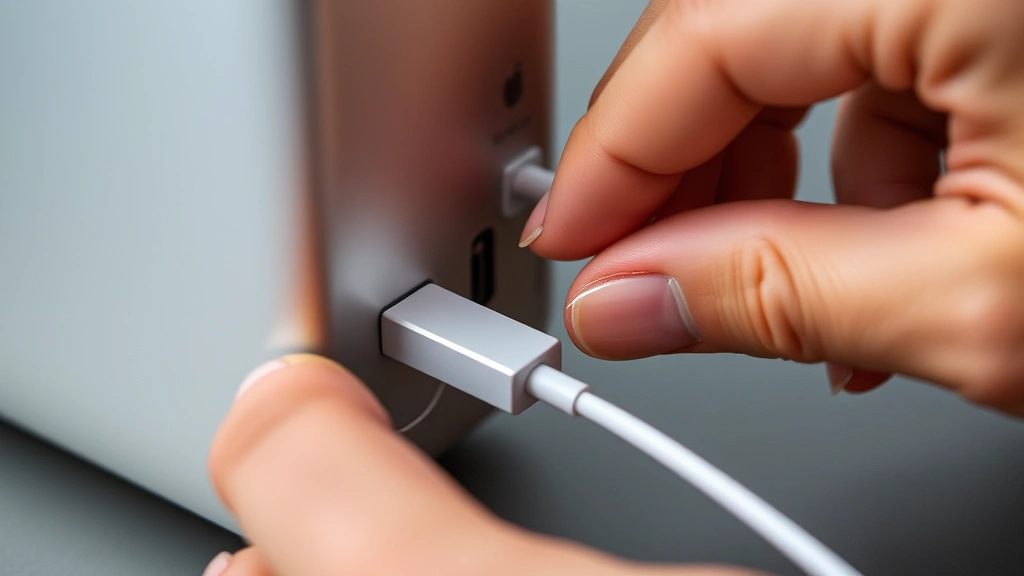
If you have a newer MacBook with MagSafe charging (introduced in 2021), you have an advantage: an LED indicator light built into the charging cable.
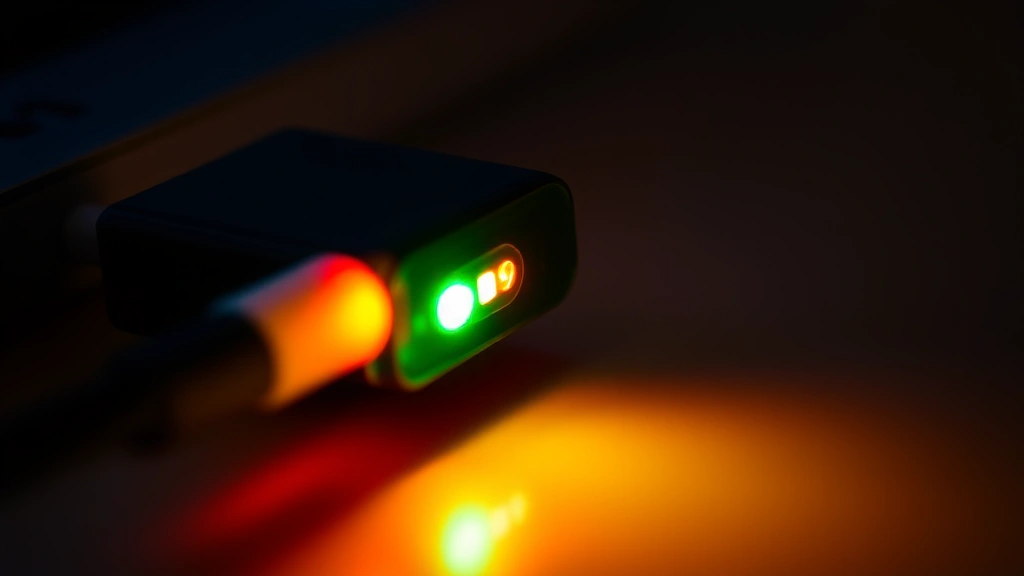
Here’s what the LED colors mean:
- Amber/Orange Light: Your Mac is charging. The battery is below 80% and power is actively flowing in
- Green Light: Your Mac is fully charged or the battery is above 80% and charging has slowed to protect battery health
- No Light: The charger isn’t connected properly, the cable is damaged, or there’s an issue with the charging circuit
This LED is one of the clearest indicators you can get. It’s bright enough to see across a room, and the color coding is consistent across all newer MacBooks. If you’re sitting at your desk and can see that green light glowing, you know your Mac is in good shape.
One thing to know: if your Mac is powered off completely and you plug in the charger, the LED might not light up immediately. Give it a few seconds. The charging circuit needs to wake up and recognize the charger. If the LED still doesn’t light after 10-15 seconds, try disconnecting and reconnecting the MagSafe connector. Sometimes it needs a firm click to make proper contact.
Older MacBooks (pre-2021) with traditional USB-C charging don’t have an LED indicator, which is why checking the menu bar becomes even more important for those models.
What to Do When Your Mac Won’t Charge
You’ve checked everything and your Mac still isn’t charging. Before you panic or buy a new charger, work through these steps systematically.
Step 1: Check the charger connection
This sounds obvious, but loose connections cause most charging failures. For MagSafe Macs, make sure the connector is fully clicked into place. You should hear or feel a satisfying magnetic click. For USB-C charging, push the cable in firmly until it seats completely. The port can look connected but still have a loose contact.
Step 2: Inspect the cable for damage
Look along the entire length of your charging cable for cuts, fraying, or bent areas. Pay special attention to where the cable enters the charger block and where it connects to your Mac. If you see any damage, the cable is compromised and needs replacement. Even small cuts can prevent charging.
Step 3: Try a different power outlet
Your charger might be fine, but the outlet could be dead. Test the outlet by plugging in another device—a lamp, phone charger, or anything else. If that device doesn’t work either, the outlet is the problem. Try a different outlet in another room.
Step 4: Force restart your Mac
Sometimes your Mac’s charging circuit gets confused and stops accepting power. A force restart can fix this. The method depends on your Mac model:
- Apple Silicon Macs (M1, M2, M3, etc.): Press and hold the power button for 10 seconds until the screen goes black, then release
- Intel Macs: Press Command + Control + Power button simultaneously until the screen flashes
After the restart, plug in your charger and check the menu bar again.
Step 5: Reset the SMC (System Management Controller)
The SMC controls charging, battery management, and power delivery. Resetting it sometimes fixes charging issues. The process varies by Mac model, so check Apple’s official SMC reset guide for your specific machine.
Pro Tip: If you’re still under warranty or have AppleCare, contact Apple Support before trying advanced troubleshooting. They can walk you through additional steps and might replace hardware if needed.
Troubleshooting Common Charging Issues
Problem: Menu bar shows “Not Charging” but charger is plugged in
This usually means your Mac’s battery is either fully charged or the system thinks it is. Sometimes Macs stop charging at 80% to preserve long-term battery health (this is intentional). Check your battery health status in System Settings. If it says “Normal,” wait a few minutes—your Mac might resume charging once the battery naturally drops below 80%.
If the issue persists, try the SMC reset mentioned above. If that doesn’t work, your charging port might have debris inside. Use a flashlight to look into the port. If you see lint or dust, carefully use a wooden toothpick (not metal—it conducts electricity) to gently remove it. Don’t force anything.
Problem: Charger gets hot or makes buzzing sounds
A warm charger is normal—they generate heat. But if it’s too hot to touch comfortably, unplug it immediately. This could indicate an internal failure. Buzzing sounds are also normal when first plugged in, but continuous loud buzzing suggests a problem. Replace the charger.
Problem: Mac charges slowly or charges only when off
If your Mac charges fine when powered down but slowly when on, your power adapter might not be delivering enough wattage for both charging and running your Mac simultaneously. This is especially common on older MacBooks with older chargers. You might need a higher-wattage adapter. Check Apple’s specifications for your model.
Slow charging while powered on can also mean you’re using power-hungry apps (video editing, 3D rendering, gaming). Close those apps and charging speed should improve.
Problem: Battery drains while plugged in
This is rare but happens sometimes. Your Mac might be using more power than the charger is delivering. Again, close power-hungry applications. If it continues, the charger isn’t delivering enough wattage and needs replacement. Apple’s official chargers are reliable, but third-party options from Anker or Belkin work too—just make sure they’re certified for your specific Mac model.
Another common issue: if you’ve been using your Mac for years, the battery itself might be degraded. Check the “Condition” field in System Settings Battery. If it says “Service Recommended,” your battery is aging and won’t hold a charge as well. This is normal wear and tear. Apple can replace the battery, though it’s not cheap.
Problem: MagSafe light doesn’t turn on
First, make sure the connector is fully seated. The magnetic connection should feel secure. If the light still doesn’t appear after 10 seconds, try disconnecting and reconnecting. If that fails, the issue is either a damaged cable or a problem with your Mac’s charging port. Test with a different MagSafe cable if you can borrow one. If the light comes on with a different cable, your original cable is faulty. If it still doesn’t work, your Mac’s charging port might need service.
For a deeper dive into Mac maintenance and troubleshooting, Macworld offers excellent battery care tips.
Frequently Asked Questions
How long does it take a Mac to charge from 0% to 100%?
– Typically 2-4 hours depending on your Mac model and charger wattage. Newer Macs with higher-wattage chargers charge faster. The charging speed also slows down as you approach 100% to protect battery health. If your Mac is taking significantly longer, check that you’re using the correct wattage charger for your model.
Is it bad to leave my Mac plugged in all the time?
– Modern Macs are smart about this. Once fully charged, they stop actively charging and switch to trickle charging or power management. Your Mac won’t overcharge. However, constantly keeping your battery at 100% does degrade it slightly over years of use. If you leave your Mac plugged in constantly, Apple’s battery health management feature helps by capping the charge at 80% during regular use.
Can I use a third-party charger for my Mac?
– Yes, but buy from reputable manufacturers. Third-party chargers from Anker, Belkin, and similar brands work fine if they’re certified for your Mac model and have the correct wattage. Avoid cheap knock-offs from unknown brands—they can damage your Mac’s charging port or battery. When in doubt, use Apple’s official charger.
Why does my Mac show “Not Charging” even though it’s plugged in?
– The most common reason is that your battery is already full or at the 80% threshold where charging pauses for battery health. Check System Settings to see your actual charge level. If it’s below 80% and still says “Not Charging,” try force restarting your Mac or resetting the SMC. If that doesn’t work, there’s likely a hardware issue with the charger, cable, or port.
Does the ambient temperature affect charging?
– Yes. Macs charge slower in cold environments and might stop charging entirely if it’s very cold (below 50°F/10°C). This is a safety feature to protect the battery. If you’re in a cold room, let your Mac warm up to room temperature before charging. Heat also slows charging—if your room is very hot (above 95°F/35°C), your Mac might throttle charging to prevent battery damage.
What’s the difference between “Charging” and “Battery Not Charging” in System Settings?
– “Charging” means power is actively flowing into your battery. “Battery Not Charging” means the charger is connected but no power is flowing in. This usually happens when your battery is full or at the 80% health threshold. It’s not an error—it’s intentional. If your battery is below 80% and it still says “Not Charging,” that’s when you have a real problem.
Can I charge my Mac with my iPhone charger?
– Only if your Mac uses USB-C charging and your iPhone charger is USB-C. However, iPhone chargers typically have lower wattage (18-30W) than MacBooks need (45-140W depending on model). Your Mac might charge very slowly or not at all while powered on. For best results, use the charger that came with your Mac or a certified third-party charger with matching wattage.
Why does my Mac battery drain so fast?
– Fast battery drain while using your Mac is normal—you’re actively using power. But if your battery drains even when your Mac is asleep or off, you might have a faulty battery, a background process consuming power, or a hardware issue. Check Activity Monitor to see which apps are using the most power. If the problem persists, your battery might need replacement.


