

Let’s be honest—if you’ve ever sat there manually dragging your cursor across an entire document to select text, you know how frustrating it can be. Whether you’re working with a massive email thread, a lengthy PDF, or a Google Doc that seems to go on forever, knowing how to highlight all Mac text is a skill that’ll save you serious time. The good news? It’s dead simple once you know the trick, and there are actually several ways to do it depending on what you’re working with.
Most Mac users don’t realize they’re wasting precious seconds (or minutes) doing manual selection when their keyboard can do the heavy lifting. This guide walks you through every method to select and highlight all text on your Mac—from the basic keyboard shortcut to advanced techniques for specific apps.
The Universal Keyboard Shortcut: Command+A
Here’s the real talk: Command+A is your best friend when you need to know how to highlight all Mac text. This is the master shortcut that works in nearly every application on your Mac—from Notes to Mail to Safari to Microsoft Word. It’s literally a one-handed operation, and once you commit it to muscle memory, you’ll wonder how you ever lived without it.
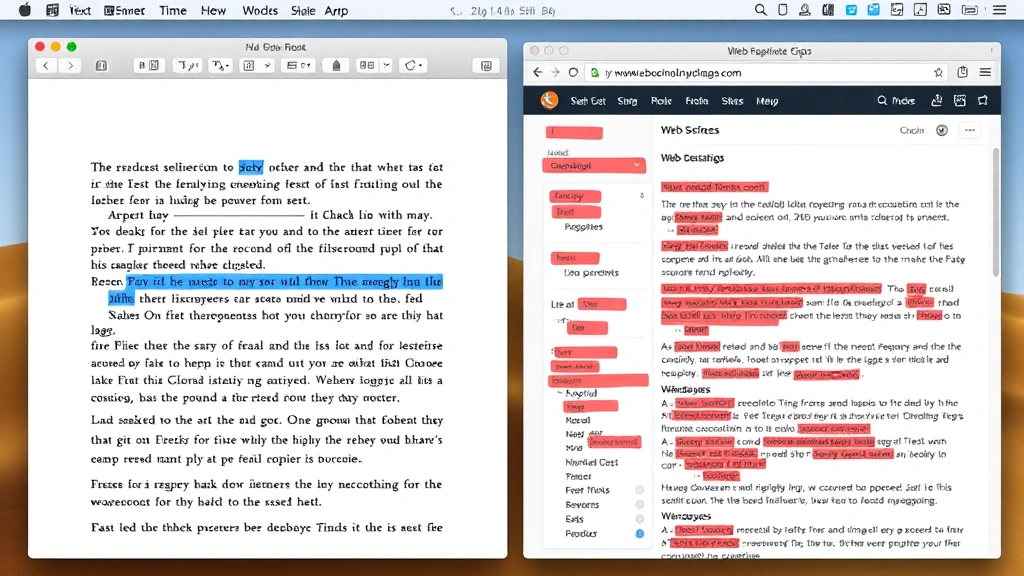
The beauty of Command+A is its consistency. No matter what app you’re using, the same keystroke works. Press and hold the Command key (⌘)—that’s the key with the Apple logo on it—and tap the A key. Everything in your current window, document, or text field will turn blue (or your system’s highlight color), indicating it’s selected.
Pro Tip: Command+A works differently depending on context. In a text editor, it selects all text. In Finder, it selects all visible files in the current folder. In a browser, it selects all content on the page. Understanding this context matters when you’re working across multiple apps.
One thing to watch: if you’re in a text field within a web browser or application, Command+A will only select text within that specific field, not the entire page. This is actually a safety feature—imagine accidentally selecting everything on a webpage when you just wanted to highlight your password in a login form.
How to Highlight All Text in Different Apps
While Command+A is universal, some applications have their own quirks. Let’s break down the most common scenarios you’ll encounter when learning how to highlight all Mac content.
Apple Mail and Mail-Like Apps
In Mail, Command+A selects all text in the current email body. If you want to select an entire conversation thread, you’ll need to use a different approach. Click on the first email, then Shift+Click on the last email to select the range. This is especially useful when you’re managing multiple emails at once.
Safari and Web Browsers
Command+A in Safari selects all content on the current webpage. If you’re reading an article and want to copy the entire thing, this is your move. However, some websites have JavaScript that interferes with selection, so you might encounter resistance. In those cases, you can try using the Reader view first—click the Reader icon in the address bar—then use Command+A. The Reader view strips away distractions and makes selection much more reliable.
Microsoft Word and Google Docs
Both of these work exactly as expected with Command+A. However, in Google Docs, if you have comments or suggestions enabled, Command+A might behave slightly differently. If you’re having trouble, try clicking directly in the document body first to ensure focus is on the text area, then use Command+A. This prevents the shortcut from selecting UI elements instead of content.
PDF Readers
Here’s where things get tricky. In Preview (Mac’s built-in PDF viewer), Command+A doesn’t always work as expected because PDFs are image-based, not text-based. If the PDF is scanned or image-heavy, you might need to use the text selection tool first. Click the selection tool icon in the toolbar, then try Command+A. For searchable PDFs, Command+A usually works fine.
Apple’s official support documentation covers app-specific behaviors if you run into weird edge cases.
Using Menu Options to Select All
Not a keyboard shortcut person? No problem. Almost every Mac application has a menu-based option to select all text. Here’s how to find it:
- Look at the top menu bar and find the app’s main menu (usually the second menu after the Apple logo)
- Click on it—for most apps, this is labeled with the app name (e.g., “Mail,” “Safari,” “Word”)
- Look for an option that says “Select All” or “Edit All”
- Click it, and your text will be highlighted
This method is slower than the keyboard shortcut, but it’s useful if your keyboard is acting weird or if you’re trying to remember the shortcut. The menu approach also shows you exactly what’s being selected before you commit to the action.
In some older applications, this menu option might be buried under “Edit” instead of the main app menu. If you can’t find it, check Edit → Select All. This is the standard location in most professional software.
Trackpad and Mouse Techniques

If you prefer using your trackpad or mouse, there are a few ways to select all text without touching the keyboard—though honestly, this is slower and less reliable than Command+A.
Triple-Click Selection
Triple-clicking on any paragraph in most Mac applications will select that entire paragraph. It’s not “select all,” but it’s useful for quick selections. The first click places your cursor, the second click selects the word, and the third click selects the paragraph or line.
Click and Drag
The old-school way: click at the beginning of your text, hold down the mouse button, and drag to the end. To select all text this way, click before the first character and drag all the way to after the last character. This works everywhere but is incredibly inefficient for large documents.
Shift+Click Selection
Here’s a hybrid approach that’s actually useful: click at the beginning of where you want to select, then hold Shift and click at the end. Everything between those two points gets highlighted. This is helpful when you want to select a specific range without using keyboard shortcuts.
Safety Warning: When selecting text on your Mac, be careful about what you’re copying afterward. If you have passwords, credit card numbers, or sensitive information selected, make sure you’re not accidentally pasting it somewhere public or insecure. Always verify what’s on your clipboard before pasting into unfamiliar websites.
Troubleshooting Selection Issues
Sometimes Command+A doesn’t work as expected. Here are the most common issues and how to fix them:
Command+A Isn’t Working
First, check if your keyboard is functioning properly. Try the shortcut in a simple app like Notes or TextEdit. If it works there, the issue is app-specific. If it doesn’t work anywhere, your keyboard might need attention. Try restarting your Mac to reset any stuck processes.
Only Part of the Text Is Selected
This usually means the app doesn’t have focus on the text area. Click directly in the document or text field, then try Command+A again. Some apps require you to click in the content area before shortcuts work properly.
Selection Isn’t Visible
On some Macs with certain color schemes or accessibility settings, the highlight color might be hard to see. Go to System Preferences → Accessibility → Display and check your highlight color settings. You can adjust the contrast to make selections more visible.
Copy After Selection Isn’t Working
After you’ve highlighted all text with Command+A, copy it with Command+C. If nothing gets copied, the app might not support the copy function. Try using the Edit menu instead: Edit → Copy. If that doesn’t work, the app might be preventing clipboard access for security reasons.
According to comprehensive macOS documentation, these issues are usually app-specific rather than system-wide problems.
Advanced Selection Techniques
Once you’ve mastered the basics of how to highlight all Mac text, these advanced techniques will make you even more efficient.
Selecting Text Across Multiple Applications
You can’t directly select text across different apps with a single shortcut, but you can use a workaround. Copy text from one app (Command+A, then Command+C), open another app, and paste it (Command+V). Then use Command+A to select all the combined text in the new location.
Using Find and Replace to Select Specific Text
Sometimes you don’t want to select ALL text—you want to select all instances of a specific word or phrase. Use Command+F to open the Find dialog, enter your search term, then look for a “Select All” or “Replace All” option. This is particularly useful in word processors and code editors.
Keyboard Shortcuts for Selective Highlighting
You can also use Shift+Arrow Keys to select text character by character, or Shift+Option+Arrow Keys to select word by word. This gives you fine-grained control when you need to select specific portions rather than everything.
Text Selection in Terminal
In Mac’s Terminal app, Command+A works, but it selects all visible text including the command prompt. If you want to select just your command output, click at the beginning of the output and drag to select, or use Shift+Click at the end point.
Selection in Spreadsheet Applications
In Excel or Numbers, Command+A selects the current data region. Press it again to select the entire sheet. This is useful when you’re working with large datasets and need to apply formatting or calculations to everything.
Productivity Tips After Highlighting
Now that you know how to highlight all Mac text, here’s what you can do with that selection:
Copy and Paste Efficiently
After selecting with Command+A, copy with Command+C. Then switch to another app and paste with Command+V. This is the foundation of most Mac workflows. Pro move: use Command+Shift+V to paste without formatting—this strips away fonts, colors, and styles, giving you plain text.
Format Selected Text
Once text is highlighted, you can apply formatting instantly. Command+B for bold, Command+I for italic, Command+U for underline. These work in most Mac applications. In some apps, you can also use the Format menu to access more advanced options.
Delete or Replace
With text selected, just start typing to replace it. Or press Delete to remove it entirely. This is one of the fastest ways to clear content when you need a fresh start.
Save or Export Selected Content
Some applications let you save or export only selected text. After using Command+A to select all, check the File menu for “Save As” or “Export” options that might have a “Selection Only” checkbox.
Word Count and Statistics
In word processors like Word or Google Docs, selecting all text (Command+A) then checking Tools → Word Count shows you statistics about your document. This is useful for meeting word count requirements or understanding document length.
For more productivity insights, FamilyHandyman’s guide to keyboard shortcuts (while focused on general computing) covers principles that apply to Mac workflows.
Frequently Asked Questions
Does Command+A work on all Mac applications?
– Command+A works on nearly all Mac applications, but behavior varies by app. In text editors it selects text, in Finder it selects files, in browsers it selects page content. Some specialized applications might have different behaviors, but Command+A is your best first attempt in any app.
What’s the difference between highlighting and selecting on Mac?
– “Highlighting” and “selecting” are used interchangeably on Mac. When you use Command+A, you’re selecting text, which appears highlighted in blue. Some people use “highlight” to mean applying a color background (like yellow marker), which is different. In this guide, we’re talking about selection/highlighting as the same thing.
Can I highlight text without using the keyboard?
– Yes, you can triple-click to select a paragraph, click and drag to select a range, or use Shift+Click to select from one point to another. However, these methods are slower than Command+A for selecting all content.
Why doesn’t Command+A work in some websites?
– Some websites use JavaScript or CSS to prevent text selection for copyright or security reasons. If this happens, try switching to Reader view in Safari, using a different browser, or checking if the website has a specific copy/share button instead.
How do I select all text in a PDF on Mac?
– In Preview, Command+A might not work if the PDF is scanned. First, click the selection tool icon in the toolbar, then try Command+A. For searchable PDFs, Command+A usually works directly. If you’re having persistent issues with scanned documents, consider using a specialized PDF app like PDFpen.
Can I select all and then deselect specific parts?
– Not directly with a single shortcut. After Command+A, you can hold Shift and click on items you want to deselect (in Finder), or use Shift+Arrow Keys to adjust your selection in text editors. In some apps like Word, you can use Find & Replace to deselect specific content.
What’s the fastest way to select all text on Mac?
– Command+A is unquestionably the fastest method. It’s a two-key combination (one key held down while tapping another) that works universally across Mac applications. Once it becomes muscle memory, you can do it in less than a second.
Does selecting all text use more battery or processing power?
– No, selecting text is a negligible operation in terms of system resources. It’s just a visual highlighting operation that doesn’t affect your Mac’s performance or battery life, even if you’re selecting massive documents with thousands of pages.
Can I create a custom keyboard shortcut for selecting all?
– Command+A is the system-wide standard, and you shouldn’t change it because it’s so deeply embedded in Mac muscle memory. However, in some applications like Word, you can create custom shortcuts for other functions through the app’s preferences.
Why would I ever need to select all text?
– Common reasons include: copying entire documents, applying formatting to all content, deleting everything for a fresh start, checking word count, exporting content, backing up text, or preparing content for sharing. Basically, any time you need to work with your entire document rather than just a portion of it.


