
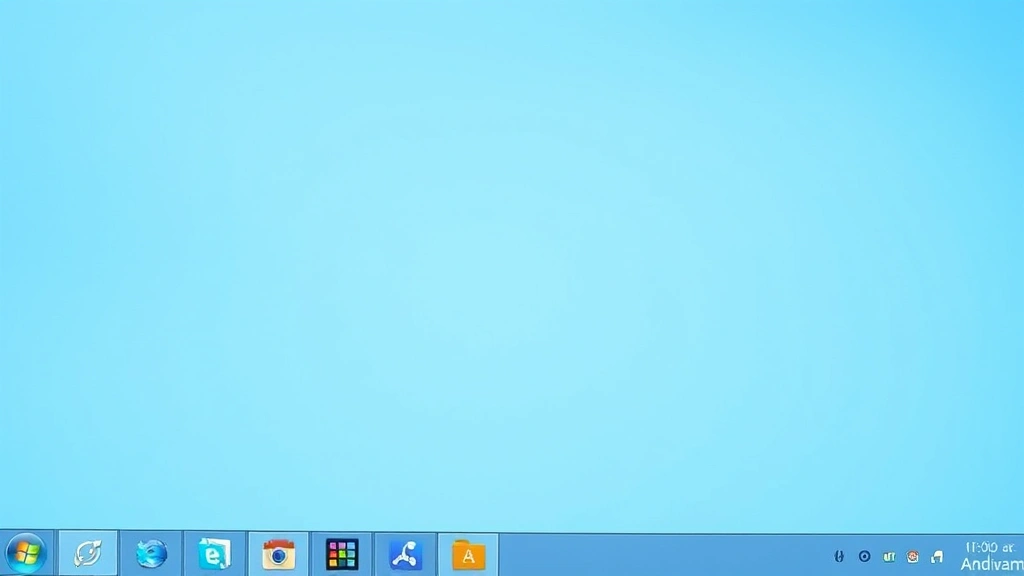
The Windows taskbar is always there, watching, taking up valuable screen real estate. Whether you’re trying to maximize your workspace for creative work, presentations, or just want a cleaner desktop aesthetic, knowing how to hide Windows taskbar is a game-changer. The good news? It’s dead simple, and you’ve got multiple ways to do it depending on what you need.
Let me be straight with you: most people don’t realize the taskbar can be hidden in seconds without any third-party software or technical wizardry. You’ve probably got at least three different methods available right now on your machine. Some are temporary (hide it just when you need to), others are permanent (set it and forget it). We’ll walk through all of them so you can pick what works best for your workflow.
Auto-Hide Method (The Easiest Way)
This is the path of least resistance, and honestly, it’s what most people should use. Auto-hide means your taskbar slides out of view when you’re not using it, then pops back when you move your mouse to the bottom of the screen (or wherever your taskbar lives).
Here’s how to set it up:
- Right-click on an empty area of the taskbar (avoid the icons and clock)
- Select “Taskbar settings” from the menu
- In the Settings window, look for “Taskbar behaviors”
- Toggle on “Automatically hide the taskbar”
- Close the settings window—you’re done
That’s literally it. Now when you’re working, the taskbar vanishes. The second your mouse touches the bottom edge of your screen, it slides back. It’s like a magic trick, except it actually works every time.
Pro Tip: If you find the auto-hide delay annoying (there’s a slight pause before the taskbar appears), try moving your mouse a bit more deliberately toward the bottom. It responds faster with intentional movement than hovering.
The beauty of auto-hide is reversibility. If you change your mind, just toggle it back off. No system changes, no registry edits, no damage done. This method works on Windows 10 and Windows 11, and it’s been reliable since forever.
Using Taskbar Settings for Permanent Control
If you want more granular control over your taskbar behavior, the full Settings panel gives you options that auto-hide alone doesn’t provide. This is where you can customize not just visibility, but appearance and functionality too.
Navigate to the complete taskbar settings:
- Right-click the taskbar and select “Taskbar settings”
- You’ll see a full panel of options
- Look for the “Taskbar behaviors” section
- Beyond “Automatically hide the taskbar,” you’ll find:
- “Show taskbar on all displays” (important for multi-monitor setups)
- “Use small taskbar buttons” (saves even more space)
- “Align taskbar buttons to the left” (Windows 11 option)
Here’s where it gets interesting. You can combine auto-hide with “Use small taskbar buttons” to get maximum screen real estate. The taskbar becomes almost invisible until you need it, and when it appears, it takes up minimal space.
Safety Note: Don’t disable “Lock the taskbar” unless you specifically want to move it around. An unlocked taskbar can accidentally get dragged to the side or top of your screen, which confuses people.
Windows 11 users get a few extra treats here. You can choose taskbar alignment, decide which icons appear, and customize the system tray. Windows 10 has similar options but arranged slightly differently—the functionality is basically the same.
Keyboard Shortcuts to Toggle Visibility
Sometimes you don’t want the taskbar hidden permanently. Maybe you’re doing a presentation and want it gone, or you’re recording a video. Keyboard shortcuts let you toggle the taskbar on and off without digging through settings.
Here’s the thing: Windows doesn’t have a native built-in keyboard shortcut to hide/show the taskbar directly. But you can use Windows Key + T to cycle focus to the taskbar, and Windows Key + D to show the desktop (which minimizes everything). Neither is a true hide command, but they’re useful workarounds.
For a real toggle shortcut, you’d need to use a third-party tool or create a custom shortcut using Task Scheduler. That’s more advanced, and honestly, if you’re already in Settings enabling auto-hide, you’ve got what you need.
Practical keyboard combos that help:
- Windows Key + V: Opens clipboard history (gets things off your desktop)
- Windows Key + Shift + S: Opens screenshot tool (taskbar stays visible but focused)
- Windows Key + I: Opens Settings (if you need to toggle hide quickly)
- Alt + Tab: Switch windows without needing the taskbar visible
If you’re presenting and want the taskbar gone, auto-hide is genuinely your best option. Set it before you start, and you’re clean. The audience won’t see it unless you move your mouse to the bottom.
Hiding Taskbar on Multi-Monitor Setups
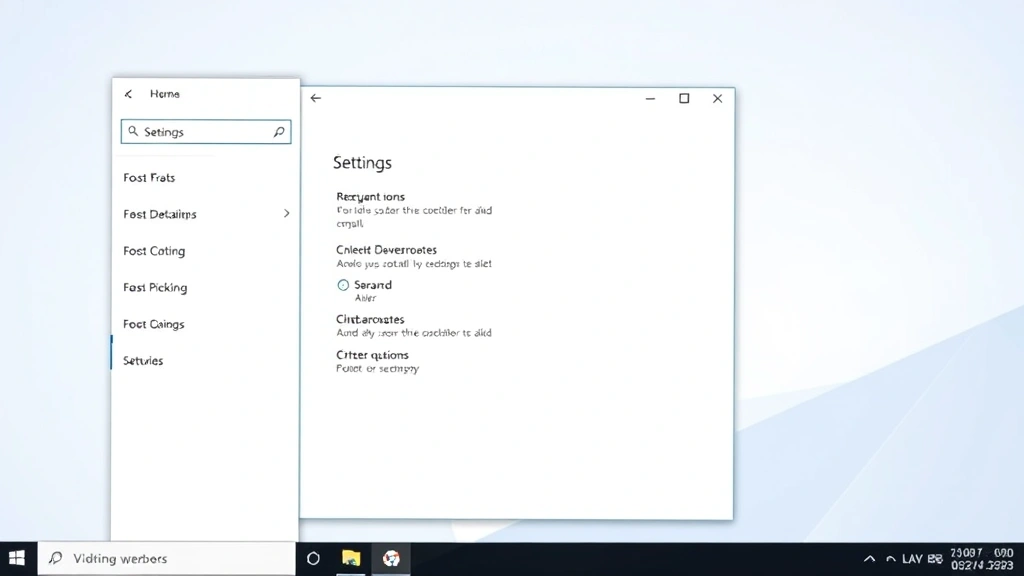
Multi-monitor users get extra complexity here, because the taskbar behavior can be different on each display. This is where a lot of people get frustrated, so let’s break it down.
By default, Windows shows the taskbar only on your primary monitor (usually the one with the Start menu). If you want it on all displays, or hidden on specific ones, you need to dive into settings a bit deeper.
For Windows 11:
- Right-click taskbar → Taskbar settings
- Scroll down to “Multiple displays”
- Toggle “Show taskbar on all displays” if you want it everywhere
- Or leave it off to keep it only on the primary monitor
For Windows 10:
- Right-click taskbar → Taskbar settings
- Look for “Multiple displays” section
- Check “Show taskbar on all displays” or leave unchecked for primary only
Here’s a real-world scenario: You’ve got two monitors. Your primary is where you work, secondary is for reference material. You want the taskbar hidden on both. Set auto-hide on the primary, and if you’ve got “Show taskbar on all displays” enabled, it’ll auto-hide on the secondary too. If you’ve disabled it, the secondary won’t show a taskbar at all.
Pro Tip: If you’re using different taskbar settings per monitor, you might want to check out How-To Geek’s guide on Windows multi-monitor setup for advanced configuration beyond what Settings offers.
The multi-monitor experience is where auto-hide really shines. It works consistently across all displays without needing separate configuration for each one.
Advanced Hiding Options
If the built-in methods aren’t cutting it, or you need something more sophisticated, there are advanced approaches. These aren’t necessary for most people, but they’re worth knowing about.
Third-Party Taskbar Tools: Apps like TClock Redux or 7+ Taskbar Tweaker give you granular control over taskbar behavior. You can set it to hide based on certain conditions, show only when you press a specific key, or customize appearance in ways Windows doesn’t allow. These are optional, but power users love them.
Task Scheduler Automation: You can create a scheduled task that hides the taskbar at specific times (like when you boot up for presentations). This requires PowerShell knowledge, so it’s not beginner-friendly, but it’s possible.
Registry Edits: Windows stores taskbar settings in the registry. Advanced users can modify these directly, but honestly, if you’re comfortable with the registry, you probably don’t need this guide. The risk of breaking something isn’t worth the minor convenience gain.
Safety Warning: Don’t edit the registry unless you absolutely know what you’re doing. One wrong entry and you could cause serious problems. The Settings panel is always safer.
For 99% of users, auto-hide is enough. The advanced stuff is for edge cases or people who want to tinker. Don’t overcomplicate it.
When the Taskbar Won’t Hide
Sometimes you set auto-hide and… nothing happens. The taskbar stays visible like a stubborn desktop ornament. This is frustrating, but it’s usually fixable.
Common causes and fixes:
- Taskbar is locked: Right-click the taskbar and make sure “Lock the taskbar” is unchecked. A locked taskbar sometimes ignores hide commands.
- Full-screen app isn’t recognized: Some older games or apps don’t play nice with auto-hide. Try running them in windowed mode or compatibility mode.
- Display scaling issues: If you’re using 125% or 150% display scaling, sometimes the taskbar hide/show area gets confused. Try moving your mouse more deliberately to the screen edge.
- Explorer.exe crashed: The taskbar runs through Windows Explorer. If it crashes, the taskbar gets stuck. Restart Explorer through Task Manager (Ctrl + Shift + Esc → find Explorer → right-click → Restart).
- Windows Update pending: Sometimes a pending update locks down taskbar settings. Check Windows Update and restart if needed.
If none of that works, you can try the nuclear option: create a new user account and see if the taskbar hides there. If it does, the problem is profile-specific, and you might need to reset your taskbar settings or migrate to the new account.
Reset taskbar to defaults:
- Open Settings (Windows Key + I)
- Go to System → Taskbar
- Scroll down and look for “Reset” or “Restore default settings”
- Click it and restart your computer
This wipes out any custom taskbar configuration and puts it back to factory settings. Then you can re-enable auto-hide cleanly.
Frequently Asked Questions
Does hiding the taskbar improve performance?
– Not really. The taskbar uses minimal resources whether it’s visible or hidden. You’re not freeing up RAM or CPU power. The benefit is purely visual—you get more screen space for your actual work. Think of it like clearing clutter off your desk; it doesn’t make you faster, but it feels better.
Can I hide just specific icons from the taskbar instead of the whole thing?
– Yes. Right-click the taskbar, go to Taskbar settings, then look for “Taskbar items” or “Notification area.” You can customize which icons appear in the system tray. If you want to hide an app’s icon entirely, right-click it on the taskbar and select “Unpin from taskbar.” The app still runs; it just doesn’t show.
Will auto-hide cause problems with drag-and-drop operations?
– No, but it can be annoying. If you’re dragging something to the taskbar and it’s hidden, you’ll need to move your mouse to the bottom to reveal it first. Most people work around this by temporarily disabling auto-hide, dragging, then re-enabling it. Not ideal, but it works.
What if I hide the taskbar and forget how to get it back?
– Move your mouse to the bottom of the screen (or whichever edge the taskbar is on). It’ll appear. If that doesn’t work, right-click on the desktop, select “Display settings,” and you can access taskbar settings from there. You can’t lose the taskbar permanently without actively deleting system files.
Does hiding the taskbar work the same on Windows 10 and Windows 11?
– Functionally, yes. The auto-hide feature works identically. Windows 11’s Settings layout is slightly different, but the options are the same. If you’re switching between versions, you’ll find what you need in both.
Can I set different taskbar visibility for different user accounts?
– Yes. Taskbar settings are per-user, not system-wide. So if you have multiple accounts on your computer, each can have its own taskbar configuration. One person can have auto-hide enabled, another can have it visible. No conflicts.
What’s the difference between hiding the taskbar and minimizing it?
– Hiding means the taskbar disappears completely until you trigger it (by moving the mouse to the edge). Minimizing isn’t really a thing for the taskbar—you can make it smaller with “Use small taskbar buttons,” but that’s different. Auto-hide is the closest thing to a “minimize” function for the taskbar.


