
Your iPhone just hit you with that dreaded notification: “iCloud Storage Almost Full.” You panic. You think about what you might lose. Here’s the real talk—most people are sitting on gigabytes of junk they don’t even know exists. Photos from 2015. Duplicate backups. Apps you deleted but somehow still taking up space. The good news? Learning how to free up iCloud storage is straightforward once you know where to look and what actually matters.
I’m not going to sell you on upgrading to a paid plan right away. Let’s be honest—Apple’s storage tiers aren’t cheap, and you probably have plenty of space to reclaim without spending a dime. This guide walks you through the real methods that work, the ones that actually move the needle on your storage meter.
Understand Your iCloud Storage Breakdown
Before you start deleting things willy-nilly, you need to see what’s actually eating your space. Think of this like opening your garage and actually looking at what’s piled up before you start throwing stuff out. You might be surprised.
Here’s how to check your iCloud storage breakdown:
- Open Settings on your iPhone or iPad
- Tap your name at the top
- Select iCloud
- Tap Manage Storage or Storage
Now you’ll see a visual breakdown showing exactly what’s consuming your space. Usually it’s one of these culprits:
- Photos and Videos (often 50-70% of total usage)
- Device Backups (can be 10-30GB easily)
- Mail (especially with old attachments)
- App Data (apps you rarely use but keep syncing)
- Documents and Data (files stored through various apps)
The breakdown gives you a clear target. Most people find that photos are the main offender. That makes sense—you take hundreds of photos, many are blurry or duplicate, and they pile up fast. But don’t skip checking your backups. Old device backups from phones you no longer own are a sneaky storage killer.
Pro Tip: Screenshot this breakdown. Seriously. It helps you track progress as you free up space, and it’s satisfying to see that storage percentage drop.
Delete Old Photos and Videos Ruthlessly
This is where most of your storage wins happen. The average person keeps 500+ photos they’ll never look at again. Blurry shots. Accidental photos taken in your pocket. Screenshots of texts from 2018. Videos of your kid’s soccer game that are 2GB each.
Here’s the strategic approach to how to free up iCloud storage through photo management:
- Open the Photos app
- Go to the Library tab
- Tap All Photos to sort chronologically
- Scroll to the oldest photos (years ago) and start reviewing
- Swipe left on photos you don’t need and delete them
- Or select multiple photos by tapping Select and batch-delete
The key here is being ruthless. You don’t need:
- Duplicate photos (you took 12 of the same shot)
- Screenshots you used as temporary notes
- Blurry or out-of-focus images
- Photos of receipts or documents (keep one high-quality copy)
- Old screenshots of conversations
Start with photos older than two years. Most people never look back that far anyway. After you delete, those photos move to the Recently Deleted album, where they stay for 30 days before permanently vanishing. This gives you a safety net if you realize you made a mistake.
Videos are especially brutal on storage. A 4K video from your iPhone can be 500MB to 1GB per minute. If you have old videos of things that don’t matter, delete them. Keep only the ones with real sentimental value, and consider downloading those to your computer as a backup.
Clear Your iCloud Photo Library Duplicates
If you’ve been using iCloud Photos for years, you probably have duplicates. Sometimes they’re exact copies. Sometimes they’re similar shots taken seconds apart. iOS 16 and later actually has a built-in duplicate detection feature, but it’s not perfect.
Here’s how to manually find and remove duplicates:
- In the Photos app, go to Search
- Look through your library by date or location
- Identify similar photos taken at the same time
- Delete the ones that are worse (blurry, bad angle, eyes closed)
If you use cloud management tools or third-party apps, some offer duplicate detection. Apps like Gemini Photos or CleanMyPhone can scan and identify duplicates automatically, though you’ll want to review their suggestions before deleting.
Another common source of duplicates: if you’ve restored your iPhone from an old backup, you might have photos syncing from multiple sources. Check your iCloud Photo Library settings to ensure you’re not accidentally syncing from multiple devices.
Manage Your Device Backups
Device backups are a hidden storage monster. Every iPhone, iPad, or Mac you’ve ever owned might have a backup sitting in iCloud taking up massive space. And here’s the thing—if you got a new iPhone last year, you probably don’t need the backup from your old one anymore.
To see and delete old backups:
- Go to Settings > [Your Name] > iCloud > Manage Storage
- Tap Backups
- You’ll see a list of all devices with backups
- Tap on old devices you no longer use
- Select Delete Backup
This is usually a quick win. If you deleted your old iPhone three years ago, you don’t need its backup. Be careful though—only delete backups for devices you’ve completely replaced and won’t need to restore from.
For your current devices, you can optimize what gets backed up:
- Go to Settings > [Your Name] > iCloud > Manage Storage
- Select your current device
- Tap Change Backup Options
- Toggle off apps you don’t need backed up (games, rarely-used apps)
This keeps your backup lean while protecting the data that actually matters—photos, contacts, messages, settings.
Safety Warning: Before deleting any backup, make sure your current device is fully backed up. Go to Settings > [Your Name] > iCloud > Back Up Now to trigger a manual backup first.
Clean Out Your Mail and Attachments

Email is a sneaky storage hog. Every attachment you’ve ever received—photos from friends, documents, invoices, PDFs—lives in iCloud Mail and counts against your storage quota. If you’ve been using the same email address for five years, you could have hundreds of attachments taking up space.
Here’s how to tackle this:
- Open the Mail app on your iPhone
- Go to your inbox and look for emails with large attachments (usually photos)
- Delete old promotional emails, receipts, and old messages you don’t need
- For important attachments, download them to your device or computer first, then delete the email
A faster method: use iCloud Mail’s web interface to bulk-delete old emails:
- Go to iCloud.com and log in
- Open Mail
- Search for emails from years ago (e.g., “from:2020”)
- Select all results and delete
Don’t forget to empty your Trash folder in Mail. Deleted emails stay there for 30 days, still taking up space. Permanently delete them to reclaim that storage immediately.
If you want to be more aggressive, you can also check Attachments in the Mail app settings to see which emails have the largest files and prioritize deleting those.
Disable iCloud Sync for Apps You Don’t Use
Many apps store their data in iCloud—notes, documents, app settings, game progress. If you have apps you haven’t opened in months, their iCloud data is just taking up space for no reason.
Here’s how to manage app data:
- Go to Settings > [Your Name] > iCloud
- Scroll down to see all apps with iCloud sync enabled
- For apps you don’t use, toggle off the iCloud sync switch
This doesn’t delete the app from your phone—it just stops syncing its data to iCloud. If you ever want to use that app again, you can turn sync back on.
Common space-wasters to check:
- Notes apps you switched away from
- Document apps (Pages, Numbers) if you don’t actively use them
- Old game apps sitting on your phone
- Cloud storage apps (Dropbox, Google Drive) if they’re syncing local copies
You can also go to Settings > General > iPhone Storage to see which apps are taking up the most space on your device itself. Apps with large local storage might be good candidates to uninstall if you’re not using them regularly. (For more on managing app storage, check out our guide on how to unhide apps on iPhone.)
Empty Your Recently Deleted Folder
This is the easiest step and one people forget. When you delete photos, videos, or files, they don’t vanish immediately. They go to a Recently Deleted folder where they sit for 30 days before being permanently removed.
If you’ve been deleting a lot of stuff, that folder could be holding gigabytes of data that’s “deleted” but not actually gone from iCloud yet.
To empty it:
- Open the Photos app
- Go to Albums at the bottom
- Scroll down and tap Recently Deleted
- Tap Select in the top right
- Tap Delete All
Confirm the deletion. Those files are now permanently gone from iCloud, and that storage is immediately freed up. This is usually good for 1-5GB depending on how much you’ve deleted.
Do the same for Mail. In the Mail app, go to your Trash folder and permanently delete old emails.
Use External Storage Solutions
Sometimes the best way to free up iCloud storage is to move files elsewhere. You don’t have to keep everything in iCloud. Consider alternative storage strategies:
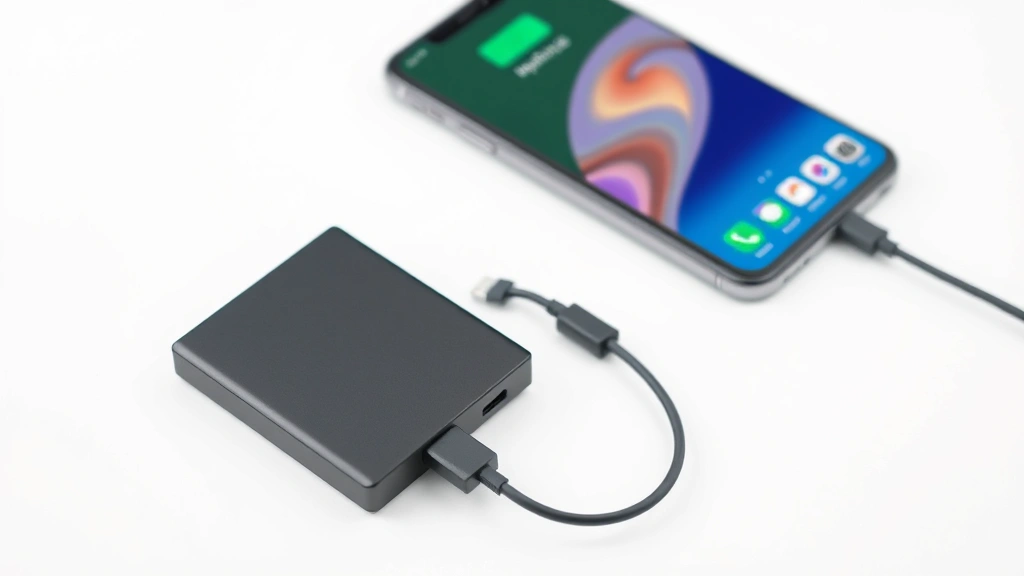
Computer Backup: Connect your iPhone to a Mac or PC and back it up locally. This keeps your data safe without using iCloud storage. You can use macOS Time Machine or Windows Backup to automate this.
External Hard Drive: For photos and videos, an external hard drive is cheap insurance. Copy your photo library to a drive and store it safely. Similar to how you might use an SD card for camera backups, an external drive works great for iPhone media.
Google Photos or Amazon Photos: These services offer unlimited or high-capacity storage at lower prices than iCloud. You can upload your photos there and delete them from iCloud. Fair warning—Google Photos changed their unlimited storage policy, so check their current rates.
Google Drive or Dropbox: For documents and files, cloud storage alternatives might be cheaper than upgrading your iCloud plan. Integrating these with your Mac makes file management seamless.
The combination approach works best: keep current photos and backups in iCloud for convenience, but archive old media to external storage or alternative cloud services.
Frequently Asked Questions
How much iCloud storage do I actually need?
– For most people, 50GB is plenty if you manage photos actively. 200GB is comfortable if you’re heavy on photos and backups. Only go to 2TB if you’re backing up multiple devices or storing lots of video. Start with 50GB and upgrade only if you hit the limit after cleaning.
Will deleting photos from my iPhone delete them from iCloud?
– Yes, if you have iCloud Photos enabled. Deleting from one device deletes from all devices and iCloud. If you want to keep photos locally but remove them from iCloud, turn off iCloud Photos sync, download your library to your computer first, then disable sync.
Can I recover deleted photos after 30 days?
– No. After 30 days in the Recently Deleted folder, photos are permanently gone. But if you deleted them by accident, you have 30 days to recover them from that folder.
What’s the difference between iCloud storage and device storage?
– Device storage is space on your iPhone itself (16GB, 128GB, etc.). iCloud storage is cloud backup space. You can have a full phone but tons of free iCloud space, or vice versa. This guide focuses on iCloud storage specifically.
Should I turn off iCloud Photos to save space?
– Only if you have another backup plan (external drive, computer backup, or alternative cloud service). Without iCloud Photos, you lose automatic cloud backup of your photos. It’s risky. Better to keep it on and manage what you store.
How often should I clean up my iCloud storage?
– Once a quarter is reasonable. Set a calendar reminder to review and delete old photos, emails, and backups every three months. It takes 15-20 minutes and keeps you from ever hitting the limit.
Is there a way to automatically delete old photos?
– Not built into iOS. But some third-party apps offer auto-delete features for photos older than a certain date. Be cautious with these—test them carefully before trusting them with your entire photo library.


