
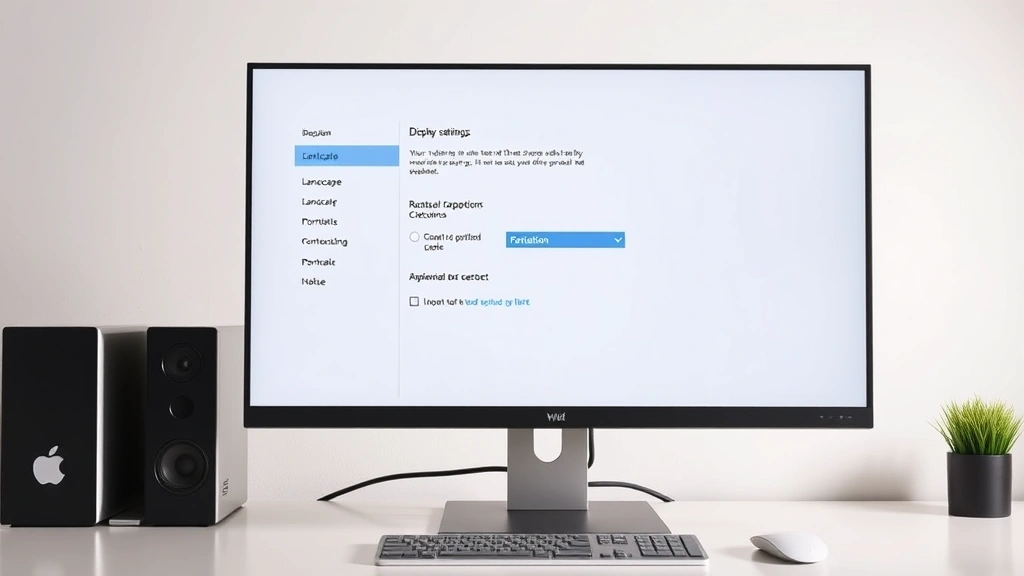
Your screen is upside down. Or sideways. And you have no idea how it happened—maybe a kid found your keyboard, maybe you hit some weird key combo by accident, or maybe you’re just trying to rotate your display for a specific task. Whatever the reason, how to flip screen on windows is actually one of the easiest fixes you can do yourself, and it takes about 30 seconds once you know where to look.
The good news? You don’t need to restart your computer, buy new hardware, or call tech support. Windows has built-in tools that let you rotate your display instantly. I’ll walk you through every method—from the fastest right-click solution to manual adjustments in settings—so you can get your screen back to normal (or sideways, if that’s what you need).
The Right-Click Method (Fastest)
This is the nuclear option for speed. Right-click anywhere on your desktop (not on a file or folder—just blank space). A context menu pops up. Look for “Display settings” or “Graphics options.” Click it.
What you see next depends on your graphics card, but you’ll typically find a “Rotation” or “Display” option. Select your preferred orientation: Normal, 90 degrees, 180 degrees, or 270 degrees. Click “Apply” and boom—done. Your screen flips instantly.
Pro Tip: If you don’t see a graphics option in your right-click menu, your GPU control panel might not be installed or enabled. Skip to the GPU Control Panels section below to set it up properly.
This method works because Windows lets GPU manufacturers add their own shortcuts to the desktop context menu. NVIDIA, AMD, and Intel all do this, but you need the drivers installed first. If this option doesn’t exist for you, the Display Settings method below is your backup.
Using Windows Display Settings
This is the “official” Windows way and works on every computer, no matter what graphics card you have.
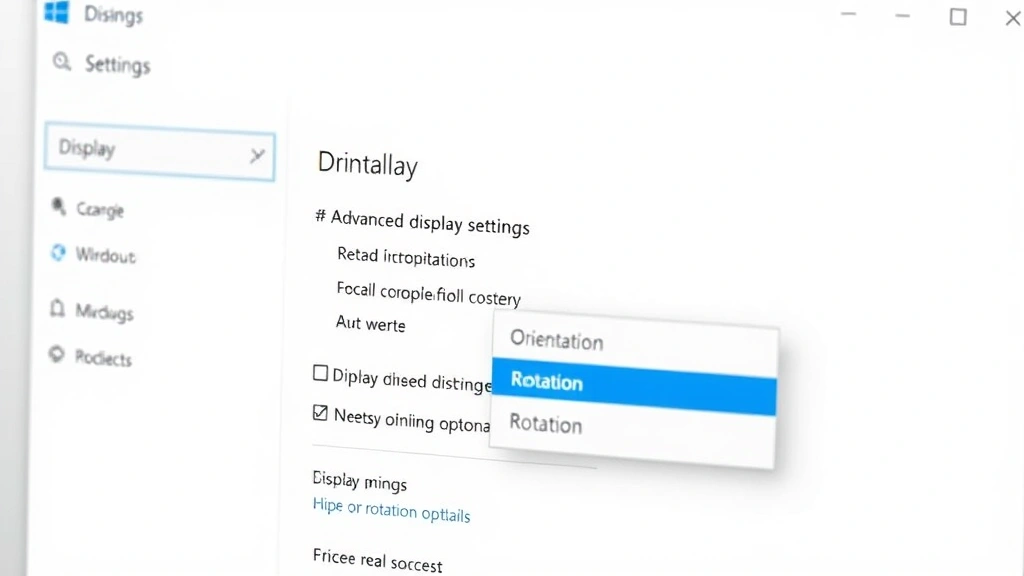
- Right-click your desktop and select “Display settings” (or go to Settings > System > Display)
- Scroll down to “Advanced display settings”
- Look for “Display orientation” or “Rotation”
- Click the dropdown menu and choose your rotation: Landscape (normal), Portrait, Landscape (flipped), or Portrait (flipped)
- Click “Keep changes” when prompted
Windows will ask if you want to keep the new orientation. You have 15 seconds to confirm, or it reverts automatically. This is actually a smart safety feature—if you accidentally rotate your screen 180 degrees and can’t see anything, it fixes itself.
One thing to know: not all monitors support all rotation options. Some cheaper displays only support landscape mode. If the rotation dropdown is grayed out, your monitor hardware doesn’t support it, and there’s nothing software can do about that.
GPU Control Panels (NVIDIA, AMD, Intel)
If you want more control and faster access, set up your graphics card’s native control panel. Each GPU manufacturer has their own tool, and they’re all free.
NVIDIA Control Panel
If you have an NVIDIA graphics card, right-click your desktop and select “NVIDIA Control Panel.” Go to “Rotate or Flip Display” in the left sidebar. Pick your rotation and apply. You can also set this up as a right-click desktop shortcut for one-click access.
AMD Radeon Settings
AMD users: right-click your desktop and open “AMD Radeon Settings.” Navigate to Display > Rotation and choose your orientation. AMD’s interface is pretty intuitive—you’ll see a visual preview of how your screen will look.
Intel Graphics Control Panel
Intel integrated graphics (common on laptops and budget builds) have their own panel too. Right-click your desktop, select “Intel Graphics Settings,” then find Display > Rotation. Intel’s control panel is less flashy than NVIDIA or AMD, but it works just fine.
Safety Warning: Make sure your GPU drivers are up to date. Outdated drivers can cause rotation bugs or make your screen flicker. Check your GPU manufacturer’s website for the latest drivers—don’t rely on Windows Update alone.
Keyboard Shortcuts That Actually Work
Some systems support keyboard shortcuts for screen rotation. These don’t work universally (it depends on your GPU), but they’re worth trying:
- NVIDIA: Ctrl + Alt + Arrow Keys (up, down, left, right) to rotate
- AMD: Sometimes Ctrl + Alt + Arrow Keys, but AMD’s support varies by driver version
- Intel: Ctrl + Alt + Arrow Keys (most reliable on Intel systems)
If none of these work, don’t stress—the right-click or settings method will always get you there. Keyboard shortcuts are just a bonus if your system supports them.
When Screen Rotation Gets Stuck
Sometimes Windows gets confused. Your screen is rotated, but you can’t rotate it back. Or the rotation option is completely grayed out. Here’s how to fix it:
The Screen Rotation Option Is Grayed Out
This usually means Windows thinks your display doesn’t support rotation (even if it does). Try this:
- Go to Settings > System > Display > Advanced display settings
- Click “Display adapter properties”
- Go to the “Monitor” tab
- Click “Edit” and make sure your monitor is listed correctly
- If it says “Generic PnP Monitor,” Windows doesn’t recognize your specific model. Download your monitor’s driver from the manufacturer’s website and install it
After installing the proper driver, the rotation option should unlock. Restart your computer if it doesn’t show up immediately.
Rotation Won’t Apply or Keeps Reverting
If Windows keeps reverting your rotation after 15 seconds, something’s conflicting with the change. Try these steps:
- Update your GPU drivers (NVIDIA, AMD, or Intel—whichever you have)
- Restart your computer
- Try rotating again in Display Settings, but this time wait for the “Keep changes?” prompt and click “Keep” before the timer runs out
- If it still reverts, check if you’re running any third-party display management software (like DisplayFusion or UltraMon). These can override Windows settings. Either disable them or configure them to allow rotation
In rare cases, a corrupted graphics driver causes this. You might need to force close any conflicting applications or uninstall/reinstall your GPU drivers completely.
Your Screen Is Rotated But You Can’t See Anything
Panic? Don’t. Windows automatically reverts the rotation if you don’t confirm within 15 seconds. Just wait it out and it’ll go back to normal. If somehow the timer ran out and you’re still stuck, restart your computer. It’ll boot with your original display orientation.
If you need to act faster, try pressing Escape during the confirmation dialog, or just wait for the automatic revert. The system has your back here.
Why You’d Actually Want to Rotate Your Screen
Flipping your screen isn’t just for accidents. There are real reasons people do this:
- Portrait mode for coding: Some developers rotate their monitor 90 degrees to see more lines of code at once. It’s weird at first, but it actually works
- Reading documents: PDFs and ebooks are sometimes easier to read in portrait orientation on a widescreen monitor
- Video walls and digital signage: If you’re setting up a display for a business or event, you might need portrait mode
- Accessibility: Some people with vision impairments find portrait mode easier to navigate
- Tablet-style setups: If you’re using a touchscreen display or hybrid device, portrait mode can feel more natural
The point is: screen rotation isn’t just a “fix your mistake” feature. It’s a legitimate tool.
Setting Up Portrait Mode Permanently
If you want to keep your screen rotated all the time (not just temporarily), here’s how to make it stick:
- Rotate your screen using any of the methods above
- Go to Settings > System > Display
- Under “Display orientation,” select your desired rotation (Portrait, Landscape Flipped, etc.)
- Click “Keep changes” when prompted
- Restart your computer to lock in the change
After restart, your screen will boot in the rotated orientation. Windows will remember this setting until you change it again.
Pro Tip: If you’re using multiple monitors, you can rotate them independently. Each monitor has its own rotation setting in Display Settings. Rotate Monitor 1 to portrait, keep Monitor 2 in landscape—whatever works for your setup.
One heads-up: some games and applications expect landscape orientation. If you’re gaming or using specialized software in portrait mode, you might run into weird display bugs. Test your apps before committing to portrait mode permanently.
For more advanced display configuration, check out Family Handyman’s guide on workspace setup, which covers monitor positioning and ergonomics alongside display settings.
Frequently Asked Questions
Why does my screen keep rotating by itself?
– This usually happens if you have an accelerometer or motion sensor enabled (common on laptops and tablets). Go to Settings > System > Display and toggle off “Rotation lock” or “Auto-rotate.” You might also have a physical rotation lock button on your keyboard—check if it’s enabled. If you’re using an older Windows system, Safe Mode can help diagnose if a background service is causing the issue.
Can I rotate just one monitor if I have two?
– Yes. In Display Settings, click on the monitor you want to rotate (they’re usually labeled “Display 1” and “Display 2”), then adjust the rotation for just that one. Your other monitor stays normal. This is super useful if you want one portrait and one landscape.
Does rotating your screen damage it?
– No. Rotation is purely software. It doesn’t wear out your monitor or use extra power. The only thing to watch is heat—if your monitor is in a hot environment, portrait mode might slightly reduce airflow around it, but this is negligible for most setups.
My rotation option disappeared. How do I get it back?
– This usually means your GPU drivers are outdated or corrupted. Go to your GPU manufacturer’s website (NVIDIA.com, AMD.com, or Intel’s support site) and download the latest drivers for your graphics card. Install them, restart your computer, and the rotation option should come back. For workplace setups, make sure your IT department approves any driver updates before installing.
What if my monitor doesn’t support rotation?
– Some cheaper monitors physically only support landscape orientation. You can rotate the display software-wise, but the image will look stretched or cut off because the monitor’s hardware doesn’t actually support it. Check your monitor’s manual or manufacturer’s website to see if it supports portrait mode. If it doesn’t, you’re out of luck—no software fix will change the monitor’s physical limitations.
Can I create a shortcut to rotate my screen quickly?
– Not directly through Windows, but your GPU control panel might let you. NVIDIA and AMD both allow you to set up desktop shortcuts for rotation. Right-click your desktop, select your GPU control panel, and look for a “Create Shortcut” or “Quick Access” option. Intel’s panel is less flexible, but you can always pin the control panel to your Start menu for faster access.
Does screen rotation work on laptops?
– Yes, absolutely. Laptops with Intel or AMD integrated graphics support rotation just like desktop computers. The process is identical—right-click your desktop, go to Display Settings, and rotate. Some newer laptops have accelerometers that auto-rotate based on how you hold the device, similar to a tablet. If that’s annoying, turn off auto-rotate in your display settings.
Will rotating my screen affect gaming or video playback?
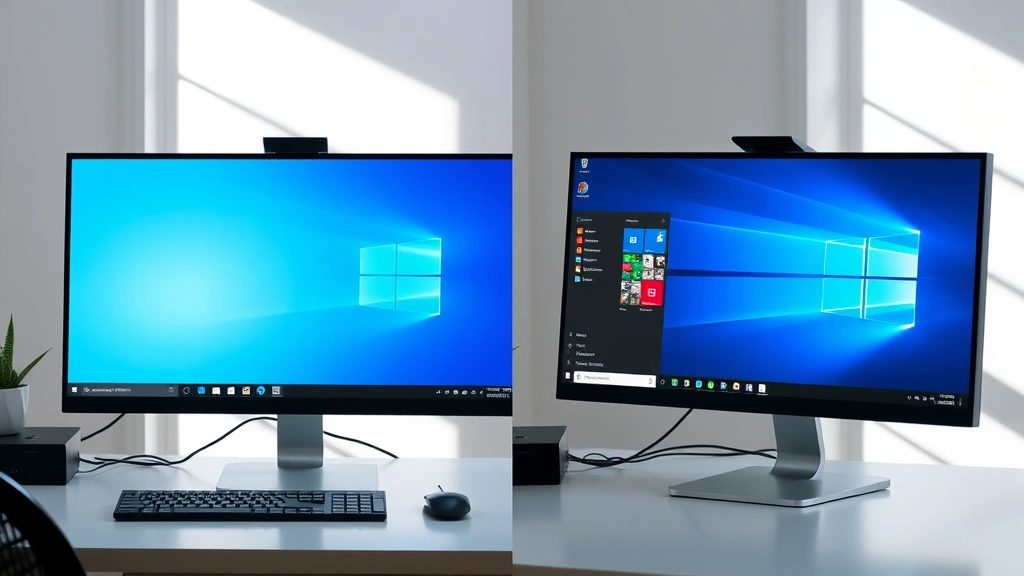
– Most games expect landscape orientation and might display weirdly in portrait mode. Video playback usually works fine, but you’ll see black bars on the sides if the video is in landscape format. Test your specific games and apps before committing to portrait mode. Some games let you adjust their display settings independently of Windows—check the game’s graphics options.
What’s the difference between rotating 90 degrees and 270 degrees?
– 90 degrees rotates your screen clockwise (portrait mode, with the top of your screen on the right). 270 degrees rotates counterclockwise (portrait mode, with the top of your screen on the left). 180 degrees flips everything upside down. For portrait mode, you’ll usually want 90 or 270—pick whichever feels more natural for your desk setup.


