
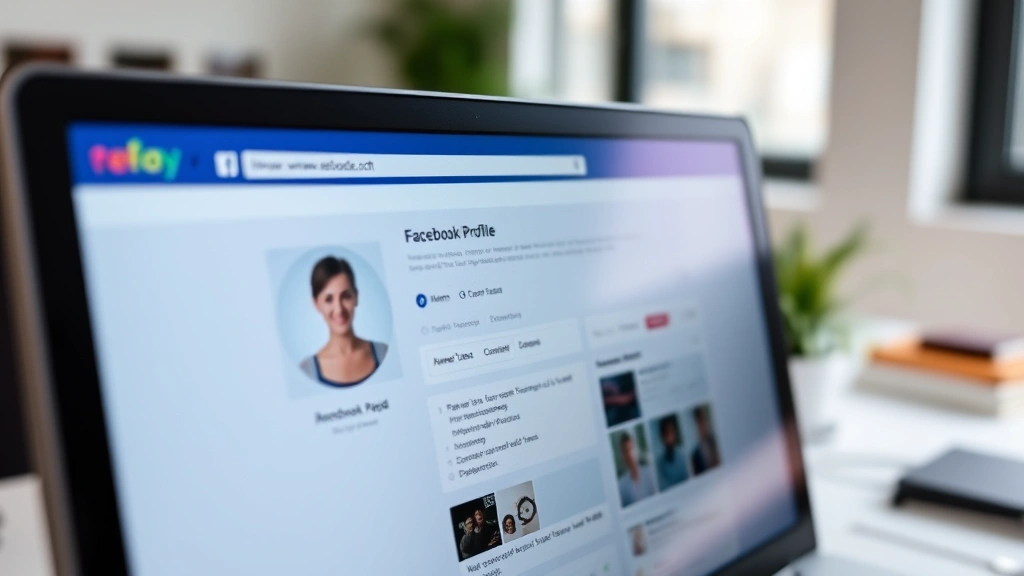
You need your Facebook URL, and you’re staring at your profile wondering where the heck it actually is. Sound familiar? The thing is, Facebook doesn’t exactly make it obvious where to find your unique profile link—it’s tucked away in places most people never look. Whether you’re trying to share your profile with someone, add it to your resume, or set up a business page redirect, knowing how to find my Facebook URL is a skill that takes about 60 seconds once you know where to look.
Here’s the real talk: your Facebook URL is different from your profile name. It’s the actual web address people use to visit your profile directly. Some people have custom URLs (the fancy ones), while others have those long numerical strings. Either way, I’m going to walk you through exactly where to find it on desktop, mobile, and even how to customize it if you want.
Finding Your Facebook URL on Desktop (The Fastest Way)
On desktop, finding your Facebook URL is straightforward. Here’s the step-by-step breakdown:
- Go to your Facebook profile. Click your profile picture in the top-right corner of any Facebook page, then select “Profile” from the dropdown menu.
- Look at the address bar. Once you’re on your profile page, glance up at your browser’s address bar at the very top. That’s your Facebook URL right there. It will look something like
facebook.com/yournameorfacebook.com/123456789(if you haven’t set a custom URL yet). - Copy it. Click on the address bar, select all the text (Ctrl+A on Windows, Cmd+A on Mac), then copy it (Ctrl+C or Cmd+C). Now you’ve got your URL ready to paste anywhere.
That’s it. Seriously. Most people overthink this and start clicking through settings when the answer is literally right in front of them in the address bar.
If you want to be extra sure you’ve got the right URL, you can also right-click on your profile picture or name while you’re on your profile and select “Copy Link.” This copies your exact profile URL to your clipboard without you having to manually grab it from the address bar.
Pro Tip: If you’re using a custom Facebook URL (which we’ll cover next), your URL will be shorter and more memorable. If you’re still using the default numerical ID, now’s a good time to consider creating a custom one.
Finding Your Facebook URL on Mobile Devices
Mobile is a bit different because there’s no traditional address bar you can easily see. But don’t worry—it’s still simple:
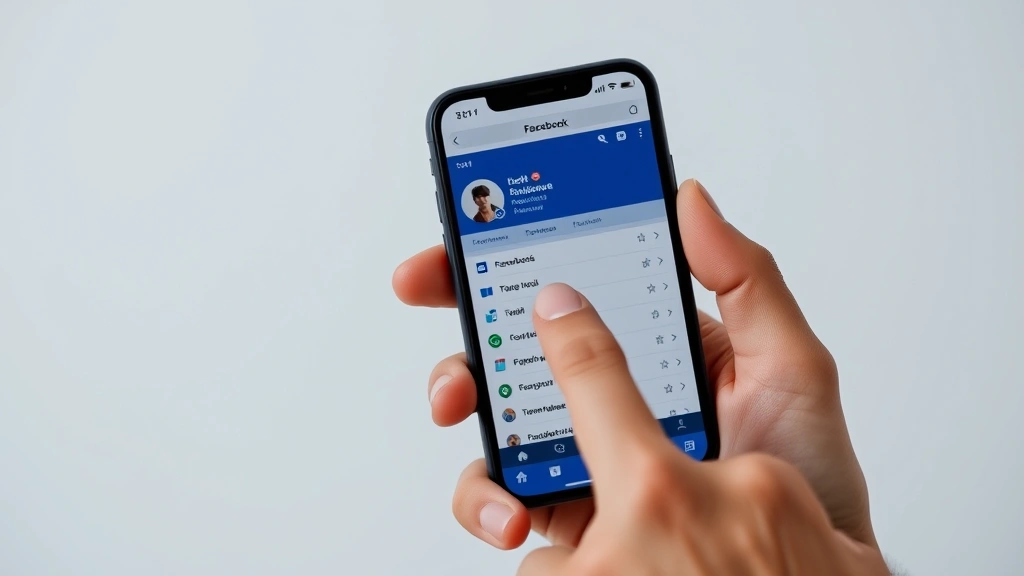
- Open the Facebook app and go to your profile. Tap the menu icon (three horizontal lines) at the bottom right, then tap your name to go to your profile.
- Tap the three dots menu. At the top of your profile, you’ll see three dots (•••). Tap that.
- Select “Copy Link to Profile.” This automatically copies your Facebook URL to your phone’s clipboard. You can now paste it anywhere—text messages, emails, notes apps, whatever you need.
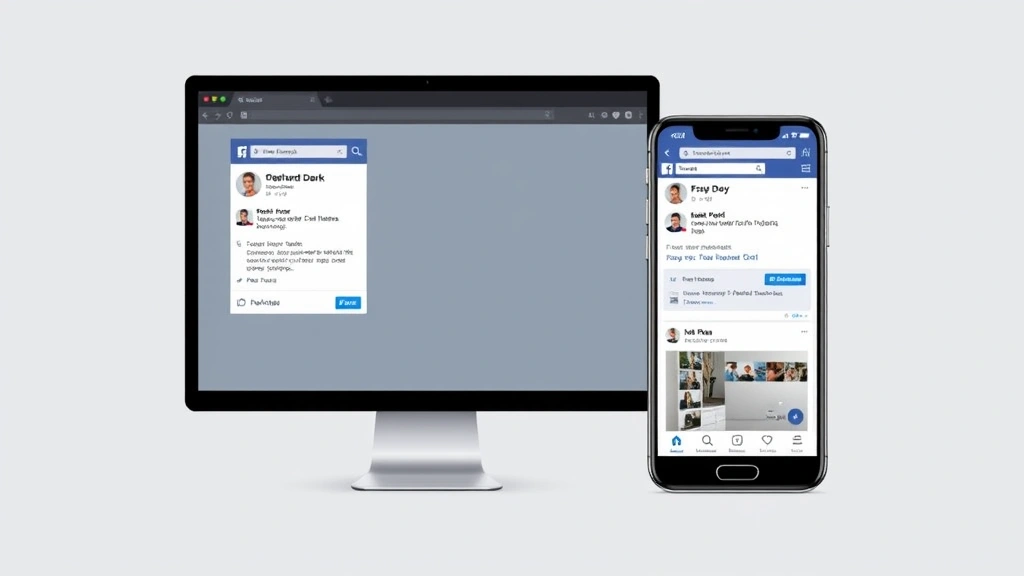
Alternatively, if you’re using the mobile web version of Facebook (not the app), you can tap the address bar at the top of your browser and copy your URL just like you would on desktop.
The mobile app method is honestly faster than desktop because it’s literally one tap to copy your link. No manual selecting or copying required.
How to Create a Custom Facebook URL
If you’re tired of that long numerical URL, you can create a custom one. This makes your profile way easier to share and looks more professional. Here’s how:
- Check your eligibility. You need to have at least 25 followers and have had your account for at least 14 days. If you don’t meet these requirements yet, you’ll have to wait.
- Go to Settings. On desktop, click the downward arrow in the top-right corner and select “Settings and Privacy,” then “Settings.”
- Find the “Username” section. In the left menu, look for “Personal Information” or scroll down until you find “Username.” Click on it.
- Enter your custom URL. Facebook will show you your current username and let you change it. Type in what you want your custom URL to be. Keep it simple—your name, a nickname, or something professional. Facebook will tell you immediately if it’s available.
- Click “Review” and confirm. Once you’ve chosen an available username, click the button to confirm. Your new custom URL is now live.
Here’s the catch: you can only change your custom URL once per 30 days. So think it through before you click that confirm button. Don’t just pick whatever sounds cool right now—think about whether you’ll still want this URL in five years.
Safety Warning: Never give your full Facebook URL to strangers online, especially in forums or public comments. Scammers use profile URLs to impersonate people or target them with fake friend requests. Share it only with people you trust.
Your custom URL will then appear as facebook.com/yourname instead of facebook.com/123456789. Much cleaner, right?
Different Ways to Share Your Facebook URL
Now that you know how to find your Facebook URL, let’s talk about the best ways to actually use it. There are several methods depending on what you’re doing:
Method 1: Direct Link in Messages
If you want to send your profile link to a specific person, open a conversation with them and paste your URL. They can click it to visit your profile. This is the most direct way.
Method 2: Add to Your Website or Blog
If you have a personal website, you can add your Facebook URL as a clickable link in your footer or social media section. This drives traffic from your website to your Facebook profile. According to Family Handyman’s approach to web integration, having clear navigation between your online properties matters.
Method 3: Include in Email Signature
Add your Facebook URL to your email signature so anyone you email can easily find you on Facebook. It’s professional and makes you more accessible. Format it like this: “Connect with me on Facebook: facebook.com/yourname”
Method 4: Social Media Bio
If you have an Instagram, TikTok, or Twitter account, you can add your Facebook URL to your bio. This cross-links your social media presence and helps people find you across platforms.
Method 5: Business Cards or Printed Materials
If you’re networking or running a small business, include your Facebook URL on business cards, flyers, or resumes. It’s a modern touch that shows you’re active online.
The key is matching the method to your purpose. Sharing with a friend? Use direct message. Building your professional brand? Add it to your email signature and website.
Troubleshooting Common Issues
Issue 1: Your URL Shows a Long Number String
This means you haven’t set up a custom URL yet. Follow the steps in the “How to Create a Custom Facebook URL” section above. You need at least 25 followers and a 14-day-old account to do this. If you’re below those thresholds, you’ll have to wait a bit longer.
Issue 2: You Can’t Copy the Link from Your Profile
If the “Copy Link to Profile” option isn’t showing up, try these troubleshooting steps:
- Make sure you’re actually on your own profile (not someone else’s)
- Log out and log back in—sometimes a session glitch prevents this option from appearing
- Clear your browser cache and cookies, then try again
- Try a different browser or the mobile app instead of the web version
Issue 3: Your Custom URL Was Taken
If you try to claim a custom URL and Facebook says it’s unavailable, someone else already has it. Try adding numbers to the end (like “yourname123”) or use a variation. You can also check if that person’s profile is public by searching for them—sometimes inactive or private accounts hold onto popular usernames.
Issue 4: You Changed Your URL Too Recently
Remember, you can only change your custom URL once every 30 days. If you’re getting an error message saying you can’t change it, you’ll have to wait until the 30-day window from your last change has passed.
Issue 5: Your Profile Is Private and Others Can’t Access Your URL
Even if your profile is private, your Facebook URL is still valid and shareable. However, people who visit it will only see limited information unless they’re your friend. If you want people to be able to see more, consider adjusting your privacy settings. Go to Settings → Privacy and adjust who can see your profile and posts.
If you’re having trouble with how Facebook blocks or privacy issues, there’s also helpful information about how to know if someone Facebook blocked you, which can help you understand if access issues are related to blocking rather than URL problems.
Why You Actually Need Your Facebook URL (Real Use Cases)
You might be wondering why this matters. Here are actual scenarios where knowing your Facebook URL is useful:
Job Applications: Some employers ask for your social media profiles. Having your Facebook URL ready makes it easy to include in applications or LinkedIn profiles.
Networking: At events or conferences, it’s faster to say “Find me at facebook.com/yourname” than to spell out your full name multiple times.
Business Owners: If you’re running a Facebook page or business, you need your personal profile URL separate from your business page URL. Knowing both is essential.
Content Creators: If you’re building an audience on Facebook, you need to promote your profile URL across other platforms. TikTok creators, YouTubers, and Instagram influencers often drive traffic to their Facebook pages.
Dating Apps: Some dating apps let you link to your Facebook profile to verify you’re a real person. You’ll need your URL handy for this.
Reconnecting: If someone asks you for your Facebook profile, you can quickly share your URL instead of having them search for you manually.
According to This Old House’s guide to digital organization, keeping track of your online identifiers is part of modern life management.
Mobile vs. Desktop: Which Method Is Faster?
Real talk: the mobile app method is faster. Tapping three dots and selecting “Copy Link to Profile” takes about 5 seconds. On desktop, you have to manually select and copy from the address bar, which takes a few more seconds. If you’re doing this frequently, use your phone.
However, if you’re already on your computer working, desktop is fine. The difference is negligible—we’re talking seconds either way. The important thing is that you know both methods so you can use whichever device you have handy.
One more thing: if you’re trying to find someone else’s Facebook URL (not your own), the same methods apply. Go to their profile and grab the URL from the address bar or use the “Copy Link” option. Just remember that if their profile is private, you might not be able to see much of their information even with the direct link.
Pro Tip: Bookmark your own Facebook profile URL in your browser. That way, you always have quick access to it without having to navigate through the app or search for yourself.
Frequently Asked Questions
What’s the difference between my Facebook username and my Facebook URL?
– Your Facebook username is the custom name you choose (like “yourname”), while your Facebook URL is the complete web address (like “facebook.com/yourname”). They’re related but not exactly the same thing. Your URL includes the full Facebook domain, while your username is just the unique identifier part.
Can I have multiple Facebook URLs?
– No, you can only have one Facebook URL per profile. However, if you have a Facebook page (for a business, brand, or public figure), that page has its own separate URL. Your personal profile and your page are two different things with two different URLs.
Is my Facebook URL the same as my profile ID?
– Not exactly. Your profile ID is a long numerical string that Facebook uses internally. Your Facebook URL is what people actually use to visit your profile. If you have a custom URL, it’s much shorter and more memorable than your numerical ID.
What happens if I change my custom Facebook URL?
– Your old URL stops working, and your new one becomes active. Anyone who tries to visit your old URL will get an error. This is why you should think carefully before changing it—you’ll need to update it anywhere you’ve shared it. The 30-day waiting period between changes exists to prevent people from constantly switching URLs.
Can I delete my Facebook URL?
– You can’t delete your URL entirely, but you can change it to something else. You’ll always have some kind of Facebook URL—it’s either a custom one you chose or your numerical profile ID. If you delete a custom URL, Facebook will revert you back to your numerical ID.
Why can’t I create a custom Facebook URL?
– You need at least 25 followers and your account must be at least 14 days old. If you don’t meet these requirements, wait until you do. There’s no way around it—Facebook has these minimum requirements for everyone.
Is it safe to share my Facebook URL publicly?
– Your Facebook URL is public information by default. However, be cautious about sharing it in places where scammers might see it (like public forums or comment sections). Scammers sometimes use profile URLs to impersonate people or send fake friend requests. Share it directly with people you know, or in professional contexts where it’s expected.
Can I see other people’s Facebook URLs?
– Yes, if their profile is public or if you’re friends with them. Use the same method—go to their profile and check the address bar, or use the “Copy Link” option if it’s available. If their profile is private and you’re not friends with them, you might not be able to access their profile at all.
What if someone else has the custom Facebook URL I want?
– You’ll have to choose a different one. Facebook first-come, first-served with custom URLs—once someone claims it, it’s theirs. Try adding numbers, letters, or variations of the name you want. For example, if “john” is taken, try “johnsmith” or “john2024.”
How do I know if my Facebook profile is linked correctly in other places?
– Test it. Copy your Facebook URL and paste it into a new browser tab or share it with a friend. Make sure the link actually takes you to your profile and displays correctly. This is especially important if you’ve recently changed your custom URL—you want to make sure the new one works everywhere you’ve shared it.


