
Here’s the thing—Excel doesn’t have a “divide cell” button. That’s actually good news, because it means you have options. Whether you’re splitting data that got crammed into one cell, breaking apart text strings, or just trying to organize messy spreadsheets, knowing how to divide an Excel cell is a skill that saves hours of manual work.
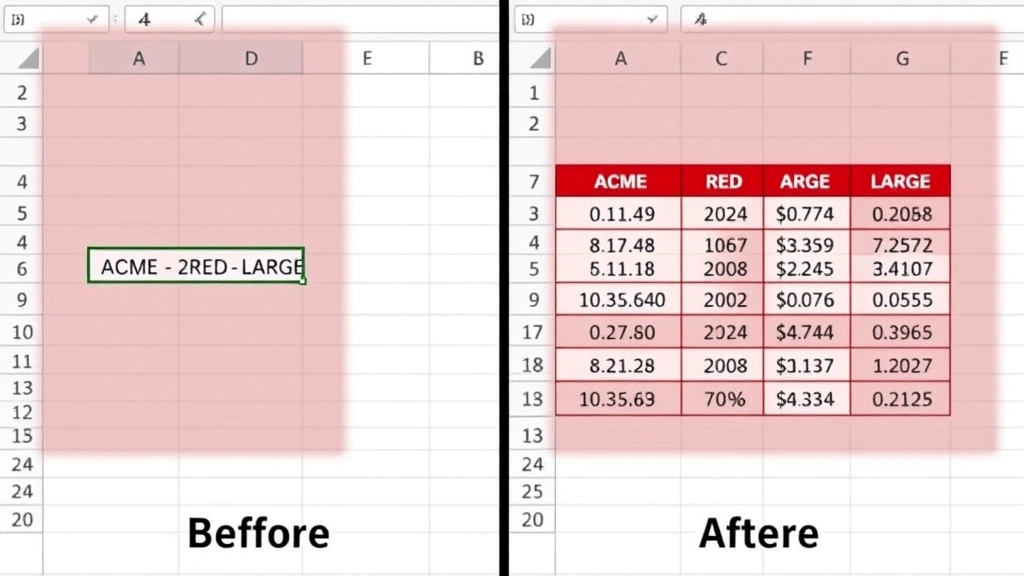
The frustration is real. You inherit a spreadsheet where someone dumped “John Smith, 555-1234, john@email.com” into a single cell, and now you need it in three separate columns. Or you’ve got product codes like “ACME-2024-RED-LARGE” and need to pull out just the color and size. This guide walks you through every practical method to split cells in Excel—from the straightforward “Text to Columns” feature to formulas that handle edge cases.
Text to Columns: The Fastest Route
If you need to divide an Excel cell quickly, “Text to Columns” is your workhorse. This built-in feature splits data based on delimiters—commas, spaces, tabs, or custom characters. It’s fast, reliable, and requires zero formulas.
Here’s how it works:
- Select the column containing the data you want to split. Click the column header to select the entire column, or highlight just the cells you need.
- Go to the Data tab in the ribbon.
- Click Text to Columns (it’s in the Data Tools group).
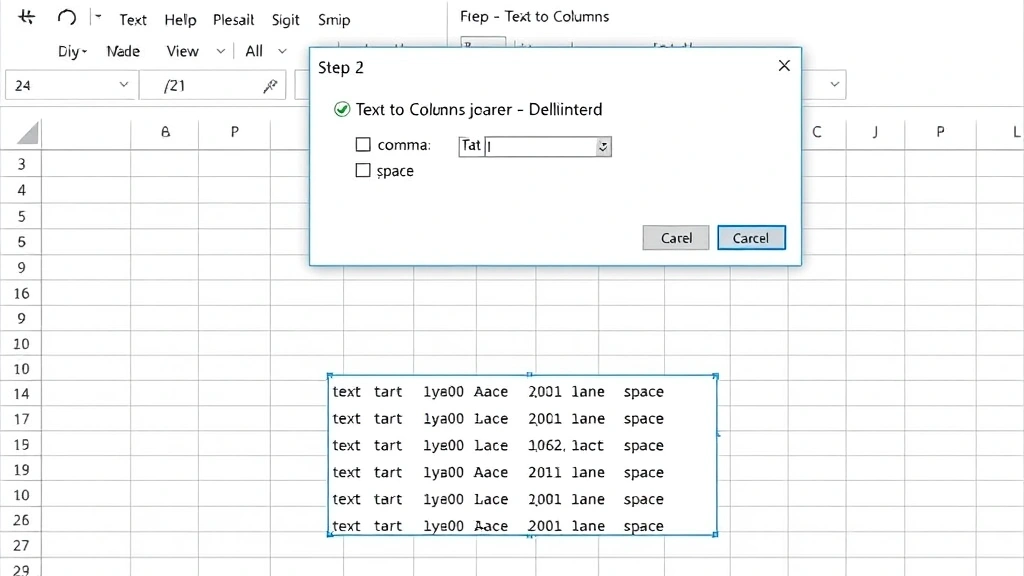
- The Convert Text to Columns Wizard opens. Step 1 asks you to choose a delimiter type. Pick Delimited (not Fixed Width) unless your data is organized by character position.
- Click Next.
- Step 2 is where you tell Excel what character separates your data. Check the box for your delimiter—comma, tab, semicolon, or space. You’ll see a preview at the bottom showing how your data will split. If none of the standard options work, check Other and type your custom delimiter.
- Click Next again.
- Step 3 lets you set the data format for each new column (General, Text, Date). Usually General works fine. If you’re splitting dates or numbers, make sure the format matches.
- Choose where the results go. By default, Excel overwrites your original column. If you want to keep the original, specify a different starting cell (like the next empty column).
- Click Finish. Done.
Pro Tip: Text to Columns overwrites your original data by default. Always work on a copy of your spreadsheet first, or insert a new column to the right and split into that space instead. Safety first.
This method is unbeatable when your data is consistently formatted. A spreadsheet with 5,000 rows of “FirstName,LastName,Email” splits in seconds. The downside: if your delimiters are inconsistent (some rows have commas, others don’t), you’ll get messy results.
Using Formulas to Divide Excel Cells
When Text to Columns isn’t flexible enough, formulas give you surgical precision. Excel has several text functions that extract parts of a cell’s content. The main ones are LEFT, RIGHT, MID, FIND, and SEARCH. These are your scalpels for dividing cells.
LEFT & RIGHT Functions
Use LEFT to grab characters from the start of a cell, RIGHT to grab from the end.
=LEFT(A1, 5) extracts the first 5 characters from cell A1.
=RIGHT(A1, 3) extracts the last 3 characters.
Example: If A1 contains “ACME-2024-RED”, then =LEFT(A1, 4) returns “ACME”.
MID Function
MID extracts characters from the middle of a cell. The syntax is =MID(text, start_position, number_of_characters).
If A1 = “ACME-2024-RED”, then =MID(A1, 6, 4) returns “2024” (starting at position 6, grab 4 characters).
FIND & SEARCH with LEFT/MID/RIGHT
Here’s where it gets powerful. Use FIND or SEARCH to locate a delimiter, then combine it with LEFT, MID, or RIGHT to extract text relative to that delimiter.
=LEFT(A1, FIND(",", A1) - 1) extracts everything before the first comma.
=MID(A1, FIND(",", A1) + 2, FIND(",", A1, FIND(",", A1) + 1) - FIND(",", A1) - 2) extracts text between the first and second comma (yes, it’s ugly, but it works).
The difference between FIND and SEARCH: FIND is case-sensitive, SEARCH isn’t. For most data cleanup, SEARCH is friendlier.
Real-World Example: Splitting Names
You have A1 = “Smith, John” and need to split it into last name (B1) and first name (C1).
For B1 (last name): =LEFT(A1, FIND(",", A1) - 1)
For C1 (first name): =TRIM(RIGHT(A1, LEN(A1) - FIND(",", A1)))
The TRIM function removes extra spaces. TRIM is your friend when splitting text—delimiters often leave trailing spaces.
If you’re doing this kind of work regularly, check out our guide on how to separate names in Excel for even more specific techniques.
TEXTJOIN & CONCATENATE for Reverse Operations
While we’re talking about dividing cells, it’s worth knowing the opposite: merging data back together. If you’ve split cells and need to recombine them, =CONCATENATE(A1, " ", B1) or the newer =TEXTJOIN(" ", FALSE, A1, B1) work great. For a deeper dive, see how to merge two columns in Excel.
Find & Replace for Quick Splits
This is a ninja move that works when your delimiter is consistent. Find & Replace can convert delimiters into line breaks or other characters that make splitting easier.
- Select the cells you want to split.
- Press Ctrl+H (or Cmd+H on Mac) to open Find & Replace.
- In the “Find what” field, enter your delimiter (e.g., a comma).
- In the “Replace with” field, enter a new delimiter or character. If you want to replace commas with line breaks (to use with Text to Columns), enter
^l(that’s Ctrl+L, not the number 1). - Click Replace All.
- Now use Text to Columns with the new delimiter.
This is especially useful when your original data uses inconsistent delimiters. You can standardize them first, then split.
Flash Fill: The Smart Option
Excel 2013 and later have a feature called Flash Fill that learns from examples. It’s almost magical.
- In the column next to your data, manually type the result for the first 1-2 rows. For example, if you’re splitting “John Smith” and want just the first name, type “John” in the cell next to it.
- Move to the next cell in that column and start typing the next result. Excel will detect the pattern.
- When you see the Flash Fill suggestion (usually in light gray), press Ctrl+E or just press Enter to accept it. Excel fills down the entire column based on the pattern it detected.
Flash Fill is best for simple, predictable patterns. It won’t work if your data is too irregular, but when it does work, it’s the fastest method by far.
Advanced Scenarios & Edge Cases
Splitting Data with Multiple Delimiters
Sometimes your cell contains mixed delimiters: “John | 555-1234, john@email.com”. You can’t use Text to Columns directly because it only recognizes one delimiter type per operation.
Solution: Use Find & Replace to standardize delimiters first. Replace all pipes (|) with commas, then use Text to Columns with comma as the delimiter.
Splitting by Position (Fixed Width)
If your data is organized by character position—like “ACME2024REDL” where characters 1-4 are the brand, 5-8 are the year, 9-11 are the color, and 12 is the size—use Text to Columns with “Fixed Width” instead of “Delimited”.
- Select your data.
- Go to Data > Text to Columns.
- Choose Fixed Width.
- Click Next.
- The wizard shows your data with vertical lines. Drag the lines to set column breaks at the right positions.
- Click Finish.
Handling Inconsistent Data
Real-world data is messy. Some rows might have extra spaces, missing delimiters, or typos. Here’s your strategy:
- Use TRIM to remove extra spaces before and after text.
- Use SUBSTITUTE to replace common typos or variations (e.g.,
=SUBSTITUTE(A1, "-", ",")converts hyphens to commas). - Use IFERROR to handle cells where a formula might fail:
=IFERROR(LEFT(A1, FIND(",", A1) - 1), A1)returns the whole cell if no comma is found.
For additional techniques on organizing and cleaning up spreadsheets, Family Handyman’s organizational tips apply data-management principles that work in Excel too.
Working with Large Datasets
If you’re dividing cells in a spreadsheet with 100,000+ rows, formulas can slow things down. Here’s what works:
- Text to Columns is fastest for large datasets.
- If you must use formulas, copy them down first, then paste as values to convert formulas to static data. This speeds up the file.
- Consider using Power Query (Get & Transform Data) for massive data operations. It’s designed for this kind of work.
Common Mistakes & How to Avoid Them
Mistake 1: Not Backing Up Your Data
Text to Columns overwrites your original column by default. If something goes wrong, you’ve lost the original data. Always work on a copy or specify a different destination column.
Mistake 2: Forgetting to Use TRIM
When you split cells using formulas, delimiters often leave trailing or leading spaces. “Smith, John” becomes “Smith” and ” John” (note the space). Always wrap results in TRIM: =TRIM(MID(...)).
Mistake 3: Assuming Text to Columns Handles Everything
Text to Columns is powerful but rigid. If your delimiters are inconsistent or your data has edge cases, it will fail silently or produce garbage. Test on a small sample first.
Mistake 4: Using FIND When You Need SEARCH
FIND is case-sensitive. If you’re looking for a comma or standard character, it doesn’t matter. But if you’re searching for text and the case might vary, use SEARCH instead.
Mistake 5: Not Accounting for Missing Delimiters
If a cell doesn’t contain the delimiter you’re looking for, FIND returns an error. Wrap your formula in IFERROR to handle this gracefully.
If you’re working with structured data that needs consistent formatting, also check out our guide on how to wrap text in Excel to ensure your divided cells display properly.
Frequently Asked Questions
Can I divide a cell without losing the original data?
– Yes. When using Text to Columns, specify a different destination column in Step 3 of the wizard instead of overwriting the original. With formulas, create new columns for the split results and keep the original column intact.
What’s the difference between FIND and SEARCH?
– FIND is case-sensitive and finds the exact case you specify. SEARCH is case-insensitive and more forgiving. For most data cleanup, use SEARCH. FIND is better when case matters.
Can Flash Fill work with complex patterns?
– Flash Fill works best with simple, consistent patterns. If your data is highly irregular or requires conditional logic, formulas are more reliable. Flash Fill is great for quick wins but not a substitute for robust formulas.
How do I split a cell by multiple delimiters?
– Use Find & Replace to standardize delimiters first. Replace all variations with a single delimiter, then use Text to Columns. Alternatively, use nested SUBSTITUTE functions in formulas to replace multiple delimiters before splitting.
What if my data has inconsistent spacing around delimiters?
– Always use TRIM in your formulas to strip leading and trailing spaces. For Text to Columns, consider using Find & Replace to standardize spacing before splitting.
Can I undo Text to Columns if it goes wrong?
– Yes, press Ctrl+Z immediately after to undo. But this only works if you haven’t done anything else. This is why backing up or using a separate destination column is crucial.
Is there a limit to how many times I can divide a cell?
– No hard limit, but practically, you’re limited by the number of columns in Excel (1,024 columns). You can split a cell into many columns, but organize your workflow so it remains manageable.
How do I divide cells in Excel Online?
– Excel Online supports Text to Columns, but the feature is more limited. Formulas like LEFT, RIGHT, MID, and FIND work fine. For complex operations, download the file, work in the desktop version, and upload it back.
What’s the fastest method for large datasets?
– Text to Columns is fastest for straightforward delimiter-based splits. For complex logic, Power Query (Get & Transform Data) handles massive datasets efficiently. For small adjustments, formulas are fine.
Can I divide cells based on a pattern or regular expression?
– Excel’s native functions don’t support regex, but Power Query does. If your split logic is pattern-based (e.g., “extract all numbers” or “split before the first uppercase letter”), Power Query is your tool.
Learning how to divide an Excel cell efficiently transforms how you handle data. Whether you’re cleaning up inherited spreadsheets, organizing imported data, or just trying to make sense of messy information, these methods give you the control you need. Start with Text to Columns for simple cases, reach for formulas when you need precision, and remember that TRIM is your best friend. The key is matching the method to your specific data—there’s no one-size-fits-all solution, but now you’ve got the toolkit to handle whatever comes your way.


