
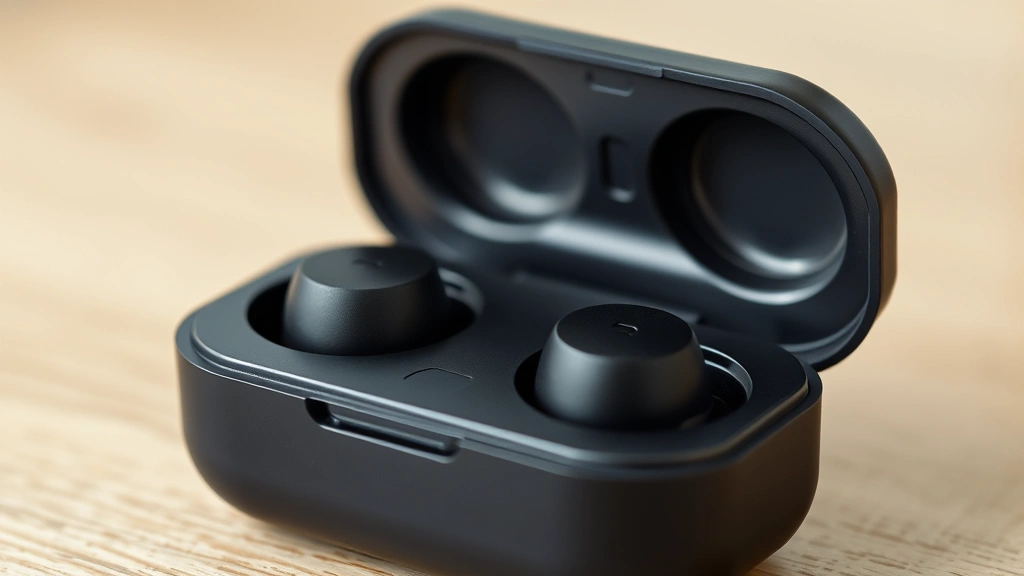
Skullcandy headphones are solid gear—great sound, comfortable fit, and they don’t break the bank. But if you’ve just unboxed a new pair and you’re staring at them wondering how to connect Skullcandy headphones to your phone or device, you’re in the right place. It’s honestly not complicated, but there are a few gotchas that trip people up. The good news? Once you nail the pairing process, it’s smooth sailing. Let me walk you through exactly what you need to do.
Whether you’ve got wireless earbuds, over-ear cans, or something in between, the core process is the same: enable Bluetooth, put your headphones in pairing mode, and let your device find them. Sounds simple because it is—but the details matter, and I’ll cover every scenario you might run into.
Check Your Battery First
Before you even think about pairing, make sure your Skullcandy headphones are actually charged. I know it sounds obvious, but you’d be shocked how many people skip this step. Dead headphones won’t pair—they won’t even turn on. Plug them in and let them charge for at least 15-30 minutes. Most Skullcandy models have an LED indicator that’ll tell you when they’re powered up. Red light usually means charging, blue or white means ready to go.
Check your headphones’ manual for the specific LED codes, because they vary by model. Some newer Skullcandy models have touch controls or buttons that activate pairing mode, so you need the device actually powered on to access those features. If your headphones have a power button, hold it down for 2-3 seconds until you see the LED light up or hear a power-on sound.
Pro Tip: Charge your headphones fully before your first pairing attempt. A low battery can cause connection hiccups and make the whole process frustrating. Think of it like trying to start a car on fumes—technically possible, but you’re asking for trouble.
Enable Bluetooth on Your Device
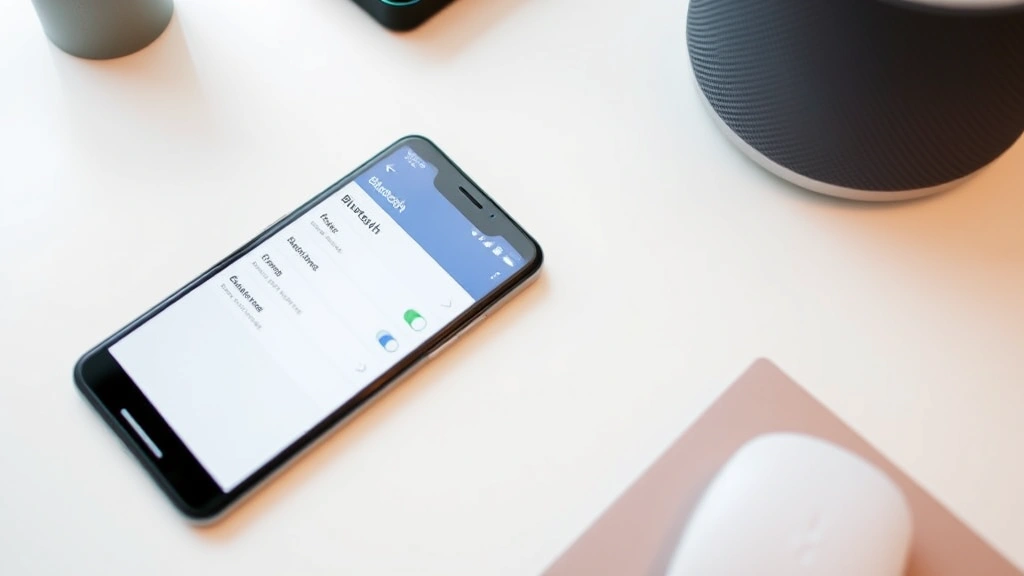
Now grab whatever device you’re trying to connect to—your phone, tablet, laptop, whatever. You need to turn on Bluetooth. On iPhones, swipe down from the top right corner to open Control Center, then tap the Bluetooth icon. On Android, swipe down twice to open Quick Settings, find Bluetooth, and toggle it on. On a computer, the process varies, but generally it’s in your system settings.
Here’s the thing: your device needs to actually be discoverable or in a mode where it can find nearby Bluetooth devices. Most phones are automatically discoverable when Bluetooth is on, but some laptops require you to specifically enable discovery mode. Check your device’s Bluetooth settings to confirm.
Also, make sure you don’t already have your Skullcandy headphones paired to another device. Bluetooth devices can only pair with one device at a time (though they can remember multiple devices). If your headphones are still connected to your old phone, disconnect them first, then try pairing with the new device. This is a common gotcha that catches people off guard.
Put Your Skullcandy Headphones in Pairing Mode
This is where the magic happens. Every Skullcandy model has a slightly different way to enter pairing mode, so your manual is your best friend here. That said, most follow a similar pattern:
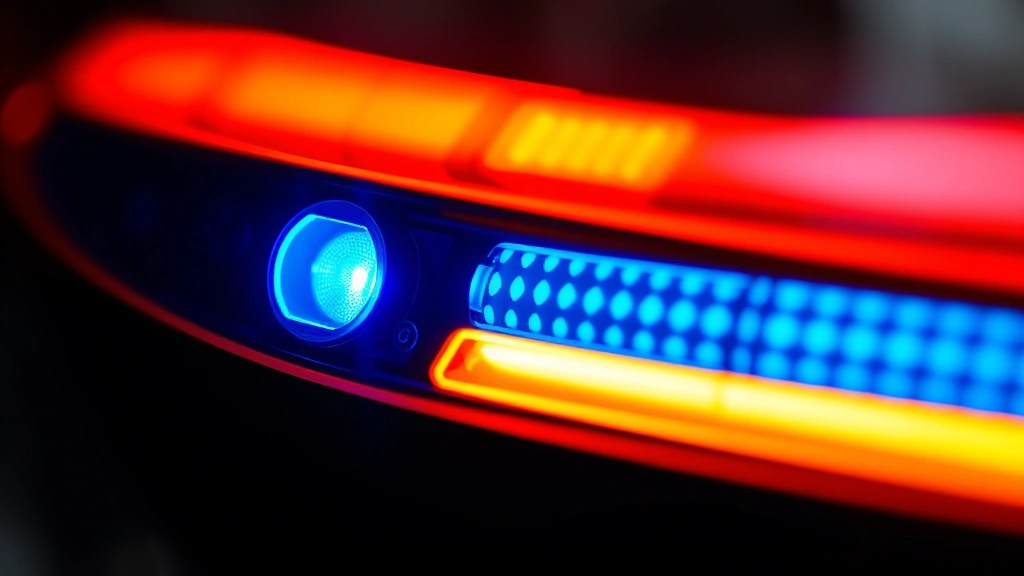
- For earbuds: Hold the button on the charging case for 3-5 seconds until you see a flashing blue light. Some models require you to hold the button on the earbud itself. The flashing light (usually blue or white) means it’s in pairing mode and ready to be discovered.
- For over-ear or on-ear headphones: Hold down the power button or the dedicated pairing button for 5-10 seconds. You’ll typically hear a voice prompt saying “pairing mode” or see a rapid flashing LED. Some models have a separate small button (sometimes recessed) that you need to press with a pin or paperclip.
- For wireless earbuds without a case: Hold the button on one or both earbuds until the LED flashes. The pattern of flashing (slow vs. fast, single vs. double flash) varies by model.
The key is that flashing light. Once you see it, your Skullcandy headphones are broadcasting their presence and your device should be able to find them. If you don’t see a light or hear a sound after holding the button, try again—sometimes you need to hold it longer, or your battery really is too low.
Pro move: if you’re not sure which button to press or how long to hold it, check Skullcandy’s official website or YouTube for your specific model. They usually have quick video guides. Saves a lot of guesswork.
Find and Connect to Your Headphones
Once your Skullcandy headphones are in pairing mode, go to your device’s Bluetooth settings and look for available devices. Your headphones should appear in the list with a name like “Skullcandy [Model Name]” or just “Skullcandy.” Tap or click on it to initiate the connection.
Your device will attempt to pair with the headphones. This usually takes 5-15 seconds. You might see a prompt asking you to confirm the pairing—just tap “Pair” or “Connect.” Some devices ask for a PIN code, which is typically 0000 or 1234 for Skullcandy headphones, but check your manual to be sure.
Once the pairing is complete, you should see a confirmation message on your device, and the LED on your headphones will typically stop flashing and become solid (or turn off entirely, depending on the model). Your device’s Bluetooth settings should now show your headphones as “Connected.”
Test the connection by playing some audio. If you hear sound through your headphones instead of your device’s speaker, you’re golden. If not, check that the headphones are actually selected as your audio output device. On phones, this is usually automatic once they’re connected, but on computers you might need to manually select them in your audio settings.
Troubleshooting Connection Issues
Sometimes things don’t go smoothly. Here are the most common problems and how to fix them:
Headphones won’t enter pairing mode: The battery is probably too low. Charge them for at least 30 minutes, then try again. If that doesn’t work, some Skullcandy models have a reset button (usually recessed) that you can press with a paperclip to factory reset the headphones. This clears any old pairing data and forces them into pairing mode.
Device can’t find the headphones: Make sure Bluetooth is actually on (not just the icon visible, but the toggle is activated). Restart both your device and your headphones. Move them closer together—Bluetooth has a range of about 30 feet, but interference from walls and other devices can reduce that. Try pairing in a different room away from WiFi routers and microwaves, which can interfere with the 2.4 GHz frequency that Bluetooth uses.
Headphones pair but have no sound: Check that they’re selected as your audio output device. On your phone, go to Settings > Bluetooth, find your headphones, and make sure they show as “Connected.” On a computer, right-click the volume icon in your system tray (Windows) or click the volume icon in your menu bar (Mac) and select your headphones as the output device. Also check the volume on both your device and your headphones—sometimes the headphones have their own volume control.
Connection keeps dropping: This usually means interference or a weak Bluetooth signal. Move your device and headphones closer together. Check if other Bluetooth devices nearby are causing congestion (this is rare but happens). If the problem persists, try forgetting the headphones from your device’s Bluetooth settings, then re-pair them from scratch. This often clears up connection stability issues.
Can’t pair because the headphones are already paired to another device: Go to that other device’s Bluetooth settings and “forget” or “unpair” the headphones. Then try pairing them to your new device. Some Skullcandy models can remember multiple devices (called “multi-point connectivity”), but they’ll only actively connect to one at a time. Check your manual to see if your model supports this feature.
Safety Warning: If you’re using Skullcandy headphones while driving, keep the volume at a safe level so you can still hear traffic and emergency vehicles. Many regions have laws about wearing headphones while driving—check your local regulations. For more on audio device management, see our guide on how to send voice messages on iPhone, which covers audio settings.
Connecting to Multiple Devices
Here’s something cool about Skullcandy headphones: once they’re paired to a device, they’ll remember that pairing. So if you pair them to your iPhone, then later pair them to your iPad, they’ll remember both. When you turn on your headphones, they’ll try to connect to the last device they were paired with, but you can manually select a different device from that device’s Bluetooth settings.
Some newer Skullcandy models support true multi-point connectivity, meaning they can stay connected to two devices simultaneously and automatically switch between them when you take a call or play audio on the other device. Check your manual to see if your model has this feature. If it does, the pairing process is slightly different—you’ll typically pair to the first device, then hold a button combination to enter multi-point pairing mode and pair to the second device.
If you want to completely remove a pairing, go to your device’s Bluetooth settings, find your Skullcandy headphones in the list of paired devices, and select “Forget” or “Remove.” Then if you want to pair them again, you’ll need to put them back in pairing mode and go through the whole process again. It’s not a big deal, just takes a minute.
Maintaining Your Connection
Once you’ve got your Skullcandy headphones connected, here’s how to keep them working smoothly:
- Keep them charged: A low battery can cause connection issues. Charge them regularly, ideally before they completely die. Most Skullcandy models have a battery life of 8-40 hours depending on the model, so check your manual for specifics.
- Keep them within range: Bluetooth works best within about 30 feet of your device. Walls, metal objects, and other electronic devices can reduce range and cause disconnections. If you’re getting spotty connections, try staying closer to your device.
- Update firmware if available: Some Skullcandy headphones can be updated via the Skullcandy app. Check the app store for “Skullcandy” and see if your model supports updates. Firmware updates often improve connection stability and add new features.
- Restart occasionally: If you’re experiencing persistent connection issues, power off your headphones completely for 30 seconds, then power them back on. This clears the Bluetooth cache and often resolves weird glitches.
- Manage paired devices: If you have a lot of devices paired to your headphones, they might get confused about which one to connect to. If you’re not using a device anymore, forget the headphones from that device’s settings to reduce clutter.
According to Family Handyman, proper device maintenance extends the lifespan of your electronics. The same principle applies to headphones—keeping them in good condition means better performance over time. Store them in a dry place, avoid extreme temperatures, and don’t expose them to water unless they’re rated as waterproof. For related device management, check out our guide on how to turn off Find My iPhone, which covers device settings.
If you ever need to reset your Skullcandy headphones completely (clearing all pairings and returning them to factory settings), most models have a dedicated reset button or a specific button combination. Hold it for 10-15 seconds until you see the LED flash in a specific pattern (usually alternating colors). Check your manual for the exact procedure for your model. After a factory reset, you’ll need to pair them from scratch, but it often fixes stubborn connection problems.
Battery maintenance is critical. Lithium-ion batteries (which power most Skullcandy headphones) degrade over time. To extend battery life, avoid letting them completely die regularly. Instead, charge them when they hit 20% battery. Don’t leave them plugged in for days at a time—charge them fully and unplug them. Store them in a cool, dry place when you’re not using them for extended periods. Most Skullcandy headphones will hold a charge for weeks even when powered off, so you don’t need to worry about them dying if you put them away for a month.
For more detailed information on wireless device connectivity, This Old House has solid resources on smart home technology and device integration, which covers similar Bluetooth principles. Additionally, Bob Vila provides practical tech guides that align with real-world troubleshooting approaches.
Frequently Asked Questions
Why won’t my Skullcandy headphones show up in my device’s Bluetooth list?
– The most common reason is that your headphones aren’t in pairing mode. Make sure you’re holding down the pairing button long enough (usually 5-10 seconds) until you see a flashing light. Also verify that your device’s Bluetooth is actually turned on—just having the icon visible doesn’t mean it’s active. Try restarting both your headphones and your device, then attempt pairing again. If they still don’t show up, your headphones’ battery might be too low to broadcast a Bluetooth signal, so charge them for at least 30 minutes.
Can I connect my Skullcandy headphones to multiple devices at the same time?
– Most Skullcandy headphones can remember multiple paired devices, but they’ll only actively connect to one device at a time. When you turn them on, they’ll automatically connect to the last device they were paired with. To switch to a different device, simply disconnect them from the current device (or move out of range) and then select them from the other device’s Bluetooth settings. Some newer Skullcandy models support true multi-point connectivity, which allows them to stay connected to two devices simultaneously, but you’ll need to check your specific model’s manual to see if this feature is available.
My Skullcandy headphones keep disconnecting. What should I do?
– Disconnection issues are usually caused by low battery, interference, or being out of Bluetooth range. First, charge your headphones fully. Then try pairing them again in a room away from WiFi routers, microwaves, and other electronic devices that operate on the 2.4 GHz frequency. Keep your device and headphones within 30 feet of each other and avoid obstacles like thick walls. If the problem persists, try forgetting the headphones from your device’s Bluetooth settings and re-pairing them from scratch. As a last resort, perform a factory reset on your headphones by holding the reset button for 10-15 seconds, then re-pair them.
What’s the difference between pairing and connecting?
– Pairing is a one-time process where your headphones and device exchange information and establish a secure connection. Once paired, they’ll remember each other. Connecting is what happens every time you turn on your headphones and they automatically link to a previously paired device. Think of pairing like introducing two people and exchanging phone numbers—you only do it once. Connecting is like calling that person later—you do it every time you want to talk to them.
How do I know if my Skullcandy headphones are actually connected?
– Look for visual and audio cues. On your device, go to Bluetooth settings and check if your headphones show as “Connected” next to their name. On your headphones, the LED will typically turn solid (stop flashing) once connected. The best test is to play some audio—if you hear it through your headphones instead of your device’s speaker, they’re definitely connected. Some Skullcandy models also provide a voice prompt saying “connected” when they successfully pair with a device.
Do I need to unpair my Skullcandy headphones when I’m done using them?
– No, you don’t need to unpair them. Just power them off. They’ll stay paired to your device, and the next time you turn them on, they’ll automatically reconnect. Unpairing is only necessary if you want to completely remove the pairing (for example, if you’re selling the headphones or giving them to someone else) or if you’re having persistent connection issues and want to start fresh. Keeping them paired is actually more convenient because you get automatic reconnection without having to go through the pairing process again.
Can I connect my Skullcandy headphones to my computer or laptop?
– Absolutely. The process is essentially the same as with a phone. Enable Bluetooth on your computer, put your Skullcandy headphones in pairing mode, then select them from your computer’s Bluetooth settings. On Windows, open Settings > Devices > Bluetooth and click “Add a device.” On Mac, go to System Preferences > Bluetooth and click “Add.” Once connected, you may need to set them as your default audio output device in your sound settings, but most computers will do this automatically.
What should I do if I’ve lost the manual for my Skullcandy headphones?
– Visit the Skullcandy website and search for your headphones model number (usually found on the headphones themselves or on the original packaging). Download the PDF manual. If you can’t find your exact model, search YouTube for “[Your Model Name] pairing instructions”—Skullcandy usually has official video guides. You can also contact Skullcandy customer support directly through their website; they’re pretty responsive and can walk you through the pairing process over email or phone.
Why does pairing fail even though my headphones are in pairing mode?
– A few things could be going wrong. Your device’s Bluetooth might not be fully enabled—try toggling it off and back on. There might be too much interference—move to a different location away from WiFi routers and other wireless devices. Your device might already have a pairing from a different headphones model—try forgetting that old pairing first. Or your headphones’ battery might be too low to complete the pairing handshake—charge them for at least 30 minutes. If none of these work, try a factory reset on your headphones by holding the reset button for 10-15 seconds.
Can I use Skullcandy headphones with multiple brands of devices?
– Yes, Skullcandy headphones use standard Bluetooth, so they’ll work with any Bluetooth-enabled device—iPhones, Android phones, Windows computers, Macs, tablets, smart TVs, gaming consoles, etc. Just pair them once to each device, and they’ll remember all the pairings. When you turn on your headphones, they’ll connect to the last device they were paired with, but you can manually switch between devices through your Bluetooth settings.


