

Your internet connection feels sluggish. Websites that should load instantly are crawling. You’ve restarted your router, cleared your browser cache, and nothing’s working. The culprit? A clogged DNS cache that’s serving you stale, outdated information instead of fetching fresh data from the web. Learning how to clear DNS cache is one of those hidden troubleshooting tricks that solves more problems than you’d think—and it takes less than five minutes once you know where to look.
DNS (Domain Name System) caching is like your computer’s address book. Instead of looking up a phone number every single time you call someone, you’ve got it saved. That’s efficient—until the number changes and you’re still calling the old one. When you clear your DNS cache, you’re essentially tossing that old address book and forcing your system to grab fresh contact info. Let’s walk through exactly how to do it on every major platform.
Clear DNS Cache on Windows
Windows stores DNS records in a local cache to speed up browsing. When a website changes servers or updates its IP address, your machine might not know about it yet. Clearing the DNS cache on Windows is straightforward, but the method depends on whether you’re using the Command Prompt or the graphical interface.
Using Command Prompt (Fastest Method)
- Press Windows Key + R to open the Run dialog box.
- Type
cmdand press Enter. (For admin privileges, right-click and select “Run as administrator.”) - In the Command Prompt window, type:
ipconfig /flushdns - Press Enter. You should see the message: “Successfully flushed the DNS Resolver Cache.”
That’s it. Your DNS cache is now cleared. The forward slash before “flushdns” tells Windows you’re running a command-line operation. Think of it like sending a specific instruction to a machine—the syntax has to be exact.
Using PowerShell (Alternative)
If you prefer PowerShell or Command Prompt isn’t responding, here’s the alternative:
- Right-click the Start menu and select Windows PowerShell (Admin).
- Type:
Clear-DnsClientCache - Press Enter. You’ll see confirmation once the cache clears.
Pro Tip: If you get an “access denied” error, make sure you’re running as administrator. Right-click the Command Prompt or PowerShell icon and select “Run as administrator” before typing the command.
Windows 11 users might also access this through Settings > System > Troubleshoot, though the command-line method is faster and more reliable.
Clear DNS Cache on macOS
Mac users often don’t realize their system is caching DNS data just like Windows. The process varies slightly depending on your macOS version, but the command-line approach works across all recent versions.
macOS Monterey and Newer (12.0+)
- Open Terminal (find it in Applications > Utilities or search with Spotlight: Cmd + Space).
- Copy and paste this command:
sudo dscacheutil -flushcache - Press Enter. You’ll be prompted to enter your administrator password.
- Type your password (you won’t see the characters as you type—that’s normal) and press Enter.
Older macOS Versions (Big Sur, Catalina, etc.)
The command is slightly different for older systems:
- Open Terminal.
- Type:
sudo killall -HUP mDNSResponder - Enter your password when prompted.
The difference is that older Macs use a different DNS service called mDNSResponder. The “killall -HUP” command restarts that service, effectively clearing the cache.
Safety Note: The
sudocommand gives you administrator privileges. Only run commands from trusted sources. Never paste random code from the internet into Terminal.
After running either command, your DNS cache is cleared. You can verify by visiting a website that was previously cached—it might take an extra second or two to load as your Mac fetches fresh DNS data.
Clear DNS Cache on Linux
Linux systems don’t cache DNS the same way Windows and Mac do by default. However, if you’re running a DNS caching service like systemd-resolved or dnsmasq, here’s how to clear it.
For systemd-resolved (Most Common)
- Open Terminal.
- Type:
sudo systemctl restart systemd-resolved - Press Enter and enter your password.
This restarts the DNS resolver service, clearing any cached entries.
For dnsmasq
- Type:
sudo systemctl restart dnsmasq - Press Enter.
Check What DNS Service You’re Using
Not sure which one you have? Run this command to check:
cat /etc/resolv.conf
This shows your current DNS configuration. If you see “systemd-resolved” or “dnsmasq” in the output, use the corresponding restart command above.
Clear DNS Cache in Your Browser
Your web browser also maintains its own DNS cache, separate from your system’s. Clearing the browser cache won’t touch the DNS cache, and vice versa. You might need to clear both.
Chrome and Chromium-Based Browsers
- Open Chrome and type:
chrome://net-internals/#dnsin the address bar. - Press Enter. You’ll see the Chrome DNS cache viewer.
- Click the Clear host cache button.
That’s all. Chrome’s DNS cache is now empty. The next time you visit a website, Chrome will fetch fresh DNS data.
Firefox
Firefox doesn’t have a dedicated DNS cache clearer, but you can clear all cached data:
- Press Ctrl + Shift + Delete (Windows) or Cmd + Shift + Delete (Mac).
- Select “All” under Time range.
- Check “Cookies and Site Data.”
- Click Clear Now.
Safari (Mac)
- Click Safari in the menu bar.
- Select Clear History…
- Choose a time range (or “All History”) and click Clear History.
Safari doesn’t expose DNS cache controls directly, but clearing history and site data accomplishes the same goal.
Clear DNS Cache on Your Router

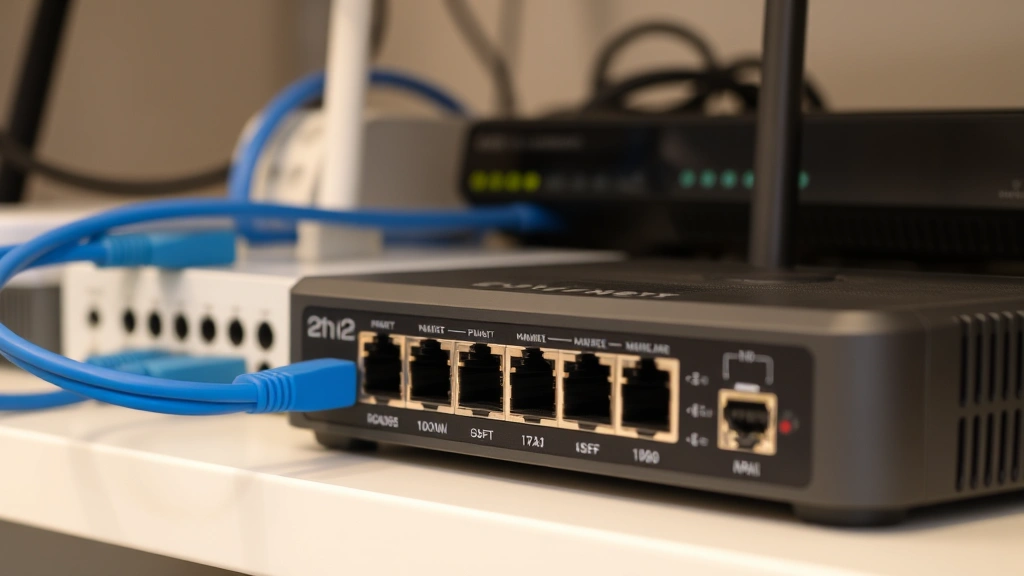
Your router also caches DNS queries. If you’ve cleared your computer’s cache but websites still aren’t loading correctly, the issue might be at the router level.
Basic Router Reset
- Locate the power button on the back or bottom of your router.
- Unplug the power cable for 30 seconds.
- Plug it back in and wait 2–3 minutes for the router to fully restart.
This soft restart clears the router’s DNS cache without resetting your WiFi password or network settings.
Access Router Settings (Advanced)
If a simple restart doesn’t work, you can access your router’s admin panel:
- Open a web browser and type your router’s IP address (usually
192.168.1.1or192.168.0.1). - Log in with your admin credentials (check your router’s manual if you don’t remember them).
- Look for a “DNS” or “Network” settings section.
- Some routers have a “Flush DNS” or “Clear Cache” button. If yours does, click it.
Pro Tip: Not all routers have a dedicated DNS cache clear option. A power cycle (unplugging and replugging) accomplishes the same thing and is much safer if you’re not comfortable with router settings.
Clear DNS Cache on iPhone and iPad
iOS devices cache DNS just like computers do. The process is different because you don’t have access to a command line, but it’s equally simple.
Method 1: Airplane Mode Toggle (Fastest)
- Swipe down from the top-right corner to open Control Center.
- Tap the Airplane Mode icon to turn it on.
- Wait 5 seconds.
- Tap Airplane Mode again to turn it off.
This forces your iPhone to re-establish its network connection, clearing the DNS cache in the process. It’s the quickest method and works in almost every situation.
Method 2: Forget and Rejoin WiFi Network
- Open Settings > WiFi.
- Tap the “i” icon next to your network name.
- Select Forget This Network.
- Tap your network name again and re-enter the password.
When you rejoin the network, your iPhone fetches fresh DNS data. This is more thorough than the Airplane Mode method if you suspect a more stubborn DNS issue. You might also want to check out our guide on how to clear app cache on iPhone for related troubleshooting.
Method 3: Restart Your Device
- Hold down the power button until “Slide to Power Off” appears.
- Slide to turn off your iPhone.
- Wait 10 seconds, then turn it back on.
A full restart is the nuclear option and clears pretty much everything, including DNS cache. It takes longer but works when nothing else does.
Clear DNS Cache on Android
Android doesn’t have a built-in DNS cache clear option like Windows or Mac, but you can accomplish the same result through your network settings.
Method 1: Airplane Mode Toggle
- Swipe down twice from the top to open Quick Settings.
- Tap Airplane Mode to turn it on.
- Wait 5 seconds.
- Tap Airplane Mode again to turn it off.
Just like on iPhone, this forces your Android device to re-establish its network connection and refresh DNS data.
Method 2: Forget and Rejoin WiFi
- Open Settings > WiFi.
- Long-press your network name.
- Tap Forget.
- Reconnect by selecting the network and entering the password.
Method 3: Restart Your Device
- Hold the power button until a power menu appears.
- Select Restart (or Power Off, then turn it back on).
A full restart clears the DNS cache along with temporary data and running processes. It’s the most reliable method if you’re experiencing persistent DNS issues.
When and Why You Should Clear DNS Cache
Knowing how to clear DNS cache is useful, but understanding when
Signs Your DNS Cache Needs Clearing
- Website won’t load even though it’s online. You can access the site on your phone, but not your computer. That’s a DNS cache issue.
- You get “server not found” errors for sites that should exist. Your cache might be pointing to an old or wrong IP address.
- A website recently moved to a new server, and you’re still seeing the old version. Your cache hasn’t updated yet.
- Email isn’t working after you changed email providers. DNS records for mail servers are cached. Clear the cache and try again.
- You changed your DNS provider (like switching to Cloudflare or Google DNS). The old cached data might conflict with the new settings.
- You’re experiencing intermittent connection issues. A corrupted DNS cache can cause random failures.
Why DNS Caching Exists
Before you think caching is just a nuisance, understand that it exists for a reason. Every time you visit a website, your computer needs to translate the domain name (like “google.com”) into an IP address (like “142.251.32.14”). This translation takes time. By caching the results, your computer skips this step on repeat visits. For websites you visit frequently, this saves milliseconds on every load. Multiply that across thousands of daily visits, and caching makes a real difference in browsing speed.
The problem arises when a website’s IP address changes—because the website owner moved servers, upgraded infrastructure, or switched hosting providers. Your cached data is now pointing to the wrong address. That’s when clearing the cache becomes necessary.
How Often Should You Clear DNS Cache?
Most people never need to clear DNS cache. The system is designed to handle updates automatically over time. However, if you troubleshoot network issues frequently or work in IT, clearing the cache is a standard first step—like checking if a device is plugged in before you start diagnosing more complex problems.
Some IT professionals recommend clearing DNS cache after major network changes, like switching internet providers or updating your router firmware. Others suggest doing it monthly as preventive maintenance. For the average user, clearing it only when you encounter a specific problem is the right approach.
Related Troubleshooting Steps
Clearing DNS cache is one part of network troubleshooting. If you’re experiencing broader connectivity issues, you might also want to explore other system maintenance tasks. For instance, if your computer is running slowly overall, checking your CPU temperature can help identify if heat is affecting performance. Similarly, if you’re having issues with storage-related problems, learning how to reformat an SD card can help resolve corrupted storage issues. And if you’re troubleshooting app-specific caching problems, our guide on how to clear Instagram cache covers that process in detail.
Preventing DNS Cache Issues
While you can’t prevent DNS caching (and you wouldn’t want to), you can minimize problems:
- Use a reliable DNS provider. Google Public DNS (8.8.8.8) and Cloudflare (1.1.1.1) are more stable than many ISP DNS servers.
- Keep your router firmware updated. Manufacturers release updates that improve DNS handling and security.
- Restart your router periodically. A monthly restart clears cached data and refreshes the system.
- Monitor your internet connection. If you notice patterns in when problems occur, they might be related to DNS caching.
Real Talk: DNS issues are frustrating because they’re invisible. You can’t “see” what’s happening the way you can with a broken cable. But once you understand that DNS is just a lookup system, it becomes clear why clearing the cache works. You’re forcing your system to look up the information fresh instead of relying on potentially outdated stored data.
Frequently Asked Questions
What exactly is DNS cache, and why does my computer store it?
– DNS cache stores the IP addresses of websites you’ve visited. When you type “example.com” into your browser, your computer looks up the corresponding IP address and remembers it for future visits. This speeds up browsing because looking up the address takes time. Your computer caches this information locally to skip that step on repeat visits. Think of it like remembering a friend’s phone number instead of looking it up in a directory every time you call.
Will clearing DNS cache affect my passwords or saved information?
– No. DNS cache only stores IP address mappings. It doesn’t contain passwords, login information, or personal data. Clearing it is completely safe and won’t log you out of websites or delete any information. It’s like clearing an address book—you’re not deleting the phone numbers’ owners or their personal details, just the stored mapping between names and numbers.
How long does it take to clear DNS cache?
– The actual clearing process takes seconds. However, your system might take a few extra seconds to load websites immediately after clearing the cache because it needs to fetch fresh DNS data. After the first load, speeds return to normal as new cache entries are created.
Can I clear DNS cache without using command line or Terminal?
– On Windows, you can use third-party DNS cache clearing tools, though the Command Prompt method is faster and more reliable. On Mac, Terminal is the standard approach. For browsers, Chrome has a built-in GUI tool (chrome://net-internals/#dns). For mobile devices, toggling Airplane Mode or restarting is simpler than command-line tools.
What’s the difference between clearing DNS cache and clearing browser cache?
– DNS cache stores IP address mappings. Browser cache stores website files (images, CSS, JavaScript). Clearing one doesn’t clear the other. If a website looks outdated, you need to clear browser cache. If a website won’t load or you get “server not found” errors, clear DNS cache. For comprehensive troubleshooting, clear both.
Should I change my DNS provider to avoid cache issues?
– Changing DNS providers (like switching from your ISP’s DNS to Google or Cloudflare) can improve overall reliability and speed, but it won’t eliminate caching issues. All DNS providers cache data—it’s how DNS works. However, some providers have better infrastructure and update caches more frequently. If you’re experiencing persistent DNS problems, switching to Google Public DNS (8.8.8.8) or Cloudflare (1.1.1.1) is worth trying.
Is it safe to clear DNS cache regularly?
– Yes, it’s completely safe. Clearing DNS cache won’t damage your system or cause any problems. Some IT professionals do it weekly as preventive maintenance. However, most users only need to do it when troubleshooting specific issues. There’s no downside to clearing it regularly, but there’s also no technical benefit unless you’re experiencing problems.
Why is my DNS cache not clearing even after I run the command?
– If you’re on Windows, make sure you’re running Command Prompt as administrator. Without admin privileges, the command will fail silently. On Mac, ensure you’re entering your password correctly when prompted. If you’re still having issues, try restarting your computer and running the command again after startup.
Can DNS cache cause security issues?
– DNS cache itself isn’t a security risk, but DNS poisoning (where malicious data is injected into your cache) is a known attack vector. This is rare for typical users but more common in corporate networks. Using a reputable DNS provider like Cloudflare or Google Public DNS reduces this risk. If you suspect your DNS has been compromised, clear the cache and consider changing your DNS provider.
Do I need to clear DNS cache on all my devices?
– Each device maintains its own DNS cache, so clearing it on one device doesn’t affect others. If you’re experiencing issues on a specific device, clear the cache on that device. If multiple devices are having problems, the issue might be with your router or ISP, not individual device caches. In that case, restart your router instead.


