
You’ve been uploading videos, grinding away, and now you’re wondering: who exactly is watching my stuff? That’s a legit question. Knowing how to check who your subscribers are on YouTube isn’t just about ego—it’s about understanding your audience, spotting trends, and figuring out what content actually resonates. The truth is, YouTube makes this easier than you’d think, but the interface can be confusing if you don’t know where to look.
Here’s the real talk: YouTube has a subscriber list feature built right into YouTube Studio, but it’s not as detailed as you might hope. You can see subscriber names and profile pictures, but YouTube deliberately limits how much data creators can access about individual subscribers for privacy reasons. That said, there are still solid ways to get meaningful insights about who’s following your channel.
How to Access Your YouTube Subscriber List
First things first: you need to be in YouTube Studio. This is the creator dashboard, not the regular YouTube interface. If you’re on your channel homepage, look for the “Create” button or your profile icon in the top right corner, then select “YouTube Studio.”
Once you’re in Studio, here’s the path:
- Click on “Community” in the left sidebar (you might need to scroll down to find it)
- Look for the “Members” tab or section
- This shows your paid members if you have channel memberships enabled
But wait—that’s for paid members only. For your regular free subscriber list, follow these steps instead:
- Go to “Analytics” in the left sidebar
- Click on “Reach” tab
- Scroll down to find subscriber-related data
Actually, let me be straight with you: YouTube doesn’t have a traditional “subscriber list” view like some other platforms. You can’t just pull up a spreadsheet of everyone who subscribed. Instead, YouTube shows you aggregate data and insights. The closest thing to a subscriber list is the “Members” section, which only displays your paying members if you’ve enabled channel memberships.
Pro Tip: If you have fewer than 1,000 subscribers, YouTube Studio still gives you access to analytics, but some features are limited. Once you hit 1,000 subscribers and 4,000 watch hours, you unlock monetization and more detailed analytics tools.
What Information You Can Actually See
Let’s be real about what YouTube lets you access. Here’s what you can see:
- Subscriber count: Your total number of subscribers (updated in real-time, though with a slight delay)
- Subscriber growth rate: How many subscribers you gained over specific time periods
- Geographic data: What countries your subscribers are from
- Device types: Whether they’re watching on mobile, desktop, or TV
- Engagement metrics: Which videos they watch, how long they watch, and whether they like/comment
- Member names and avatars: If they’re paid members, you see their names in the Members section
What you cannot see:
- A complete list of every subscriber’s name
- Email addresses of subscribers
- Personal information beyond what they’ve made public on their YouTube profile
- When exactly each person subscribed (only aggregate growth data)
- Detailed viewing history per subscriber
This is intentional. YouTube prioritizes subscriber privacy, which honestly is the right call. Think of it like this: YouTube shows you the forest (your audience trends), not every individual tree (specific subscriber data).
How to Sort and Filter Your Subscribers
If you have channel memberships enabled, the Members section does let you filter and sort your paying subscribers. Here’s how:
- Go to YouTube Studio
- Click “Community” in the sidebar
- Select the “Members” tab
- You’ll see member names, join dates, and membership tier
- Use the search bar to find specific members by name
- Sort by “Most Recent” or “Longest Member” using the dropdown menu
You can also filter by membership tier if you offer multiple levels. This is genuinely useful if you want to reach out to your most loyal supporters or see who’s been with you longest.
For your broader subscriber base (free subscribers), sorting options are more limited. Your best bet is using YouTube Analytics to filter by engagement, location, or device type. This gives you a sense of who your audience is, even if you can’t see individual names.
Real Talk: Many creators wish YouTube had better subscriber list tools. You’re not alone in this frustration. Some creators use external tools (more on that below) to track subscriber growth, but remember that YouTube’s terms of service restrict what third-party apps can do.
Using YouTube Analytics for Deeper Subscriber Insights
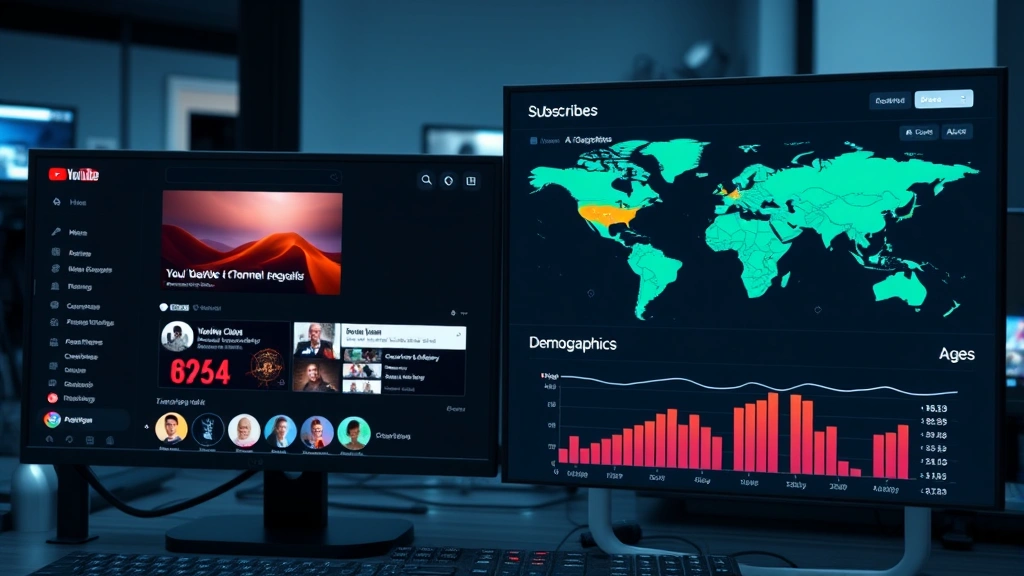
This is where the real gold is. YouTube Analytics gives you insights that are way more useful than a simple list of names. Here’s how to dig into it:
- Go to YouTube Studio
- Click “Analytics” in the left sidebar
- Check out the “Reach” tab first—this shows subscriber growth over time
- Look at the “Audience” tab for demographic data
In the Audience tab, you’ll find:
- Age distribution: What age groups are subscribing
- Gender: Approximate gender breakdown (based on what users have selected)
- Geographic location: Top countries, regions, and cities
- Interests: What other content categories your subscribers like
The Reach tab shows you:
- Subscriber growth: New subscribers per day/week/month
- Impressions: How many times your content was shown to people
- Click-through rate: What percentage of impressions turned into views
This data is honestly more valuable than knowing individual names. If you see that 60% of your subscribers are from India and they’re mostly 18-24 years old, that tells you something important about who you’re creating for. You can tailor future content, thumbnails, and upload times accordingly.
For more on understanding your broader online presence, check out our guide on how to create a Facebook business page—many creators use multiple platforms to understand their audience better.
Third-Party Tools That Help Track Subscribers
If YouTube’s built-in tools feel limited, there are external options. Be cautious here—not all tools are trustworthy, and some violate YouTube’s terms of service. Here are the legitimate ones:
VidIQ and TubeBuddy: These are SEO tools for YouTube creators. They track subscriber growth, show you when subscribers are most active, and help optimize your content. They’re not free, but they’re widely used and legitimate. Both integrate directly with YouTube Studio.
Social Blade: This tracks YouTube channel statistics publicly. You can see subscriber growth trends, estimated earnings, and upload schedules. The free version is basic but useful for spotting patterns.
Morningfame: Focuses on YouTube SEO and trending videos. Includes subscriber tracking and audience insights.
Google Sheets + YouTube Data API: If you’re tech-savvy, you can use Google Sheets with the YouTube Data API to pull subscriber data automatically. This requires some coding knowledge but gives you full control.
Warning: Avoid tools that promise to show you “every subscriber’s name” or “subscriber email addresses.” These either don’t work or violate YouTube’s terms of service. YouTube explicitly prohibits scraping subscriber data, and they’ll ban channels that do it.
Also, if you’re managing multiple platforms, understanding how to post music on Spotify can help you understand cross-platform audience building strategies.
Tracking Which Subscribers Actually Engage
Here’s something most creators overlook: not all subscribers are equal. Some watch every video, comment, like, and share. Others subscribed once and never came back. Knowing the difference matters.
To see engagement, go to YouTube Analytics and check:
- Watch time by subscriber status: How much time subscribers spend watching vs. non-subscribers
- Click-through rate: Subscribers click on your content more than non-subscribers (usually 2-5x more)
- Average view duration: How long subscribers watch your videos compared to casual viewers
- Likes and comments: Check your top comments to see which subscribers are most vocal
If you want to identify your most engaged subscribers personally, the Members section is your friend. These are your paying supporters—they’re literally telling you they value your content. Engage with them directly. Reply to their comments, give them shout-outs, and ask for feedback.
YouTube also shows you “Super Chat” and “Super Thanks” interactions, which are paid features that let viewers support you directly. These people are your VIPs, and you can see their names when they use these features.
Privacy Limits and What YouTube Won’t Show You
YouTube’s restrictions on subscriber data aren’t arbitrary—they’re based on privacy laws and user rights. Here’s what you need to understand:
GDPR and Privacy Laws: YouTube operates globally, which means it has to comply with privacy regulations like the EU’s GDPR. These laws restrict how much personal data can be collected and shared. YouTube’s subscriber privacy rules exist partly because of this.
User Privacy Settings: Subscribers can make their subscriptions private. If they do, they won’t appear in any public subscriber lists or analytics. This is their right, and YouTube enforces it.
YouTube’s Philosophy: According to YouTube’s official support documentation, the platform intentionally limits creator access to subscriber data. The idea is that subscribers should feel safe subscribing without worrying about being tracked or contacted.
What This Means for You: You can’t build a mailing list from your YouTube subscribers without their explicit consent. You can’t use third-party tools to scrape subscriber emails. You can ask in your videos for people to join your email list, but you can’t extract that data from YouTube.
For comparison, if you’re building presence across platforms, understand that how to cancel YouTube TV and other platform features work differently—each platform has its own privacy and data rules.
Important: Attempting to scrape, extract, or access subscriber data in ways YouTube doesn’t allow can result in channel termination. YouTube takes this seriously. Don’t risk it.
Frequently Asked Questions
Can I see a list of all my YouTube subscribers with their names?
– Not in a traditional list format. YouTube deliberately doesn’t provide a complete subscriber roster. You can see paid members’ names in the Members section, but regular free subscribers aren’t displayed as a searchable list. YouTube prioritizes subscriber privacy.
How often does YouTube update subscriber count?
– Your subscriber count updates in real-time in YouTube Studio, but there’s usually a slight delay (anywhere from a few seconds to a few minutes). The count you see publicly on your channel page updates less frequently and may lag behind your actual count.
Can I export my subscriber list to a spreadsheet?
– Not directly from YouTube. However, if you use the YouTube Data API and have coding skills, you can pull limited data into Google Sheets. Third-party tools like VidIQ or TubeBuddy can export some subscriber growth data, but they won’t give you individual subscriber names due to privacy restrictions.
Why can’t I see subscriber information like email addresses?
– YouTube restricts this data for privacy and legal reasons. Subscribers have the right to privacy, and YouTube complies with GDPR and other privacy laws. Email addresses are especially protected—YouTube doesn’t share them with creators unless a subscriber explicitly opts in through a separate channel (like a community post or email signup form you provide).
Do private subscriptions show up in my analytics?
– No. If a subscriber makes their subscription private, they won’t appear in any public-facing data, and you won’t be able to see them individually. However, their watch time and engagement are still counted in your aggregate analytics (total watch hours, etc.).
What’s the difference between subscribers and members?
– Subscribers are people who follow your channel for free. Members are people who pay a monthly fee (if you’ve enabled channel memberships). Members appear in your Members section with their names visible, and you can interact with them directly. Regular subscribers don’t have a dedicated list view.
Can I see when someone subscribed to my channel?
– Not for individual subscribers. You can see aggregate subscriber growth data over time (how many subscribers you gained each day/week/month), but you can’t see the exact date when a specific person subscribed. For paid members, you can see their join date in the Members section.
How do I reach out to my subscribers?
– The best way is through your channel’s community tab (if you have access), where you can post updates, polls, and messages. You can also engage through comments on your videos. If you want to email subscribers, you need to ask them to opt into a separate email list outside of YouTube.

Are there any tools that let me see more subscriber data?
– Yes, but with limitations. Tools like VidIQ, TubeBuddy, and Social Blade provide subscriber growth trends and audience demographics. However, none of them can give you individual subscriber names or email addresses—YouTube’s API doesn’t allow it. Be wary of tools claiming they can.
What if a subscriber makes their subscription private?
– You won’t see them in any subscriber lists or public data. However, if they watch your videos, like, or comment, you’ll still see that engagement. Their watch time still counts toward your channel’s total metrics, even though you can’t identify them individually.


