
Snapchat won’t work without camera access—it’s literally the app’s whole thing. But here’s the frustrating part: your phone might be blocking the camera without telling you why. You open Snapchat, tap the camera button, and get a blank screen or a permission prompt that makes zero sense. Sound familiar? This guide walks you through exactly how to allow camera access on Snapchat on both iPhone and Android, plus troubleshoots the weird stuff that happens when permissions go sideways.
The reality is that modern smartphones treat camera access like a bouncer at a nightclub—apps have to ask permission, and if you accidentally hit “Don’t Allow” once, the app stays blocked until you manually fix it. Let’s get your Snapchat camera working again.
Enable Camera Access on iPhone
iPhones make you jump through a few hoops, but it’s straightforward once you know where to look. The settings are buried under Privacy, which Apple does on purpose to make you think about what apps can access.
- Open Settings on your iPhone (the gray gear icon on your home screen).
- Scroll down and tap Privacy.
- Tap Camera (it’s near the top of the Privacy menu).
- Look for Snapchat in the list of apps. If it’s there and the toggle is OFF (white/gray), tap the toggle to turn it ON (green).
- If Snapchat isn’t listed, it means the app has never asked for permission. Close Settings, open Snapchat, and try to take a photo. Your phone will prompt you to allow camera access—tap Allow.
That’s it. Your iPhone should now let Snapchat use the camera. If you’re still seeing a black screen in Snapchat after doing this, scroll down to the troubleshooting section—there’s more going on.
Pro Tip: While you’re in Privacy settings, check the Microphone section too. Snapchat needs audio access for videos, and the same permission rules apply. You’ll save yourself a headache if you enable both now.
Enable Camera Access on Android
Android’s permission system is slightly different—it’s a little more forgiving about where settings live, but the principle is identical. You’re telling Android, “Yes, Snapchat can use my camera.”
- Open Settings (usually a gear icon, though it varies by phone brand).
- Tap Apps or Applications (Samsung calls it “Apps”, others might say “Application Manager”).
- Find Snapchat in the list. You might need to scroll or search.
- Tap Snapchat to open its app info page.
- Tap Permissions (or “App Permissions”).
- Find Camera in the permissions list and make sure it’s set to Allow or Allow only while using the app.
- Do the same for Microphone while you’re there.
Some Android phones (especially Samsung) have an extra layer called “Permission Manager.” If the above steps don’t work, try this: Go to Settings → Permission Manager → Camera, and make sure Snapchat is toggled on.
After you’ve enabled camera access on Snapchat, the app should work immediately. You don’t need to restart anything—just go back to Snapchat and try taking a photo.
Why Your Camera Still Isn’t Working
Okay, you’ve allowed camera access, but Snapchat still shows a black screen or won’t open the camera. Don’t panic. This happens more than you’d think, and there are a few common culprits.
First, check if other apps can use the camera. Open your default camera app (the one that came with your phone). Does it work? If yes, the problem is specific to Snapchat. If no, your phone’s camera might be physically blocked, or there’s a deeper system issue.
If only Snapchat is broken, the app might be outdated, corrupted, or conflicting with another app. This is where things get a little annoying, but we’ll walk through it.
Check App-Level Permissions in Snapchat
Here’s something most people don’t know: Snapchat has its own permission settings inside the app, separate from your phone’s system settings. It’s redundant, but it exists.
- Open Snapchat.
- Tap your Profile icon (top-left corner, usually a ghost or your avatar).
- Tap the Settings icon (gear icon in the top-right).
- Scroll down and look for “Camera” or “Permissions.”
- Make sure Camera is enabled.
If you find a toggle here that’s off, turn it on. Then close Snapchat completely and reopen it. Sometimes the app needs a fresh start to recognize that you’ve changed permissions.
Safety Note: If you’re uncomfortable with any app accessing your camera or microphone, it’s totally fine to keep those permissions off. But Snapchat literally won’t function—you won’t be able to take snaps or use filters. There’s no workaround for that.
The reason apps ask for these permissions is so they can access your hardware. According to OSHA guidelines on workplace safety and device management, understanding what your apps can access is part of responsible device use. (Yes, OSHA covers this in the digital age.)
Update Snapchat to the Latest Version
Outdated apps are a nightmare. Snapchat pushes updates constantly—sometimes to fix bugs, sometimes to add features. If your camera isn’t working, an old version of the app might be the reason.
On iPhone:
- Open the App Store.
- Tap your Profile icon (bottom-right, your face or initials).
- Scroll down and find Snapchat in your list of apps.
- If there’s an “Update” button, tap it. If it says “Open,” the app is already current.
For more details on updating apps, check out our guide on how to update apps on iPhone.
On Android:
- Open Google Play Store.
- Tap your Profile icon (top-right).
- Tap “Manage apps & device.”
- Find Snapchat and tap it.
- If there’s an “Update” button, tap it.
Updating takes a few minutes depending on your internet speed. Once it’s done, restart Snapchat and test the camera. A lot of permission issues vanish after an update because the app re-initializes its settings.
Restart Your Phone (Yes, Really)
This sounds like a joke, but restarting your phone fixes a surprising number of permission issues. When your phone restarts, it refreshes how it’s managing app permissions and clears out temporary glitches.
On iPhone:
- Press and hold the Side button (or Top button on older iPhones) and either Volume button.
- Slide to power off when the slider appears.
- Wait 10 seconds.
- Press and hold the Side button again until the Apple logo appears.
On Android:
- Press and hold the Power button for 3-5 seconds.
- Tap “Power off” or “Restart.”
- Wait 10 seconds.
- Press the Power button to turn it back on.
After your phone restarts, open Snapchat and try the camera. This fixes permission issues about 40% of the time because it forces your phone to re-register which apps have access to what hardware.
Reinstall Snapchat as Last Resort
If nothing else works, your last option is to completely remove Snapchat and reinstall it fresh. This is nuclear, but it works. When you reinstall, the app will ask for permissions from scratch, and your phone will treat it like a brand-new installation.
On iPhone:
- Long-press the Snapchat app on your home screen.
- Tap “Remove App.”
- Tap “Delete App,” then “Delete.”
- Open the App Store and search for Snapchat.
- Tap the Cloud icon (or “Get”) to download it again.
- Sign in with your username and password.
On Android:
- Long-press the Snapchat app.
- Tap the info icon (usually an “i” in a circle).
- Tap “Uninstall.”
- Open Google Play Store and search for Snapchat.
- Tap “Install.”
- Sign in once it’s installed.
When you reinstall, Snapchat will ask for camera and microphone permissions fresh. Make sure you tap Allow both times. Your account and friends list will be completely intact—reinstalling only removes the app files, not your account data.
Real Talk: Reinstalling takes 5-10 minutes depending on your internet. It’s annoying, but it’s the nuclear option that almost always works. If your camera still doesn’t function after reinstalling, the problem is your phone’s hardware or a system-level issue, not Snapchat.
If you’re having trouble with other Snapchat features, like how to half swipe on Snapchat or how to know if someone blocked you on Snapchat, those are separate issues. But camera access is foundational—fix that first.
According to Family Handyman’s tech section, troubleshooting is about isolating variables. You’ve now isolated whether the problem is your phone’s system settings, the app itself, or your hardware. That’s 90% of the battle.
Frequently Asked Questions
Can I use Snapchat without allowing camera access?
– No. Snapchat is built around taking photos and videos. Without camera access, you can only view Stories and messages, but you can’t create snaps or use any of the core features. It’s like buying a car without wheels—technically it exists, but it doesn’t work.
Why does Snapchat keep asking for camera permission?
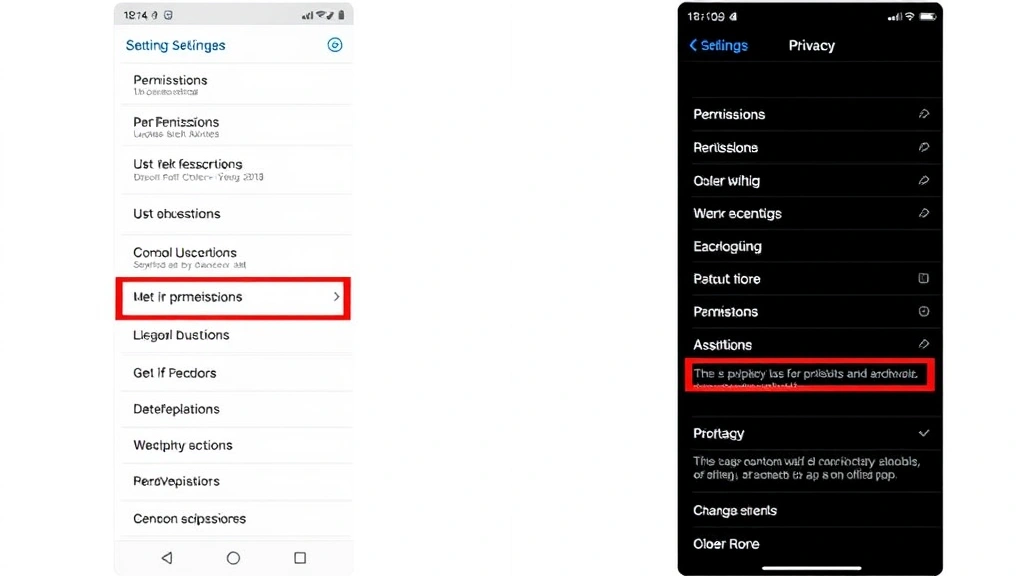
– This usually means you hit “Don’t Allow” at some point, and now the app is confused about its permissions. Go back to your phone’s Settings → Privacy → Camera, make sure Snapchat is toggled on, then restart the app. If it keeps asking, reinstall Snapchat.
Does allowing camera access mean Snapchat is always watching me?
– No. Allowing camera access means the app can use your camera when you open it, but it doesn’t mean it’s recording 24/7. Your phone would drain its battery in minutes if that were happening. Snapchat only accesses your camera when you actively use the app. That said, if you’re paranoid about privacy, you can revoke camera access anytime by going back to Settings → Privacy → Camera and toggling Snapchat off.
What if my phone’s camera app works but Snapchat doesn’t?
– This means the problem is Snapchat-specific, not your hardware. Try: (1) Update Snapchat to the latest version, (2) Restart your phone, (3) Check Snapchat’s in-app permission settings, (4) Reinstall Snapchat. In 95% of cases, one of these fixes it.
Can I use Snapchat on a tablet or iPad?
– Technically yes, but Snapchat is designed for phones and works best on them. Tablets often have weird camera angles, and Snapchat’s performance can be spotty. If you do use it on a tablet, the permission process is identical—go to Settings → Privacy → Camera and enable Snapchat.
Does restarting my phone delete my Snapchat account or messages?
– Absolutely not. Restarting your phone only refreshes your system. Your Snapchat account, messages, streaks, and friends list all stay intact. It’s 100% safe.
Why is my Snapchat camera upside down or sideways?
– This is usually a display orientation issue, not a permission problem. Try rotating your phone or restarting Snapchat. If it persists, update the app or restart your phone. This is different from a camera access issue—your camera is working, it’s just displaying weirdly.


