
Let’s be real: Mac widgets used to feel like a mystery locked behind confusing menus and obscure settings. You’d see other people’s Macs with these neat little tools on their desktops and wonder, “How did they do that?” The good news? Learning how to add widgets on Mac is actually straightforward once you know where to look. This guide walks you through every method, from the simplest approach to advanced customization, so you can get those widgets working without accidentally breaking something.
Widgets on Mac are small, single-purpose apps that live on your desktop or in your notification center. Think of them like digital sticky notes, weather forecasts, or calendar snippets that update in real time without you having to open the full app. They’re designed to save you clicks and keep important info visible at a glance. Whether you’re tracking stocks, checking the weather, or monitoring your calendar, adding widgets on Mac takes just a few taps once you understand the process.
What Are Mac Widgets and Why You Need Them
Mac widgets are mini applications that display information or provide quick access to functions without opening the full app. They started appearing prominently in macOS Big Sur and have become increasingly powerful with each update. The beauty of widgets is that they’re always visible, always current, and they don’t consume much system resources when done right.
There are three main places where you can add widgets on Mac:
- Notification Center: The sidebar on the right side of your screen that slides in from the edge
- Desktop: Directly on your Mac desktop alongside your files and folders
- Lock Screen: The screen that appears before you log in (available on macOS Ventura and later)
Each location serves a different purpose. Notification Center widgets are great for things you check occasionally. Desktop widgets work better for information you want constantly visible. Lock screen widgets are perfect for at-a-glance details you need to see before even unlocking your Mac.
The real advantage? No more opening apps just to check one piece of information. Your weather app, calendar, stocks, reminders, and dozens of other tools can live as widgets. It’s like having a personal dashboard that’s always ready to go.
Adding Widgets to Your Notification Center
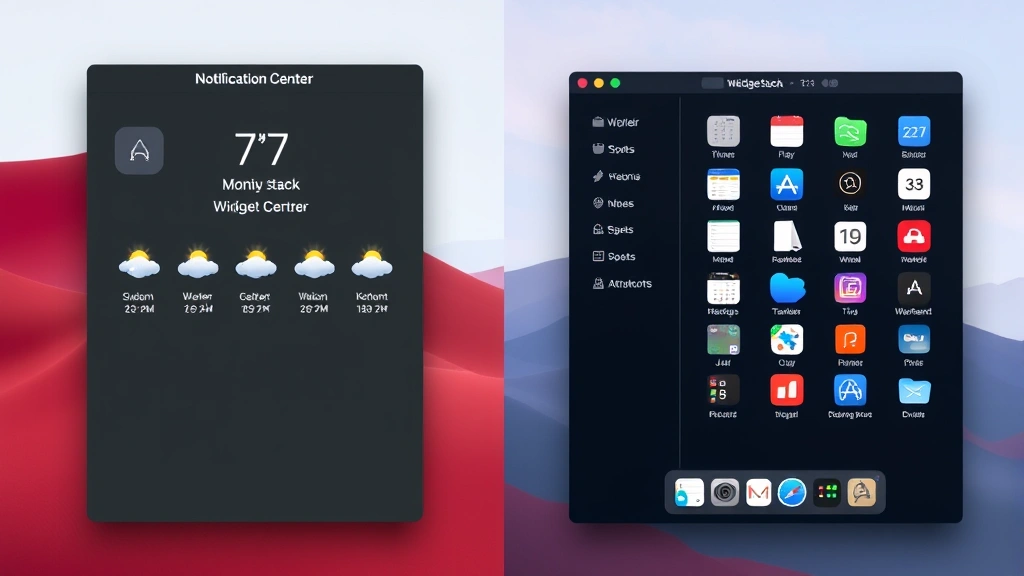
The easiest way to start learning how to add widgets on Mac is through your Notification Center. This is the safest approach because widgets here don’t clutter your desktop, and you can access them whenever you need them by clicking the date and time in the top-right corner.
Here’s the step-by-step process:
- Click the date and time in the top-right corner of your Mac screen (or swipe from the right edge of your trackpad if you prefer)
- Your Notification Center opens, showing any notifications and existing widgets
- Scroll down to the bottom of the Notification Center
- Look for the button that says “Edit” (usually in gray text at the bottom)
- Click “Edit” to enter customization mode
- You’ll see a list of available widgets with a plus (+) button next to each one
- Click the plus button next to any widget you want to add
- The widget appears in your Notification Center immediately
- Click “Done” when you’re finished adding widgets
That’s it. You’ve just added your first widget. The widget will now appear in your Notification Center every time you open it, and it will automatically update with fresh information.
Some built-in Apple widgets you’ll typically find include Weather, Calendar, Reminders, Stocks, News, TV, Books, and Maps. If you’ve installed third-party apps from the Mac App Store, many of them offer widgets too. The more apps you have, the more widget options appear in that list.
Pro tip: You can rearrange widgets in Notification Center by clicking and dragging them into a different order. Just enter Edit mode again, then drag each widget to your preferred position. This helps you put the most-used widgets at the top for faster access.
How to Add Widgets Directly to Your Mac Desktop
If you want widgets on Mac to be visible all the time without opening Notification Center, you can add them directly to your desktop. This is where widgets really shine because they become part of your everyday workspace. However, this requires a slightly different process than Notification Center widgets.
Method 1: The Widget Stack Approach (Recommended for Beginners)
The easiest way to add desktop widgets is using Widget Stacks, which are collections of widgets that appear as a single item on your desktop:
- Open Notification Center (click the date/time in the top-right corner)
- Scroll to the bottom and click “Edit”
- Find a widget you want to add to your desktop
- Click and hold the plus button next to the widget
- Drag it directly onto your desktop (you’ll see your desktop appear in the background)
- Release the mouse or trackpad when you’re happy with the position
- The widget appears on your desktop as a Widget Stack
- Click “Done” in Notification Center
Widget Stacks are smart because they automatically cycle through your widgets, showing one at a time. You can click on the stack to see which widget is currently displayed, or swipe up and down to cycle through them manually. This keeps your desktop clean while still giving you access to multiple widgets.
Method 2: Adding Individual Desktop Widgets
If you want individual widgets on your desktop (not stacked), the process is similar but requires a different starting point:
- Open Notification Center
- Find the widget you want to add
- Right-click (or control-click if you don’t have right-click enabled) on the widget in the list
- Select “Add Widget to Desktop” from the context menu
- The widget appears on your desktop in a default location
- You can click and drag it to reposition it anywhere on your desktop
This method is great if you want Weather, Calendar, and Reminders all visible at the same time without having to click through a stack.
Important note: Desktop widgets on Mac are different from dashboard widgets you might remember from older macOS versions. These new widgets are more powerful and integrate better with your system, but they work slightly differently. If you’re upgrading from an older Mac, don’t expect the old dashboard widgets to work the same way.
Customizing Your Lock Screen with Widgets
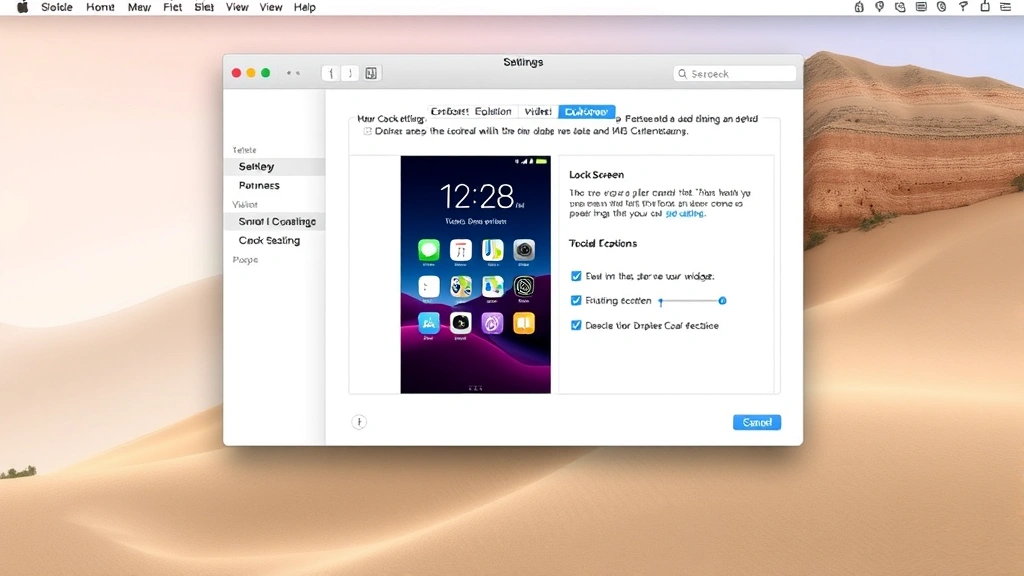
Starting with macOS Ventura, Apple added the ability to add widgets directly to your lock screen. This is a game-changer for information you want to see immediately when you wake up your Mac or walk away from it. Lock screen widgets are perfect for time-sensitive info like weather, calendar events, or reminders.
Here’s how to add widgets to your lock screen:
- Click the Apple menu in the top-left corner
- Select “System Settings” (or “System Preferences” on older versions)
- Click “Lock Screen” in the left sidebar
- Your current lock screen appears with customization options
- Click the plus (+) button at the bottom of the lock screen preview
- A widget selection menu appears
- Choose the app or widget you want to add
- Select the specific widget style you prefer (many apps offer multiple widget designs)
- Click “Add Widget” to confirm
- The widget appears on your lock screen
You can add up to multiple widgets on your lock screen, and they’ll display relevant information even when your Mac is locked. This is incredibly useful for checking the weather, seeing upcoming calendar events, or viewing the current time in different time zones without unlocking your Mac.
Lock screen widget best practices:
- Choose widgets that display time-sensitive or frequently-checked information
- Avoid widgets that require frequent updates (they’ll drain battery faster)
- Test widgets to make sure the information displays clearly at your Mac’s lock screen size
- You can remove lock screen widgets by clicking the minus (-) button in System Settings
Managing and Organizing Your Widgets
Once you’ve added widgets on Mac, you’ll want to keep them organized and ensure they’re working efficiently. Managing widgets is straightforward, but there are some tricks that make the process smoother.
Removing Widgets
If a widget isn’t serving you anymore, removing it is simple:
- From Notification Center: Open Notification Center, click “Edit,” find the widget, click the minus (-) button, then click “Done”
- From Desktop: Right-click the widget and select “Remove Widget,” or click and drag it to the trash
- From Lock Screen: Go to System Settings > Lock Screen, click the minus button next to the widget you want to remove
Resizing and Repositioning Desktop Widgets
Desktop widgets can be resized to fit your needs. Click and hold the widget until a menu appears, then select a different size option if available. Most widgets offer small, medium, and large sizes. Repositioning is even easier—just click and drag the widget to a new location on your desktop.
Widget Stacking Strategies
If you have multiple desktop widgets, consider grouping related ones together in stacks. For example, put your Weather and Calendar widgets in one stack, and your Reminders and Notes widgets in another. This keeps your desktop organized while still giving you quick access to important information.
Common Widget Problems and How to Fix Them
Even though widgets are generally reliable, you might run into issues occasionally. Here are the most common problems and how to solve them.
Widget Not Updating
If a widget shows outdated information, the app might not have permission to refresh in the background. Here’s how to fix it:
- Go to System Settings > General > Background App Refresh
- Find the app associated with the widget
- Make sure it’s enabled for background refresh
- Close and reopen Notification Center to force a refresh
Widget Disappearing from Notification Center
Sometimes widgets vanish from Notification Center without warning. This usually happens when:
- You accidentally removed the widget (check the Edit menu to re-add it)
- The app was uninstalled (reinstall it to restore the widget)
- macOS needs an update (check System Settings > General > Software Update)
Desktop Widget Won’t Stay in Position
If a desktop widget keeps moving or disappearing, try these steps:
- Make sure you’re not in icon view on your desktop (use Finder > View > as Icons)
- Restart your Mac to reset widget positioning
- Remove and re-add the widget to see if the issue persists
Widget Takes Too Long to Load
Slow-loading widgets often indicate a network issue or a problem with the app itself. Try:
- Checking your internet connection
- Restarting the app associated with the widget
- Updating the app to the latest version
- Removing and re-adding the widget
According to Apple’s official support documentation, most widget issues resolve themselves after a Mac restart. If problems persist, contact the app developer since third-party widgets sometimes need updates to work properly with new macOS versions.
Best Practices for Widget Safety and Performance
Adding widgets on Mac is safe when you follow a few basic guidelines. Widgets from Apple and reputable developers are thoroughly vetted, but it’s still smart to be cautious.
Download Widgets Safely
Only download widgets from the Mac App Store or directly from trusted developers’ websites. Avoid downloading widgets from unknown sources or suspicious websites. The Mac App Store has security screening that third-party sources don’t provide. Think of it like the difference between buying tools from a hardware store versus a sketchy online marketplace—you know what you’re getting from the official source.
Monitor System Performance
While widgets are designed to be lightweight, having too many can impact your Mac’s performance. If you notice your Mac running slower:
- Open Activity Monitor (Applications > Utilities > Activity Monitor)
- Check if any widget-related processes are using excessive CPU or memory
- Remove widgets that are consistently hogging resources
- Keep your macOS and apps updated for optimal performance
Privacy Considerations
Some widgets request access to your location, calendar, or other personal data. Review these permissions carefully:
- Go to System Settings > Privacy & Security
- Check which apps have access to sensitive information
- Remove permissions for apps you don’t trust with that data
- Remember that some widgets won’t function properly without certain permissions
For example, a Weather widget needs location access to work, but a Notes widget shouldn’t need your contacts. Be thoughtful about what you allow.
Regular Maintenance
Keep your widgets running smoothly by:
- Updating macOS regularly (System Settings > General > Software Update)
- Updating individual apps that provide widgets
- Removing widgets you no longer use
- Occasionally restarting your Mac to clear memory
According to Macworld’s widget management guide, maintaining a lean widget setup actually improves your Mac’s responsiveness compared to having dozens of widgets running simultaneously.
Backup Your Widget Setup
While widgets themselves don’t need backing up (they’ll reinstall with your apps), your customization preferences are worth protecting. If you ever need to restore your Mac or set up a new one, you’ll want to remember which widgets you had and where you positioned them. Take a screenshot of your desktop and Notification Center setup as a reference.
Frequently Asked Questions
Can I add widgets from third-party apps on Mac?
– Yes, absolutely. Any app in the Mac App Store can offer widgets, and many popular apps like Slack, Fantastical, Tot, and Stocks do. When you install an app that supports widgets, those widgets automatically become available in your widget selection menu. You don’t need to do anything special—just look for the app name in your widget list when you’re in Edit mode.
Will adding too many widgets slow down my Mac?
– It depends on the widgets and your Mac’s specs. A few widgets won’t noticeably impact performance, but having dozens of complex widgets constantly updating could slow things down. Start with a few widgets and monitor your Mac’s performance using Activity Monitor. If you notice slowdowns, try removing some widgets or disabling background refresh for less-critical apps.
Can I customize the appearance of widgets on my Mac?
– Customization options vary by widget and app. Some widgets offer different size options (small, medium, large), and some apps let you change colors or display preferences within the app itself. Unfortunately, you can’t change widget appearance as dramatically as you can on iPhone, but Apple continues adding more customization options with each macOS update.
What’s the difference between Notification Center widgets and desktop widgets?
– Notification Center widgets are hidden until you open the Notification Center, while desktop widgets are always visible. Notification Center is better if you want to keep your desktop clean, while desktop widgets are better if you want constant visibility. You can also use Widget Stacks on your desktop to have multiple widgets in one space.
Do widgets work when my Mac is in sleep mode?
– Widgets don’t actively update when your Mac is asleep, but they’ll refresh as soon as you wake it up. This is why lock screen widgets are useful—they show current information when you wake your Mac without needing to unlock it first.
How do I know if a widget is draining my battery?
– Open Activity Monitor and look at the CPU and memory usage of widget-related processes. If a widget’s process is consistently using more than 5-10% CPU, it might be problematic. You can also check System Settings > General > Battery to see which apps are using the most power, though this is more relevant for laptops.
Can I add the same widget multiple times on my Mac?
– Yes. You can add multiple instances of the same widget if it’s useful. For example, you might want two Weather widgets showing different locations, or multiple Calendar widgets displaying different calendars. Just add the widget multiple times using the same process.
What should I do if a widget keeps crashing?
– First, try removing and re-adding the widget. If that doesn’t work, update the associated app to the latest version. If the widget still crashes, it might have a bug. Check the app developer’s website or support page to see if others are reporting the same issue. You can also try restarting your Mac to clear any temporary glitches, though Mac restarts work the same way as ASUS laptop restarts—just use the Apple menu and select Restart.
Are Mac widgets the same as iPhone widgets?
– No, they’re similar in concept but different in execution. Mac widgets work differently than iPhone widgets and aren’t interchangeable. However, many apps offer both Mac and iPhone widgets with similar functionality. The Mac versions are optimized for larger screens and different interaction patterns.
Can I add widgets if I’m using multiple monitors?
– Yes. Desktop widgets appear on whichever monitor you’re currently focused on, and you can position them on any connected display. Notification Center and lock screen widgets work across all monitors since they’re system-level features, not tied to a specific display.
What’s the best way to organize widgets for productivity?
– Group related widgets together using Widget Stacks. Put time-sensitive information (weather, calendar, reminders) in one area, and reference information (stocks, news, notes) in another. Keep your most-used widgets easily accessible and less-used ones in stacks or Notification Center. Remember that less is often more—a clean desktop with a few well-chosen widgets is more productive than a cluttered one with dozens.


