
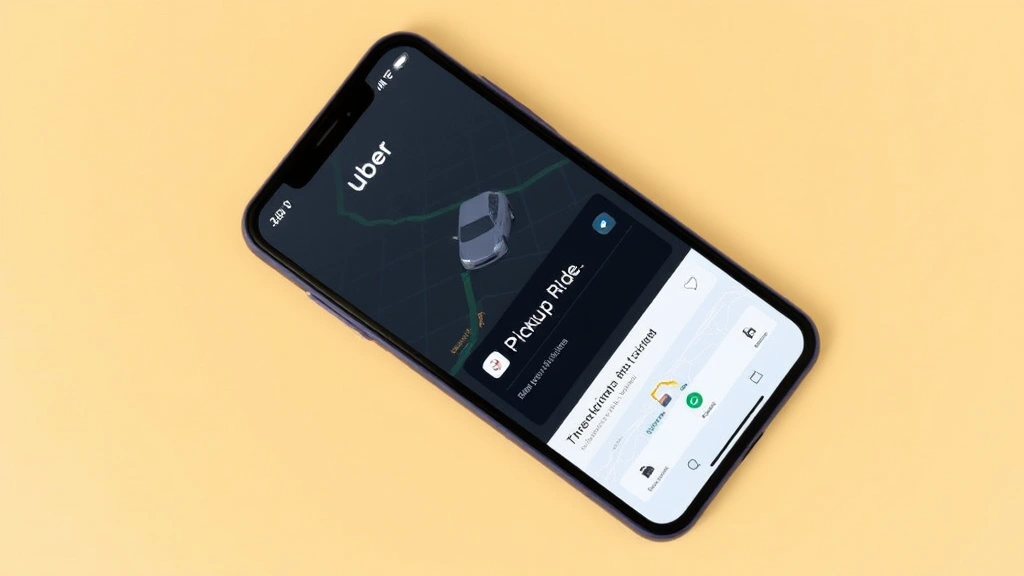
Let’s be honest—sometimes a straight shot from point A to point B just doesn’t cut it. Maybe you need to grab your friend from another location, pick up groceries, or make a quick bank run before heading home. The good news? Uber’s stop feature lets you do exactly that without ending your ride and requesting a new one. In this guide, I’ll walk you through how to add a stop on Uber, explain when it makes sense to use it, and share the real-world gotchas that’ll save you time and money.
Adding stops to your Uber ride is straightforward once you know where to look, but there are some nuances that separate smooth multi-stop trips from frustrating ones. Let’s dig in.
Before You Start: What You Need to Know
Not all Uber services support stops. This is the first thing to understand. If you’re using Uber X, Uber Comfort, or Uber XL, you’re good to go. If you’re using Uber Eats, Uber Black, or Uber Pool (where available), the stop feature either isn’t available or works differently.
Your driver also needs to accept the stop request. Think of it like this: you’re asking the driver to deviate from the most direct route. Most drivers are fine with it, especially if the stop is quick and on the way. But if you’re asking them to go significantly out of their way, they might decline. That’s where communication comes in.
One more thing—the Uber app needs to be updated. If you’re running an old version, the stop feature might not appear. Check your app store (iOS or Android) and make sure you’re on the latest version. This is one of those silent killers where people think the feature doesn’t exist when really they just need an update.
Pro Tip: The stop feature works best when your additional stop is genuinely on the way to your final destination. A 2-minute detour? Driver will likely accept. A 10-minute detour in the opposite direction? You might get declined, or the driver might cancel after accepting.
How to Add a Stop on Uber: Step-by-Step Instructions
Here’s the real, practical way to add a stop on Uber:
- Open the Uber app and request your ride as normal. Enter your pickup location and your final destination. Don’t request yet if you know you need a stop—or do it anyway; you can add stops after the driver accepts.
- Request the ride and wait for a driver to accept. Once a driver is assigned and heading your way, the interface changes slightly.
- Look for the stop icon (it looks like a plus sign or a small circle with a plus) near the top of the ride screen. On most phones, this appears in the upper portion of the active ride display, often near where it shows your driver’s name and vehicle info.
- Tap the stop button. This opens a menu where you can add a new location.
- Search for your stop location using the search bar. You can type an address, business name, or intersection. Uber will show you suggestions as you type.
- Select your stop from the results. Make sure it’s the right place—typos here cause real headaches.
- Confirm the stop. The app will show you the updated route and any changes to your fare estimate.
- Wait for driver confirmation. The driver gets a notification about the new stop and can accept or decline it. Most accept, but not all. If they decline, you’ll see a message and can try to contact them or request a different stop.
That’s it. Once the driver accepts, you’re locked in. The navigation will update to include the stop, and you’re good to go.
Adding Multiple Stops to One Ride
Want to hit three places in one trip? You can add up to two stops on a single Uber ride (some regions allow more, but two is the standard). The process is the same as adding one stop—just repeat the steps above after your first stop is confirmed.
Here’s where strategy matters: order your stops logically. If you’re going to Location A, then B, then C as your final destination, enter them in that order. Uber’s algorithm will figure out the best route, but you’re setting the waypoints. If you get the order wrong, you’ll end up backtracking, which wastes time and money.
The driver sees all stops before they fully accept the ride. Some drivers will decline a two-stop request if they think it’s going to take too long or if the stops are spread out. This is why communication matters—if you can see the driver’s profile, you might send a quick message saying “Both stops are quick, I promise” or give them a heads-up about what you’re doing.
Safety Warning: Don’t add stops after the ride has already started if you’re trying to be sneaky about it. Drivers notice, and it erodes trust. If you know you need multiple stops, add them upfront or be transparent about it before requesting the ride.
Understanding Wait Times and Pricing

This is where a lot of people get confused. When you add a stop, your fare doesn’t automatically double. Instead, Uber calculates the total distance and time for the entire trip—pickup to stop one, stop one to stop two (if applicable), and stop two to final destination—and charges you based on that total.
However, wait time charges apply. If you’re sitting at a stop for five minutes while your friend runs into a store, you’re paying for that wait time. The rate is usually lower than the per-mile rate (something like $0.45 per minute vs. $1.25 per mile, but this varies by location). Still, it adds up. A 10-minute stop can cost you $4-5 just in wait time.
Here’s the real talk: sometimes it’s cheaper to end the ride and request a new one than to add a stop and wait. Do the math. If your stop is going to take 15 minutes and you’re in a surge-pricing situation, you might save money by having the driver drop you off, requesting a new ride, and having them pick you back up. It sounds inefficient, but the numbers don’t lie sometimes.
The pricing model is transparent in the app. When you add a stop, Uber shows you the new estimated fare before the driver confirms. Look at that number. If it seems high, you know why—it’s the cumulative distance plus wait time. You can always cancel the stop request and try a different approach.
Common Issues and How to Fix Them
Problem: The stop button isn’t showing up.
– First, check that your app is updated. Go to your app store and install any pending updates. Second, make sure you’re using a compatible Uber service (X, Comfort, XL). Third, some regions don’t support stops yet. If you’re traveling internationally or in a smaller market, the feature might not be available. Check Uber’s help section for your region.
Problem: The driver declined my stop request.
– This happens. The driver might think the stop is too far out of the way, or they might be in a rush. You have two options: (1) message the driver and ask if they’d accept it anyway, or (2) cancel the stop request and proceed to your original destination. If you cancel, the driver doesn’t know you tried to add a stop, so there’s no awkwardness. If you want to add a different stop, try again—a different driver might accept.
Problem: I added the wrong stop location.
– If the driver hasn’t started navigating yet, you can delete the stop and add a new one. Once navigation has started and the driver is heading toward the stop, you can still modify it, but it’s trickier. Your best bet is to message the driver with the correct address and ask if they can navigate there instead. Most will help you out.
Problem: The app is showing a stop fee that seems high.
– Uber doesn’t charge a separate “stop fee” in most regions, but surge pricing and wait-time charges can make the total fare feel inflated. If you’re in a surge-pricing situation, the per-mile rate is higher, which increases the total fare. This is normal, not a bug. If you’re concerned about the cost, wait a few minutes to see if surge pricing drops, or just proceed knowing what you’re paying for.
Pro Tips for Smooth Multi-Stop Rides
1. Be quick at your stops. The faster you are, the less you pay in wait time. If you’re running into a store, grab what you need and get back to the car. Drivers appreciate efficiency, and so does your wallet.
2. Communicate with your driver. If you’re adding a stop, send a quick message: “Hey, adding a quick stop at [location], should only take 2 minutes.” This sets expectations and makes the driver more likely to accept. It’s the difference between a smooth trip and a tense one.
3. Add stops before the ride starts, if possible. If you know you need multiple stops, add them when you request the ride. This gives the driver a full picture upfront and increases the chance they’ll accept. Adding stops after they’re already en route feels like a surprise, even if it’s allowed.
4. Order your stops strategically. The most efficient route isn’t always obvious. If you’re going from home to work with a coffee stop in between, make sure the coffee shop is actually on the way. Uber’s algorithm helps, but you know your city better than the app does.
5. Use the stop feature for short detours, not major side trips. If your stop is 10+ minutes out of the way, the driver will likely decline. This feature is designed for quick, logical stops—not for turning a point-to-point ride into a three-hour errand run.
6. Check the updated route map. When you add a stop, the app shows you the new route. Look at it. Make sure the order makes sense and the navigation looks right. A quick visual check prevents a lot of headaches.
Pro Tip: If you’re a frequent multi-stop rider, consider using planning tools and apps to map your route before requesting the Uber. This way, you know the stops are in the right order and won’t surprise the driver.
Uber X vs. Uber Eats: When to Use Each
This is a common source of confusion. Uber X is for people—you’re the passenger. Uber Eats is for food—the driver is picking up and delivering food, and you’re the customer receiving it.
The stop feature works on Uber X rides. You can’t add stops to an Uber Eats delivery because the driver isn’t your personal transportation; they’re a courier. If you want to add a stop to an Uber Eats order, that’s not how the service works. You’d need to request a separate Uber X ride for yourself and use the stop feature there.
If you’re trying to add a stop to an Uber Eats delivery (like “pick up my food and drop it at my office instead of my home”), that’s a different conversation. You’d need to contact Uber support or modify the delivery address before the driver starts the delivery. Once they’re en route with your food, you can’t add stops.
For personal transportation, stick with Uber X. For food delivery, stick with Uber Eats. Don’t try to mix them.
Frequently Asked Questions
Can I add a stop if the driver is already on the way to pick me up?
– Yes, you can add a stop after a driver accepts your ride, even if they’re already heading toward your pickup location. However, the driver needs to confirm the stop. If they’re close to your pickup point, they might decline because adding a stop would change their route. Your best bet is to wait until they’ve picked you up and are heading toward your destination.
What happens if I don’t tell the driver about the stop beforehand?
– The driver will get a notification when you add the stop, and they can accept or decline. If you don’t communicate verbally or via the app, the driver might be surprised, but they’ll see it in the app. It’s not against the rules, but it’s better practice to give them a heads-up, especially if it’s a longer stop.
Can I add a stop to an Uber Black or Uber Eats ride?
– No. Stops are available on Uber X, Uber Comfort, and Uber XL. Uber Black and Uber Eats have different service models and don’t support the stop feature. If you need a premium ride with stops, Uber Comfort is your best bet.
How much extra does adding a stop cost?
– There’s no flat fee for adding a stop. You pay based on the total distance and time for the entire trip, plus any wait-time charges. Uber shows you the updated fare estimate when you add the stop, so you’ll know the cost before the driver confirms.
What if the driver cancels after I add a stop?
– If a driver cancels after you add a stop, you’ll get a notification. You can request a new ride, and if you still need the stop, you can add it to the new request. There’s no penalty for you—cancellations happen, and Uber handles them on the backend.
Can I modify a stop after the driver starts heading toward it?
– Yes, you can modify the stop location by tapping the stop and editing the address. However, if the driver is already navigating to the original stop, they might not see the change immediately. It’s better to message them with the updated address to make sure they’re aware.
Is there a time limit for how long I can stay at a stop?
– Technically, no. But practically, yes. You’re paying for wait time, and the driver is waiting. Most drivers are patient for 5-10 minutes. After that, they might get frustrated or cancel the ride. The longer you take, the more you pay. Use common sense and be respectful of the driver’s time.
Can I add a stop if I’m using a shared ride or pool option?
– No. Shared rides (Uber Pool, where available) and other shared options don’t support stops. The stop feature is only available on solo rides like Uber X, Comfort, and XL.
What’s the difference between adding a stop and just requesting a new ride?
– Adding a stop keeps the same driver and ride session. You pay one fare for the entire trip. Requesting a new ride after the first one ends means a new driver, a new pickup, and two separate fares. Adding a stop is usually cheaper and more efficient if the stops are on the way to your final destination.
Can the driver refuse to take me to my final destination after a stop?
– No. Once you’ve added a stop and the driver has accepted, they’re committed to taking you through all stops to your final destination. If they cancel mid-trip, that’s a violation of Uber’s terms, and you can report it. However, if you’re being disruptive or the situation becomes unsafe, the driver can end the ride and cancel.
Final Thoughts on How to Add a Stop on Uber
Adding a stop on Uber is a straightforward feature that saves time and money when used correctly. The key is understanding that it’s not a free feature—you’re paying for the extra distance and wait time—and being respectful of your driver’s time and route. Communicate clearly, order your stops logically, and be quick at each location. Done right, multi-stop rides are one of Uber’s best features. Done wrong, they’re a source of frustration for both you and your driver.
The stop feature works best when it’s a genuine detour on the way to your final destination, not a major side trip. If you’re thinking of using Uber as a personal errand service with multiple long stops, you might want to reconsider. But for grabbing a friend, picking up groceries, or making a quick bank run? It’s perfect.
One more thing—if you’re managing multiple digital services and apps, you might also want to learn how to forward calls on iPhone so you don’t miss important notifications while you’re in transit. Similarly, if you’re coordinating with others or managing your digital life, knowing how to cancel a Zelle payment can be useful if you’re splitting ride costs with friends. And if you’re streaming entertainment during downtime, you might find our guide on how to program Firestick remote helpful for managing your home setup.
For more detailed information about ride-sharing best practices and safety, check out resources from established travel and transportation guides, or visit trusted consumer advice platforms for rider reviews and feedback.


