
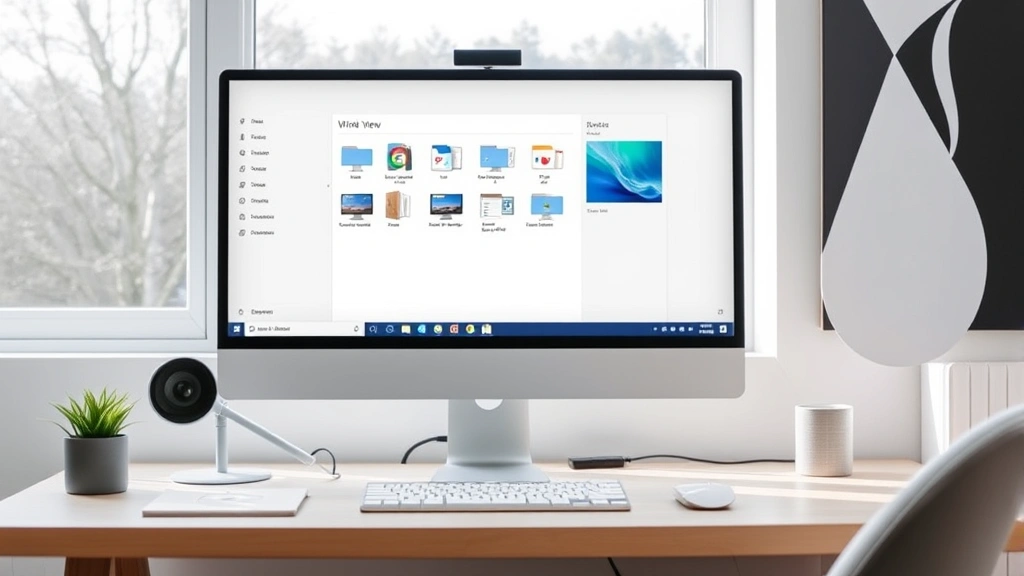
Let’s be honest—if you’re juggling multiple projects, browser tabs, or work environments on your computer, you’ve probably felt that familiar frustration of window chaos. Your screen becomes a mess of overlapping applications, and finding what you need takes forever. The good news? Learning how to switch desktops is one of the quickest productivity wins you can grab, whether you’re on Windows, Mac, or Linux. Virtual desktops (also called workspaces) let you organize your digital workspace like having multiple monitors without the hardware cost. This guide walks you through the exact steps to master desktop switching on any system.
What Are Virtual Desktops?
Virtual desktops are separate workspaces on a single monitor. Think of them like having multiple physical desks—one for email and communication, another for design work, a third for coding or spreadsheets. Instead of cramming everything onto one screen, you flip between organized, clutter-free environments. This isn’t some fancy feature buried in settings; it’s built into every modern operating system. The beauty is that once you understand how to switch desktops efficiently, your productivity jumps because your brain isn’t fighting visual clutter anymore.
The concept has been around in Linux for decades, but Windows 10 brought it mainstream, and Mac has had it for years too. Each desktop can have its own set of open applications, and switching between them takes a single keystroke or gesture.
How to Switch Desktops on Windows
Windows makes desktop switching ridiculously simple once you know the trick. Here’s the real-world process:
Creating Your First Virtual Desktop
- Press Windows Key + Tab to open Task View. This is your command center for everything desktop-related.
- Look at the top left of the screen—you’ll see “New desktop” or a “+” button. Click it.
- Boom. You’ve got Desktop 2. You can create as many as you want (though realistically, 3-5 is the sweet spot before you lose track).
That’s genuinely it. No complicated menus, no digging through settings.
Switching Between Desktops
Once you’ve created multiple desktops, switching is even faster:
- Keyboard shortcut (fastest): Press Windows Key + Ctrl + Right Arrow to move to the next desktop. Press Windows Key + Ctrl + Left Arrow to go back.
- Using Task View: Press Windows Key + Tab, then click the desktop you want.
- Alt+Tab within desktops: You can also use Alt + Tab to switch between applications on your current desktop only.
Pro Tip: Name your desktops something meaningful. Right-click a desktop in Task View and rename it to “Work,” “Creative,” “Gaming,” etc. You’ll switch faster because you know exactly where you’re going.
Moving Applications Between Desktops
Here’s where it gets powerful. Say you open an application on Desktop 1 but want it on Desktop 2:
- Right-click the application in Task View.
- Select “Move to” and choose your target desktop.
- Or drag the application window directly onto another desktop thumbnail in Task View.
This is game-changing for workflow organization. Keep your email and Slack on Desktop 1, design tools on Desktop 2, and spreadsheets on Desktop 3. No more context switching chaos.
How to Switch Desktops on Mac
Mac calls them “Spaces,” and the workflow is slightly different but equally intuitive.
Setting Up Spaces on Mac
- Open Mission Control by pressing F3 (or Control + Up Arrow on newer Macs). You’ll see all your open windows and existing spaces.
- In the top-right corner, click the “+” to add a new space.
- Mac will create a blank desktop ready for use.
Switching Between Spaces
Mac offers multiple ways to switch desktops, and you can pick whatever feels natural:
- Trackpad gesture (most natural): Swipe left or right with four fingers on your trackpad. This is the fastest method once it becomes muscle memory.
- Keyboard shortcut: Press Control + Right Arrow or Control + Left Arrow.
- Mission Control: Open Mission Control and click the space you want.
Real talk: the trackpad gesture is why Mac users often feel faster at desktop switching. It’s tactile and immediate. But the keyboard shortcut is equally valid if you’re at a desk with an external keyboard.
Assigning Applications to Specific Spaces
Mac lets you “stick” applications to specific spaces so they always open there:
- Open an application.
- Right-click its dock icon and select Options.
- Choose Assign To and pick your desired space (or “All Spaces” if you want it everywhere).
This is brilliant for keeping your workflow consistent. Safari always on Space 1, design tools on Space 2, terminal on Space 3.
How to Switch Desktops on Linux
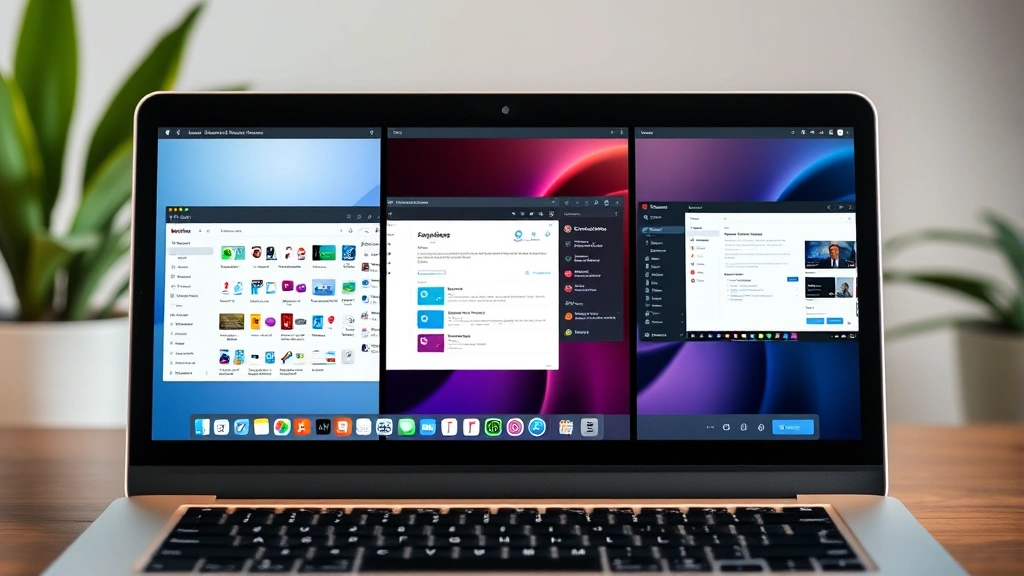
Linux is where virtual desktops originated, so the implementation is mature and flexible. Different desktop environments handle this slightly differently, but the concept is universal.
Ubuntu/GNOME Desktop Switching
- Press Super (Windows Key) + S to open the Activities overview.
- You’ll see your workspaces on the right side of the screen.
- Click a workspace to switch to it, or use Ctrl + Alt + Right/Left Arrow for keyboard navigation.
KDE Plasma Desktop Switching
KDE is highly customizable, but the default setup works like this:
- Press Ctrl + Alt + Right/Left Arrow to move between desktops.
- Or access the desktop switcher widget (usually in the bottom-right corner) and click your target desktop.
Creating New Workspaces in Linux
This varies by distro, but generally:
- Right-click on the workspace switcher widget.
- Select “Add Workspace” or similar option.
- Some distributions let you configure the number of workspaces in system settings.
Linux users often run 4-6 workspaces because the keyboard shortcuts are so fast. It’s a legitimate productivity advantage.
Pro Tips for Desktop Workflow
Organize by Context, Not Application Type
Instead of “all browsers on Desktop 1,” think about your actual workflow. Desktop 1 could be “Morning Routine” (email, calendar, messaging). Desktop 2 is “Deep Work” (your main project). Desktop 3 is “Reference” (documentation, research). This mental model is more powerful than technical organization.
Use Keyboard Shortcuts Exclusively
Once you memorize the shortcuts for your system, you’ll switch desktops faster than opening a new window. Muscle memory is your friend. If you’re learning how to right-click on a laptop for the first time, desktop switching shortcuts will feel natural by comparison.
Combine with Other Tools
Desktop switching pairs beautifully with other productivity tools. Use screenshotting on your notebook to capture work from different desktops, or use window managers to snap applications to specific areas of your screen within each desktop.
Safety Note: When switching desktops, make sure you’re not leaving sensitive information visible on an unattended machine. Desktop switching is fast enough that you can quickly hide work if someone approaches, but it’s not a security feature—use proper screen locking for that.
Experiment with 3-5 Desktops First
Don’t go crazy creating 10 desktops. You’ll forget which is which. Start with three: Communication, Work, and Personal. Once that feels natural, add a fourth for Reference or Admin tasks. This prevents cognitive overload.
Use Descriptive Naming (Windows)
Since Windows lets you rename desktops, do it. “Email & Chat,” “Design,” “Development,” “Admin” are way better than “Desktop 1, Desktop 2…” You’ll switch faster because your brain knows exactly where to go.
Troubleshooting Common Issues
Desktop Switching Shortcuts Not Working
On Windows: Check if another application has claimed the keyboard shortcut. Open Settings → System → Multitasking and verify that virtual desktops are enabled. If you’re using a third-party window manager, it might override Windows shortcuts.
On Mac: Go to System Preferences → Keyboard → Shortcuts → Mission Control and make sure the switching shortcuts are enabled and not conflicting with other apps.
On Linux: Your desktop environment settings control this. In GNOME, check Settings → Keyboard → View and Customize Shortcuts. In KDE, it’s System Settings → Shortcuts.
Applications Opening on Wrong Desktop
This usually happens because you haven’t set application assignments. Go back to the application assignment steps above (Mac’s dock options or Windows’ Task View right-click menu) and explicitly assign apps to their home desktops.
Forgetting Which Desktop You’re On
Real problem, real solution. On Windows, the taskbar shows which desktop you’re on. On Mac, Mission Control shows your current space clearly. On Linux, the workspace switcher widget highlights your active workspace. Get in the habit of glancing at these indicators until desktop switching becomes automatic.
Performance Lag When Switching
If your computer stutters when switching desktops, you’re likely running too many heavy applications. Close unnecessary programs or upgrade your RAM. Desktop switching itself is lightweight—the lag is from your system being overloaded.
According to Family Handyman’s productivity guides, organizing your digital workspace is as important as organizing your physical one. The same principles apply: eliminate clutter, create zones for different activities, and maintain consistency.
Frequently Asked Questions
Can I have different wallpapers for each desktop?
– On Windows, unfortunately no—the wallpaper stays the same across all desktops. On Mac and Linux, you can set different wallpapers per space. It’s a minor visual difference that doesn’t affect functionality, but Mac and Linux users do get this aesthetic advantage.
Will switching desktops close my applications?
– No. When you switch desktops, all applications on the desktop you leave keep running in the background. They’re just hidden from view. This is the entire point—you can have heavy applications running on different desktops without them competing for screen real estate.
How many desktops should I create?
– Start with three. Most people find that 3-5 desktops hit the sweet spot. More than that, and you’ll spend time remembering where things are instead of actually working. Quality over quantity.
Is there a limit to how many desktops I can create?
– Technically, Windows and Mac don’t have a hard limit, but practically, your system performance will degrade if you create dozens. Linux can handle more, but again, usability drops after 8-10.
Can I customize the order of my desktops?
– On Windows, yes—drag desktops in Task View to reorder them. On Mac, you can reorder spaces in Mission Control by dragging. On Linux, it depends on your desktop environment, but GNOME and KDE both allow reordering.
What’s the difference between desktop switching and Alt+Tab?
– Alt+Tab switches between applications on your current desktop. Desktop switching moves you to an entirely different workspace. They’re complementary—use Alt+Tab within a desktop for quick app switching, and use desktop shortcuts to jump between contexts.
Will I lose my work if I switch desktops?
– No. Switching desktops is purely a visibility thing. Everything keeps running, saving, and syncing exactly as it would if everything were on one screen.
Can I move a window between desktops without using Task View?
– On Windows, Task View is the easiest method, but you can also drag windows between desktops if you have multiple visible. On Mac, you can drag windows in Mission Control. On Linux, it depends on your window manager—some support dragging, others require right-click options.
Is desktop switching faster than using multiple monitors?
– Different tools, different purposes. Multiple monitors let you see everything at once (better for comparing documents). Desktop switching keeps you focused on one context at a time (better for deep work). Ideally, use both if you can afford the hardware.
Do gaming consoles have desktop switching?
– Not in the traditional sense, but gaming systems have similar context-switching features. If you’re curious about other device controls, check out guides on syncing Wii remotes or resetting Firestick remotes for similar organizational benefits on entertainment devices.
Can I automate desktop switching?
– On Windows, third-party tools like AutoHotkey can script desktop switching. On Mac, AppleScript can automate space changes. On Linux, shell scripts can control workspaces. For most users, the built-in shortcuts are fast enough that automation isn’t necessary.

Learning how to switch desktops is one of those skills that seems small until you actually use it—then you wonder how you ever worked without it. The keystroke is faster than reaching for your mouse, the mental clarity of organized workspaces is immediate, and the productivity boost compounds over time. Whether you’re on Windows, Mac, or Linux, the principle is identical: separate your work into logical spaces and switch between them with a single action. Start with three desktops tomorrow, use them for a week, and you’ll understand why this is one of the most underrated productivity features in modern computing.
For more on digital organization and workspace optimization, This Old House’s tech section covers how physical and digital organization principles overlap. And if you’re setting up a new workstation, Bob Vila’s guides include ergonomic considerations that pair well with desktop switching—good posture and organized workspaces go hand in hand. Finally, for accessibility considerations, OSHA guidelines on computer workstations recommend taking breaks between focused work sessions—desktop switching helps enforce those breaks by creating natural context boundaries.


