
Screen recording on Mac is super handy—until you need to figure out how to stop screen recording on Mac and realize you’re not quite sure where to look. You’ve hit record, captured what you needed, and now you’re staring at your screen wondering if you’re still recording or if it already stopped. Sound familiar? The good news: stopping a screen recording on Mac is actually dead simple once you know where to find the controls. It’s not buried in some weird menu or hidden behind keyboard shortcuts you’ll never remember. Let me walk you through the exact steps, plus some pro tips that’ll save you headaches down the road.
Quick Answer: How to Stop Screen Recording on Mac
The fastest way to stop screen recording on Mac is to click the red recording button in your menu bar (top right of your screen) and select “Stop Recording” from the dropdown. Alternatively, press Command + Control + Esc to kill the recording instantly. That’s it. Your file saves automatically to your Desktop by default. No extra steps, no weird confirmation dialogs.
If you’re using a third-party app like ScreenFlow or QuickTime Player, the process varies slightly, but the principle is the same: find the stop button and click it. We’ll cover all those variations below.
The Built-In Method: Using Screenshot Tool
Apple baked screen recording directly into macOS back in Mojave (2018), and it’s been getting better ever since. Here’s the real-world workflow:
- Press Shift + Command + 5 to open the Screenshot and screen recording toolbar
- You’ll see a row of options at the bottom of your screen. Click the one that looks like a video camera icon (usually the fourth or fifth button)
- Choose whether you want to record your entire screen or just a portion of it
- Click the Record button to start
- When you’re done, click the red recording indicator in your menu bar (top right)
- Select Stop Recording from the menu
- Your video saves to Desktop automatically (unless you’ve changed the default location)
This method is honestly the gold standard because it requires zero extra software. You’re not installing anything sketchy, you’re not dealing with trial versions that nag you, and the quality is solid for most use cases—tutorials, demos, presentations, that kind of thing.
Pro Tip: Before you hit record, think about where you want that video to end up. You can change the default save location in the Screenshot tool options. Click the menu that says “Other Location” or “Desktop” to pick a custom folder. This saves you from digging through your Desktop later.
Stopping Recording from the Menu Bar
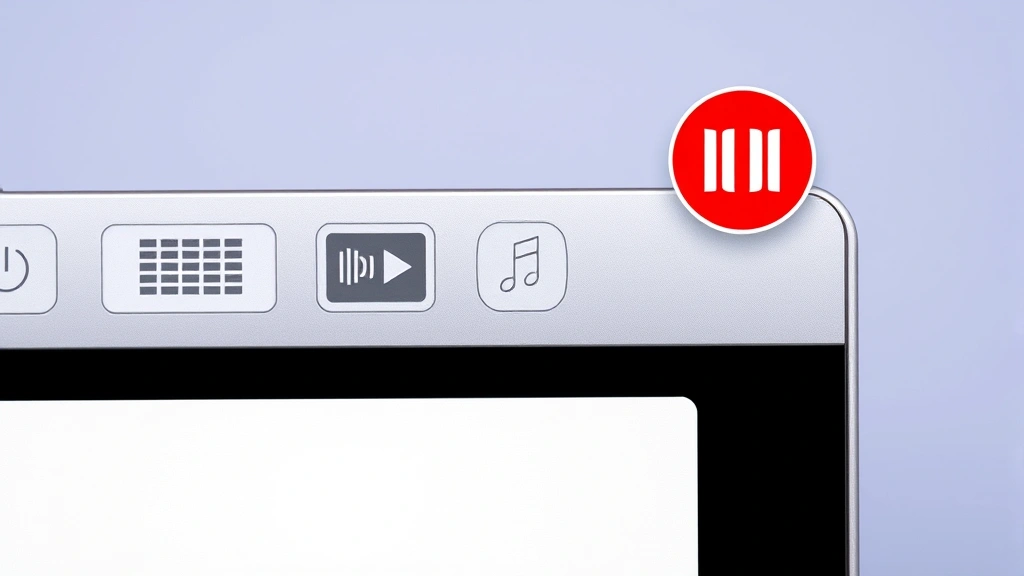
Once you’ve started recording, your Mac puts a visual reminder right in your menu bar. That red circle icon is your friend. Here’s what it looks like and how to use it:
- Red circle icon appears in top-right corner of your menu bar as soon as recording starts
- Click it once and a small menu pops down
- Select “Stop Recording” from that menu
- A notification appears asking where you want to save the file
- Choose your location (Desktop, Documents, custom folder, etc.) and click Save
The menu bar control is your most reliable way to stop screen recording on Mac because it’s always visible and always accessible, no matter what app you’re recording or what’s on your screen. You could be in the middle of editing, gaming, or scrolling through social media—that red icon stays put.
One thing to know: the menu bar gets crowded on some Macs, especially if you’ve got a bunch of third-party apps running. If the red circle disappears into the “…” overflow menu, just click that and you’ll find your recording control there.
Keyboard Shortcut Method
If you’re a keyboard person (and honestly, who isn’t when they’re in the zone), there’s a shortcut to stop screen recording on Mac without touching your trackpad or mouse:
Command + Control + Esc
That’s it. Press those three keys together and your recording stops immediately. Your file saves automatically to the default location (usually Desktop). This is hands-down the fastest method if you’re doing back-to-back recordings or you’re in the middle of something where clicking is annoying.
The keyboard shortcut works from anywhere—doesn’t matter what app you’re in or what’s on your screen. It’s like an eject button for your recording.
Safety Note: Make sure you actually want to stop before you hit this combo. There’s no confirmation dialog, so the recording ends right then and there. If you were planning to capture another five seconds, you’re out of luck.
Third-Party Apps and Their Controls
If you’re using something beyond Apple’s built-in tool, the process changes slightly depending on which app you picked. Let’s cover the heavy hitters:
QuickTime Player
QuickTime’s been around forever and it’s still solid for basic recordings:
- Open QuickTime Player from Applications > Utilities
- Go to File > New Screen Recording
- Click the red record button in the small window that appears
- Choose your screen or portion of screen
- Click Start Recording
- When done, click the red stop button in the QuickTime Player window
- Save your file manually (File > Save)
QuickTime gives you a bit more control over quality and format, but it requires an extra save step. The built-in tool is faster for most people.
ScreenFlow
ScreenFlow is professional-grade and popular with tutorial creators:
- Open ScreenFlow and configure your settings
- Click the red record button
- Do your thing
- Click the red stop button (same spot)
- Your recording appears in the ScreenFlow editor automatically
- Export when ready (File > Export)
ScreenFlow costs money but gives you editing tools built in, which is nice if you want to trim clips or add annotations without jumping to another app.
OBS Studio (Open Broadcaster Software)
OBS is free and incredibly powerful, but it’s got more buttons:
- Open OBS and set up your scene
- Click Start Recording button (red, easy to find)
- Click Stop Recording when you’re done
- Your file saves to the location you set in Settings > Output > Recording
OBS is overkill for simple screen recordings but brilliant if you’re doing streaming or complex multi-source captures.
Real Talk: Unless you need professional editing features or streaming capability, stick with Apple’s built-in tool. It’s faster, requires no learning curve, and produces good quality. Save the third-party apps for when you actually need their special powers.
Where Your Recording Gets Saved
This trips up a lot of people. They stop recording and then can’t find their video. Here’s the deal:
Default location: Desktop (for Apple’s built-in tool)
To change where your videos save:
- Press Shift + Command + 5 to open the screenshot toolbar
- Click the Options menu (looks like three dots or a gear icon)
- Look for “Save to” or “Other Location”
- Pick your preferred folder (Documents, Downloads, a custom folder, etc.)
- All future recordings will save there automatically
If you’re using QuickTime or a third-party app, check that app’s preferences for the default save location. Most let you pick a custom folder so your videos don’t scatter all over your Mac.
Pro move: create a dedicated folder like “Screen Recordings” in Documents and point everything there. Makes finding your files way easier later.
Troubleshooting Common Issues
The Red Menu Bar Icon Won’t Appear
This usually means the screenshot tool didn’t launch properly. Try again:
- Press Shift + Command + 5
- Wait a full second for the toolbar to appear
- Make sure you’re clicking the video camera icon, not the photo camera
- If it still doesn’t work, restart your Mac
Recording Stops Unexpectedly
A few things cause this:
- Low disk space: Your Mac ran out of room. Check how much free space you have (Apple menu > About This Mac > Storage). You need at least a few GB free for decent-length recordings.
- App crash: Rare but happens. Try the recording again.
- Screen goes to sleep: Disable sleep mode before long recordings (System Preferences > Energy Saver)
Can’t Find Your Video After Stopping
Check these places in order:
- Your Desktop (look for a file with today’s date)
- Documents folder
- Downloads folder
- Use Spotlight search: Press Command + Space, type the date or “screen recording”, hit Enter
If you genuinely can’t find it, open the Screenshot tool again and check the “Save to” location. Your file went wherever you told it to go.
Video Quality Is Terrible
The built-in tool captures at your screen’s native resolution. If your video looks pixelated:
- You might be recording a portion that’s too small. Try recording your full screen instead.
- Your Mac might be struggling (check how to check CPU temp to see if your processor is maxed out)
- Third-party apps like ScreenFlow give you quality options if you need them
Heads Up: Screen recordings eat disk space fast. A 10-minute recording at 1080p can be 500MB or more. Keep an eye on your storage if you’re doing a lot of recording.
Frequently Asked Questions
Is there a keyboard shortcut to start recording?
– Not a single shortcut, but Shift + Command + 5 opens the screenshot toolbar and gets you one click away from recording. Some third-party apps have custom shortcuts you can set in preferences.
Can I stop a screen recording without saving it?
– With Apple’s built-in tool, when you stop recording, a save dialog appears. You can click “Don’t Save” if you want to ditch the video. Third-party apps vary—check their preferences.
Does screen recording work on external monitors?
– Yes. When you press Shift + Command + 5, you’ll see options to record a specific screen if you have multiple monitors connected. Pick which one you want.
Can I record audio while screen recording?
– The built-in tool records system audio by default. If you want to add microphone audio, you’ll need a third-party app like ScreenFlow or OBS. Check the Options menu in the screenshot tool—there’s usually an audio input selector.
How long can I record for?
– Technically unlimited, but practically limited by your disk space. A 2-hour recording at 1080p could be 5GB+. Make sure you’ve got room.
Will screen recording slow down my Mac?
– It uses some CPU and disk resources, but modern Macs handle it fine. You might notice slight lag if you’re also running heavy apps. Close unnecessary programs before recording if you need smooth performance.
Can I edit the video after stopping the recording?
– The built-in tool just captures—no editing. You can edit in QuickTime Player (trim, rotate, etc.) or move the file to Final Cut Pro, Adobe Premiere, or even iMovie for more control. If you want built-in editing, ScreenFlow includes that.
What if I accidentally recorded something private?
– Delete the file immediately. Find it on your Desktop or wherever it saved, right-click, and select how to right-click on a Mac if you need a refresher on the process, then Move to Trash. Empty your Trash and it’s gone.

Can I record multiple screens at once?
– The built-in tool records one screen at a time. If you need multi-screen recording, OBS Studio or ScreenFlow can handle it, though it’s more complex to set up.
Does how to stop screen recording on Mac differ between Big Sur, Monterey, and Ventura?
– Not significantly. The process has been consistent since Mojave. The keyboard shortcut, menu bar control, and save location all work the same way across modern macOS versions.


