
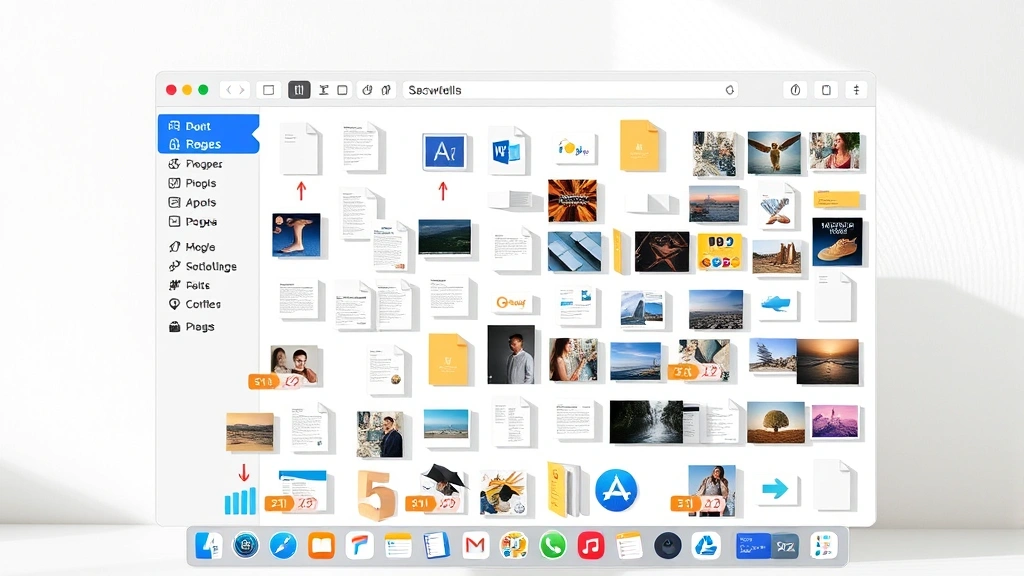
If you’re wrestling with your Mac’s file system and wondering how to select multiple files on Mac without losing your mind, you’re not alone. Whether you’re organizing a photo library, batch-deleting old documents, or moving files to a new folder, selecting multiple files is one of those skills that feels obvious once you know it—but totally obscure before that. The good news? It’s dead simple, and there are actually several ways to do it depending on what works best for your workflow.
Let’s cut through the confusion and get you comfortable selecting multiple files on Mac in about five minutes. No tech jargon, no unnecessary steps—just the real, practical methods that actually work.
Click and Drag to Select Multiple Files
The most intuitive way to select multiple files on Mac is the old-fashioned click-and-drag method. Open your Finder window, position your cursor in an empty area near the files you want to select, then click and drag to create an invisible selection box around them. Any file that touches this box gets selected.
Here’s how it works step-by-step:
- Open Finder and navigate to the folder containing your files
- Click in an empty area (not on a file)
- Hold down the mouse button and drag diagonally across the files you want to select
- Release the mouse button—all files within the selection box are now highlighted
This method is perfect when your files are clustered together in one area. The downside? If your files are scattered all over the place, you’ll end up selecting files you don’t want. That’s when you need the other methods.
Pro Tip: If you accidentally select a file you don’t want, hold Command and click on it to deselect just that one file while keeping the others selected.
Using Command Key for Non-Consecutive Files
This is the workhorse method for how to select multiple files on Mac when they’re not sitting next to each other. The Command key (⌘) is your best friend here.
Here’s the process:
- Click on the first file you want to select
- Hold down the Command key (⌘)
- While holding Command, click on each additional file you want to select
- Release Command when you’re done
You can select as many files as you want this way—five, fifty, or five hundred. Each click while holding Command adds that file to your selection without deselecting the others. Think of Command as “add this one to the pile without removing what’s already there.”
This method works great when your files are scattered throughout the folder. You might be selecting a photo from January, another from March, and one more from December—and Command makes it easy to grab them all without touching anything in between.
Real Talk: If you mess up and want to start over, just click on an empty area of the Finder window to deselect everything, then start fresh. No shame in that.
Using Shift Key for Consecutive Files
When your files are arranged in a list and you want to select a range from one file to another, the Shift key is your fastest option. This is how to select multiple files on Mac when they’re in a sequence.
Here’s the method:
- Click on the first file in the range you want to select
- Hold down the Shift key
- Click on the last file in the range you want to select
- Everything between those two files (inclusive) is now selected
For example, if you have files named Document 1 through Document 10, and you want to select Documents 3 through 7, you’d click on Document 3, hold Shift, then click on Document 7. Boom—five files selected instantly.
This method is faster than Command-clicking when you have a long consecutive range, especially in list view where files are ordered vertically. It’s like saying “give me everything from here to there” instead of clicking each one individually.
Select All Files at Once

Sometimes you just want everything in a folder. The keyboard shortcut for this is simple: Command+A.
- Open the folder in Finder
- Press Command+A
- Every file and folder in that directory is now selected
This is useful when you’re moving or copying an entire folder’s contents, or when you need to perform an action on everything at once. However, be careful—if you have subfolders, Command+A selects those too. There’s no “select all files but not folders” built-in command, so you’ll need to manually deselect folders if that’s what you need.
After selecting all files, you can still use Command+click to deselect specific files you don’t want included in whatever action you’re about to perform.
Different Methods by Finder View
The way you select multiple files on Mac can vary slightly depending on which view you’re using in Finder. Let’s break down the main ones:
Icon View
In Icon View, files appear as large thumbnails. Click and drag works best here—you can easily draw a selection box around the icons you want. Command+click and Shift+click also work, but they’re less visual since the icons are spread out.
List View
This is where Shift+click really shines. Files are arranged in rows, so selecting a range from row 3 to row 10 is lightning-fast. Command+click is also very clean here since each file has its own row.
Column View
Column View shows files in vertical columns. Click and drag still works, but Command+click is usually more practical since the layout can be confusing for drag selection.
Gallery View
In Gallery View, you’re looking at a preview of selected files. Command+click works well here, and Shift+click if you’re viewing files in a list format within the gallery.
Pro Tip: You can change your Finder view by going to View menu > as Icons, List, Columns, or Gallery. Experiment to find which view works best for how you organize your files.
What to Do After You Select Multiple Files
Okay, you’ve mastered how to select multiple files on Mac. Now what? Here are the most common things you’ll want to do:
Copy Files
After selecting, press Command+C to copy the files to your clipboard. Then navigate to where you want them and press Command+V to paste.
Move Files
Select files, then press Command+Delete to move them to Trash. Or, you can drag your selected files to a different folder while holding the mouse button.
Delete Files
Select files and press Command+Delete. They’ll go to Trash (not permanently deleted). If you want to permanently delete them, empty your Trash afterward.
Compress Files
Right-click on your selection and choose “Compress [number] items.” This creates a .zip file containing all your selected files, useful for emailing or archiving.
Rename Files
Select multiple files and press Enter. A dialog box appears where you can rename them with a pattern. This is incredibly useful for batch renaming photos or documents.
Get Info
Right-click and select “Get Info” to see combined information about all selected files, including total size and date modified.
For more advanced file management tasks, you might want to explore how to organize and manage files across different devices. If you’re working with specific file types, understanding your system’s capabilities is helpful—similar to how knowing what hardware you have helps you understand what your computer can do.
Common Issues and Fixes
Files Keep Deselecting
If your selection keeps disappearing, you might be accidentally clicking on an empty area of the Finder window. Make sure you’re holding Command or Shift while clicking, not just clicking randomly. Also, avoid clicking outside the Finder window, as this deselects everything.
Can’t Select Files in Certain Folders
Some folders have restricted permissions. If you can’t select files, you might not have permission to access them. Try right-clicking the folder, selecting “Get Info,” and checking the Sharing & Permissions section at the bottom.
Selection Works Differently Than Expected
This might be a Finder preference issue. Go to Finder > Preferences > General and make sure “Allow spring loading” is checked if you like dragging files into folders. You can also adjust other selection behaviors here.
Drag Selection Creates a New Folder Instead
If dragging files seems to create a new folder instead of selecting them, you might be in a mode where Finder is trying to create a new item. Click elsewhere and try again, or use Command+click instead of dragging.
Safety Warning: Before performing batch operations like delete or move, double-check your selection. It’s easy to accidentally select more (or fewer) files than you intended. Take a second to visually confirm before hitting delete.
For more help with Mac file management and system organization, check out resources like Apple’s official Finder support page. If you’re managing files across multiple devices or platforms, understanding the basics of file selection on each system is important—just like knowing how to unhide apps helps you keep your digital workspace organized.
Frequently Asked Questions
Can I select multiple files across different folders at the same time?
– Not directly in a single Finder window. You’d need to open multiple Finder windows side-by-side, select files in one window, copy them, then paste in another. Alternatively, use Command+click to select files from different folders if you’re viewing them in the same window (like in search results).
What’s the keyboard shortcut to select all files on Mac?
– Press Command+A to select all files and folders in the current Finder window. This is the fastest way to select everything at once.
How do I select multiple files without using keyboard shortcuts?
– Use click and drag to draw a selection box around the files you want. This is the most mouse-friendly method and doesn’t require memorizing keyboard shortcuts.
Can I select multiple files on Mac using trackpad gestures?
– Yes, trackpad selection works the same as mouse selection. Click and drag works on trackpad, and you can hold Command or Shift while tapping to select multiple files. Some users find it slightly less precise than a mouse, but it works perfectly fine.
Why can’t I select files in a particular folder?
– The folder might be locked or you might not have permission to access it. Right-click the folder, select “Get Info,” and check the Sharing & Permissions section. You may need to unlock the folder or contact your system administrator if it’s a shared computer.
Is there a way to quickly deselect one file from a group of selected files?
– Yes, hold Command and click on the file you want to deselect. It will be removed from your selection while keeping all other files selected.
Can I select files based on criteria like date or file type?
– Use Finder’s search function (Command+Space, then type the folder name) and then use smart folders with criteria. You can also use the search bar in Finder to find files matching specific criteria, then select them all with Command+A.
What happens if I select too many files at once?
– Mac can handle selecting thousands of files without a problem. Performance might slow down slightly if you’re performing operations on extremely large numbers of files, but selection itself isn’t limited.
How do I select files with similar names quickly?
– Use Finder’s search function to find files matching a pattern, then select all results with Command+A. This is faster than manually selecting each file individually.
Can I undo a selection?
– There’s no “undo selection” command. Simply click on an empty area of the Finder window to deselect all files, or use Command+click to deselect individual files from your current selection.
Learning how to select multiple files on Mac is one of those small skills that saves enormous amounts of time once you’ve got it down. Whether you’re using click and drag for files in one area, Command+click for scattered files, or Shift+click for consecutive files, you now have all the tools you need to work efficiently with your Mac’s file system. The more you practice, the more automatic it becomes—and before long, you’ll be selecting files without even thinking about it.


