
Ever hit “Send” and immediately regretted it? Or realized you should’ve sent that email at 9 AM instead of midnight? Learning how to schedule send in Outlook is one of those skills that feels like magic once you nail it—but nobody talks about it enough. This guide walks you through the exact process, whether you’re on desktop, web, or mobile.
Scheduled sending isn’t just about looking professional (though it helps). It’s about controlling your message’s impact. Send a follow-up at the right time, and you’re more likely to get a response. Send it at 2 AM, and it gets buried. The good news? Outlook makes this dead simple once you know where to look.
Schedule Send in Outlook Desktop (Windows)
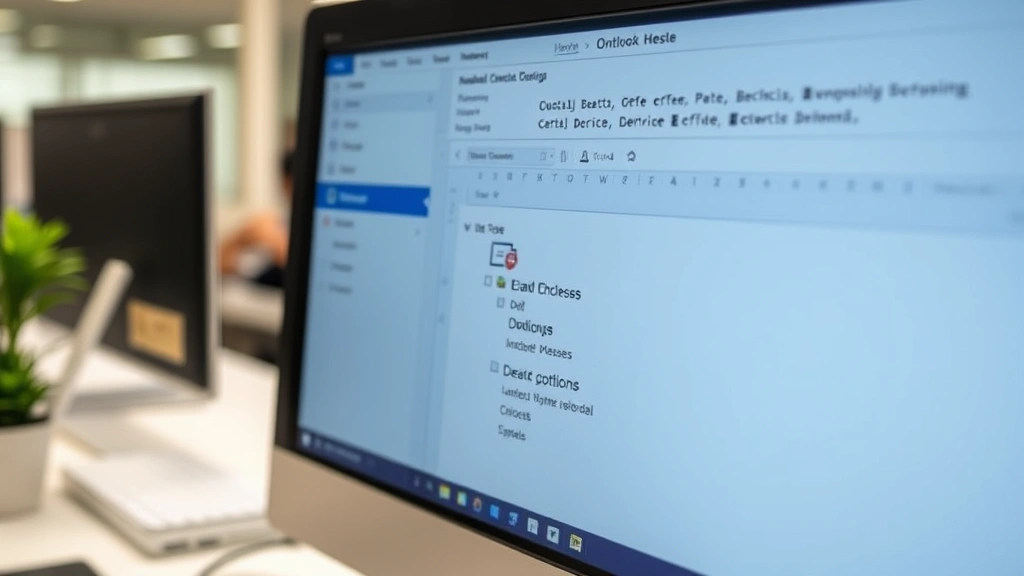
The desktop version of Outlook is where most professionals spend their time, and the scheduled send feature is buried just slightly below the surface. Here’s the real process:
- Compose your email normally. Open a new message, add your recipients, subject line, and body text. Don’t overthink this part—write like you normally would.
- Look for the “Delay Delivery” button. This is the key. In Outlook 2016, 2019, and Microsoft 365, you’ll find it under the Options tab in the ribbon. Click Delay Delivery (it’s usually near the bottom right of the ribbon).
- Check the “Do not deliver before” box. A dialog box opens. You’ll see a checkbox that says “Do not deliver before.” Check that box, and suddenly you have date and time fields available.
- Set your preferred date and time. Click the date field and pick your day. Click the time field and set your hour and minute. Outlook defaults to the current time—change it to whatever works.
- Click “Close” and then “Send.” This is important: you still click “Send.” The email doesn’t go out immediately; it sits in your Outbox until the scheduled time arrives. Outlook will send it automatically at the time you specified.
That’s it. No complicated menus. No third-party tools needed. The email will stay in your Outbox with a little clock icon next to it, showing you it’s scheduled. If you need to cancel before the send time, just open the Outbox, find the email, and delete it.
Pro Tip: Make sure Outlook is running when your scheduled send time arrives. If your computer is off or Outlook is closed, the email won’t go out until you open Outlook again. For guaranteed delivery at a specific time, use the web version instead.
Schedule Send in Outlook Web (Outlook.com)
If you’re using Outlook on the web (whether it’s Outlook.com or your company’s cloud-based Outlook), the process is slightly different but equally straightforward.
- Compose your message. Click “New Message” and fill in your details like normal.
- Look for the “Schedule send” option. At the bottom of the compose window, you’ll see several buttons. One of them says “Schedule send” (it might look like a clock icon). Click it.
- Choose your send time from the dropdown. Outlook gives you quick options like “Tomorrow at 9 AM” or “Monday at 8 AM.” Pick one, or click “Custom” to set a specific date and time.
- Confirm and send. The button changes from “Send” to “Schedule send.” Click it, and you’re done.
The web version is actually more reliable for scheduled sending because Microsoft’s servers handle the delivery, not your local machine. Even if your computer crashes, the email goes out on time. This is a real advantage if timing is critical.
According to Microsoft’s official Outlook support documentation, the web version supports scheduling up to several months in advance, giving you serious flexibility.
Schedule Send on Mac
Mac users sometimes feel left out, but Outlook for Mac has had scheduled send for years now. The catch? You need Outlook 16.37 or later. If you haven’t updated in a while, check your version first.
- Write your email. Same as always.
- Click the down arrow next to “Send.” Instead of clicking “Send” directly, click the small arrow next to it. A dropdown menu appears.
- Select “Send Later.” This opens a date and time picker.
- Set your date and time, then confirm. Choose when you want it sent, and Outlook handles the rest.
Mac’s interface is cleaner in some ways—the “Send Later” option is right there in plain sight. The tradeoff is that older versions of Outlook for Mac don’t have this feature, so if you’re stuck on an older version, you’ll need to update.
Schedule Send on Mobile Devices
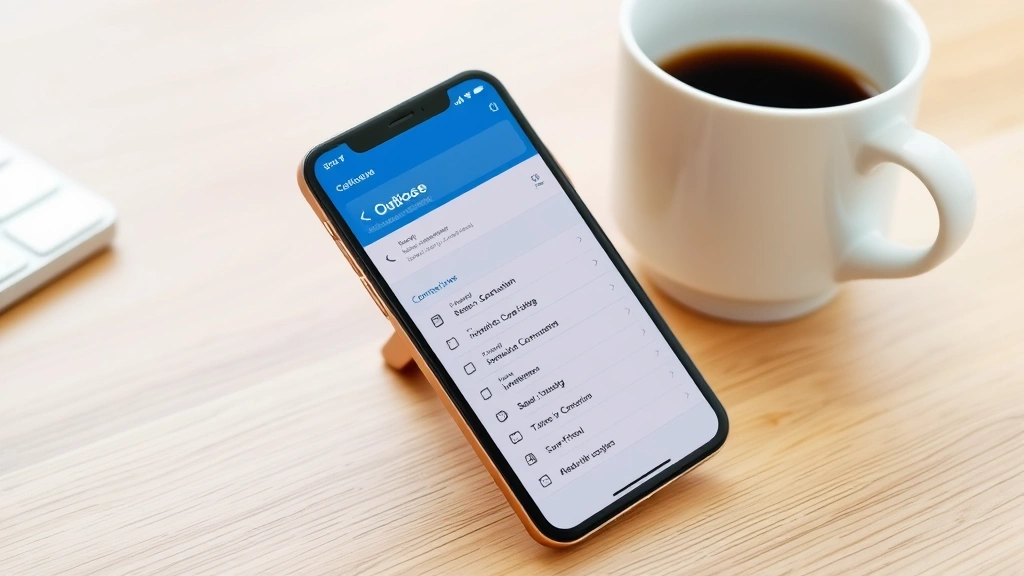
Mobile is where scheduling gets a little trickier, but it’s still doable on both iOS and Android.
Outlook for iPhone/iPad:
- Compose your email normally.
- Swipe up from the bottom of the compose screen (or look for a three-dot menu).
- Tap “Schedule Send.”
- Pick a time from the suggestions or tap “Custom” to set your own.
- Tap “Send” (it now says “Schedule Send”).
Outlook for Android:
- Write your message.
- Tap the three-dot menu at the top right of the compose window.
- Select “Schedule Send.”
- Choose your time, then confirm.
Mobile scheduling is convenient, but be aware that your phone needs to be connected to the internet when the scheduled time arrives. If you’re in airplane mode or offline, the email won’t send until you reconnect. For important emails, stick with the web or desktop version.
Best Practices for Scheduled Emails
Timing matters more than you think. Research from Campaign Monitor’s email sending analysis shows that emails sent Tuesday through Thursday between 9 AM and 1 PM get the highest open rates. This isn’t universal—your industry and audience matter—but it’s a solid starting point.
Don’t schedule too far in advance. Scheduling an email three months out sounds great until you realize the context has changed. Keep scheduled emails to a few days or weeks maximum. If you’re scheduling something for months away, you’re probably better off setting a calendar reminder to send it manually when the time comes.
Consider time zones. If you’re sending to someone in a different time zone, think about what time they’ll actually see it. Sending a follow-up at 9 AM your time might be 2 AM their time. Use a tool like timeanddate.com to figure out the right moment.
Test the feature with low-stakes emails first. Send a test email to yourself at a scheduled time to make sure it actually goes out. It sounds paranoid, but catching a bug before you miss a deadline is worth the five minutes.
Keep a backup of important scheduled emails. If you’re scheduling something critical, save a copy of the email text somewhere else. If something goes wrong and the email doesn’t send, you’ll have the content ready to resend manually.
Safety Warning: Scheduled emails are not a replacement for actually sending emails on time. If you schedule an email and then forget about it, you might miss the deadline entirely. Set a calendar reminder for 30 minutes before the scheduled send time as a backup.
Troubleshooting Common Issues
“My scheduled email didn’t send.” First, check that Outlook was running at the time you scheduled it to send (especially on desktop). Second, verify the date and time were set correctly—Outlook won’t warn you if you accidentally schedule something for next year. Third, check your internet connection. If you’re using the web or mobile version, a dropped connection can delay delivery.
“I can’t find the Schedule Send button.” Make sure you’re using a recent version of Outlook. Older versions don’t have this feature. On desktop, it’s under the Options tab, not the Home tab. On web, it’s at the bottom of the compose window. If you still can’t find it, your organization might have disabled the feature—check with your IT department.
“The time zone is wrong.” Outlook uses your computer’s system time zone. If you’re traveling or your time zone settings are off, the email might send at the wrong time. Go to your system settings and make sure your time zone is correct before scheduling.
“I scheduled an email but changed my mind.” Open your Outbox, find the email (it’ll have a clock icon), and delete it. As long as the send time hasn’t arrived yet, the email won’t go out. If the send time has already passed, the email is gone—you can’t un-send it. (Though if you made a real mistake, check out how to recall an email in Outlook for damage control options.)
“My scheduled email went to Drafts instead of sending.” This usually means Outlook wasn’t running when the scheduled time arrived. On desktop, Outlook needs to be actively running to send scheduled emails. Switch to the web version if you need guaranteed delivery at a specific time.
Related Outlook Features Worth Knowing
Once you master how to schedule send in Outlook, there are a few related features that work well alongside it:
Delay Delivery (Desktop Only): This is technically different from scheduled send. Delay Delivery holds the email on the recipient’s server before they see it. It’s useful if you want to send now but don’t want them reading it until tomorrow. It’s under Options > Delay Delivery in desktop Outlook.
Out of Office Assistant: If you’re scheduling emails while you’re away, set up an out of office message in Outlook so people know when you’ll actually be back. This prevents confusion when they get your scheduled email but can’t reach you immediately.
Email Encryption: If your scheduled email contains sensitive information, consider encrypting it in Outlook before scheduling. The encryption applies to the scheduled email just like it would a regular one.
Follow-Up Flags: Set a flag on your scheduled email so you remember to follow up if you don’t get a response. This is especially useful for important messages where silence means you need to take action.
Frequently Asked Questions
Can I schedule an email to send at a specific time every week?
– No, Outlook’s schedule send feature is one-time only. You can’t set up recurring scheduled emails. If you need to send the same email every week, you’ll either need to manually schedule each one or use a third-party automation tool like Zapier or Microsoft Power Automate.
What happens if I schedule an email and then close Outlook?
– On desktop, if you close Outlook before the scheduled send time, the email will send the next time you open Outlook (as long as that’s after the scheduled time). On the web or mobile, the email will send on schedule regardless—Microsoft’s servers handle it. This is why the web version is more reliable for time-sensitive emails.
Can I schedule an email with attachments?
– Absolutely. Attachments work fine with scheduled emails. Just add them like you normally would before scheduling. The attachment will be included when the email sends.
Is there a limit to how far in advance I can schedule an email?
– On desktop, there’s technically no hard limit, but scheduling more than a few months out gets impractical. On the web, you can schedule up to several months in advance. Mobile has similar limits. For anything beyond that, set a calendar reminder instead.
Will the recipient know my email was scheduled?
– No. The email looks completely normal to them. The timestamp shows when it was actually sent, not when you composed it. There’s no way for them to tell it was scheduled unless you tell them.
What if I schedule an email and my internet goes out right before the send time?
– On desktop, the email will send once your internet comes back and Outlook reconnects. On the web, Microsoft’s servers are handling it, so your personal internet doesn’t matter—the email sends from their servers. This is another advantage of using the web version for critical emails.
Can I schedule an email to send to multiple recipients at different times?
– No. When you schedule an email, everyone on the To, Cc, and Bcc lines gets it at the same time. If you need different people to receive it at different times, you’ll need to compose and schedule separate emails to each group.
Does scheduling an email use more data or resources?
– Not significantly. It’s a standard feature that doesn’t tax your system. On mobile, a scheduled email might use slightly more battery if Outlook needs to stay running in the background, but it’s negligible.
Can I schedule a reply to an existing email?
– Yes. When you reply to or forward an email, you can schedule the reply the same way you’d schedule a new message. The scheduling options work identically.

What’s the difference between scheduling send and delay delivery?
– Schedule send lets you pick a future date and time before the email leaves your computer. Delay delivery sends the email now but prevents the recipient from seeing it until a later time. They’re useful in different situations—use schedule send if you want to compose now and send later, and delay delivery if you want to send now but have it arrive later.
Bottom line: Learning how to schedule send in Outlook is one of those small skills that pays dividends. Whether you’re managing your inbox from multiple time zones, trying to optimize your email timing, or just preventing embarrassing late-night sends, the feature is there and ready to use. Start with a low-stakes test email, get comfortable with the interface, and you’ll wonder how you ever managed email without it.


