
Merging cells in Excel is one of those tasks that looks simple on the surface but trips up a lot of people. You’ve probably stared at a spreadsheet thinking, “I just need these two cells to become one,” only to realize the merge function isn’t behaving the way you expected. Whether you’re creating a title row, combining headers, or just trying to make your data look cleaner, knowing how to merge 2 cells in Excel properly will save you hours of frustration and keep your spreadsheet from looking like a mess.
The truth is, merging cells isn’t just about clicking a button. There’s a right way and a wrong way to do it, depending on what you’re trying to accomplish and what happens to your data when you merge. Let’s walk through this together so you understand exactly what’s happening under the hood.
The Basic Method: How to Merge 2 Cells in Excel
Here’s the straightforward approach to merging two cells:
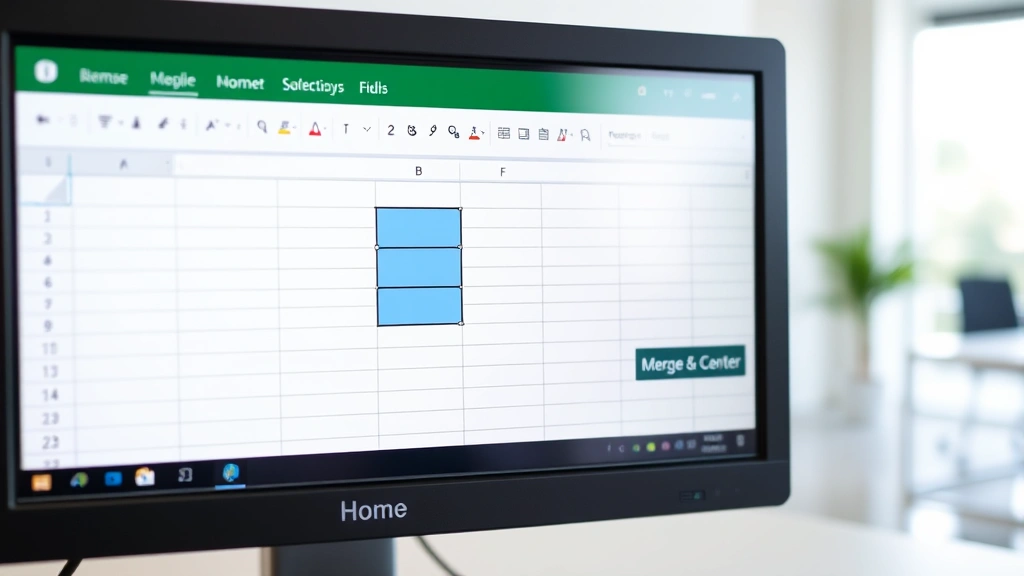
- Select the two cells you want to merge. Click on the first cell, then hold Shift and click the second cell. You’ll see both cells highlighted in blue.
- Go to the Home tab on the ribbon (this is the default tab when you open Excel).
- Find the Merge & Center button. It’s in the Alignment group. Look for a small icon that shows two rectangles becoming one. You might also see a small dropdown arrow next to it.
- Click the dropdown arrow next to Merge & Center to see your options: Merge & Center, Merge Across, or Merge Cells.
- Choose your merge style. For most people, “Merge & Center” is the go-to because it combines the cells and centers the content automatically.
- Hit Enter or click elsewhere to confirm the merge.
That’s it. Two cells are now one. But here’s where things get interesting—what happened to the data that was in the second cell?
Understanding Merge Options
When you click that dropdown next to Merge & Center, you’re seeing different ways to merge. Each one behaves slightly differently, and picking the wrong one can cause headaches.
Merge & Center: This merges the cells and automatically centers both the text horizontally and vertically. It’s perfect for headers, titles, or any situation where you want centered content. The text from the first cell stays; the text from the second cell is deleted (more on that later).
Merge Across: This merges cells horizontally but doesn’t center the content. The text stays left-aligned. Use this when you want the cells combined but you prefer left alignment or you’re merging across a row for structural reasons.
Merge Cells: This is the basic merge without any automatic centering. It’s useful when you want to control the alignment yourself or when you’re merging cells in a specific layout where centering would look wrong.
Here’s a real-world example: Say you’re creating a spreadsheet for a project budget. You want a title that spans across columns A and B. You’d select A1 and B1, then click Merge & Center. Now you have one wide cell with your title centered across both original columns. Clean and professional-looking.
If you were instead creating a data table where you need cells merged for organizational purposes but the content should stay left-aligned, you’d choose Merge Cells instead. The difference is subtle but matters for the final appearance.
Why You Might Lose Data (And How to Prevent It)
Here’s the part that catches people off guard: when you merge cells, Excel keeps the content from the top-left cell and deletes everything else. If you’re merging A1 (which contains “Project Name”) with B1 (which contains “Budget”), you’ll end up with just “Project Name” in the merged cell. “Budget” vanishes.
This isn’t a bug—it’s how Excel works. But it’s also completely preventable if you know the trick.
Before you merge, manually combine your data. If you want both pieces of information, concatenate them first. Here’s how:
- Create a temporary cell (maybe in C1) with a formula:
=A1&" - "&B1 - This creates “Project Name – Budget” in C1.
- Copy that cell and paste it as values back into A1.
- Now delete B1 (since it’s redundant).
- Merge A1 with B1 if you still want the merged appearance.
Alternatively, if you’re just trying to create visual space (like a header row), you don’t need both pieces of data anyway. Just keep what you need in the first cell and merge away.
Pro tip: Always take a screenshot or write down what’s in both cells before merging if you’re uncertain. It takes 10 seconds and can save you from losing important information.
Quick Keyboard Shortcuts
If you’re merging cells constantly, using the menu every time is tedious. Here are some faster ways:
- Alt + H, M, C (Windows): Opens the Merge & Center dropdown. Then press the letter corresponding to your choice (C for Merge & Center, A for Merge Across, M for Merge Cells).
- Command + Option + M (Mac): Some versions of Excel for Mac support this, though it varies by version.
- Create a custom quick access toolbar button: Right-click the Merge & Center button and select “Add to Quick Access Toolbar.” Now it’s one click away from anywhere in Excel.
The keyboard shortcut method is faster once you memorize it, but it takes a few tries to stick. If you’re only merging cells occasionally, the menu approach is fine and less error-prone.
How to Unmerge Cells
Merged a cell and now regret it? Unmerging is even easier than merging.
- Click on the merged cell to select it.
- Go to Home tab and find the Merge & Center dropdown again.
- Click “Unmerge Cells.”
- Done. The cells are now separate again.
One thing to note: when you unmerge, the content stays in the top-left cell only. If you had “Project Name – Budget” in the merged cell, that entire text will be in the first cell when you unmerge. The second cell will be empty. This is why it’s important to plan your merge strategy upfront.
Common Mistakes When Merging Cells
Mistake #1: Merging cells with data in multiple cells. You select A1, A2, and A3 (which contain different data) and merge them expecting all three values to combine. Instead, only the content from A1 survives. The rest disappears. Solution: Manually combine your data before merging if you need all of it.
Mistake #2: Merging cells in a data table. This is a big one. If you’re working with a database or a table that you’ll sort, filter, or analyze, merging cells breaks everything. Excel can’t sort or filter properly when cells are merged. The data gets confused, and your analysis becomes unreliable. If you need merged cells for visual appeal, do it on a separate summary or header row, not within your actual data. For more on organizing data properly, check out how to combine cells in Excel for alternatives that don’t break your data structure.
Mistake #3: Merging cells and then trying to reference them in formulas. If you merge A1 and B1, and then try to write a formula that references B1, Excel gets confused because B1 technically doesn’t exist anymore (it’s part of the merged cell). Always reference the top-left cell of a merged range. This is a small detail but causes formula errors that are surprisingly hard to debug.
Mistake #4: Using merged cells for alignment when a simple center alignment would work. This is a habit thing. A lot of people think merging is the only way to center content across multiple columns. It’s not. You can select multiple cells and center-align the text without merging. This keeps your data structure intact and your spreadsheet more flexible. For related techniques, see how to merge two columns in Excel for more advanced scenarios.
Advanced Merging Techniques
Merging cells in a template or form: If you’re building a form (like an invoice or intake sheet), merging cells is totally appropriate. You’re not dealing with data analysis; you’re creating a visual layout. Merge freely here. Group related fields together by merging cells, and your form will look polished and organized.
Merging cells for a dashboard or summary: Dashboards often use merged cells to create visual hierarchy. A big merged cell for the title, smaller merged cells for sections—this is exactly what merged cells are designed for. The key is that you’re not trying to analyze or manipulate the data; you’re presenting it.
Merging cells conditionally: You can’t merge cells based on a condition in Excel (unlike some other spreadsheet programs). But you can create the appearance of merged cells using borders and formatting. If you need conditional merging, this is your workaround. Select the cells, remove the internal borders, and apply a background color. It looks merged but behaves like normal cells.
According to Family Handyman‘s approach to clear instructions, the best practice is always to document your spreadsheet structure. If you’re using merged cells, add a note or legend explaining why. Future you (or your coworkers) will appreciate it.
Merging cells across rows vs. columns: You can merge cells horizontally (across columns) or vertically (down rows). Horizontal merges are more common for headers and titles. Vertical merges are rarer but useful when you have a category that applies to multiple rows of data (though again, this breaks sorting and filtering in data tables). Choose your direction based on your layout needs.
If you need to merge multiple columns together, check out how to lock cells in Excel to protect your merged cells from accidental changes once you’ve set up your layout.
Frequently Asked Questions
Can I merge more than 2 cells at once?
– Yes, absolutely. Select as many cells as you want (they can be in a rectangle shape), then use the merge function. You can merge 2 cells, 10 cells, or 100 cells. The process is identical. Just make sure you select them all before merging.
What happens to my data when I merge cells?
– Excel keeps the content from the top-left cell and deletes everything else. If you’re merging A1 and B1, the text in A1 stays, and B1 is deleted. This is why you need to manually combine your data first if you need both pieces of information.
Can I merge cells in a protected or locked spreadsheet?
– Not usually. If a spreadsheet is locked or protected, merging is typically disabled. You’d need to unprotect the sheet first. For more on protecting your spreadsheet, see how to freeze cells in Excel, which covers sheet protection as well.
Does merging cells affect my formulas?
– It can. If you merge cells that are referenced in a formula, the formula will reference the top-left cell of the merged range. This usually works fine, but it’s something to be aware of. Always test your formulas after merging to make sure they still calculate correctly.
Why does my merged cell look weird in print preview?
– Merged cells sometimes don’t print the way they appear on screen, especially if your row heights or column widths are set oddly. Adjust your row height and column width, then preview again. You might also need to adjust your print settings to “Fit to Page” to get the merged cells to display correctly.
Can I merge cells in Google Sheets the same way?
– Google Sheets has a merge cells function, but it’s accessed differently. Go to Format > Merge Cells. The options are similar (merge all, merge horizontally, merge vertically), but the interface is slightly different. The concept is the same though.
Is there a way to merge cells without losing data?
– Yes. Before merging, use a formula to concatenate your data (combine the text from multiple cells into one). For example, =A1&" "&B1 creates a new cell with the content from both A1 and B1 separated by a space. Then paste this result back into A1 as a value, delete B1, and merge if needed.
What’s the difference between merging and combining cells?
– Merging physically combines cells into one. Combining usually refers to concatenating data from multiple cells into one cell using a formula. Merging changes the cell structure; combining just puts data together. For a deeper dive, check out how to combine cells in Excel.

Can I merge cells in a pivot table?
– No. Pivot tables don’t support merged cells because they’re dynamic and recalculate based on your data. Merging would break the pivot table’s functionality. If you need merged cells for presentation, create a separate summary or header area outside the pivot table.
What’s the best practice for using merged cells?
– Use merged cells for layout, design, and presentation (titles, headers, forms, dashboards). Don’t use them in data tables, databases, or anywhere you need to sort, filter, or analyze. Keep your data clean and separate; use merged cells only for visual organization. According to Bob Vila’s practical approach, the best tools are the ones you understand completely—same goes for Excel features. Understand when and why to use merged cells, and you’ll avoid most common problems.


