
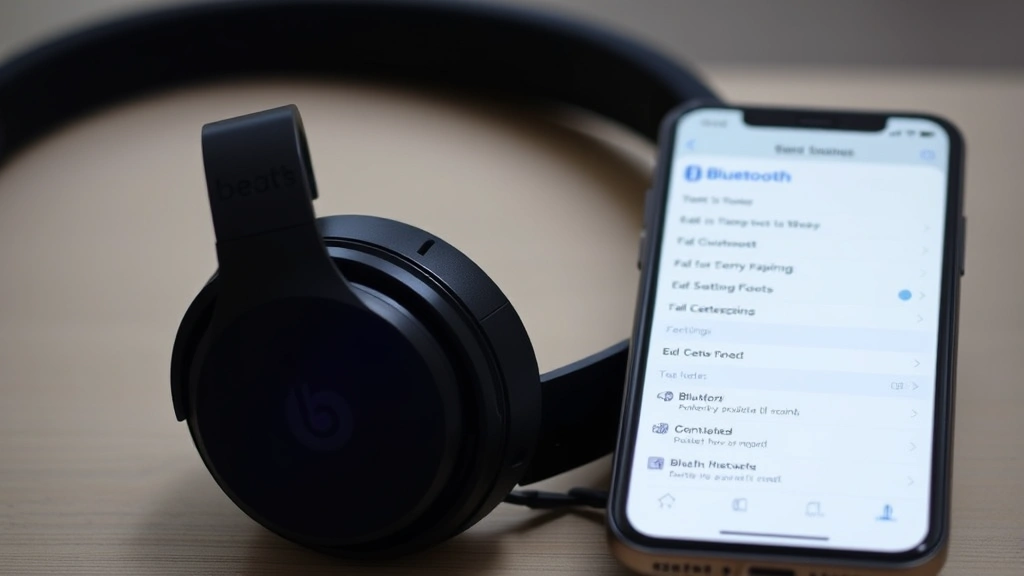
Beats headphones are solid, but if you’ve ever stared at that Bluetooth menu wondering why your device won’t recognize them, you know the frustration. The good news? How to connect Beats headphones is straightforward once you know the real steps—not the vague manual stuff that assumes you already know what you’re doing.
I’ve helped countless people get their Beats paired and working, and I’m going to walk you through every scenario: first-time setup, reconnecting to an old device, switching between phones, and troubleshooting when things go sideways. By the end of this guide, you’ll be able to connect Beats headphones faster than it takes to unwrap them from the box.
First-Time Setup: Charging & Initial Pairing
Before you even think about pairing, your Beats need juice. This is the step people skip and then wonder why their headphones won’t show up on their device. Charge them for at least 30 minutes—longer is better, especially if they’ve been sitting in a box for months.
Here’s the real sequence:
- Charge your Beats. Connect them to a power source using the included USB-C or Lightning cable (depending on your model). You’ll see a light indicator—usually red means charging, white or amber means they’re ready.
- Power them on. Press and hold the power button for 3-5 seconds until you see the LED flash. On most Beats models, you’ll see a white light or hear a startup sound.
- Enter pairing mode. This is crucial. Hold the power button again for another 5-10 seconds until the LED flashes in a different pattern—usually alternating red and white, or just white. This tells your device “I’m ready to pair.”
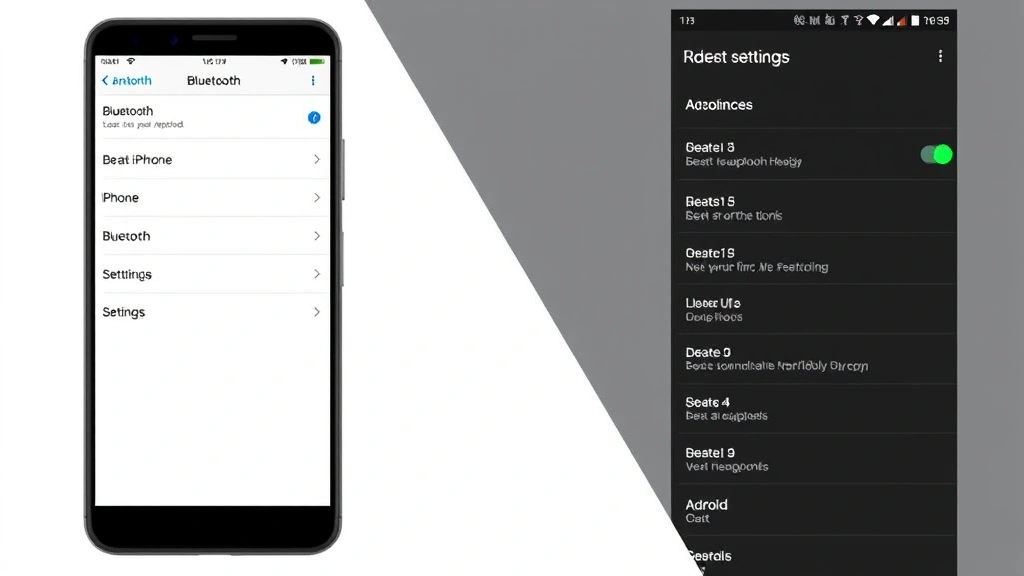
- Open your device’s Bluetooth menu. On iPhone: Settings → Bluetooth. On Android: Settings → Connected devices → Bluetooth. On Mac: System Preferences → Bluetooth.
- Look for your Beats in the list. They should appear as “Beats [Model Name]” (like “Beats Studio Pro” or “Beats Solo3”). Tap or click to select.
- Confirm the pairing. Your device might ask for permission—just tap “Pair” or “Connect.” Done.
The whole process takes about 2-3 minutes the first time. If your Beats don’t appear in the Bluetooth list, go back to step 3 and make sure you’re holding the power button long enough. Seriously, most failed pairings happen here.
Pro Tip: Keep your phone within 10 feet of your Beats during initial pairing. Bluetooth can be finicky if there’s too much distance or interference from other wireless devices.
Connecting Beats to iPhone, iPad, or Mac
Apple devices play nicely with Beats (Apple owns the company, after all), so this is usually the smoothest experience. But there are some nuances worth knowing.
For iPhone or iPad:
- Open Settings and tap Bluetooth.
- Toggle Bluetooth ON (the switch should be green).
- Make sure your Beats are in pairing mode (see the LED flash pattern above).
- Your Beats should appear under “Available Devices.” Tap the name.
- Once connected, you’ll see a checkmark next to the Beats name, and they’ll move to the “My Devices” section.
On iPhone, you might also see a popup window showing your Beats battery level when you first pair them. That’s normal and helpful—it means the pairing worked perfectly.
For Mac:
- Click the Apple menu and select System Preferences (or System Settings on newer macOS versions).
- Click Bluetooth.
- Put your Beats in pairing mode.
- Your Beats should appear in the list. Click Connect next to the name.
- If prompted, confirm the pairing.
Here’s a real-world tip: Apple devices remember Beats you’ve paired before. If you’ve already connected your Beats to your iPhone, your Mac might automatically recognize them the next time you put them in pairing mode. This is called “Handoff,” and it’s one of the few things that actually works seamlessly in the Apple ecosystem.
Safety Note: If you’re pairing Beats while driving, pull over first. Pairing requires your attention, and you shouldn’t be fumbling with your phone while on the road.
Pairing with Android & Windows Devices
Android and Windows devices don’t have the same automatic recognition that Apple devices do, but pairing is still straightforward. The process is slightly different, and you might not get the battery indicator popup—that’s fine.
For Android Phones & Tablets:
- Open Settings.
- Navigate to Connected devices or Bluetooth (this varies by manufacturer—Samsung, Google Pixel, OnePlus, etc. all organize it slightly differently).
- Toggle Bluetooth ON.
- Put your Beats in pairing mode (hold the power button until the LED flashes).
- Tap Pair new device or Search for devices.
- Select your Beats from the list when it appears.
- If a pairing code appears, confirm it on both devices.
One thing Android users often run into: if you’ve previously paired your Beats with a different device, Android might try to auto-connect to that old device even when you’re trying to pair with something new. If this happens, unpair the Beats from the old device first, then try pairing with your Android phone.
For Windows PCs & Laptops:
- Click the Windows Start button and open Settings.
- Go to Devices → Bluetooth & other devices.
- Toggle Bluetooth ON.
- Put your Beats in pairing mode.
- Click Add device or Add Bluetooth or other device.
- Select Bluetooth from the popup menu.
- Wait for your Beats to appear and click to select them.
Windows can be a bit slower to recognize Bluetooth devices than macOS, so don’t panic if it takes 10-15 seconds for your Beats to show up. Also, make sure your Windows device has Bluetooth hardware—older desktops might need a USB Bluetooth adapter.
Reconnecting to a Device You’ve Used Before
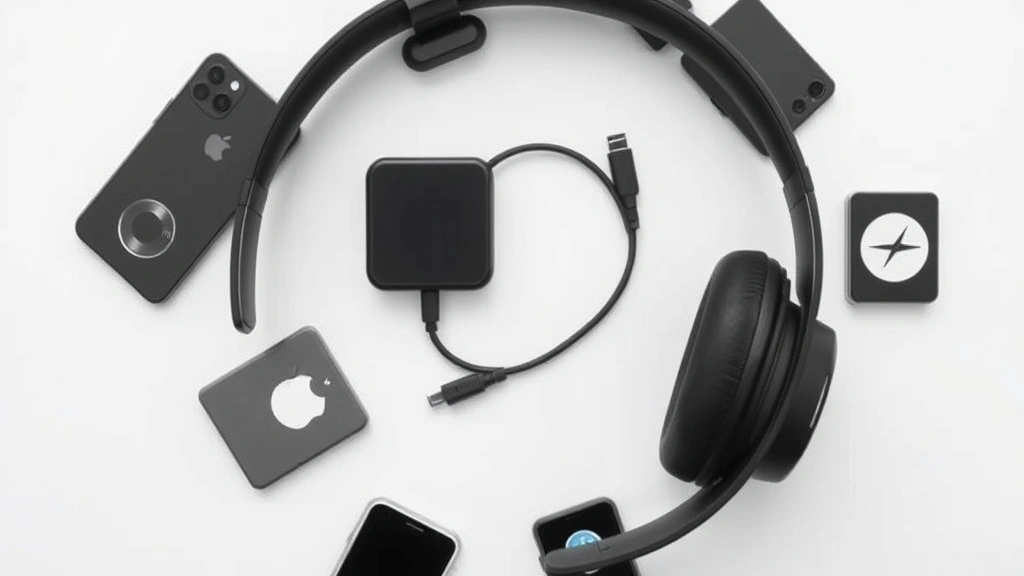
Once you’ve paired your Beats to a device, reconnecting is much faster. Your Beats “remember” that device and will automatically try to reconnect when they power on.
Automatic Reconnection:
- Turn on your Beats (press the power button for 3-5 seconds).
- Open Bluetooth on your device.
- Your Beats should appear in the “Connected” or “Paired devices” section—sometimes they connect instantly, sometimes it takes 5-10 seconds.
- If they don’t auto-connect, tap or click the Beats name to manually connect.
This is where Beats shine. If you use your Beats primarily with one device (like your iPhone), they’ll connect almost instantly every time you power them on. No re-pairing needed.
Pro Tip: If your Beats are taking forever to reconnect, try turning Bluetooth off and back on your device. This refreshes the connection and usually fixes the issue in seconds.
Switching Between Multiple Devices
This is where things get a little tricky, but it’s totally doable. Beats can be paired to multiple devices, but they can only connect to one device at a time. Think of it like a phone line—you can list multiple contacts, but you can only talk to one person at a time.
Pairing to a Second Device (Without Unpairing the First):
- Put your Beats in pairing mode (hold the power button for 5-10 seconds until the LED flashes).
- On your second device, open Bluetooth settings and select your Beats.
- Your Beats are now paired to both devices.
Now here’s the real-world part: when you want to switch from Device A to Device B, you have two options:
Option 1 (Easiest): Disconnect your Beats from Device A’s Bluetooth menu, then open Bluetooth on Device B and tap your Beats to connect. Takes about 5 seconds.
Option 2 (Automatic): Just turn off Bluetooth on Device A. Your Beats will automatically try to connect to the next device they recognize. This works well if you use two Apple devices (iPhone + Mac, for example) because of Handoff.
Here’s a real frustration point: if you have your Beats paired to three devices and you want them to connect to Device C instead of Device B, you might need to manually disconnect from B first. Beats don’t have a “smart” switching feature like some premium headphones do. It’s a minor annoyance, but worth knowing upfront.
Troubleshooting Connection Issues
Not everything goes smoothly. Here’s what to do when your Beats won’t connect.
Beats Won’t Appear in Bluetooth List:
- Check the battery. If your Beats are completely dead, they won’t show up. Charge them for at least 15 minutes and try again.
- Make sure they’re in pairing mode. Hold the power button for 5-10 seconds until you see the LED flash in a different pattern. If the LED isn’t flashing, they’re not in pairing mode.
- Restart your device. Turn off your phone or computer completely, wait 10 seconds, and turn it back on. Then try pairing again.
- Forget the device and re-pair. Go to your Bluetooth settings, find your Beats, and select “Forget” or “Unpair.” Then put your Beats in pairing mode and pair from scratch.
Beats Connect But Audio Won’t Play:
- Check the volume. This sounds obvious, but your Beats might be muted or turned down. Check the volume on both the headphones and your device.
- Disconnect and reconnect. Go to Bluetooth settings, tap “Disconnect,” wait 5 seconds, and reconnect.
- Restart your Beats. Turn them off completely (hold the power button for 10 seconds until the LED goes off), wait 30 seconds, and turn them back on.
- Check your device’s audio output. Make sure your device is actually sending audio to the Beats and not to the speaker. On iPhone, swipe up from the bottom to open Control Center, tap the audio output button, and select your Beats.
Beats Keep Disconnecting:
- Move closer to your device. Bluetooth has a range of about 30 feet, but walls, metal, and other wireless devices can reduce that. Try staying within 10 feet of your phone or computer.
- Reduce interference. Microwaves, WiFi routers, and other Bluetooth devices can interfere. Move away from these if possible.
- Update your device’s software. Outdated OS versions sometimes have Bluetooth bugs. Check for updates in Settings.
- Reset your Beats to factory settings. This is a nuclear option, but it works. The process varies by model, but it usually involves holding the power button and another button simultaneously for 10-15 seconds. Check your model’s manual for the exact steps. If you have AirPods Pro, you can check our guide on how to reset AirPods Pro for a similar process.
One thing I’ve learned from years of troubleshooting: most Bluetooth issues are solved by turning things off and back on. I know it sounds like a cliché, but it genuinely works about 70% of the time. The second most common fix is forgetting the device and re-pairing from scratch.
Advanced Tips & Optimization
Once you’ve got your Beats connected, here are some things that’ll make the experience better.
Firmware Updates: Beats occasionally release firmware updates that improve connectivity and add features. Check the Beats app (available on both iOS and Android) periodically. The app will notify you if an update is available and walk you through the process.
Equalizer Settings: The Beats app lets you customize the sound profile. If your Beats sound too bass-heavy or too bright, open the app, go to your headphones settings, and adjust the EQ. It’s a small thing, but it can make a huge difference in how you experience the audio.
Battery Management: Beats batteries degrade over time, but you can extend their lifespan. Don’t let them completely drain regularly—try to charge them when they hit 20% battery. Also, turn them off when you’re not using them instead of letting them sit idle in pairing mode.
Dual Device Connection (Some Models): Newer Beats models like the Beats Studio Pro support connecting to two devices simultaneously. This means you can listen to audio from your Mac while staying paired to your iPhone, and you’ll switch seamlessly. Check your model’s specs to see if it supports this.
According to B&H Photo’s Beats headphones guide, keeping your firmware updated is one of the most overlooked optimization steps. Many users don’t realize that an old firmware version could be causing their connection issues.
Pro Tip: If you’re using your Beats for video calls (Zoom, Teams, etc.), go into your Beats app and enable “Transparency Mode” or “Ambient Sound.” This lets you hear your surroundings while staying on the call, which is safer and less isolating than full noise cancellation during work meetings.
Frequently Asked Questions
Why won’t my Beats show up in Bluetooth settings?
– The most common reason is that your Beats aren’t in pairing mode. Hold the power button for 5-10 seconds until the LED flashes—not just a steady light, but a flashing pattern. If the LED isn’t flashing, they’re not ready to pair. Also check that your Beats have enough battery (at least 20%) and that Bluetooth is enabled on your device.
Can I connect Beats to multiple devices at the same time?
– Beats can be paired to multiple devices, but they can only actively connect to one device at a time. Once paired to Device A, you can pair them to Device B without unpairing from A. To switch between them, disconnect from one device’s Bluetooth menu and connect to another, or turn off Bluetooth on the first device.
Do I have to pair my Beats every time I use them?
– No. Once you’ve paired your Beats to a device, they’ll automatically reconnect the next time you turn them on (as long as Bluetooth is enabled on your device). You only need to go through the full pairing process once per device.
How do I reset my Beats if they’re not connecting?
– The process varies by model, but it usually involves holding the power button and another button (often the volume down button) simultaneously for 10-15 seconds until the LED flashes a specific pattern. Check your Beats’ manual or the Beats app for your specific model’s reset instructions. After resetting, you’ll need to pair them again from scratch.
What’s the range of Bluetooth on Beats headphones?
– Bluetooth typically has a range of about 30 feet in open space, but walls, metal, and interference from other wireless devices can reduce this to 10-15 feet. If your Beats keep disconnecting, try staying closer to your device and away from microwaves or other Bluetooth devices.
Can I use Beats with multiple Apple devices without re-pairing?
– Yes, if you have an Apple ID and use multiple Apple devices (iPhone, iPad, Mac), your Beats will automatically appear on all of them once you pair them to one device. This is thanks to Apple’s ecosystem integration. However, they’ll still only connect to one device at a time—you’ll need to manually switch or disconnect from one to connect to another.
Why is the audio cutting out when I connect Beats to my Android phone?
– This usually happens due to interference or the Beats being too far from your phone. Try moving closer and away from other wireless devices. If that doesn’t work, disconnect and reconnect in your Bluetooth settings. If the problem persists, try unpairing completely and pairing again from scratch. Also check that your Android phone’s Bluetooth driver is up to date by going to Settings → About phone and checking for software updates.
How do I know if my Beats are fully charged?
– Most Beats models show a white LED light when fully charged. When you first connect them to your iPhone or other Apple device, you’ll also see a battery indicator popup showing the exact percentage. On Android, you can check the battery in the Beats app. If you see a red LED, the battery is low and needs charging.


