
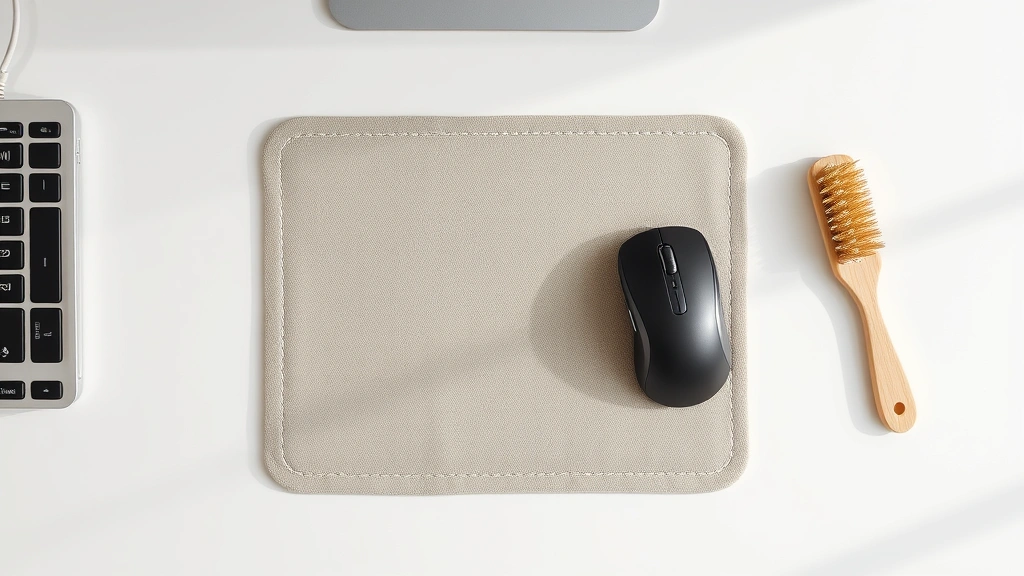
Your mousepad is one of those things you probably never think about until your mouse starts acting weird. You’re dragging across the surface and it feels gritty. Your cursor stutters. You find yourself cranking up the sensitivity just to get it to respond. Sound familiar? That’s your mousepad telling you it needs help. A dirty mousepad doesn’t just feel gross—it actually degrades your mouse’s performance, throws off your aim in games, and makes precision work like photo editing or design frustrating. The good news? Learning how to clean mousepad surfaces is stupidly simple, takes maybe 15 minutes, and costs almost nothing.
I’ve been working with computers and peripherals for years, and I can tell you that a clean mousepad is the difference between a smooth, responsive workspace and one that makes you want to flip your desk. Dust, dead skin cells, oils from your hand, and random debris accumulate fast. Most people just accept the degradation, but that’s unnecessary. This guide walks you through every method to restore your mousepad—whether it’s fabric, hard plastic, or hybrid material—and keep it performing like new.
Why Your Mousepad Gets Dirty (And Why It Matters)
Before we jump into how to clean mousepad surfaces, let’s talk about why this actually matters beyond aesthetics. Your mousepad accumulates gunk through a combination of environmental and biological factors. Dust from the air settles on it. Your hand oils transfer onto the surface with every swipe. Dead skin cells—yeah, that’s a thing—shed onto the pad. If you eat at your desk (and let’s be honest, most of us do), crumbs and food residue find their way there. Pet hair, if you’ve got animals nearby. All of this creates a layer that interferes with your mouse’s optical or laser sensor.
Think of your mousepad like a windshield. When it’s clean, light passes through perfectly and your mouse sensor reads the surface accurately. When it’s dirty, the sensor has to work harder to interpret the surface texture and movement. This causes lag, stuttering, and reduced precision. For casual browsing, you might not notice. But if you’re gaming, doing detailed design work, or doing anything that requires precision, a dirty mousepad is actively working against you.
According to Family Handyman, regular cleaning of workspace items—including mousepads—is part of maintaining an efficient and hygienic desk environment. The accumulation of dust and debris doesn’t just affect performance; it can also harbor bacteria and allergens that you’re touching constantly.
The surface texture also degrades over time with dirt buildup. Fabric pads become matted and less responsive. Hard pads get sticky spots. Both types lose their original glide characteristics. Cleaning restores that glide and responsiveness, making your mouse feel brand new again.
Materials You’ll Need
Here’s what you should have on hand before you start. The good news: you probably already own most of this stuff.
- Soft-bristled brush or old toothbrush — for loosening debris without damaging the surface
- Microfiber cloth — won’t scratch or leave lint
- Distilled water — tap water can leave mineral deposits
- Mild dish soap — just a tiny amount; you’re not washing dishes
- Isopropyl alcohol (70%) — optional but great for disinfecting and drying quickly
- Compressed air canister — optional, for blowing out debris from crevices
- Paper towels or lint-free cloth — for drying
That’s it. You don’t need fancy mousepad cleaners or specialized products. Avoid harsh chemicals, bleach, or anything abrasive. Those will damage your pad faster than dirt will.
How to Clean Fabric Mousepads
Fabric mousepads are the most common type, and they’re also the easiest to clean—if you do it right. The key is being gentle because the weave can fray or compress if you’re too aggressive.
Step-by-Step Fabric Mousepad Cleaning
- Dry brush first. Use a soft-bristled brush or old toothbrush and gently brush the surface in one direction. This removes loose dust, hair, and debris without introducing moisture. Don’t press hard; let the brush do the work. You’ll be surprised how much comes off.
- Create a cleaning solution. Mix a tiny drop of dish soap with about 8 ounces of distilled water. We’re talking a drop—not a squirt. The solution should be barely soapy. If it’s too strong, you’ll have residue that attracts more dirt.
- Dampen your cloth. Dip a microfiber cloth into the solution, then wring it out thoroughly. Your cloth should be damp, not wet. Excess water can seep into the pad’s backing and take forever to dry.
- Wipe the surface. Gently wipe the mousepad in circular motions, covering the entire surface. Pay extra attention to high-use areas where your hand sits most. For stubborn spots, let the damp cloth sit on the area for 10 seconds to soften the grime, then gently wipe.
- Rinse with clean water. Use a fresh cloth dampened with plain distilled water and wipe the entire pad again. This removes soap residue, which is important because soap attracts dirt.
- Dry completely. Use a dry microfiber cloth or paper towels to absorb as much moisture as possible. Let the pad air dry for at least 30 minutes before using it. If you’re in a hurry, you can use a hair dryer on the cool setting, holding it 6-8 inches away.
For heavily soiled fabric pads, you can be slightly more aggressive. Use a soft brush with a little more pressure, or let the damp cloth sit on problem areas for up to a minute. Just avoid scrubbing motions that can damage the weave.
Cleaning Hard Surface Mousepads
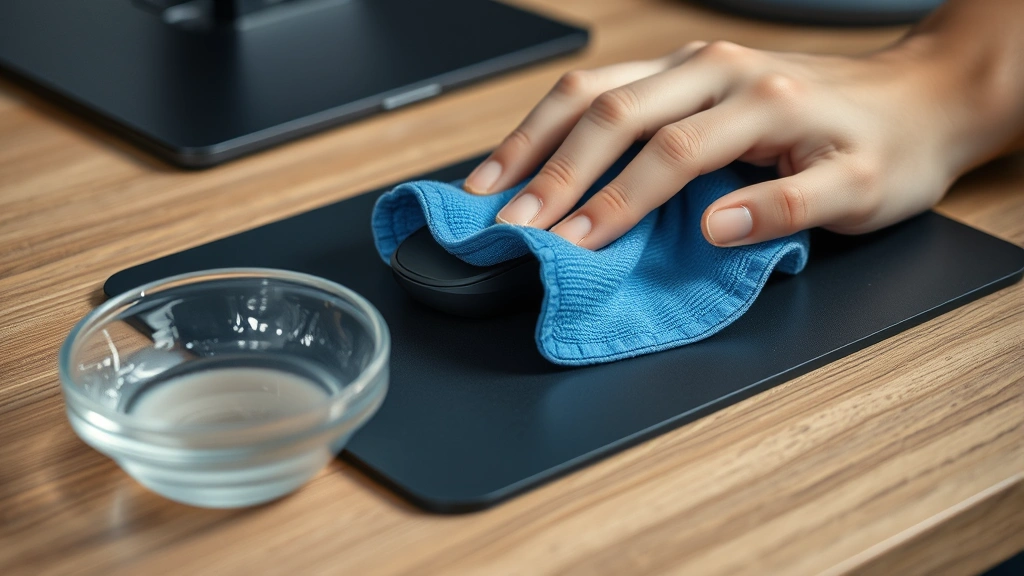
Hard mousepads—usually made from plastic, rubber, or glass—are more forgiving than fabric. You can be a bit more aggressive here without worrying about damaging the material. These pads tend to get sticky spots and fingerprints more than fabric pads.
Step-by-Step Hard Surface Mousepad Cleaning
- Blow off loose debris. Use compressed air or just tap the pad against your trash can to dislodge loose dust and crumbs. If you don’t have compressed air, a soft brush works fine.
- Prepare your cleaning solution. Same as fabric: one drop of dish soap in 8 ounces of distilled water. For hard surfaces, you can also use a 50/50 mix of distilled water and isopropyl alcohol, which dries faster and disinfects.
- Wipe the surface. Dampen a microfiber cloth and wipe the entire pad. For sticky spots, apply slightly more pressure or let the cloth sit on the spot for 15-20 seconds. Hard surfaces can handle more scrubbing than fabric.
- Address stubborn spots. If you’ve got dried-on gunk, use a soft plastic scraper (like a credit card) or your fingernail to gently lift it away. Never use metal scrapers or anything sharp that could scratch the surface.
- Final rinse. Wipe with a cloth dampened in plain distilled water to remove any soap or cleaning solution residue.
- Dry thoroughly. Hard surfaces dry faster than fabric, but you still want to remove excess moisture. A quick wipe with a dry cloth is usually enough. If you used isopropyl alcohol, it’ll evaporate in seconds.
One pro tip for hard surface pads: if you use isopropyl alcohol, you can skip the rinse step. The alcohol evaporates and leaves no residue. It’s also antimicrobial, so your pad stays fresher longer.
Deep Cleaning Methods for Stubborn Grime
Sometimes your mousepad has accumulated months or years of grime, and basic wiping won’t cut it. Here are methods for the really stubborn stuff.
For Fabric Pads: The Soak Method
If your fabric mousepad is removable (and most are), you can actually soak it. Fill a sink or bucket with cool water and add a tiny bit of dish soap. Submerge the pad and let it soak for 10-15 minutes. Gently agitate the water around the pad—don’t scrub it. After soaking, rinse thoroughly with clean water and hang it to dry. This works amazingly well for pads that haven’t been cleaned in a long time.
Important: only do this if your mousepad is removable and doesn’t have electronic components. If it’s a gaming pad with RGB lighting or built-in buttons, stick to surface cleaning.
For Hard Pads: The Alcohol Approach
For hard surfaces with stubborn buildup, use straight isopropyl alcohol (70% concentration). Dampen a cloth with it and wipe the pad thoroughly. The alcohol cuts through oils and sticky residue better than soapy water. It also disinfects and dries almost instantly. This is your best bet for gaming mousepads or expensive hard pads where you want to avoid water damage.
For Both Types: The Brush and Vinegar Method
If you’re dealing with sticky spots or discoloration, try a soft brush with a solution of equal parts distilled water and white vinegar. The acidity helps break down stubborn grime. Use this sparingly—vinegar smell isn’t pleasant, and you don’t want to oversaturate the pad. Wipe thoroughly with plain water afterward to remove the vinegar smell.
Pro Tip: Never use bleach, acetone, or harsh solvents on your mousepad. These can damage the material, discolor it, or create toxic fumes. Stick to gentle solutions: soap, water, and isopropyl alcohol. That’s 99% of what you’ll ever need.
Maintenance Tips to Keep Your Mousepad Clean Longer
Cleaning is great, but prevention is better. Here’s how to keep your mousepad cleaner between cleanings.
- Wash your hands before using your computer. I know, sounds obvious, but clean hands mean less oil and dirt transferring to your pad. This single habit makes a huge difference.
- Keep food and drinks away from your desk. Or at least far enough away that spills aren’t a disaster. Crumbs and liquid are the fastest way to degrade a mousepad.
- Use a desk mat or extended mousepad. If you’ve got a small pad, consider upgrading to a larger mat. More surface area means less concentrated wear on any single spot.
- Quick weekly wipe-down. Spend 30 seconds once a week with a dry microfiber cloth wiping your pad. This removes surface dust before it accumulates. Think of it like doing dishes as you go instead of letting them pile up.
- Keep your mouse sensor clean too. While you’re at it, check the bottom of your mouse. A dirty mouse sensor makes even a clean pad perform poorly. This Old House emphasizes that peripheral maintenance is part of overall workspace hygiene.
- Rotate your pad if possible. If you have a large pad or mat, occasionally rotate it so you’re not always using the same spot. This distributes wear more evenly.
- Store it in a clean environment. If you’re not using your pad, keep it in a dust-free area. Don’t leave it exposed on a shelf where it collects dust.
When to Replace vs. Repair
Here’s the real talk: not every mousepad is worth saving. Sometimes replacement is the smarter move.
Replace your mousepad if:
- The surface is permanently stained or discolored and cleaning doesn’t help
- The fabric is matted, frayed, or pilling and won’t recover
- Hard pads have deep scratches or cracks that affect mouse tracking
- The backing is separating from the surface (common on older pads)
- It’s been more than 3-5 years since you got it (they do wear out)
- The pad is warped or curled at the edges
Clean and keep if:
- Surface dirt and grime is the only issue
- The pad still has good glide and responsiveness after cleaning
- It’s a pad you really like or paid good money for
- Minor cosmetic issues don’t bother you
Good mousepads aren’t cheap. A quality fabric pad runs $20-60, and premium hard pads can be $50-150. So if cleaning brings your pad back to life, it’s worth the 15 minutes. But if it’s already falling apart, buying a new one makes sense. According to Bob Vila, knowing when to replace vs. repair is part of smart maintenance—and mousepads fall into that category.
Frequently Asked Questions
Can I put my mousepad in the washing machine?
– Only if it’s completely removable and has no electronic components. Use cold water, gentle cycle, and air dry completely. Most gaming mousepads have non-removable bases or electronics, so don’t risk it. The soak method in a sink is safer for most pads.
What’s the best way to clean how to clean mousepad without damaging it?
– Gentle is the key word. Use soft brushes, barely-damp cloths, and mild solutions. Avoid pressure and harsh chemicals. Start with dry brushing, then move to damp cleaning if needed. Let the pad dry completely before using it again.
How often should I clean my mousepad?
– A quick wipe-down weekly takes 30 seconds. A deeper clean every 2-3 months is ideal if you use your computer daily. If you notice performance degradation, that’s your signal to clean immediately.
Is isopropyl alcohol safe for all mousepads?
– It’s safe for hard pads and most fabric pads, but avoid it on pads with electronic components or RGB lighting. When in doubt, test it on a small inconspicuous area first. Isopropyl alcohol evaporates quickly and won’t damage most materials.
My mousepad smells bad after cleaning. What do I do?
– This usually means soap residue or trapped moisture. Make sure you rinse thoroughly with plain water and dry completely. If the smell persists, try wiping with a cloth dampened in plain white vinegar, then air dry. Vinegar smell dissipates as it dries.
Can I use Clorox wipes or disinfectant spray on my mousepad?
– Not recommended. These products are too harsh and can damage the material, discolor it, or leave residue that attracts dirt. For disinfection, use isopropyl alcohol at 70% concentration instead. It’s gentler and actually more effective.
What if my mousepad has a wrist rest attached?
– Clean the wrist rest the same way as the main pad surface. If it’s made of foam or gel, be extra gentle and avoid soaking it. Surface cleaning with a barely-damp cloth is your safest bet. Wrist rests dry slower than regular pads, so allow extra drying time.
Does how to clean mousepad really improve mouse performance?
– Absolutely. Dirt and grime interfere with your mouse sensor’s ability to track movement accurately. A clean pad gives you better precision, faster response times, and smoother cursor movement. The difference is noticeable, especially in gaming or detailed design work.
Can I use paper towels instead of microfiber cloth?
– Paper towels work in a pinch, but they shed fibers and can leave lint on your pad. Microfiber cloth is better because it won’t scratch and won’t leave residue. If you don’t have microfiber, at least use a lint-free cloth or old cotton t-shirt material.
My mousepad has a rubber backing that’s getting sticky. How do I fix it?
– Sticky rubber backing usually means the material is degrading—this is common on older pads. Try cleaning it with isopropyl alcohol and letting it air dry completely. If that doesn’t help, the backing has likely broken down and replacement is your best option. This isn’t something cleaning can permanently fix.
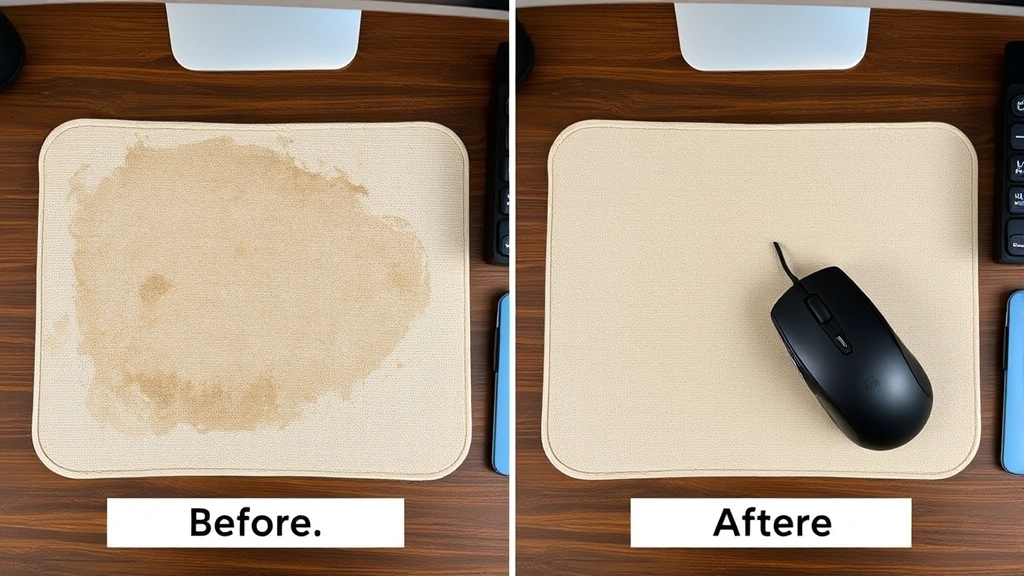
Learning how to clean mousepad surfaces properly extends the life of your peripheral, improves your mouse’s performance, and keeps your workspace more hygienic. It’s one of those small maintenance tasks that pays dividends. Spend 15 minutes today, and your mousepad will perform like new for months to come. The investment in time is minimal, but the payoff in responsiveness and precision is real.
For more detailed cleaning guidance on other workspace items, check out our guides on how to clean a mouse pad and how to clean mouse pad for additional tips and variations. If you’re dealing with actual mice in your space, our guide on how to get rid of mouse in house covers pest control solutions. And for general workspace maintenance, we also have resources on how to clean a washing machine and how to clean stainless steel appliances for keeping your entire environment in top shape.


