
Your phone’s home screen is real estate. Every icon takes up space, and frankly, hunting through folders to find that one app you use twice a week is annoying. Learning how to add app to home screen is one of those small skills that saves you time every single day. Whether you’re organizing for speed, accessibility, or just keeping your most-used tools front and center, this guide walks you through it all—no tech jargon, just straightforward instructions.
Here’s the thing: adding apps to your home screen isn’t complicated, but the steps differ slightly between iPhone and Android. Some people think it’s automatic. It’s not. You’ve got to do it intentionally. And once you learn the trick, you’ll wonder why you didn’t do it sooner.
How to Add Apps to iPhone Home Screen
On iPhone, adding an app to your home screen is straightforward once you know the moves. The process changed slightly with iOS updates, but the core idea stays the same: find the app, grab it, and move it where you want it.
Method 1: Long-Press and Drag
- Open the App Store or locate the app in your apps library.
- Find the app you want to add. If it’s already installed but not on your home screen, go to your App Library (swipe to the rightmost screen on your home screen).
- Long-press (tap and hold for 2-3 seconds) on the app icon.
- A menu will pop up with options like “Add to Home Screen” or “Share App.” Tap Add to Home Screen.
- A preview of your home screen appears. Choose which screen you want it on, then tap Add in the top right.
- The app now sits on your home screen.
This method works for apps you’ve already downloaded. If you haven’t downloaded the app yet, you need to grab it from the App Store first.
Method 2: Add Directly from App Store
- Open the App Store app.
- Search for or browse to the app you want.
- Tap the cloud download icon or Get button to download it.
- Once downloaded, the button changes to Open.
- Long-press the app icon (you might need to do this from your App Library) and select Add to Home Screen.
The key difference here is that you’re downloading first, then adding. Some people prefer this because they can test the app before cluttering their home screen.
How to Add Apps to Android Home Screen
Android is a bit more flexible than iOS when it comes to home screen customization. The exact steps depend on which Android version and which launcher you’re using (Samsung, Google Pixel, etc. have slight variations), but the general approach is consistent.
Method 1: Long-Press from App Drawer
- Swipe up from the bottom of your screen to open your App Drawer (or tap the app grid icon if visible).
- Long-press the app you want to add.
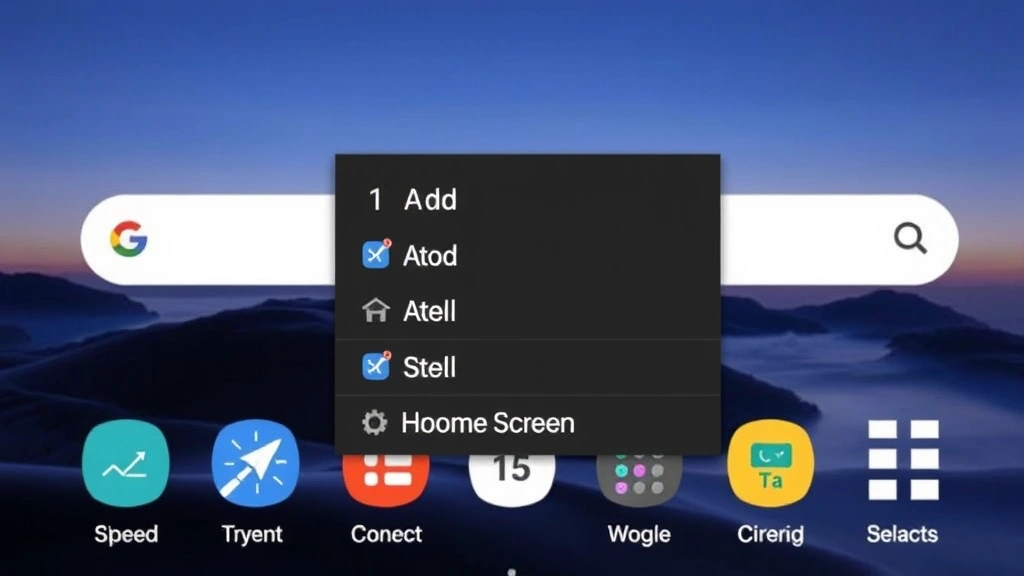
- A menu appears with options. Look for Add to Home Screen or Add to Home.
- Release your finger. The app is now on your home screen.
This is the fastest way on most Android phones. It’s basically the same gesture as iPhone, but Android’s app drawer makes it even quicker.
Method 2: Drag and Drop
- Open your App Drawer.
- Press and hold the app icon.
- Drag it upward to your home screen.
- Position it where you want (you can move it around before releasing).
- Release your finger to drop it.
This method gives you more control over placement. You can see exactly where it’s going before you let go.
Method 3: Using Samsung Devices
If you’re on a Samsung phone, the process is nearly identical, but Samsung’s interface sometimes labels things slightly differently:
- Open your Apps screen (usually accessed by swiping up or tapping the app grid).
- Long-press the app you want.
- Tap Add to Home Screen.
- The app appears on your current home screen (or you can drag it to a different one).
Samsung also lets you create custom folders and organize by color, which is a nice bonus if you want to go deeper into customization.
Using iPhone App Library for Smart Organization
Here’s something a lot of iPhone users miss: the App Library is a game-changer for organization. It automatically sorts your apps into categories (Productivity, Health, Games, etc.), so you don’t have to manually create folders. But here’s the catch—apps in the App Library alone won’t show up on your home screen.
If you want quick access to an app without it taking up prime real estate on your main home screen, you can keep it in the App Library and just swipe to find it. But if you use it frequently, adding it to your home screen makes sense.
Pro Tip: You can customize which home screens appear. If you want a minimal home screen, you can hide entire pages and only show the ones with your most-used apps. Long-press your home screen, tap Customize, and toggle off the screens you don’t want visible.
This approach keeps your phone clutter-free while still giving you instant access to what matters. Think of it like organizing a toolbox—you keep your most-used tools in the top drawer and everything else in the drawers below.
Organizing Your Home Screen Like a Pro
Adding apps is one thing. Organizing them so you can actually find them is another. Here’s how to set up a home screen that works for you, not against you.
Create Folders by Category
On both iPhone and Android, you can create folders to group similar apps. On iPhone, drag one app on top of another to create a folder automatically. On Android, the process varies by launcher, but most allow you to create folders by long-pressing and selecting the folder option.
Common folder setups:
- Productivity: Notes, reminders, calendar, email
- Social: Instagram, Twitter, TikTok, Snapchat
- Entertainment: Netflix, Spotify, YouTube, Games
- Utilities: Weather, Clock, Settings, Files
- Finance: Banking app, PayPal, investment apps
Use Dock Placement Strategically
On iPhone, the dock at the bottom holds up to 6 apps (depending on your model). These are your absolute most-used apps—the ones you tap multiple times per day. Don’t waste dock space on apps you open once a month. Reserve it for texting, email, browser, phone, maps, or whatever you genuinely use constantly.
On Android, the bottom row of your home screen functions similarly. Make it count.
Keep Your First Screen Clean
Your first home screen is what you see when you unlock your phone. Make it intentional. Some people keep only their absolute essentials here (phone, messages, email, calendar). Others add a few more. The point is: every icon should earn its place. If you’re scrolling past an app every day without tapping it, it doesn’t belong on your first screen.
This is where custom iPhone stickers can actually help—you can create visual shortcuts to actions rather than full apps, which saves screen space.
Adding Widgets and App Shortcuts to Your Home Screen
Here’s where things get really useful. You don’t just have to add full app icons. You can add widgets (mini versions of apps that show information without opening the full app) and shortcuts (quick actions that launch specific functions).
iPhone Widgets
Widgets on iPhone are small, customizable boxes that show you information at a glance. Weather, calendar events, news headlines, fitness rings, reminders—all without opening the app.
- Long-press on an empty area of your home screen.
- Tap the + button in the bottom left.
- Browse available widgets or search for a specific app.
- Tap the app name to see widget options (most apps offer multiple sizes).
- Select the widget size you want and tap Add Widget.
- Choose which home screen it goes on, then tap Add.
Widgets are fantastic for information you check regularly. A weather widget saves you from opening the Weather app. A Reminders widget lets you check your to-do list instantly.
Android Widgets
Android widgets work similarly but are accessed differently:
- Long-press on an empty area of your home screen.
- Tap Widgets (or the widget icon, depending on your phone).
- Browse the available widgets.
- Long-press the widget you want and drag it to your home screen.
- Resize it if needed (most Android widgets allow resizing by dragging the corners).
Android’s widget system is actually more flexible than iPhone’s in many ways. You can resize widgets to your exact preference and stack multiple widgets in the same space.
iPhone Shortcuts
Shortcuts are automation sequences. You can create a shortcut that opens multiple apps, sends a text, plays music, or performs complex actions with a single tap. For example, a “Bedtime” shortcut could enable Do Not Disturb, open a meditation app, and set an alarm—all in one tap.
- Download the Shortcuts app from the App Store.
- Create a new shortcut by tapping the + button.
- Add actions (open app, send message, play sound, etc.).
- Save and name your shortcut.
- Long-press the shortcut and tap Add to Home Screen.
This is more advanced, but if you’re someone who does the same sequence of actions regularly, shortcuts save serious time.
For more on iPhone customization, check out our guide on how to scan with iPhone—scanning is another feature many people don’t know how to add quick access to.
Troubleshooting Common Issues When Adding Apps to Home Screen
Sometimes things don’t go smoothly. Here are the most common problems and how to fix them.
App Won’t Add to Home Screen (iPhone)
If you long-press and don’t see the “Add to Home Screen” option, try these fixes:
- Restart your iPhone: A simple restart often clears glitches. Hold the power button and slide to power off, then turn it back on.
- Check if the app is already on your home screen: Sometimes you think it’s missing when it’s actually already there. Search your home screens carefully.
- Update iOS: Go to Settings > General > Software Update and install any pending updates. Bugs often get patched in updates.
- Reinstall the app: Delete the app from your phone entirely (press and hold, tap Remove App, then Delete App). Reinstall it from the App Store and try again.
App Won’t Add to Home Screen (Android)
- Check your launcher: If you’re using a third-party launcher (like Nova or Microsoft Launcher), the process might be different. Check that launcher’s help documentation.
- Ensure you have storage space: If your phone is nearly full, it might struggle with adding apps. Delete unused apps or files to free up space.
- Clear your launcher cache: Go to Settings > Apps > [Your Launcher Name] > Storage > Clear Cache. This often fixes home screen issues.
- Update your launcher: If you’re using a third-party launcher, check the Play Store for updates.
Can’t Find the App in App Drawer
If you’ve downloaded an app but can’t locate it:
- Search for it: Most app drawers have a search function. Swipe up and look for a search bar, or tap the search icon.
- Check if it’s hidden: On some Android phones, you can hide apps. Go to your app drawer settings and unhide it.
- Verify the download completed: Go to your app store (App Store or Play Store) and check your “Downloads” or “Installed” section to confirm the app is actually on your phone.
Home Screen is Full
If you can’t add more apps because your home screen is full, you have options:
- Move apps to another screen: Swipe left or right to access additional home screens, then add the app there.
- Delete unused apps: If you have apps you haven’t used in months, delete them. This frees up space and keeps your phone cleaner anyway.
- Use folders: Group similar apps into folders to reduce visual clutter and free up space.
- Use the App Library (iPhone): Keep less-used apps in the App Library instead of on your home screen.
App Icon Looks Wrong
Sometimes an app icon appears as a generic icon or doesn’t display correctly:
- Force quit the app: Swipe up from the bottom (iPhone) or use the recent apps menu (Android) and close the app. Reopen it.
- Restart your phone: This refreshes your entire system and often fixes display issues.
- Update the app: Check your app store for updates to that specific app.
For more troubleshooting on iPhone features, you might find our guide on pairing Beats headphones helpful—it covers similar diagnostic steps that work across iPhone features.
Frequently Asked Questions
Can I add the same app to my home screen multiple times?
– On iPhone, yes, but it’s not common. You can long-press and add the same app to different screens, but it uses storage for each instance. On Android, most launchers allow it, and it’s sometimes useful for creating app shortcuts to different functions within the same app. However, most people just add it once and navigate to it from there.
Will adding an app to my home screen use more battery or storage?
– No. Adding an app to your home screen is just a shortcut—it doesn’t duplicate the app or use additional storage. The app itself is stored in one place on your phone. The home screen icon is just a link to it. Battery usage depends on what the app does when it runs, not whether it’s on your home screen.
Can I remove an app from my home screen without deleting it?
– Absolutely. On iPhone, long-press the app and tap Remove from Home Screen (not Delete App). The app stays on your phone in the App Library. On Android, long-press the app icon on your home screen and tap Remove. The app remains in your app drawer.
What’s the difference between adding an app and pinning it?
– These terms are often used interchangeably. “Adding to home screen” and “pinning” both mean putting an app icon on your home screen for quick access. Some Android launchers use “pin,” while iOS typically uses “add to home screen.” The functionality is the same.
Can I organize my home screen by color or size?
– On iPhone, you can use custom app icons and stickers (through the Shortcuts app) to create a visually organized home screen. Many people do this for aesthetic purposes. On Android, especially Samsung, you can customize icon sizes and colors through launcher settings. This is purely visual and doesn’t affect functionality.
How many home screens can I have?
– On iPhone, you can have up to 15 home screens (though most people use far fewer). On Android, it depends on your launcher, but most allow 5-7 screens by default, with the option to add more. The more screens you add, the longer it takes to navigate, so keep it minimal.
Do widgets use more battery than app icons?
– Widgets can use slightly more battery than static app icons because they refresh periodically to show updated information. However, the difference is usually negligible unless you have many widgets constantly refreshing. A weather widget checking every hour uses minimal battery. A stock ticker updating every minute uses more.
Can I add web apps or shortcuts to websites on my home screen?
– Yes. On iPhone, open Safari, visit a website, tap the Share button, and select Add to Home Screen. On Android, long-press a website link in Chrome and tap Add to Home Screen. This creates a shortcut that opens the website in a browser, not a full app.


