
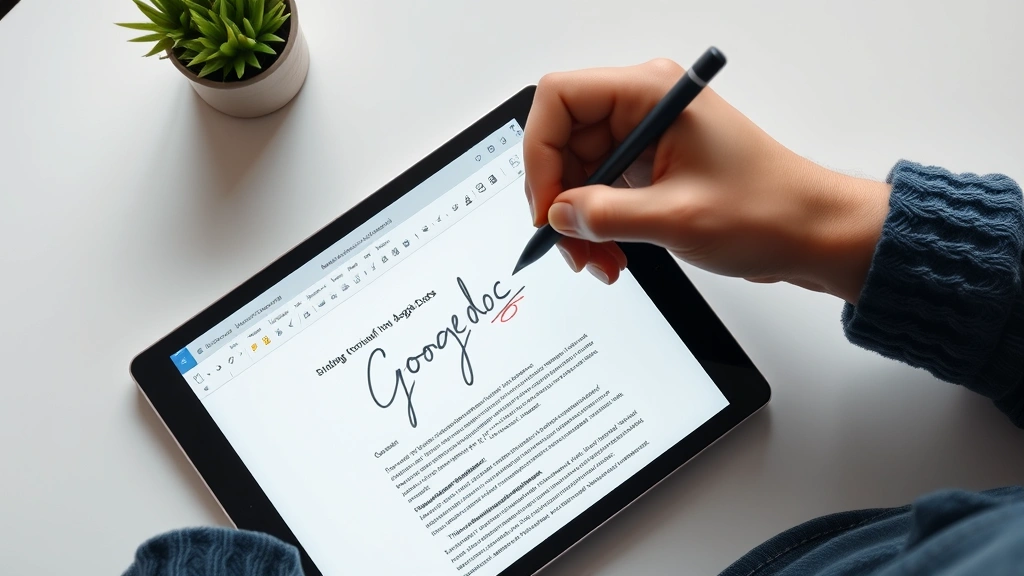
Let’s be honest—signing documents digitally shouldn’t feel like you’re solving a puzzle. If you’ve been copying and pasting your signature into Google Docs, or worse, printing everything out just to sign it, you’re making this harder than it needs to be. The good news? Learning how to add a signature in Google Docs takes about two minutes once you know the trick.
Whether you’re finalizing a contract, approving a proposal, or just adding that personal touch to a formal letter, Google Docs has built-in tools that make it dead simple. No special software required. No jumping between apps. Just a few clicks and your signature is embedded right where it needs to be.
This guide walks you through every method—from drawing your signature by hand to uploading an image file. We’ll cover the pros and cons of each approach so you can pick what works best for your workflow. By the end, you’ll be signing documents like a pro.
Method 1: Draw Your Signature Directly in Google Docs
This is the fastest way to add a signature in Google Docs, and it’s the method most people use. You’re literally drawing your signature with your trackpad, mouse, or (if you’re on a tablet) your stylus. Here’s how it works:
- Open your Google Doc and position your cursor where you want the signature
- Click Insert in the menu bar
- Select Drawing → New
- In the Drawing dialog, click the Scribble tool (it looks like a pen icon on the left toolbar)
- Use your mouse or trackpad to draw your signature
- Click Save and Close
That’s it. Your signature is now embedded in the document. The beauty of this method is that it’s quick and personal—it actually looks like you signed it.
The catch? If you’re using a mouse or trackpad, your signature might look a bit shaky. That’s normal. If you’re particular about how it looks, you can delete it and try again. There’s no limit to how many times you can redo it.
Pro Tip: If your signature doesn’t look right on the first try, don’t sweat it. You can click the drawing, select it, and press Delete to remove it. Then insert a new drawing and try again. Most people nail it on the second or third attempt.
This method works on desktop, laptop, and tablet. On a tablet with a stylus, your signature will look the most natural because you’re actually writing with a pen-like tool.
Method 2: Upload a Signature Image File
If you already have a digital image of your signature—maybe you scanned it or created it in another app—you can upload it directly to Google Docs. This is the cleanest approach if you want a consistent, professional-looking signature across multiple documents.
Here’s the step-by-step process:
- Open your Google Doc and click where you want the signature
- Go to Insert → Image
- Choose Upload from computer
- Navigate to your signature image file and select it
- Click Open
Your signature image is now in the document. You can resize it by dragging the corners, and you can move it around just like any other image.
How to create a signature image in the first place: The easiest way is to sign a piece of white paper with a dark pen, take a clear photo or scan it, and save it as a PNG or JPG file. Then crop the image so it’s just the signature—no extra blank space around it. This makes it look cleaner when you insert it.
Alternatively, you can use a free online tool like Signature Maker to create a digital signature, then download it as an image file.
The advantage of this method is consistency. Once you create your signature image, you can use it in every document. Just upload it once, and you’ve got a professional signature ready to go.
One thing to watch: Make sure your signature image has a transparent background (PNG format works best). If it has a white or colored background, it’ll look like a box around your signature, which isn’t ideal for formal documents.
Method 3: Type Your Signature Using a Signature Font
Not everyone wants to draw or upload an image. If you prefer a typed signature, Google Docs lets you use special fonts that look handwritten. This gives you a clean, consistent signature without any of the manual work.
Here’s how:
- In your Google Doc, position your cursor where you want the signature
- Type your name
- Highlight the text you just typed
- Click the font dropdown (it usually says “Arial” or “Calibri”)
- Scroll down and look for signature-style fonts like Allura, Aleo, Caveat, or Tangerine
- Select one and your name instantly transforms into a signature-style font
This method is perfect if you want something that looks handwritten but is actually text. It’s also easy to edit—if you need to change the signature, just select it and retype.
The downside: It doesn’t look quite as authentic as an actual handwritten signature. For casual documents or internal approvals, it’s fine. For legal contracts, you might want to stick with the drawn or uploaded methods.
Method 4: Use Google’s Drawing Tool for More Control
If you want more control over how your signature looks—like adjusting the line thickness or color—the Drawing tool gives you extra options. It’s similar to Method 1, but with more customization.
Here’s the process:
- Click Insert → Drawing → New
- In the toolbar on the left, click the Line tool (the pen/pencil icon)
- Look for the dropdown next to it to select different pen styles or colors
- You can choose from regular pen, highlighter, or eraser
- Draw your signature
- If you want to adjust the color, click the color palette icon in the toolbar
- Click Save and Close
This method gives you the flexibility to create a signature that matches your document’s style. For example, if your document uses a specific color scheme, you can make your signature match.
Real talk: Most people don’t need this level of customization. The basic drawing method works fine for 99% of use cases. But if you’re creating a branded document or want your signature to look a specific way, this approach gives you the tools to do it.
Best Practices for Digital Signatures in Google Docs
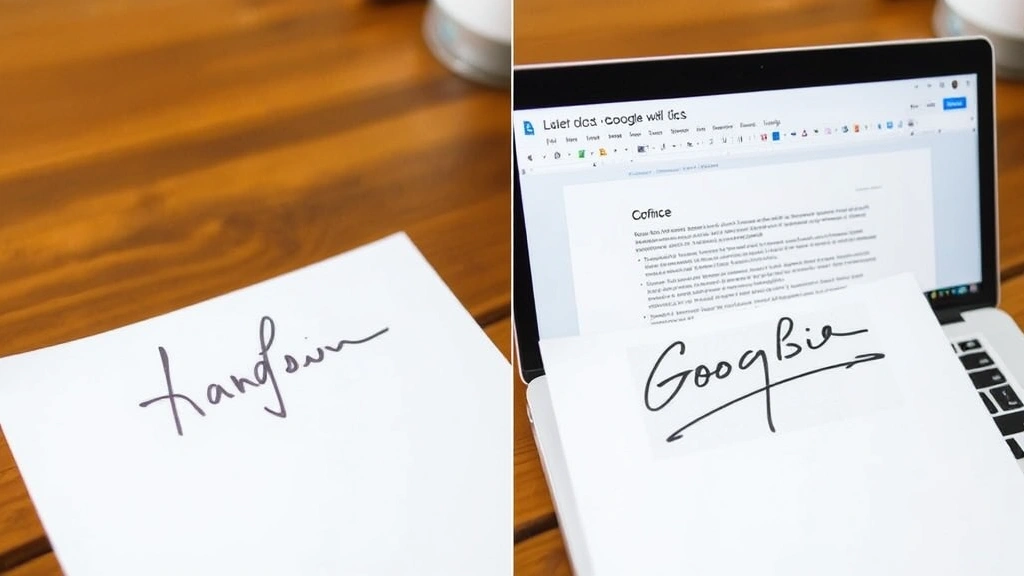
Now that you know how to add a signature in Google Docs, here are some best practices to make sure your signature looks professional and works well across different devices and situations.
Keep It Readable
Your signature should be legible. If someone zooms in on the document, they should still be able to see it clearly. Avoid making it too small or too elaborate. A simple, clean signature is more professional than a fancy, hard-to-read one.
Position Matters
For formal documents, signatures typically go at the bottom of the page, after any closing statements. Leave some space above the signature line so the document doesn’t feel cramped. Think of it like real paper—you wouldn’t sign right up against the text above it.
Use Signature Fields for Forms
If you’re creating a form or template that multiple people will sign, consider using Google Forms or a dedicated e-signature tool like DocuSign or HelloSign. These tools are built specifically for collecting signatures and provide legal protection that a simple image in Google Docs doesn’t.
Save Multiple Versions
Once you’ve signed a document, save it with a clear filename that indicates it’s been signed. For example, “Contract_Signed_2024.pdf” instead of just “Contract.pdf”. This prevents confusion about whether a document has been approved.
Convert to PDF Before Sharing
When you’re done with a document and it’s signed, download it as a PDF. This locks the signature in place and prevents anyone from accidentally editing it. Go to File → Download → PDF Document.
A PDF also looks the same on every device, whereas a Google Doc might display slightly differently depending on screen size or browser. For formal documents, this consistency matters.
Safety Note: Digital signatures in Google Docs are not legally binding in the same way e-signatures from certified tools are. For contracts, legal agreements, or anything that requires a certified signature, use a proper e-signature platform. Google Docs signatures are fine for internal approvals, casual agreements, or documents where both parties understand the informal nature.
Common Problems & Fixes
Your Signature Looks Shaky or Messy
This is the most common issue, especially if you’re using a mouse. Here’s what to do:
- Use a trackpad instead of a mouse—it gives you more control
- If you’re on a tablet, use a stylus instead of your finger
- Draw more slowly and deliberately
- Delete the drawing and try again (no limit to attempts)
The Signature Image Has a White Background
If you uploaded a signature image and it has a white or colored box around it, the image needs a transparent background. Here’s the fix:
- Use a free tool like remove.bg to remove the background automatically
- Or use an image editor like GIMP (free) or Photoshop to manually delete the background
- Save the edited image as a PNG file (PNG supports transparency, JPG doesn’t)
- Upload the new version to your Google Doc
The Signature Moved or Resized When You Shared the Document
This happens sometimes when documents are shared across different devices or browsers. To prevent it:
- Lock the signature in place by right-clicking it and selecting Fix position on page
- Or download the document as a PDF, which freezes everything in place
You Can’t Find the Insert Menu
If you’re using an older version of Google Docs or a different language setting, the menu might look slightly different. Look for a menu that says Insert or a + icon. If you’re truly stuck, try refreshing the page or clearing your browser cache.
Your Signature Disappeared After Saving
This is rare, but it can happen if there’s a sync issue. Here’s what to do:
- Refresh the page (Ctrl+R or Cmd+R)
- Check the version history: File → Version history → See version history
- Revert to a previous version if the signature was there
- If it’s still gone, try adding the signature again
Related Formatting Tasks in Google Docs
While you’re working on your document, you might need to handle other formatting tasks. Google Docs has a lot of built-in features that work similarly to how you add a signature. For example, if you’re creating a formal proposal, you might want to insert a table of contents to organize your content. And if you’re building a checklist or form, learning how to insert checkboxes is super useful.
For those working in Microsoft Word instead, the process is slightly different, but the concept is the same. Many people also need to know how to adjust spacing in their documents for formal submissions or duplicate pages when creating templates.
If you’re managing a lot of documents and need to stay organized, it’s also worth knowing how to manage your Gmail inbox so you don’t lose important documents in the email shuffle.
Frequently Asked Questions
Is a digital signature in Google Docs legally binding?
– Not in the same way as a certified e-signature from services like DocuSign or Adobe Sign. Google Docs signatures are fine for internal documents, approvals, and casual agreements, but for contracts or legal documents, use a certified e-signature platform. They provide audit trails and legal protection that Google Docs doesn’t.
Can I use the same signature in multiple documents?
– Yes. If you use the upload method (Method 2), you can insert the same image file into as many documents as you want. If you use the drawing method, you’ll need to draw it each time, but it only takes a few seconds. For maximum efficiency, save your signature as an image file and upload it whenever needed.
What’s the best file format for a signature image?
– PNG is best because it supports transparency (meaning no white background). JPG works too, but if your signature has a background, it’ll look like a box. GIF also works but is less common. Stick with PNG for the cleanest look.
Can I password-protect a document with my signature?
– Not directly in Google Docs. But you can restrict sharing permissions so only certain people can view or edit the document. Go to the Share button, then adjust the permissions. For documents that need serious security, download as PDF and use a PDF protection tool.
What if I make a mistake while drawing my signature?
– Just delete it and draw again. Click the drawing to select it, then press Delete. There’s no penalty for trying multiple times. Most people get it right within 2-3 attempts.
Can I edit my signature after I’ve added it?
– Yes, but it depends on the method. If you drew it, you can click it and redraw. If you uploaded an image, you can delete it and upload a different version. If you typed it, you can select the text and retype. Signature fonts can be changed by selecting the text and choosing a different font.
Does my signature look the same on all devices?
– It should, especially if it’s an image. Google Docs syncs across devices, so your signature will appear the same on your phone, tablet, and computer. However, if you download the document in different formats (PDF vs. Word), it might display slightly differently. PDF is the most consistent.
Can I add a signature to a Google Doc on my phone?
– Yes. Open the document in the Google Docs app, tap where you want the signature, then tap Insert. You can draw your signature using your finger, or upload an image from your phone’s gallery. The process is the same as on desktop, just with touch controls.
What’s the difference between a signature and an initial?
– A signature is your full name written in your personal style. Initials are just your first and last initials (e.g., “JD” for John Doe). Some documents ask for initials instead of a full signature for quick approvals. You can use the same methods—draw, upload, or type—but just use your initials instead of your full name.
Can I add a signature to a Google Doc template?
– Yes. Add the signature to the template document, then save it as a template. When people use the template to create new documents, the signature will be included. However, they might want to replace it with their own signature, so make sure that’s easy to do (e.g., don’t lock it in place).
Final Thoughts
Learning how to add a signature in Google Docs is one of those skills that seems complicated until you do it once, then feels obvious. Whether you choose to draw it, upload an image, or use a signature font, the process takes just a couple of minutes.
For most everyday use—approving documents, signing off on proposals, adding a personal touch to letters—any of these methods works great. If you’re dealing with legal contracts or formal agreements that need certified signatures, step up to a dedicated e-signature tool like Adobe Sign for that extra layer of legitimacy.
The key takeaway: Don’t overthink it. Pick the method that feels most natural to you, add your signature, download as PDF if it’s final, and move on. Your documents will look more polished, and you’ll save time by not printing everything out just to sign it.


