
Typing in the dark is a special kind of frustration. You’re squinting at the keys, making typos left and right, and wondering why your laptop doesn’t come with a built-in spotlight. Here’s the thing: most modern laptops actually do have keyboard backlighting built in—you just need to know how to turn it on. Whether you’re working late, gaming in a dimly lit room, or just prefer seeing your keys clearly, learning how to turn on light on laptop keyboard is a game-changer that takes about 30 seconds to master.
The good news? This isn’t complicated. Unlike troubleshooting hardware issues like checking what motherboard you have, turning on your keyboard light is purely software-based on most machines. We’ll walk through Windows, Mac, and Linux solutions, plus show you what to do if your laptop doesn’t respond to the usual methods.
Does Your Laptop Have Backlit Keys?
Before you start hunting for settings, let’s confirm your laptop actually has a backlit keyboard. Not all laptops do, especially budget models or older machines. Here’s how to tell in about 10 seconds:
- Darken the room or cover your laptop with a blanket temporarily
- Look closely at the keys—do you see tiny lights underneath the letters?
- Check your keyboard for a dedicated key with a light bulb icon (usually near the top row)
- Look in your laptop’s specifications online (search “[Your Laptop Model] backlit keyboard”)
If you see lights or a light bulb key, you’re good to go. If not, skip ahead to the “When Your Laptop Doesn’t Have Backlighting” section—we’ve got solutions for you too.
Most gaming laptops, premium ultrabooks, and business machines from the last 5-7 years have backlit keyboards. Budget laptops and Chromebooks often skip this feature to save costs. It’s not a deal-breaker, but it’s definitely nice to have.
How to Turn On Keyboard Light on Windows
Windows makes this straightforward, though the exact method depends on your laptop manufacturer. Here are the most common ways to turn on light on laptop keyboard on a Windows machine:
Method 1: Function Key (Fastest)
This is the quickest approach for most Windows laptops. Look for a key with a light bulb icon on your keyboard—it’s usually in the top row, often paired with another function (like Fn + F3, Fn + F5, or Fn + Spacebar). The exact key varies by manufacturer:
- Dell: Usually Fn + F10 or Fn + Right Arrow
- HP/Pavilion: Fn + Spacebar or Fn + F5
- Lenovo/ThinkPad: Fn + Spacebar or Fn + Right Arrow
- ASUS: Fn + F3 or dedicated key
- Acer: Fn + F7 or Fn + Right Arrow
Try pressing the Fn key plus the suspected light bulb key. If nothing happens, move to Method 2.
Method 2: Windows Settings
If the function key doesn’t work, try the software approach:
- Press Windows Key + I to open Settings
- Go to Devices → Keyboard
- Scroll down to find “Keyboard backlighting” or “Illumination”
- Toggle it On
Not all Windows laptops have this option in Settings—manufacturers sometimes hide it in their own control panels.
Method 3: Manufacturer Control Panel
Dell, HP, Lenovo, and ASUS often include proprietary software for keyboard control. Here’s where to look:
- Search your Start Menu for “[Brand] Control Center” or “[Brand] System Tray”
- Look for a tab labeled “Keyboard,” “Lighting,” or “Illumination”
- Click to enable backlighting and adjust brightness if available
Pro Tip: If you can’t find the manufacturer software, download it from the official support page. Search “[Your Laptop Model] keyboard backlighting driver” on the manufacturer’s website.
How to Turn On Keyboard Light on Mac
Apple made this dead simple. Here’s how to turn on light on laptop keyboard if you’re using a Mac:
- Press the Increase Brightness key (usually F6 on older Macs, or the brightness icon on newer ones)
- On newer MacBook Pros with Touch Bar, use F5 or F6 (the brightness keys with the light bulb icon)
- The keyboard light should activate immediately
That’s genuinely it. If it doesn’t work:
- Go to System Preferences → Keyboard
- Look for a checkbox labeled “Adjust keyboard brightness in low light” or similar
- Make sure it’s enabled
- You can also set it to turn off after a certain period of inactivity
Mac’s implementation is elegant—the keyboard light often turns on automatically when the room gets dark, and turns off after 30 seconds of inactivity to save battery. You can adjust this behavior in the Keyboard settings.
How to Turn On Keyboard Light on Linux

Linux support for keyboard backlighting varies depending on your distribution and hardware. Here’s the general approach:
Using the Function Key
Like Windows, try the Fn + light bulb key combination first. Many Linux distributions recognize this out of the box.
Command Line Method
If the function key doesn’t work, open a terminal and use this command:
echo 1 | sudo tee /sys/class/leds/*/brightness
Replace the path with your specific keyboard LED path. To find it, run:
ls /sys/class/leds/
Look for entries containing “kbd_backlight” or similar, then adjust the brightness value (usually 0-255).
GUI Tools
Some Linux desktop environments (like GNOME or KDE) include keyboard lighting controls in system settings. Check your distribution’s control center under “Keyboard” or “Accessibility.”
Real Talk: Linux keyboard lighting support is hit-or-miss depending on your specific laptop model and kernel version. If the above doesn’t work, your best bet is searching “[Your Laptop Model] keyboard backlight Linux” in a forum like Ask Ubuntu or the Arch Wiki.
Keyboard Light Not Working? Try This
Sometimes the keyboard light refuses to cooperate. Here’s how to diagnose and fix the problem:
Step 1: Verify Hardware Support
Open your laptop in a completely dark room and look very closely at the keys. Do you see any faint glow? If yes, the hardware works—it’s a software issue. If no, jump to Step 3.
Step 2: Update Drivers and BIOS
Outdated drivers are a common culprit. Here’s how to fix it:
- Windows: Go to Device Manager → Keyboards → Right-click your keyboard → Update Driver → Search automatically for updated driver software
- Mac: Go to System Preferences → Software Update and install any pending updates
- Linux: Run
sudo apt update && sudo apt upgrade(or equivalent for your distro)
Also check your laptop manufacturer’s support page for BIOS updates. Sometimes keyboard lighting requires a BIOS update to function properly.
Step 3: Reinstall Manufacturer Software
If updating drivers doesn’t work, the manufacturer’s control software might be corrupted:
- Uninstall the software (Control Panel → Programs → Uninstall)
- Restart your laptop
- Download the latest version from the manufacturer’s support page
- Install it fresh
Step 4: Check BIOS Settings
On some laptops, keyboard backlighting can be disabled in BIOS. Here’s how to check:
- Restart your laptop and enter BIOS (usually by pressing F2, F10, Del, or Esc during startup—check your laptop’s manual)
- Look for “Keyboard Backlighting,” “Illumination,” or “Integrated Peripherals”
- Make sure it’s set to “Enabled”
- Save and exit
Safety Warning: Don’t change anything else in BIOS unless you know what you’re doing. Stick to keyboard-related settings.
Step 5: Test Hardware Failure
If nothing above works, your keyboard’s backlight hardware might be dead. This is rare but happens, especially after liquid damage or a hard drop. You’ll need to either:
- Replace the keyboard (if your laptop allows it)
- Use an external keyboard with backlighting
- Consider a keyboard light alternative (see the next section)
Adjusting Brightness and Auto-Off Settings
Most laptops let you control how bright the keyboard light is and when it automatically turns off. Here’s how to fine-tune it:
Windows Brightness Control
If your laptop supports it, use the function keys to adjust brightness:
- Look for keys with light bulb icons (usually F3-F7 range)
- One key increases brightness, the other decreases it
- Press repeatedly until you reach your desired level
For more granular control, check the manufacturer’s control panel (Dell Power Manager, HP Command Center, etc.).
Mac Brightness Control
Use the brightness keys (F5 and F6, or the brightness icons on Touch Bar) to adjust. Mac automatically turns off the keyboard light after 30 seconds of inactivity—you can change this in System Preferences:
- System Preferences → Keyboard
- Look for “Turn keyboard backlight off after [X] seconds of inactivity”
- Adjust the timer or uncheck to disable auto-off
Linux Brightness Control
Adjust brightness with:
echo [0-255] | sudo tee /sys/class/leds/[keyboard_led_path]/brightness
Replace [0-255] with your desired brightness level and [keyboard_led_path] with the actual path from earlier.
For auto-off functionality, you may need to use a third-party tool or script, depending on your distribution.
When Your Laptop Doesn’t Have Backlighting
Not all laptops come with backlit keyboards, and that’s okay. If yours doesn’t, here are some solid alternatives that work just as well:
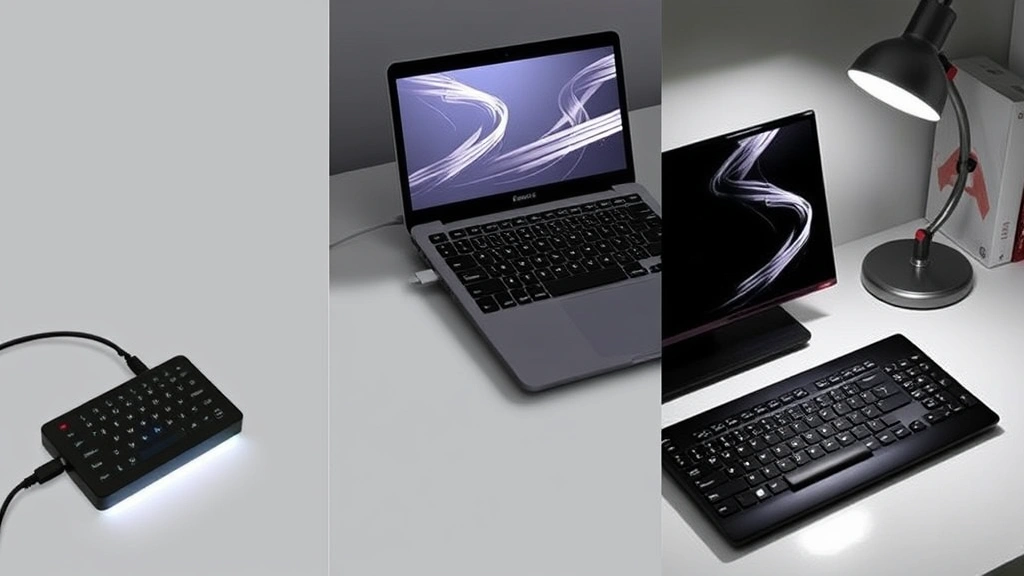
External Backlit Keyboard
The easiest solution. Connect a USB or wireless keyboard with backlighting. Most gaming keyboards have excellent backlighting and aren’t expensive. Check out Family Handyman’s tech guides for equipment recommendations.
Keyboard Light Clip
These small LED lights clip onto your laptop screen or keyboard area and shine down on the keys. They’re cheap ($10-30), battery-powered, and require zero installation. Search “keyboard clip light” on Amazon.
Desk Lamp or Ring Light
A good desk lamp positioned above your keyboard works surprisingly well. If you do video calls, a ring light kills two birds with one stone—it lights your keyboard and your face. This is what most content creators use anyway.
USB Light Bar
Newer options like the BenQ e-Reading Lamp or similar USB-powered light bars mount behind your monitor and provide ambient lighting for your entire desk. They’re pricier ($50-150) but look professional.
Pro Tip: If you’re a programmer or writer who works in low light frequently, investing in a decent desk lamp or monitor light bar is worth it. You’ll use it for years and it’ll save your eyes.
Frequently Asked Questions
Why does my keyboard light turn off automatically?
– This is intentional battery-saving behavior on most laptops. Mac keyboards turn off after 30 seconds of inactivity. Windows and Linux depend on the manufacturer’s software, but many default to auto-off. You can usually disable this in keyboard settings (System Preferences on Mac, manufacturer control panel on Windows).
Does keyboard backlighting drain battery quickly?
– No, not significantly. Keyboard backlighting uses minimal power—usually less than 5% of your battery drain. The auto-off feature is more about convenience than battery life.
Can I add backlighting to a keyboard that doesn’t have it?
– Not easily if it’s built into your laptop. The LEDs and wiring would need to be installed during manufacturing. Your best bet is an external backlit keyboard or a clip-on keyboard light.
Is keyboard backlighting worth it?
– Absolutely, if you work in low light or at night. It eliminates eye strain from squinting and dramatically reduces typos. If you work in a well-lit office, it’s less critical but still nice to have.
Why isn’t my function key working to turn on the keyboard light?
– The function key varies by manufacturer. Try all the light bulb icon keys in your top row. If none work, the manufacturer software might not be installed or the drivers are outdated. Check your laptop manufacturer’s support page and download the latest keyboard drivers.
Can I customize keyboard light colors?
– On most laptops, no—backlighting is usually white or amber only. Gaming laptops sometimes offer RGB customization through manufacturer software (like ASUS Aura or Razer Synapse), but standard business laptops don’t. Check your manufacturer’s control panel to see if color options exist.
Does keyboard backlighting work when the laptop is in sleep mode?
– No. The keyboard light only works when your laptop is awake and the OS is running. This is by design to save power.
My keyboard light flickers or acts weird. What’s wrong?
– This usually indicates a driver issue or corrupted manufacturer software. Try reinstalling the keyboard drivers and the manufacturer’s control panel. If it persists, the hardware might be failing and you may need to replace the keyboard.


