
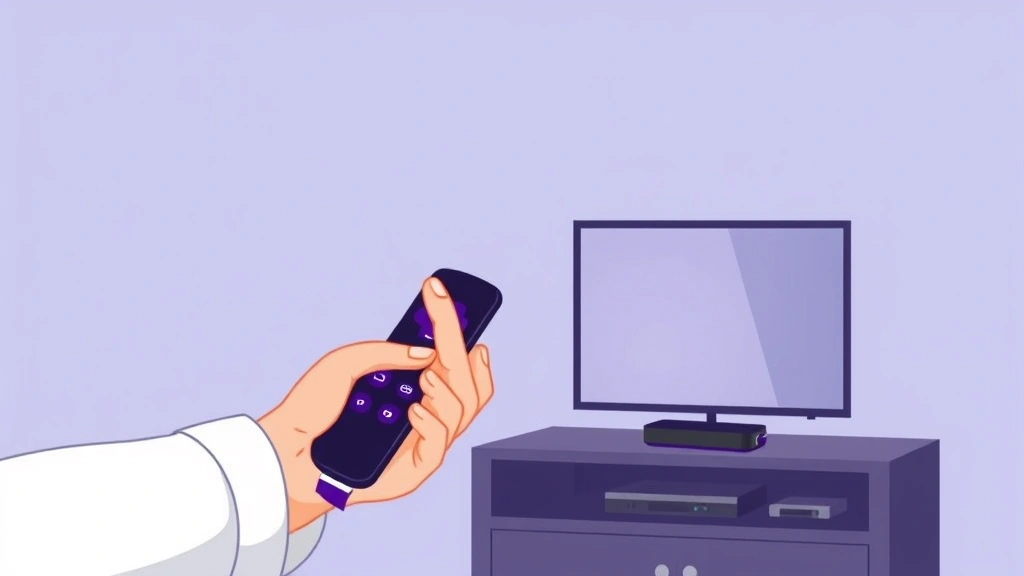
There’s nothing more frustrating than a Roku remote that won’t respond. You’re sitting on the couch, ready to binge your show, and suddenly nothing happens when you press the buttons. Dead batteries? Interference? Or worse—you lost the pairing button entirely? The good news: how to sync roku remote without pairing button is easier than you think, and you’ve got multiple ways to fix it.
A synced Roku remote is the difference between a smooth streaming experience and constant frustration. Whether your remote has gone rogue or you’re setting up a new device, this guide walks you through every method—from the obvious to the hidden tricks that actually work.
Why Your Roku Remote Needs Syncing
Let’s start with the real talk: your Roku remote uses RF (radio frequency) pairing, not infrared like old TV remotes. That means it needs an active connection to your Roku device, kind of like Bluetooth pairing on your phone. When that connection drops—whether from interference, battery issues, or just random gremlins—your remote becomes an expensive paperweight.
Syncing re-establishes that RF connection. Think of it like reconnecting a phone to WiFi after it lost signal. Without it, your remote can’t send commands to your Roku player, streaming stick, or TV.
The most common reasons you’ll need to resync:
- Batteries died completely (they drain the pairing)
- You replaced batteries and the remote lost connection
- Interference from other wireless devices (microwave, router, cordless phones)
- Roku device was unplugged or factory reset
- Remote physically moved too far from the device
- The pairing button is missing, broken, or worn out
According to Roku’s official support documentation, most sync issues resolve within seconds. The key is knowing which method works for your specific remote model.
The Basic Sync Method (Pairing Button)
If your remote has a pairing button (usually on the back, sometimes inside the battery compartment), this is your fastest route:
- Make sure your Roku device is powered on and connected to the same network
- Locate the pairing button on your remote (it’s often labeled “Pairing” or marked with a dot/icon)
- Press and hold the pairing button for 3-5 seconds until you see a light flash on your Roku device
- Release the button and wait 10-15 seconds for the connection to establish
- Test by pressing any button on the remote
Pro Tip: If the pairing button is inside the battery compartment, you might need a paperclip or small tool to reach it. Don’t force it—Roku buttons are plastic and snap easily.
The pairing light on your Roku device (usually on the front of the player or stick) will blink while syncing. Once it stops blinking and stays solid or goes dark, you’re connected. This whole process takes less than a minute in normal conditions.
How to Sync Roku Remote Without the Pairing Button
Now here’s where it gets real: what if the pairing button is missing, broken, or you can’t find it? You’ve got options, and they work surprisingly well.
Method 1: Use the Roku Mobile App
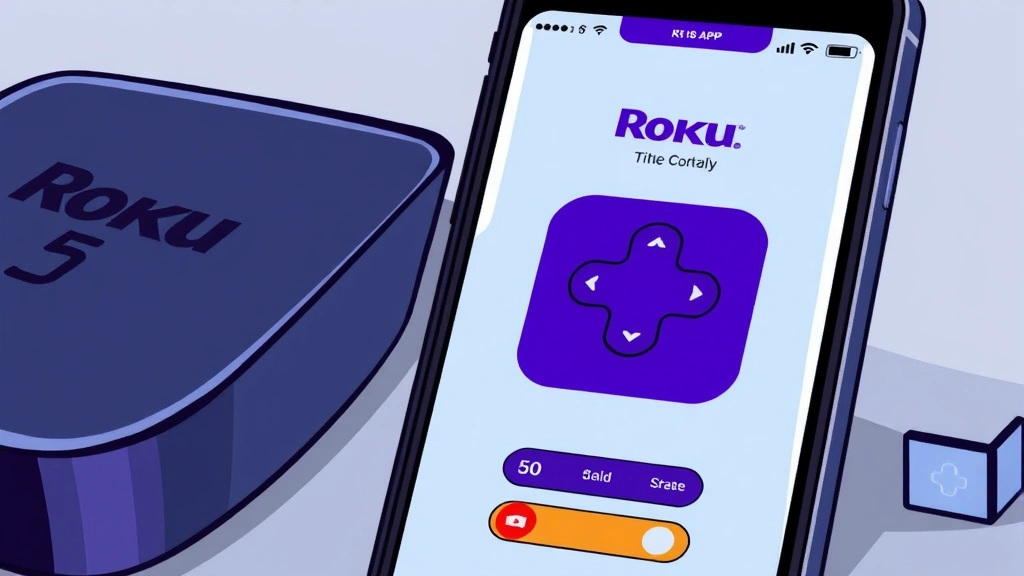
This is the sleeper method that most people don’t know about. If you have a smartphone, you can sync your physical remote using the official Roku app:
- Download the Roku app (iOS or Android) on your smartphone
- Open the app and tap “Devices” at the bottom
- Select your Roku device from the list
- Tap the remote icon at the bottom of the screen
- The app becomes a virtual remote—use it to navigate to Settings > System > Advanced System Settings > Remote pairing
- Select “Pairing mode” and your physical remote should sync automatically within 30 seconds
This method bypasses the physical pairing button entirely. The Roku device enters pairing mode through the app, and your physical remote detects it. Genius, right?
Method 2: Factory Reset Your Roku Device
If the app method doesn’t work, a factory reset often forces your remote to resync. Warning: this erases all your settings and apps, so use it as a last resort.
- Unplug your Roku device from power for 10 seconds
- Plug it back in and wait for the startup screen
- Immediately press and hold the reset button (usually a small recessed button on the back or bottom) for 10-15 seconds
- Your Roku will factory reset—this takes 5-10 minutes
- Once it restarts, your remote should automatically pair during initial setup
After a factory reset, your remote typically syncs without any additional steps. The device is essentially starting fresh and looking for a remote to pair with.
Method 3: Replace Batteries & Try Again
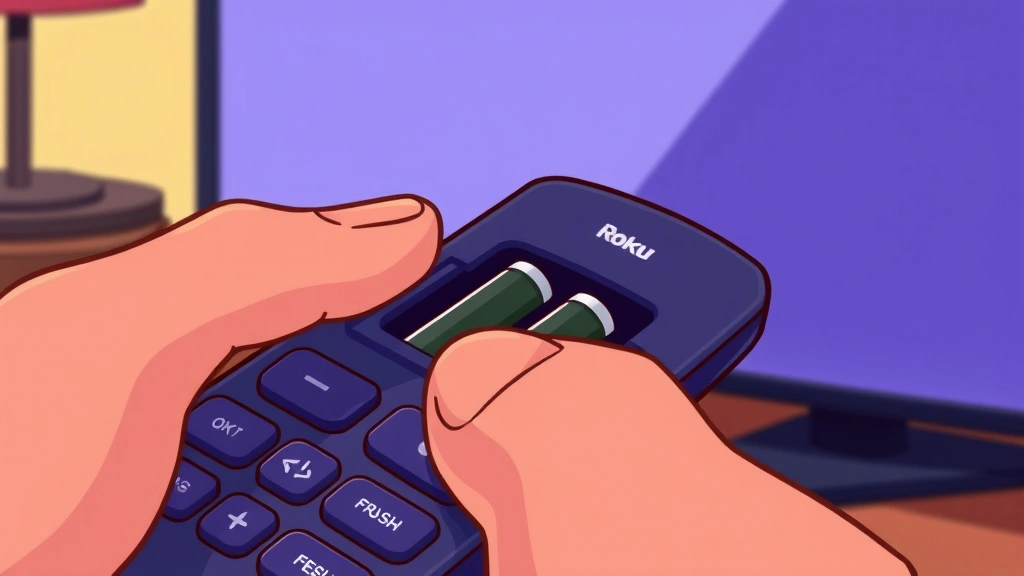
This sounds obvious, but dead or dying batteries are the #1 reason remotes lose sync. Here’s the catch: even if you replace the batteries, the remote might not automatically resync.
- Remove the battery cover on the back of your remote
- Take out the old batteries completely
- Wait 30 seconds (this clears any residual charge)
- Insert fresh, high-quality batteries (alkaline is best—avoid cheap dollar-store batteries)
- Point the remote at your Roku device and press any button
- If it doesn’t respond within 5 seconds, press and hold the Home button for 10 seconds
Sometimes the remote resyncs just from having fresh power. If not, try the Roku app method next.
Method 4: Check for Interference
RF remotes are sensitive to interference. Your microwave, WiFi router, cordless phone, or even a baby monitor can jam the signal. This isn’t technically a “sync” issue, but it feels like one because your remote stops working.
- Move your Roku device away from your WiFi router (at least 3-4 feet)
- Avoid using cordless phones near your Roku when using the remote
- Keep the microwave door closed during use
- Check if anything was recently plugged in near your entertainment setup
- Try using the remote closer to the Roku device (within 6 feet) to test if distance is the issue
If your remote works fine when you’re close but fails from across the room, interference is likely the culprit. Repositioning your router or Roku device usually solves it.
Troubleshooting When Sync Fails
Sometimes the standard methods don’t cut it. Here’s what to do when you’re really stuck:
Remote Still Won’t Sync? Try This Sequence
- Check your Roku model: Visit Roku’s support page to identify your device. Different models have different pairing procedures.
- Verify the remote is compatible: Not all Roku remotes work with all Roku devices. A remote made for a Roku Streaming Stick+ might not pair with an older Roku 2.
- Restart your Roku device: Unplug it for 30 seconds, plug it back in, and wait for the home screen to load before trying to sync again.
- Move closer to the device: RF pairing works best within 6-10 feet. Get right next to your Roku and try syncing.
- Try a different USB port: If your Roku is plugged into a USB port on your TV, try plugging it into a wall outlet instead. Some TV USB ports don’t provide enough power for proper RF pairing.
- Check for firmware updates: Navigate to Settings > System > System Update and install any available updates. Outdated firmware sometimes breaks remote pairing.
Safety Warning: Never open your Roku device or remote to “fix” pairing issues. These devices contain components that can be damaged by static electricity or physical tampering. If pairing fails after these steps, the device likely needs replacement.
Using Alternative Remotes & Apps
If your physical remote is truly dead or lost, you have workarounds while you wait for a replacement:
The Roku Mobile App (Your Best Friend)
The official Roku app turns your smartphone into a full remote. Download it, log in with your Roku account, and you get:
- Full remote functionality (directional pad, buttons, everything)
- Voice search (on compatible devices)
- Keyboard for typing passwords and search queries
- Private listening (audio through your phone speaker)
The only limitation: it requires WiFi, whereas the physical remote uses RF and works even if your WiFi is down.
Universal Remotes
Some universal remotes (like Harmony or Logitech) can control Roku devices. However, they typically use infrared, not RF, so they have limited range. Check compatibility before buying.
Third-Party Roku Remotes
Amazon, Best Buy, and Roku’s official store sell replacement remotes. Prices range from $20-$50 depending on features. When you get a new one, use the methods above to sync it.
Keeping Your Remote Synced Long-Term
Prevention beats troubleshooting every time. Here’s how to keep your Roku remote happy:
Battery Best Practices
- Replace batteries every 6-12 months, even if they still seem to work
- Use alkaline batteries (AA or AAA, depending on your remote)—rechargeable batteries often cause pairing issues
- Remove batteries if you won’t use the remote for more than a month
- Store batteries in a cool, dry place (heat degrades them faster)
Environmental Care
- Keep your Roku device in a well-ventilated area (heat can affect RF pairing)
- Avoid placing your Roku near metal objects or other electronics that generate RF noise
- Don’t cover your Roku device with blankets or place it in a closed cabinet—RF signals need clear air
Remote Physical Care
- Avoid dropping or throwing your remote (buttons are fragile)
- Don’t expose it to extreme heat or moisture
- Clean the battery contacts with a dry cloth every few months
- If buttons get sticky, use a slightly damp cloth—never submerge the remote
Network Maintenance
- Keep your Roku device updated to the latest firmware
- Position your WiFi router away from your Roku device to reduce interference
- If you have 2.4GHz and 5GHz WiFi bands, connect your Roku to 5GHz if possible (it’s less congested)
According to This Old House’s electronics guide, most remote pairing issues stem from poor maintenance rather than hardware failure. A little preventive care goes a long way.
Frequently Asked Questions
Can I sync a Roku remote to multiple devices?
– No, each Roku remote syncs to one device at a time. If you want to control multiple Roku devices, you’ll need multiple remotes or use the mobile app to switch between devices.
Why does my remote sync, then lose connection after a few days?
– This usually means your batteries are dying. Replace them with fresh alkaline batteries. If the problem persists, try the Roku app pairing method—sometimes the remote needs a “hard” resync rather than just battery replacement.
Does the pairing button wear out?
– Yes, physical buttons can wear out after thousands of presses. If your pairing button feels mushy or doesn’t click, use the Roku app method instead. You can still sync without the physical button.
What’s the difference between a Roku remote and a Roku voice remote?
– Voice remotes have a microphone and let you search by speaking. Standard remotes are purely physical buttons. Both sync the same way—the methods in this guide work for both types.
Can I use an old Roku remote with a new Roku device?
– Sometimes, but not always. Roku regularly updates RF protocols. A remote from 2015 might not pair with a 2023 device. Check your remote and device model numbers on Roku’s support site to confirm compatibility.
My remote pairs but only works for 10 seconds, then stops.
– This is almost always a battery issue. Replace the batteries immediately. If that doesn’t work, try removing the batteries for 30 seconds, then reinstalling them. If it still fails, use the factory reset method.
Is there a way to sync my remote without the Roku app?
– Yes. The pairing button method works without the app. If your remote doesn’t have a pairing button, the factory reset method will force an automatic resync when the device restarts.
Can interference from my WiFi router permanently damage my remote?
– No, interference just blocks the signal temporarily. It won’t damage the remote. Move your router away from your Roku device and the problem should disappear.
My Roku device is in another room. Can I sync the remote from there?
– Pairing works best within 6-10 feet. If your device is in another room, bring the remote closer to it for syncing, then it should work from a distance once paired. RF has decent range once the initial connection is established.
What if I’ve tried everything and the remote still won’t sync?
– At this point, the remote likely has a hardware failure. Check Family Handyman’s remote repair guide for troubleshooting, but if nothing works, it’s time to buy a replacement. Roku remotes are affordable and widely available.


