
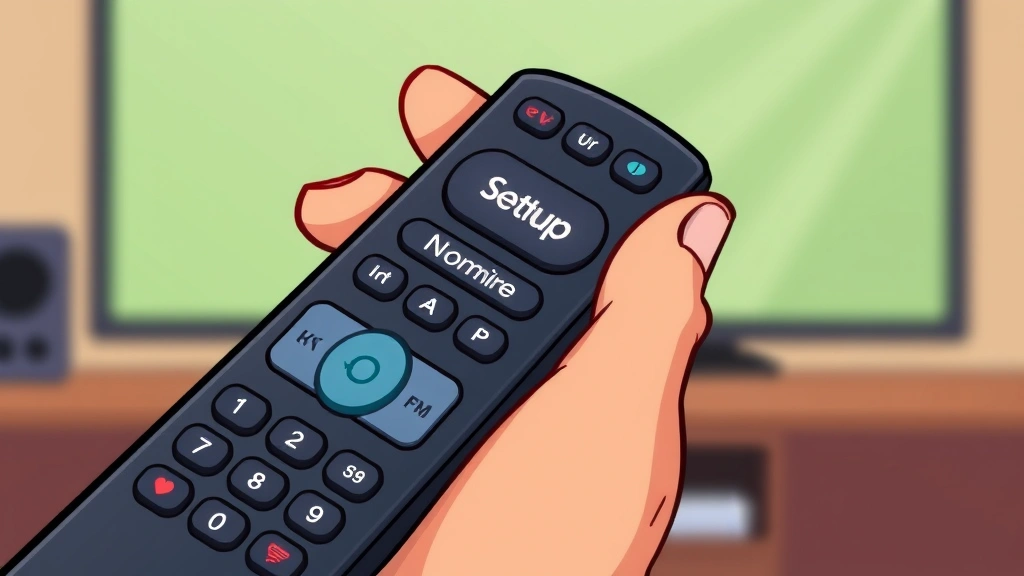
Your Xfinity remote stops working with your TV, and suddenly you’re stuck holding a piece of plastic that won’t do anything. Frustrating, right? The good news: how to program Xfinity remote is way easier than you think, and you don’t need to be tech-savvy to pull it off. Whether you’ve got a new remote, switched devices, or just need a fresh start, this guide walks you through every method—from the simple auto-pairing trick to manual code entry. We’ll cover all the common hiccups too, so you won’t be left guessing.
Quick Answer: 30-Second Setup
If you’re in a hurry: Hold the Setup button on your Xfinity remote until the light flashes (about 3 seconds), then point it at your TV and press Power. The remote will cycle through codes automatically. When your TV turns off, press Select to lock in that code. Done. This works about 70% of the time for standard devices.
If that doesn’t work (and we’ll get to why), you’ll need the manual method—which takes maybe 2 minutes. Stick with us.
Understanding Xfinity Remote Pairing Basics
Before you start punching buttons, let’s talk about what’s actually happening. Your Xfinity remote (whether it’s the XR11, XR15, or older XR2 model) communicates with your devices using infrared (IR) signals—think of it like a light beam carrying coded instructions. When you program the remote, you’re basically teaching it which code sequence makes your specific TV, soundbar, or streaming device respond.
Comcast makes remotes that work with hundreds of devices, so the remote doesn’t automatically know if you’ve got a Samsung TV from 2019 or a 2024 LG. That’s why programming is necessary.
There are two main approaches:
- Auto-pairing: The remote tries codes in sequence until something works. Fast but not always reliable.
- Manual code entry: You find your device’s specific code and enter it manually. Slower but bulletproof.
Most people try auto-pairing first, then switch to manual if needed. That’s the smart play.
Pro Tip: Keep your device’s model number handy before you start. You’ll find it on the back or bottom of your TV, or in the original box. This saves you from hunting later.
Method 1: Auto-Pairing (The Easy Way)
This is your first move. It works surprisingly often, and if it does, you’re done in 60 seconds.
- Grab your Xfinity remote and locate the Setup button. On most models, it’s at the top. If you can’t find it, check the back panel—some remotes have it there.
- Press and hold Setup until the LED light at the top of the remote flashes. This typically takes 3–5 seconds. You’ll see the light blink once or twice to confirm it’s in pairing mode.
- Point the remote directly at your TV (or the device you’re programming). Make sure there’s a clear line of sight—don’t aim through furniture or windows.
- Press the Power button. The remote will now send IR codes to your device one at a time.
- Watch your TV. It will turn off when the correct code is reached. This might take 10–30 seconds depending on how many codes the remote cycles through.
- Once your TV powers off, immediately press Select (the center button on the remote). This locks in the code.
- Test it: Press Power again. Your TV should turn back on. If it does, you’re golden.
If your TV doesn’t turn off after a couple of minutes, the auto-pairing didn’t find a match. Don’t panic—we’re moving to Method 2.
Method 2: Manual Code Entry (The Reliable Way)
This method works 99% of the time because you’re telling the remote exactly which code to use. It takes a few minutes, but it’s worth it.
Step 1: Find Your Device Code
You need a 3–5 digit code specific to your device. There are a few ways to get it:
- Xfinity’s Online Code Finder: Visit Xfinity’s official support page and search by device brand and model. This is the most reliable source.
- Your TV’s Manual: Some manuals list Comcast/Xfinity codes in the back.
- The Code List (Printed): If you have the original remote documentation, it usually includes a code chart.
- Call Xfinity Support: They can give you the code over the phone. It’s free, though you’ll wait on hold.
Write down the code. You’ll need it in the next step.
Step 2: Enter the Code Manually
- Locate the Setup button on your remote again.
- Press and hold Setup until the LED light flashes (3–5 seconds). You should see two flashes to confirm it’s in code-entry mode.
- Release Setup.
- Using the number pad on the remote, enter your device code. Type it slowly and deliberately. If it’s a 4-digit code like 0178, press 0, then 1, then 7, then 8.
- Press Power. If the code is correct, your device should respond (TV turns off, soundbar lights up, etc.). The LED on the remote will flash to confirm the code was accepted.
- If nothing happens, the code might be wrong. Press Setup again and try the next code on the list (most devices have 2–4 codes available).
Once your device responds, you’re programmed. Test all the buttons—volume, channel, input—to make sure everything works.
Safety Note: If you’re programming a device mounted high on a wall, use a step stool or ladder to reach it safely. Don’t stretch or strain to point the remote upward.
Troubleshooting Common Issues
Programming didn’t work? Join the club. Here’s what to do.
The Remote Won’t Enter Pairing Mode (LED Doesn’t Flash)
This usually means your remote’s batteries are dying. Replace them with fresh alkaline batteries and try again. Seriously—weak batteries are the #1 culprit. Also, make sure you’re pressing the Setup button and not something else. On some older Xfinity remotes, it’s labeled differently.
The Code Doesn’t Work / Nothing Responds
First, double-check the code. Did you write it down correctly? Try the alternate codes for your device (if available). Some TV models have multiple codes. If you’ve tried all available codes and nothing works, your device might not be compatible with that particular remote model. Call Xfinity support—they can help you find a workaround or arrange a replacement remote.
The Remote Works for Power But Not Volume or Channels
This is annoying but fixable. It usually means you’ve programmed the wrong device type. For example, if you entered a code for a Vizio TV but you actually have a Samsung, the power code might match but the volume codes won’t. Go back and verify your device model, then re-program with the correct code.
The Remote Keeps Cycling Through Codes During Auto-Pairing
The auto-pairing feature sometimes gets stuck if there’s interference. Move away from other IR devices (like cable boxes or streaming devices) and try again in a clear area. Also, make sure there’s nothing blocking the IR sensor on your TV.
Programmed Successfully, But It Stops Working After a Few Days
This usually indicates a battery issue or IR sensor problem on your TV. Try replacing the remote batteries first. If that doesn’t help, your TV’s IR receiver might be damaged. Family Handyman has a detailed guide on diagnosing remote problems that might help you narrow it down.
Finding the Right Device Code
This is where a lot of people get stuck, so let’s make it crystal clear.
For TVs: You need the brand and model number. Look on the back of the TV or in the settings menu (usually under System Info or About). Then search that exact model on the Xfinity code finder. Most TVs have 2–4 codes listed.
For Soundbars and Audio Devices: Same process. Find the model number, search it, and try the codes in order.
For Streaming Devices (Roku, Fire Stick, Apple TV): These are trickier because they sometimes use different codes than you’d expect. If you’re having trouble, check our guide on connecting Roku without a remote for alternative control methods. You might also consider exploring Fire Stick customization options if you’re looking for more control flexibility.
For Cable Boxes: If you’re programming the remote to control your Xfinity cable box specifically, the codes are usually pre-loaded. You might not need to do anything—just set it to “Cable Box” mode using the device selector buttons.
Pro tip: Bookmark the Xfinity code finder page. You’ll probably need it again someday, and it beats hunting through manuals.
Advanced Setup & Custom Commands
Once you’ve got the basics down, you can do some neat stuff with your Xfinity remote.
Programming Multiple Devices
Your Xfinity remote can control up to 4 devices simultaneously (TV, soundbar, cable box, and one other). Most remotes have device selector buttons at the top—usually labeled TV, AUX, CBL (cable box), and DVD or similar. Here’s how to set it up:
- Press the device button (e.g., TV).
- Follow the programming steps above to set your TV code.
- Press the AUX button.
- Program your soundbar or second device.
- Repeat for each device you want to control.
- The remote will remember which codes go with which device button.
Now you can switch between devices by pressing the device buttons. Press TV, and the remote controls your TV. Press AUX, and it controls your soundbar. Slick.
Customizing Macro Commands (Advanced Models Only)
Some newer Xfinity remotes (like the XR15) let you create custom macros—sequences of commands that execute with a single button press. For example, you could program a “Movie Time” button that turns on your TV, switches to HDMI 3, dims your lights (if compatible), and mutes the volume. This requires using the Xfinity app or web portal. Check This Old House’s tech section for similar smart home automation ideas if you’re interested in expanding beyond your remote.
Resetting Your Remote to Factory Settings
If you’ve programmed it wrong and want to start over, you can reset it. Hold Setup for 10 seconds (longer than the usual 3–5 seconds). The LED will flash three times to confirm the reset. All your custom codes will be erased, and you can start fresh.
Checking Battery Health
Your remote’s LED light tells you a lot. A bright, responsive flash means good batteries. A dim or sluggish flash means it’s time to replace them. Don’t wait until the remote completely stops working—swap them out when you notice the light getting weak.
Frequently Asked Questions
Can I program my Xfinity remote to work with devices other than my TV?
– Yes. Xfinity remotes can control soundbars, streaming devices, cable boxes, and some smart home gadgets. Use the device selector buttons (TV, AUX, CBL, etc.) and program each one separately with its own code. The remote will remember which codes go with which device.
What if my device isn’t on the Xfinity code list?
– Some older or obscure devices might not have a code. Call Xfinity support at 1-800-XFINITY. They can sometimes find a workaround or suggest a compatible code. If your device is really old, you might be out of luck—older IR standards sometimes don’t match newer remotes.
Do I need WiFi to program my Xfinity remote?
– No. Infrared remotes work via direct line-of-sight and don’t require internet. However, if you’re using the Xfinity app or web portal to manage advanced settings, you’ll need WiFi for that. The basic programming (holding Setup and entering codes) is purely local.
How often do I need to reprogram my remote?
– Once it’s programmed correctly, it should stay programmed indefinitely—even if you replace the batteries. The code is stored in the remote’s memory. You only need to reprogram if you buy a new remote, switch devices, or do a factory reset.
Can I use my phone as an Xfinity remote instead?
– Yes. Download the Xfinity Stream app, and you can control your cable box and streaming devices from your phone. However, this requires WiFi and won’t work for non-Xfinity devices like your TV. The physical remote is still useful as a backup.
Why does my remote work sometimes but not always?
– Weak batteries are the most common culprit. Replace them. If that doesn’t help, your TV’s IR sensor might have dust or debris blocking it. Clean the sensor with a soft cloth. Also, make sure there’s a clear line of sight between the remote and device—don’t aim through walls or thick furniture.

Is there a master reset code if I forget my programming?
– Not exactly, but you can factory reset the remote by holding Setup for 10 seconds. This erases all custom codes and returns it to default settings. Then you can reprogram from scratch.
What’s the difference between XR11, XR15, and other Xfinity remote models?
– The XR11 is older and more basic. The XR15 is newer and supports voice commands and advanced features. Functionally, they both work the same way for standard programming—hold Setup, enter codes, done. The main differences are in extra features and button layout. Regardless of model, the programming steps are nearly identical.


