
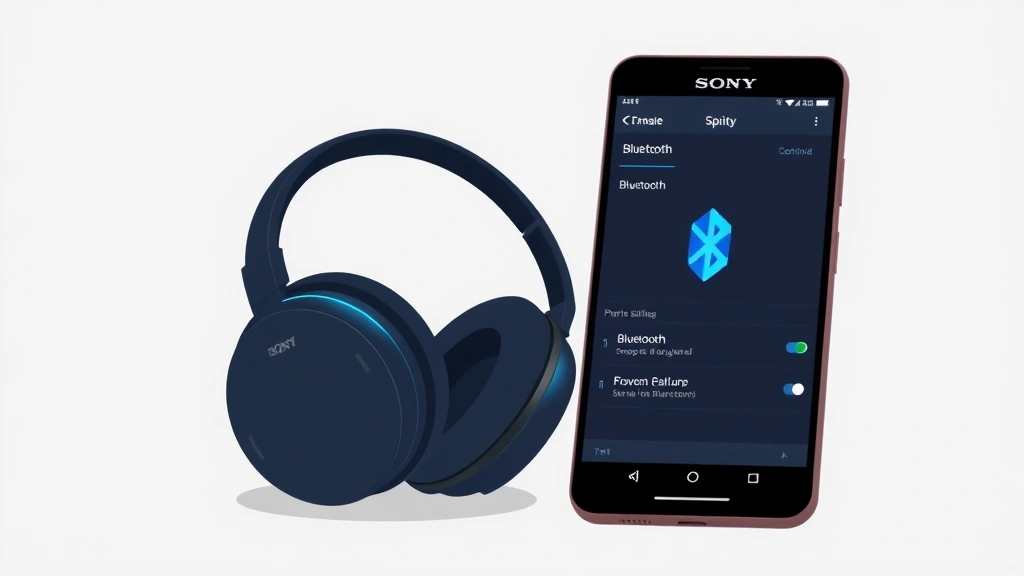
Bluetooth connectivity should be simple. But if you’ve ever stared at your Sony headphones wondering why they won’t connect to your phone, you know it’s not always that way. The good news? How to pair Sony headphones is actually straightforward once you know the steps. Whether you’re dealing with Sony WH-1000XM5s, earbuds, or older models, the pairing process is nearly identical across the board. This guide walks you through every scenario—first-time pairing, reconnecting to old devices, and troubleshooting when things go sideways.
First-Time Pairing: The Basics
The first time you pair Sony headphones, you need to put them into pairing mode. This tells your headphones to broadcast their Bluetooth signal and wait for a device to connect. Think of it like opening a door—without pairing mode, your device can’t find the headphones.
Here’s the step-by-step process:
- Charge your Sony headphones fully. Low battery can prevent proper pairing. Plug them in for at least 2-3 hours before your first connection attempt.
- Power on the headphones. Press and hold the power button for 2-3 seconds until you hear a startup sound or see an LED indicator light up.
- Enter pairing mode. Most Sony headphones require you to hold the power button for 7-10 seconds until you hear a voice prompt saying “pairing mode” or see the LED flashing in a specific pattern (usually blue and red alternating). Check your manual for your specific model—timing varies.
- Open Bluetooth settings on your device. On iOS, go to Settings > Bluetooth. On Android, go to Settings > Connected Devices > Bluetooth (or similar, depending on your version).
- Look for your Sony headphones in the available devices list. They’ll appear with a name like “WH-1000XM5” or “WF-C700N.” Tap or click the name to select it.
- Confirm the pairing. Your device may ask for a PIN code—usually “0000” or “1234” for Sony headphones. Enter it if prompted, then wait for the connection to complete.
- Listen for confirmation. You’ll hear a voice prompt or notification sound confirming the pairing is successful.
Pro tip: Keep your phone or device within 3 feet of the headphones during pairing. Bluetooth is finicky over distance, especially during the initial connection. Once paired, they’ll reconnect from further away, but that first handshake needs proximity.
Reconnecting to an Existing Device
After the first pairing, reconnecting is much simpler. Your Sony headphones remember every device they’ve been paired with and will automatically reconnect when you turn them on and have Bluetooth enabled on your device.
To manually reconnect:
- Turn on your Sony headphones.
- Enable Bluetooth on your device.
- Wait 5-10 seconds. The headphones should automatically connect.
- If they don’t, open your Bluetooth settings and tap the headphones name to manually select them.
If your headphones keep disconnecting or won’t reconnect, it’s usually a sign that the pairing data is corrupted. We’ll cover how to fix that in the troubleshooting section below.
Pairing Multiple Devices
Sony headphones can remember multiple devices, but they’ll only actively connect to one at a time. This is useful if you switch between a phone, tablet, and laptop regularly.
To pair a second device:
- Make sure your Sony headphones are powered on and NOT actively connected to your first device.
- Hold the power button for 7-10 seconds to enter pairing mode again (you’ll hear the pairing mode prompt).
- Go to Bluetooth settings on your second device and select your Sony headphones from the available devices list.
- Confirm pairing with the PIN code if prompted.
Now your headphones are paired with both devices. When you turn them on, they’ll try to reconnect to the last device they were connected to. If that device has Bluetooth off, they’ll wait for you to manually select a different paired device.
Pro Tip: If you want to switch between devices quickly, some Sony models support “quick pairing” through their companion app. This lets you switch active connections without re-pairing.
Troubleshooting Connection Issues
Sometimes how to pair Sony headphones feels impossible because something’s gone wrong. Here are the most common issues and real fixes.
Headphones won’t enter pairing mode:
- Check the battery level. If your headphones are critically low on battery, they may not enter pairing mode. Charge them for at least 15-20 minutes.
- Try a longer button press. Some models require 10-15 seconds, not 7. Hold it until you hear the voice prompt.
- Consult your specific model’s manual. Sony has dozens of headphone models, and button combinations vary.
Headphones appear in Bluetooth list but won’t connect:
- Forget the headphones from your device and try pairing again. On iOS, go to Settings > Bluetooth, find the headphones, tap the “i” icon, and select “Forget This Device.” On Android, go to Settings > Bluetooth, long-press the headphones name, and select “Unpair.”
- Restart both devices. Power off your headphones and phone completely, wait 30 seconds, then power them back on.
- Check for interference. Microwaves, WiFi routers, and other 2.4GHz devices can interfere with Bluetooth. Move away from these sources.
Headphones connect but keep disconnecting:
- Clear the Bluetooth cache on your device. On Android, go to Settings > Apps > Show System Apps > Bluetooth, tap Storage, and select Clear Cache. On iOS, this isn’t available, so restart your phone instead.
- Update your headphones firmware. Use the Sony Headphones Connect app to check for and install firmware updates. Outdated firmware is a common cause of connection drops.
- Check for too many paired devices. If your headphones are paired with 10+ devices, they may struggle. Forget some of the old pairings you no longer use.
According to Sony’s official support documentation, connection issues are often resolved by clearing pairing data and starting fresh, which we’ll cover next.
How to Reset Sony Headphones
When nothing else works, a factory reset clears all pairing data and returns your headphones to their original state. This is the nuclear option, but it works.
To factory reset Sony headphones:
- Power on your headphones.
- Hold down the power button and the custom button (or the button marked with a specific icon) simultaneously for 7-10 seconds.
- You’ll hear a voice prompt saying “Resetting” or see an LED flash pattern indicating the reset is happening.
- Wait 30 seconds for the reset to complete.
- Your headphones will power off and restart automatically.
Note: The exact button combination varies by model. For example, on the WH-1000XM5, you hold the power button and the custom button. On the WF-C700N earbuds, you hold the button on the case. Check your manual or visit Sony’s support page for your specific model number to confirm the reset procedure.
After a factory reset, your headphones will be in pairing mode automatically. Follow the first-time pairing steps above to reconnect them to your device.
Using Multipoint Connection
Many newer Sony headphones (like the WH-1000XM4 and WH-1000XM5) support multipoint connection, which lets them stay connected to two devices simultaneously. This means you can be on a call on your laptop while music plays on your phone, and the headphones will automatically switch audio based on which device needs it.
To enable multipoint connection:
- Download and open the Sony Headphones Connect app on your primary device.
- Go to Settings > Bluetooth Connection > Multipoint Connection and toggle it ON.
- Pair your headphones with a second device as described in the “Pairing Multiple Devices” section above.
- The headphones will now maintain active connections to both devices.
Multipoint connection is incredibly useful for productivity, but it does drain battery slightly faster than single-device connection. If you’re not using it, disable it to extend battery life.
Pairing via Sony Headphones Connect App
Sony’s companion app, the Headphones Connect app, makes pairing and managing connections easier. It also unlocks features like sound customization, firmware updates, and battery monitoring.
To pair using the app:
- Download the Sony Headphones Connect app from the Apple App Store or Google Play Store.
- Open the app and tap “Get Started” or “Add Device.”
- Follow the on-screen prompts to put your headphones in pairing mode.
- The app will automatically detect your headphones and initiate pairing.
- Once pairing is complete, the app will show your headphone model, battery level, and available settings.
The app is optional—you don’t need it to pair your headphones. But it’s worth installing if you own Sony headphones regularly. It gives you access to equalizer settings, noise cancellation adjustments, and firmware updates that aren’t available through standard Bluetooth pairing alone.
For a comparison of how this works with other devices, check out our guide on how to factory reset Google Home Mini, which uses a similar app-based pairing approach.
Frequently Asked Questions
Why won’t my Sony headphones appear in my Bluetooth list?
– The most common reason is that your headphones aren’t in pairing mode. Hold the power button for 7-10 seconds until you hear the pairing mode voice prompt or see the LED flashing. If that doesn’t work, charge your headphones for at least 20 minutes—low battery can prevent pairing mode from activating. If you’ve tried multiple times, do a factory reset and try again.
Can I pair my Sony headphones with multiple devices at the same time?
– Sony headphones can be paired with multiple devices, but they’ll only actively connect to one at a time. When you power them on, they’ll automatically reconnect to the last device they were connected to. If you want simultaneous connections, check if your model supports multipoint connection (newer models like the WH-1000XM4 and WH-1000XM5 do). Enable it in the Sony Headphones Connect app.
What’s the PIN code for pairing Sony headphones?
– Most Sony headphones use a default PIN of “0000” or “1234.” If your device asks for a PIN during pairing and neither of these works, check your headphones’ manual for your specific model. Some older models may have different codes.
How do I disconnect my Sony headphones from a device without unpairing them?
– Simply turn off your headphones or disable Bluetooth on your device. The pairing data remains stored, so they’ll reconnect automatically next time you enable Bluetooth and turn on the headphones. If you want to completely remove the pairing, go to your device’s Bluetooth settings, find the headphones, and select “Forget” or “Unpair.”
My Sony headphones keep disconnecting. What should I do?
– Start by updating your headphones’ firmware using the Sony Headphones Connect app. Outdated firmware is a frequent cause of disconnection issues. If that doesn’t help, clear your device’s Bluetooth cache (on Android) or restart your phone (on iOS). As a last resort, forget the headphones from your Bluetooth settings and re-pair them from scratch. If the problem persists, check for interference from other 2.4GHz devices like microwaves or WiFi routers.
How long does it take to pair Sony headphones?
– First-time pairing usually takes 30 seconds to 2 minutes. Reconnecting to an existing device is almost instant—usually 5-10 seconds after you turn on the headphones and enable Bluetooth on your device. If pairing is taking longer than 5 minutes, something’s wrong. Try restarting both devices and attempting again.
Do I need the Sony Headphones Connect app to pair my headphones?
– No. You can pair Sony headphones using standard Bluetooth settings on any device without the app. However, the app unlocks additional features like firmware updates, sound customization, and multipoint connection management. It’s optional but recommended for getting the most out of your headphones.
Can I pair my Sony headphones with a device that doesn’t have Bluetooth?
– No. Sony headphones require Bluetooth to connect. If your device doesn’t have Bluetooth, you’ll need a Bluetooth adapter (a small USB dongle that adds Bluetooth capability). These are inexpensive and widely available online. Plug it into your device’s USB port, then pair your headphones to the adapter just like you would any Bluetooth device.
What if I forget which device my Sony headphones are currently paired with?
– Check the Sony Headphones Connect app. It will show you which device is currently active. If you don’t have the app, turn on your headphones and look at which device automatically connects. That’s your currently paired device. To switch to a different paired device, go to your Bluetooth settings and manually select the headphones from the available devices list.
How many devices can I pair my Sony headphones with?
– Most Sony headphones can remember 8-10 paired devices. Once you hit the limit, you’ll need to forget an old device before pairing a new one. Go to your Bluetooth settings, find the headphones, and select “Forget” or “Unpair” to remove an old pairing.


