

Staring at a spreadsheet where your data is in the wrong order? Yeah, we’ve all been there. Whether you’re reorganizing a sales report, cleaning up a client database, or just realized you put the dates in the wrong spot, knowing how to move a column in Excel is one of those skills that saves you hours of frustration. The good news? It’s dead simple once you know the trick. No formulas. No copying and pasting chaos. Just a few clicks and you’re done.
Here’s the real talk: Excel doesn’t make this obvious, which is why so many people end up doing it the hard way. They’ll manually copy data, paste it somewhere else, delete the old column, and end up with a mess. Not you. After this guide, you’ll move columns like a pro—whether you’re working in Excel on Windows, Mac, or even Google Sheets.
The Basic Method: Click, Drag & Done
This is the fastest way to move a column in Excel if you’re just repositioning it a few spots over. Think of it like sliding a book on a shelf—grab it and shift it where you need it.
- Click the column header. That’s the letter at the top (A, B, C, etc.). Click it once and the entire column highlights in blue.
- Position your cursor on the edge of the highlighted column. Move your mouse to the border between your column and the next one. The cursor should change to a four-way arrow (it’ll look like a cross with arrows pointing up, down, left, right).
- Drag the column to its new location. Hold down your mouse button and drag left or right. You’ll see a thin vertical line showing where the column will land. Release the mouse button when you’re in the right spot.
That’s it. Your column is moved. No undo needed (though you can press Ctrl+Z if you mess up). This method works great when you’re moving a column just a few positions away. But here’s where it gets tricky: if you’re moving a column far across the sheet, or if you have a lot of data, the visual feedback can be confusing. You might not see exactly where it’s landing. That’s when the next method becomes your best friend.
Pro Tip: If your drag doesn’t work, make sure you’re clicking the column header itself (the letter), not just anywhere in the column. Clicking inside a cell won’t let you move the whole column.
The Cut & Insert Method (More Control)
This is the method I use when I want to be 100% certain about where the column ends up. It’s especially useful when you’re moving a column far away or working with a complex spreadsheet where visual dragging gets confusing.
- Right-click the column header. Select the entire column by clicking its letter, then right-click it.
- Choose “Cut” from the menu. The column will have a dotted border around it (looks like marching ants), indicating it’s been cut.
- Right-click where you want the column to go. Click the column header of the column that will be to the right of your moved column. This is important—you’re not clicking where the column will end up; you’re clicking the column that will shift to make room.
- Select “Insert Cut Cells.” This is the key. Don’t just paste—use “Insert Cut Cells” specifically. Your column slides into place, and everything else shifts over to make room.
Why does this work better? Because you’re being explicit about where the column goes. There’s no ambiguity. The column you right-click becomes the new location, and Excel handles all the shifting automatically. This method also preserves all your formulas and formatting, which is crucial if you’ve got complex data.
According to FamilyHandyman.com’s approach to systematic organization, the principle of being explicit about placement applies to any reorganization task—whether it’s tools in a workshop or data in a spreadsheet. The same logic: clarity prevents mistakes.
Safety Warning: If your spreadsheet has formulas that reference specific columns by letter (like =A1+B1), moving columns will break those references. Check your formulas first if you’re working with a complex sheet.
Moving Multiple Columns at Once
Need to move three columns together? Or reorganize a whole section of your spreadsheet? You can do this in one move instead of dragging columns one at a time.
- Select multiple columns. Click the first column header, then hold Shift and click the last column header you want to move. All columns in between will highlight.
- Right-click and choose “Cut.” The dotted border appears around all selected columns.
- Right-click the destination column. This is the column that will be to the right of your moved group.
- Select “Insert Cut Cells.” All your columns move together as a unit.
This is where how to move a column in Excel becomes really powerful. You’re not just moving one piece of data—you’re reorganizing entire sections of your spreadsheet while keeping everything intact. If you’ve got a client database with Name, Email, Phone, and Address columns that need to shift, you can select all four and move them as a block. It’s way faster than doing it one at a time.
One thing to watch: if your columns are scattered (like you want to move columns A, C, and E but not B and D), you can’t do that with this method. You’d need to move them individually or use a more advanced approach like sorting or using formulas to reorganize your data.
Common Mistakes & How to Avoid Them
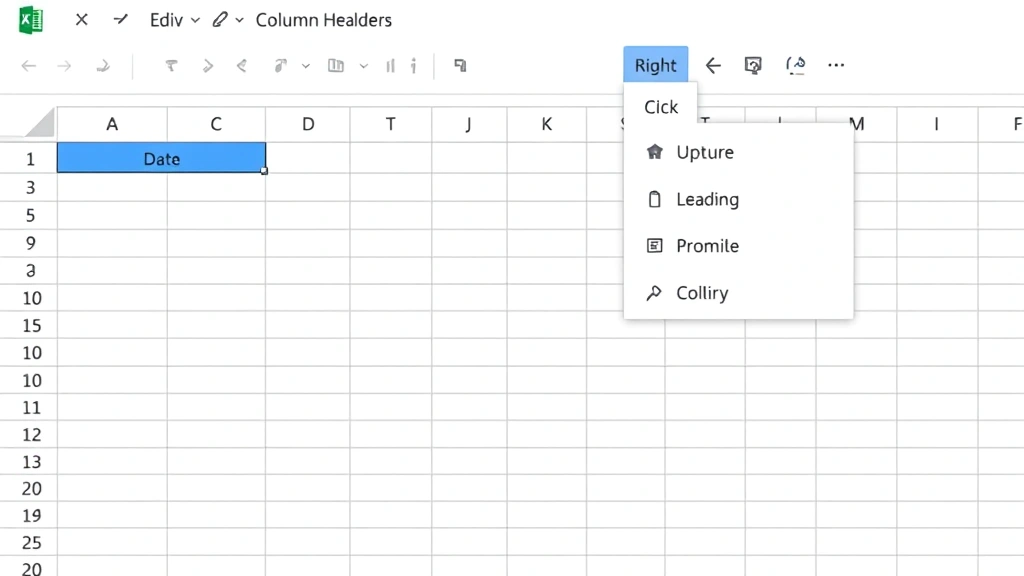
Mistake #1: Dragging from the wrong spot. You click inside a cell in the column instead of the column header. Result? You end up moving just the cell content, not the whole column. Fix: Always click the letter at the very top.
Mistake #2: Using “Paste” instead of “Insert Cut Cells.” This overwrites whatever was in your destination column instead of shifting things over. If you cut column B and then paste it over column D, column D gets replaced and column B disappears. It’s a disaster. Fix: Use “Insert Cut Cells” every time you’re moving a column.
Mistake #3: Forgetting about hidden columns. If you’ve hidden columns (right-click a column and select “Hide”), they still exist. When you move or insert columns, those hidden ones might shift unexpectedly. Fix: Unhide all columns before moving things around if you’re not sure what’s hidden.
Mistake #4: Not checking formulas first. If your spreadsheet has formulas that reference specific columns by letter (=SUM(A:A)), moving columns will break them. The formula will still reference column A, even if your data moved to column C. Fix: Use absolute references ($A$1) or check all formulas before reorganizing. For more on protecting your spreadsheet structure, check out our guide on how to lock a row in Excel.
Mistake #5: Moving columns in a filtered view. If you’ve got filters applied, you might only see some of your data. Moving a column while filters are on can cause confusion about what actually moved. Fix: Clear all filters before reorganizing columns.
Advanced Scenarios: Protecting Your Data
Here’s where things get real: what if your spreadsheet is shared with other people? Or what if you’ve got critical formulas that depend on column positions? Moving columns becomes riskier.
Scenario 1: Shared spreadsheets. If multiple people are working on the same file, moving columns can cause chaos. Someone might have a formula referencing column B, and then you move it to column F. Their formula breaks. Solution: Before moving columns in a shared file, communicate with your team. Or better yet, use frozen columns to keep key data in place while adding new columns to the side.
Scenario 2: Complex formulas. If you’ve got a spreadsheet with lots of formulas, moving columns can be risky. The safest approach: insert a new column where you need it instead of moving an existing one. This way, formulas stay intact. Then you can delete the old column later if needed.
Scenario 3: Data validation and conditional formatting. If you’ve set up drop-down lists (like our guide on how to add a drop-down list in Excel covers), or conditional formatting rules, moving columns might break those. Excel tries to adjust them automatically, but it’s not always perfect. Test your validation and formatting after moving columns to make sure everything still works.
According to This Old House’s principles on structural changes, the same logic applies to data: make sure your foundation (formulas, validation, formatting) is solid before you start moving things around. Move the structure, not the support system.
How to Move a Column in Google Sheets
Google Sheets works a little differently, but the concept is the same. Here’s how to move a column in Google Sheets:
- Right-click the column header. Click the letter at the top to select the entire column.
- Choose “Move column” from the menu. Google Sheets gives you a cleaner option than Excel. You’ll see options like “Move left,” “Move right,” or “Move to.”
- Select your destination. If you want to move it to a specific spot, choose “Move to” and then select the column letter where it should go.
Google Sheets also lets you drag columns like Excel does, but the “Move column” menu option is more reliable. The interface is more user-friendly, honestly. If you’re working in Google Sheets and need to reorganize multiple columns, you can also use the same cut-and-insert method as Excel, and it works identically.
One advantage of Google Sheets: it handles formulas a bit more intelligently when you move columns. It’s less likely to break references, though you should still check your formulas afterward to be safe.
Keyboard Shortcuts That Speed Things Up
If you’re moving columns regularly, these shortcuts will save you time:
- Ctrl+X (or Cmd+X on Mac): Cut the selected column.
- Ctrl+V (or Cmd+V on Mac): Paste (but remember, use Insert Cut Cells instead for moving).
- Ctrl+Z (or Cmd+Z on Mac): Undo your last action. Lifesaver if you mess up.
- Right-click menu: Most of the options we’ve discussed are available through right-click, so you don’t need to memorize menu paths.
Here’s a pro workflow: Select column → Ctrl+X → Click destination column → Right-click → Insert Cut Cells. It’s fast once you get the rhythm down. You’re not hunting through menus; you’re just using keyboard shortcuts and right-click options.
For more advanced data manipulation, check out our guide on how to alphabetize in Excel. Sometimes reorganizing by sorting is faster than manually moving columns.
Frequently Asked Questions
Can I undo moving a column?
– Yes. Press Ctrl+Z (or Cmd+Z on Mac) immediately after moving a column, and it goes back to its original position. You can undo multiple steps if needed. Just keep pressing Ctrl+Z until your spreadsheet is back to how it was.
What happens to formulas when I move a column?
– It depends. If your formula references a column by letter (=A1+B1), and you move column A, the formula will still reference what’s now in column A (which might be different data). If you use absolute references ($A$1), the formula stays locked to that specific cell. If you move the actual cell that the formula references, Excel tries to update the reference automatically, but it’s not always perfect. Always check your formulas after moving columns.
Can I move a column to the right of the last column with data?
– Yes. You can move a column anywhere in your spreadsheet, even to empty space. If you move a column to the far right, it just sits there in an empty area. Excel doesn’t care. You can move it back anytime.
What if I accidentally overwrite a column when pasting?
– Press Ctrl+Z immediately to undo. This is why using “Insert Cut Cells” instead of regular paste is so important—it prevents accidental overwrites. If you use regular paste, it replaces whatever was in that location. With Insert Cut Cells, it shifts everything over to make room.
Can I move columns in a protected or locked spreadsheet?
– Not if the spreadsheet is locked. If someone has protected the sheet to prevent changes, you won’t be able to move columns. You’d need the password to unlock it first. If only certain cells are locked (not the whole sheet), you might still be able to move columns. It depends on the protection settings. Check with whoever set up the protection.
How do I move a column in Excel on a Mac?
– Exactly the same way as Windows. Click the column header, drag it, or use the right-click menu and choose Cut → Insert Cut Cells. The only difference is you use Cmd instead of Ctrl for keyboard shortcuts (Cmd+X, Cmd+Z, etc.). The interface is virtually identical.

What’s the difference between moving and copying a column?
– Moving removes the column from its original location and puts it somewhere else. Copying leaves it in the original location and creates a duplicate elsewhere. If you want to move, use Cut → Insert Cut Cells. If you want to copy, use Copy → Paste (regular paste is fine for copying). For more on combining columns, which sometimes involves moving data around, see our guide on how to combine 2 columns in Excel.
Can I move columns if I’m working with a pivot table?
– Not directly. Pivot tables are dynamic—their structure is determined by how you’ve set them up, not by manually moving columns. If you need to reorganize a pivot table, you’d need to rebuild it or adjust the field layout in the pivot table settings. Moving columns in the underlying data won’t affect the pivot table structure.


