
Modpacks are the secret sauce that transforms vanilla Minecraft from fun into obsession. But here’s the thing: how to install modpacks minecraft can feel like you’re staring at an alien spaceship control panel if you’ve never done it before. The good news? It’s way easier than you think, and once you nail the process, you’ll be loading custom content in minutes.
This guide walks you through everything—from picking the right launcher to troubleshooting when things go sideways. No gatekeeping, no “just Google it” nonsense. Let’s get you modding.
What Are Modpacks and Why You Need Them
A modpack is basically a pre-curated bundle of mods—think of it like a playlist instead of hunting down individual songs. Someone (usually a talented community member) has already tested which mods work together, balanced them, and packaged everything so you don’t have to spend six hours troubleshooting crashes.
Want a modpack that turns Minecraft into a survival horror game? There’s one. Want to build massive factories and automate everything? Yep, exists. Want magic systems, new dimensions, or total overhauls of how the game works? All available.
The real value: how to install modpacks minecraft gets you access to hundreds of hours of curated content without the headache of manually installing 50+ individual mods and resolving version conflicts. You’re basically downloading someone else’s hard work and saying “yes, this is exactly what I want.”
Choose Your Launcher
The launcher is your gateway drug. It’s the software that manages modpacks, Java versions, and your game instances. You’ve got solid options here.
CurseForge (The Popular Choice)
CurseForge is the heavyweight champion. It hosts thousands of modpacks, has a clean interface, and handles installations automatically. Download it from their official site—it’s free and doesn’t require a Twitch account anymore (they ditched that requirement).
MultiMC (The Power User Option)
MultiMC gives you granular control over every aspect of your instance. It’s less beginner-friendly but incredibly flexible. If you’re the type who likes tweaking settings, this is your jam.
Prism Launcher (The Rising Star)
Prism is a newer fork of MultiMC that’s actively developed and community-focused. It’s lightweight, open-source, and honestly becoming the go-to for people who want control without bloat.
Pro Tip: Start with CurseForge if you’re new. It handles 90% of the work for you. Once you’re comfortable, explore other launchers.
Install Java (The Boring But Essential Step)
Here’s where most people get stuck: Minecraft runs on Java, and your computer might not have it installed. Or it might have the wrong version.
Java comes in different versions. Minecraft Java Edition needs—you guessed it—Java. Most modern modpacks need Java 17 or Java 21, though some older ones might want Java 8 or 11.
How to Install Java
- Head to Oracle’s Java download page or grab OpenJDK (free alternative)
- Download the version your modpack requires (check the modpack’s description)
- Run the installer and follow the prompts—just click “Next” until you’re done
- Verify it worked: Open Command Prompt (Windows) or Terminal (Mac/Linux) and type
java -version. You should see version info
If you’re on Windows and want to check your CPU isn’t melting while Java installs, you can monitor your CPU temperature to make sure everything’s running cool.
Download Your First Modpack
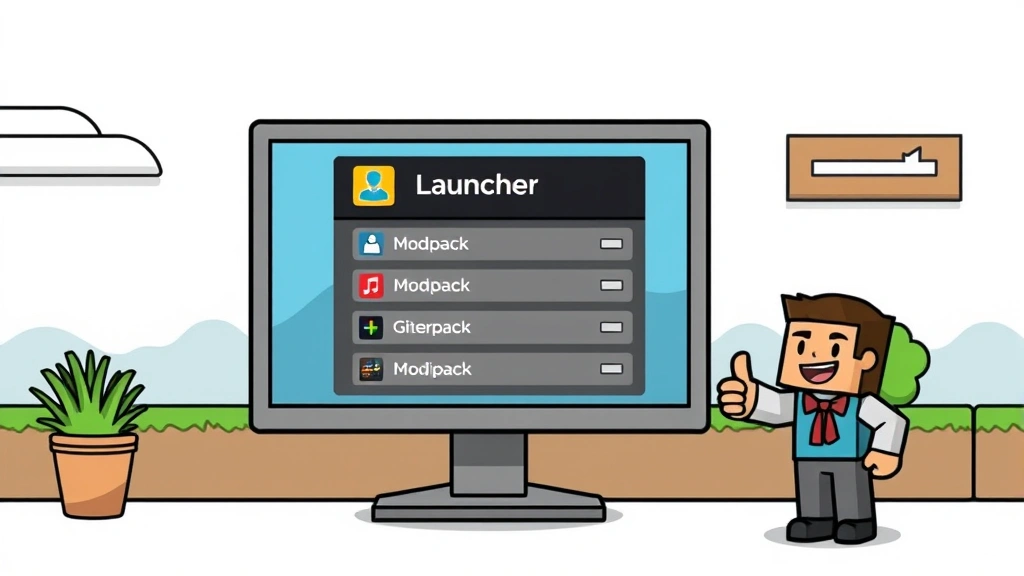
This is the fun part. Here’s the step-by-step for CurseForge (the most common launcher):
- Open CurseForge and click the “Minecraft” section
- Find “Modpacks” in the left sidebar
- Browse or search for a modpack. Popular beginner-friendly ones include Skyfactory, Valhelsia, or SkyBlock
- Click the modpack you want and hit “Install”
- Choose your installation folder (CurseForge suggests a default—that’s fine)
- Click “Install”** and wait. This might take 5-30 minutes depending on modpack size and your internet speed
The launcher downloads all the mods, configures them, and sets up a separate game instance so this modpack doesn’t interfere with vanilla Minecraft. Smart, right?
While you’re waiting, this is a good time to make sure pop-ups are enabled in your browser if you’re researching modpack communities—many have Discord servers or wiki pages in pop-up windows.
Launch and Play
Once installation finishes, you’re almost there.
- Find your modpack in CurseForge’s “My Modpacks” section
- Click “Play”**—the launcher handles loading Java, allocating RAM, and launching the game
- Wait for the splash screen (this loads all the mods—might take 30-60 seconds on first launch)
- Create a new world or join a server and start playing
First launch is always the slowest. Subsequent launches are faster because the launcher caches stuff.
Real Talk: If the game crashes on first launch, don’t panic. Check the “Logs” tab in your launcher. The error message usually tells you exactly what went wrong. Ninety percent of crashes are either missing Java, not enough RAM allocated, or a mod conflict—all fixable.
Troubleshooting Common Issues
Game Won’t Start / Crashes Immediately
Issue: You hit Play and nothing happens, or the game crashes within seconds.
Solution:
- Check the launcher’s log file. Look for red text or error messages
- Verify Java is installed: Open Command Prompt and type
java -version - Make sure you’re running the correct Java version (check modpack requirements)
- Allocate more RAM: In launcher settings, increase RAM to 4-8GB (depending on your system)
- Disable mods one by one in the modpack settings if crashes persist
Game Runs But Lags Like Crazy
Issue: FPS is terrible, everything feels slow.
Solution:
- Lower graphics settings in-game (Video Settings → Graphics: Fast, Render Distance: 8-12)
- Allocate more RAM to the game (6-8GB is ideal for most modpacks)
- Close background apps eating CPU/RAM
- Install Optifine or Sodium (performance mods) if the modpack allows it
Mods Aren’t Loading / Missing Mods Error
Issue: You see errors about missing dependencies or mods.
Solution:
- Re-download the modpack—corrupted files happen
- Check modpack version matches your Java version
- Delete the modpack folder and reinstall fresh
- Make sure your internet connection is stable during download
Out of Memory Error (“Java heap space”)
Issue: Game crashes with memory errors after playing a while.
Solution:
- Allocate more RAM (8GB minimum for heavy modpacks)
- Reduce render distance and chunk loading
- Close other programs
- Consider upgrading your RAM if you’re maxed out
According to official Minecraft guidance, proper Java configuration is critical for stability. Don’t skip this.
Optimize Performance (Because Lag Sucks)
Once your modpack is running, you’ll probably want it to run smoothly. Here’s how:
RAM Allocation
More RAM = fewer crashes and better performance. Go to launcher settings and set it to 6-8GB if your system has it. Don’t allocate more than 50% of your total RAM (if you have 16GB, max out at 8GB for Minecraft).
Graphics Tweaks
In-game Video Settings:
- Graphics: Set to “Fast” (not Fancy)
- Render Distance: 8-12 chunks (lower = better performance)
- Particles: Minimal
- Smooth Lighting: Off
Install Performance Mods
If the modpack includes Sodium, Lithium, or Optifine, enable them. These are specifically designed to squeeze more FPS out of your system. They’re like adding a turbo to your engine.
Clean Up Your World
Over time, worlds accumulate data. If you notice lag creeping in:
- Use
/forceload remove allto unload forced chunks - Disable chunk loaders you’re not using
- Delete old bases you’ve abandoned
Monitor What’s Eating Resources
Some mods are performance hogs. If lag starts after installing a new mod, that’s your culprit. Disable it or find an alternative.
Pro Tip: Use F3 key (Debug Screen) to see real-time FPS, chunk loading, and entity counts. If you see thousands of entities in one area, that’s usually the problem.
Frequently Asked Questions
Can I install modpacks on Minecraft Bedrock Edition?
– No. Modpacks are exclusively for Java Edition. Bedrock has “add-ons” but they work differently and aren’t the same thing. If you want modpacks, you need Java Edition.
Do modpacks cost money?
– Nope. They’re free. The launchers are free. The mods are free. Some creators accept donations, but nothing is behind a paywall. If someone’s charging you for a modpack, that’s a scam.
Will modpacks work with my existing Minecraft worlds?
– Not directly. Modpacks create separate instances so they don’t interfere with vanilla Minecraft. You can’t load a vanilla world into a modpack (the mods won’t be there). You need to start a new world in the modpack instance.
How much disk space do modpacks need?
– Anywhere from 1-5GB per modpack. Small ones are around 1GB, massive ones like All the Mods can hit 5GB+. Make sure you have space before installing.
Can I play modpacks on servers with friends?
– Yes, but it’s more complex. Both you and your friends need the exact same modpack installed. The server needs to be running the modpack too. Most popular modpacks have public servers you can join, or you can set up your own.
What if my computer isn’t powerful enough?
– Start with lighter modpacks (Skyfactory, Valhelsia) instead of heavy ones (All the Mods, Enigmatica). Allocate less RAM, lower graphics settings, and reduce render distance. Modern computers from the last 5 years can usually handle modpacks fine.
How do I update a modpack to a newer version?
– In CurseForge, click the three dots on your modpack and select “Update.” It’ll download the new version without deleting your old one (usually). Some launchers handle this differently—check your launcher’s documentation.
Can I add my own mods to a modpack?
– Yes, but carefully. Adding mods to an existing modpack can cause conflicts. If you know what you’re doing, go ahead. If not, it’s safer to stick with the curated pack or find a different modpack that includes what you want.
Is it safe to download modpacks from CurseForge?
– Yes. CurseForge is the official, trusted source. Only download from their site or other major platforms like Modrinth. Avoid sketchy third-party sites—they sometimes bundle malware.
Why does my modpack keep crashing after a few hours of play?
– Memory leak or corrupted chunk data. Restart the game (fixes memory leaks temporarily). If it persists, try allocating more RAM or backing up your world and deleting the modpack, then reinstalling it fresh.


