
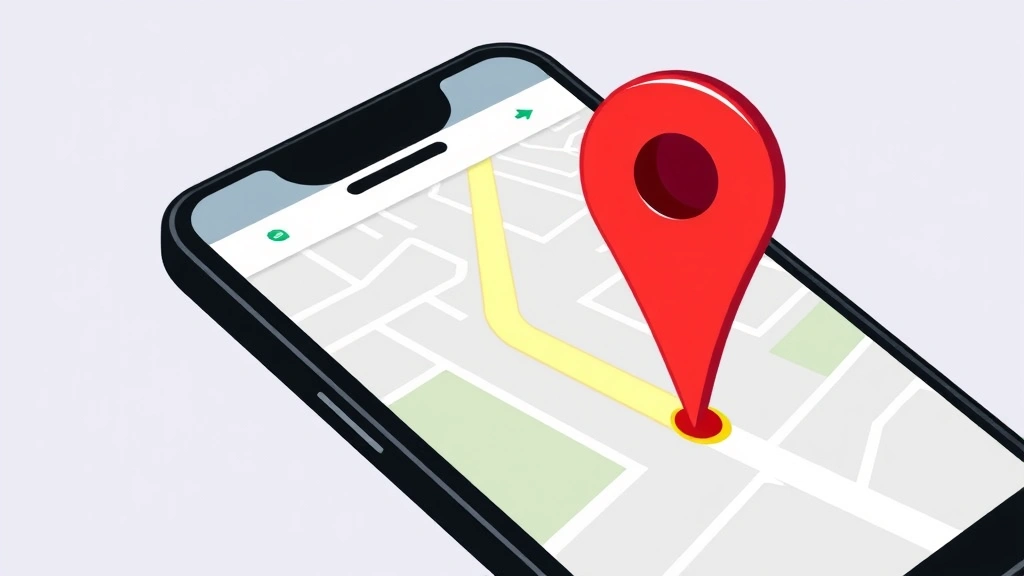
Let’s be honest—you’ve probably stared at your phone wondering how to drop a pin on Google Maps. Maybe you found an amazing taco truck, want to mark a meeting spot, or need to save your parking location before you forget it (we’ve all been there). The good news? Dropping a pin on Google Maps is stupid simple, and once you know the trick, you’ll use it constantly. Whether you’re on your phone, tablet, or desktop, I’ll walk you through every method so you never lose a location again.
How to Drop a Pin on Google Maps (iPhone & Android)
Alright, let’s start with the most common scenario—you’re using your phone and need to drop a pin right now. The process is nearly identical on both iOS and Android, which is refreshing.
Here’s the fastest way:
- Open the Google Maps app on your phone
- Find the location where you want to drop a pin (zoom in or search for an address)
- Press and hold your finger on the map at that exact spot
- A red pin will appear instantly, and a card will pop up from the bottom showing the location details
- You can now save, share, or get directions from this pin
That’s it. Seriously. No hidden menus, no weird workarounds. Just press and hold.
What if you want to drop a pin on a specific address instead? Search for the address first in the search bar, then when the location appears, tap the address card at the bottom. You’ll see options to save it, add it to a list, or share it. The pin is already there—you’re just interacting with it.
One thing that trips people up: the difference between dropping a pin and searching for a location. When you search for something, Google Maps shows you results. When you drop a pin by long-pressing, you’re marking a specific spot on the map that may not have a name or business associated with it. Both are useful, but they’re different actions.
Dropping a Pin on Desktop Google Maps
Desktop is slightly different, but honestly easier in some ways because you’ve got a mouse instead of your finger.
- Go to maps.google.com in your browser
- Navigate to the location where you want to drop a pin
- Right-click on the exact spot on the map
- A menu will appear—click “Add a label” or the pin icon option
- A temporary pin appears with a text field where you can name it
- Type your label and press Enter
On desktop, Google Maps also lets you click the “Add a label” button directly from the menu bar at the top, but the right-click method is faster once you know it exists.
Pro move: If you’re on desktop and want to drop multiple pins quickly, you can create a custom map. Click the menu (three horizontal lines) and select “Your places,” then “Create map.” This gives you a blank canvas where you can drop as many pins as you want, organize them by color, and even add descriptions. It’s like the difference between a single sticky note and a whole cork board.
How to Save & Name Your Pins
Dropping a pin is one thing. Keeping track of it is another. Here’s where things get practical.
On Mobile (iOS & Android):
- Drop your pin (press and hold)
- Tap the location card that appears at the bottom
- Scroll down and tap “Save“
- Choose which list to save it to (like “Favorites,” “Want to go,” or create a new list)
- You can also tap the pencil icon to rename the location or add notes
The naming feature is clutch. Instead of just “1247 Main Street,” you can label it “Best pizza place ever” or “Where I parked the car.” Future you will be grateful.
On Desktop:
- Right-click the location and select “Add a label”
- Type your label name
- Press Enter to save it
- The label will stay on your map as long as you’re logged into your Google account
Desktop labels are saved to your account automatically, so they sync across devices. Drop a pin on your laptop, and it’ll be there when you open Maps on your phone.
According to Google’s official support documentation, saved pins are tied to your Google account and stored in the cloud, which means they’re accessible from anywhere you’re signed in.
Sharing Pins with Friends
One of the best features of Google Maps pins is how easy they are to share. No more texting vague directions or screenshots.
Mobile Sharing:
- Drop your pin and tap the location card
- Tap the “Share” button (usually a share icon or arrow)
- Select how you want to share: text, email, social media, or messaging apps
- Your recipient gets a link that opens directly to that pin in Google Maps
When someone clicks your shared pin, it opens in their Google Maps app (or browser if they don’t have the app) with directions already available. They can immediately tap “Directions” and start navigating. No confusion, no “wait, is it on the left or right?”
Desktop Sharing:
- Right-click your pin
- Select “Share this place”
- Copy the link and paste it wherever you want (email, chat, social media)
- Or click the share icon to send directly to contacts
The link format is short and clean, so it doesn’t clog up your messages like a long URL would.
Managing Multiple Pins & Lists
If you’re the type who drops pins constantly (and you should be), you’ll want to organize them. Otherwise, your saved locations turn into a messy pile.
Creating Lists on Mobile:
- Open the Google Maps app
- Tap your profile icon in the top right
- Select “Your places”
- Tap “Create list” under “Saved”
- Name your list (“Coffee shops,” “Road trip stops,” whatever)
- Add pins to it by dropping a pin, tapping save, and selecting your list
Lists are game-changing if you’re planning a trip or exploring a new neighborhood. You can create a list called “Weekend hikes” and add every trailhead you want to check out. Then when you’re ready to go, everything’s organized in one place.
On Desktop:
- Click “Your places” in the menu
- Go to “Saved” or “Create map”
- Create a new custom map
- Drop pins and organize them by color, category, or description
Desktop custom maps are more powerful than mobile lists—you can add descriptions, photos, and even directions between pins. Think of it like a digital version of planning a road trip with a physical map and colored markers.
Here’s something most people don’t realize: you can export your pins and lists from Google Maps, which is useful if you want to back them up or share them with someone else in a different format.
Common Issues & Fixes
“I dropped a pin but it disappeared.”
This usually happens when you drop a temporary pin and don’t save it. Temporary pins disappear when you close the app or navigate away. The fix? Always tap “Save” on the location card if you want to keep it.
“My pins aren’t syncing between my phone and computer.”
Make sure you’re signed into the same Google account on both devices. Pins are account-specific, not device-specific. If you’re logged into different accounts, they won’t sync. Check your account settings in both the app and on the web version.
“The pin landed in the wrong spot.”
Zoom in closer before dropping the pin. Sometimes when you’re zoomed out, it’s hard to be precise. If you’ve already dropped it in the wrong place, just delete it and try again. On mobile, tap the pin and scroll down to find the delete option. On desktop, right-click and select “Remove.”
“I can’t find the Share button.”
On mobile, make sure you’re tapping on the location card at the bottom of the screen, not just the pin itself. The card has all the action buttons. If you’re on an older version of Google Maps, try updating your app to get the latest features.
“My saved pins disappeared after I logged out.”
This is actually expected behavior. Pins are tied to your account. If you logged out, they won’t show up until you log back in. If you’ve lost access to your account, unfortunately your pins are gone—which is why backing them up or exporting them is smart if they’re important.
Pro Tips for Power Users
Tip 1: Use the Search Bar to Drop Pins Faster
If you know the address or business name, search for it first. Then when it appears, you can save it directly without the long-press. It’s faster than zooming around trying to find the exact spot.
Tip 2: Color-Code Your Pins
On desktop custom maps, you can assign different colors to different pins. Use red for urgent stops, blue for optional ones, yellow for restaurants, etc. When you’re planning a road trip or exploring a new city, color-coding saves time when scanning your map.
Tip 3: Add Notes to Your Pins
Most people just name their pin and move on. But if you tap the pencil icon and add a note (“Open until 10pm,” “Cash only,” “Amazing desserts”), future you will have all the context you need. It’s like leaving yourself a note on a sticky note, but digital.
Tip 4: Use Custom Maps for Planning
Instead of saving random pins to your main account, create a custom map for specific projects. Planning a bachelor party? Create a map with bars, restaurants, and hotels. Relocating to a new city? Create a map with neighborhoods to explore, gyms to check out, and potential apartments. Custom maps keep things organized and shareable.
Tip 5: Share a Custom Map Instead of Individual Pins
If you’ve created a custom map with multiple pins, you can share the entire map with friends or family. Click the share button on the custom map, and they can view all your pins at once. This is way better than sending 10 individual pins in a group chat.
Tip 6: Use “Directions From” Feature
When you drop a pin, you can set it as your destination and immediately get directions from your current location. Or, if you drop multiple pins, you can plan a route that goes through all of them in order. Perfect for road trips or multi-stop errands.
According to Bob Vila’s tech guide, advanced users often combine Google Maps pins with other Google services like Google Calendar to plan trips with time-stamped locations.
Frequently Asked Questions
Can I drop a pin on Google Maps without an account?
– You can view and interact with Google Maps without an account, but your pins won’t be saved. Once you close the app or browser, temporary pins disappear. To save pins permanently, you need a free Google account. It takes 30 seconds to create one if you don’t have it already.
How many pins can I drop on one custom map?
– Google doesn’t publish a hard limit, but practically speaking, you can drop hundreds of pins on a single custom map without performance issues. Most people never hit any real ceiling. If you’re organizing that many locations, though, consider breaking them into multiple maps for better organization.
Can I drop a pin on someone else’s map?
– Not directly. You can only edit custom maps that you’ve created or that have been shared with you as editable. If someone shares a map with you as “viewer only,” you can see their pins but not add your own. If they share it as “editor,” you can add pins to it.
Do dropped pins stay on the map forever?
– Saved pins stay on your account indefinitely unless you delete them. Temporary pins (ones you haven’t saved) disappear when you close the app or navigate away. Your account is synced across devices, so pins you save on your phone will be there when you open Maps on your computer.
Can I drop a pin on Google Maps offline?
– You can view offline maps on Google Maps (if you’ve downloaded them), but you can’t drop new pins while offline. Once you regain internet connection, you can drop pins normally. The offline feature is mainly for viewing areas you’ve already downloaded, not for adding new locations.
What’s the difference between a pin and a saved location?
– A pin is the marker you drop on the map. A saved location is when you add that pin to one of your lists (Favorites, Want to go, etc.). All saved locations have pins, but not all pins are saved—some are temporary and disappear when you navigate away.
Can I edit a pin after I’ve dropped it?
– Yes. On mobile, tap the pin and then tap the pencil icon to edit the name or add notes. On desktop, right-click the pin and select “Edit label.” You can change the name, add details, or even move it to a different location by dragging it around the map.
How do I delete a pin I’ve saved?
– On mobile, tap the pin, scroll down on the location card, and tap “Remove.” On desktop, right-click the pin and select “Remove.” The pin will be deleted from your account across all devices. If it was part of a list, it’ll be removed from that list too.

Can I use Google Maps pins on other navigation apps?
– Not directly. Your Google Maps pins stay in Google Maps. However, you can export your pins and import them into other apps, or you can share a specific pin’s link with someone using a different navigation app. Some third-party apps also offer Google Maps integration, but the native pins don’t transfer automatically.
Why can’t I drop a pin in certain areas?
– Some areas (like certain restricted zones or undeveloped regions) may not allow pin placement due to map data limitations or privacy restrictions. If you’re having trouble dropping a pin in a specific location, try zooming in closer or searching for a nearby address first.


