
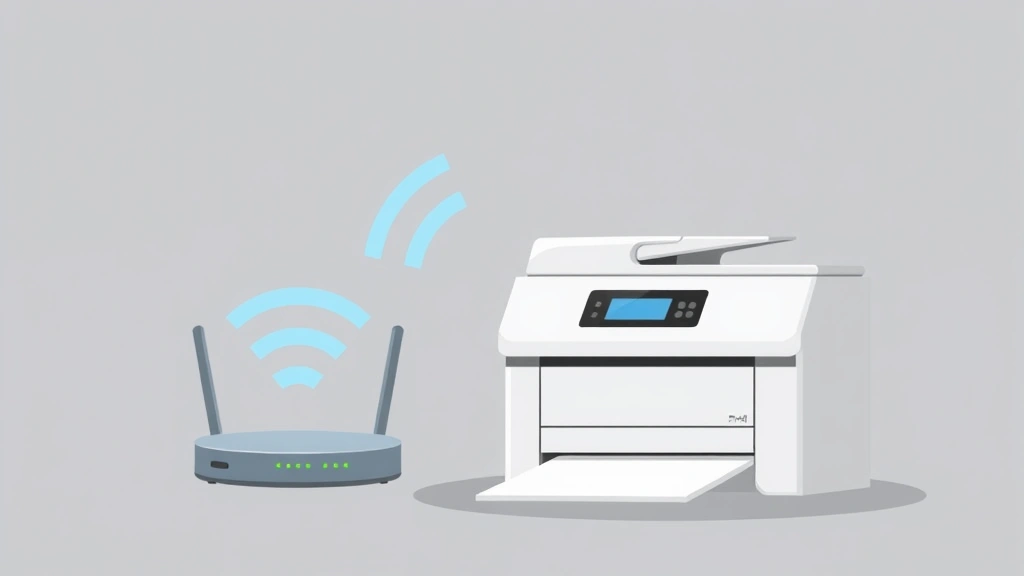
Staring at your new printer and wondering how to connect printer to WiFi? You’re not alone. Most people think it’s going to be this complicated tech nightmare, but honestly, it’s usually just a few clicks away. The frustration happens when you skip a step or your router decides to play hide-and-seek with your devices. Let me walk you through this so you can get printing wirelessly in the next 15 minutes—no IT degree required.
Before You Start: What You Actually Need
Here’s the real talk: you need three things to connect printer to WiFi successfully. First, your printer itself (obviously). Second, your WiFi network name and password. Third, a device—phone, tablet, or computer—to help with setup. That’s genuinely it. You don’t need a special cable, you don’t need to call tech support, and you definitely don’t need to sacrifice anything to the tech gods.
Make sure your printer is plugged in and powered on. I know this sounds basic, but you’d be shocked how many people forget this step. Also, position your printer reasonably close to your router during initial setup—within 20-30 feet is ideal. Once everything’s connected, you can move it further away if your WiFi signal is strong enough.
Pro Tip: Keep your printer’s manual or the setup card that came in the box nearby. You’ll need it for the WiFi network name and default password, which are usually printed on a sticker somewhere on the machine.
Check If Your Printer Has WiFi Capability
Not all printers have built-in WiFi—some older models or budget machines are wired-only. Before you spend 20 minutes searching for WiFi settings, confirm your printer actually has the feature. Look for one of these signs:
- A WiFi icon or symbol on the printer’s display panel
- A WiFi button on the printer (usually has that curved signal icon)
- WiFi mentioned in the product name (e.g., “HP OfficeJet Pro WiFi”)
- A sticker on the back or bottom listing WiFi as a feature
Check the manufacturer’s website or your printer’s specification sheet. Most modern printers from HP, Canon, Epson, and Brother have WiFi built in. If your printer doesn’t have WiFi, you have two options: buy a WiFi-enabled printer (prices start around $50 for basic models) or use a USB cable connected to a computer that’s on your network.
Gather Your Network Information
You’ll need your WiFi network name (SSID) and password. If you don’t remember your password, don’t panic. You can find it on your router itself—there’s usually a sticker on the bottom or back with the default network name and password. If you’ve changed it since setup, you can log into your router’s admin panel (usually at 192.168.1.1 or 192.168.0.1 in your browser) to reset it.
Write down both pieces of information. Seriously, grab a pen and paper right now. Having these handy prevents the “wait, what was my password again?” moment three steps into the process.
Safety Warning: Don’t share your WiFi password with your printer’s setup app unless it’s the official manufacturer app. Stick with the printer’s built-in WiFi setup menu or the official brand app from the app store.
The Easy Way: WPS Button Method
This is the path of least resistance. WPS (WiFi Protected Setup) is a feature that lets devices connect without typing passwords. Not every printer has it, but if yours does, this is your golden ticket.
- Look for a WPS button on your printer. It might be labeled “WPS,” “WiFi,” or have a WiFi icon. Check the front panel, side panel, or even the back.
- Press and hold the WPS button on your printer for 3-5 seconds. You’ll usually see lights blink or a message on the display.
- Within 2 minutes, press the WPS button on your router. It’s often a small button you need to hold with a paperclip or pen.
- Wait 30-60 seconds. Your printer will connect automatically if everything works.
- Check your printer’s display. You should see a confirmation message or the WiFi signal strength displayed.
That’s it. WPS is genuinely that simple when it works. The catch? It doesn’t always work on the first try, especially if your router is far from the printer or if your WiFi signal is weak. If the WPS method fails, move to the manual setup method.
The Standard Way: Manual WiFi Setup
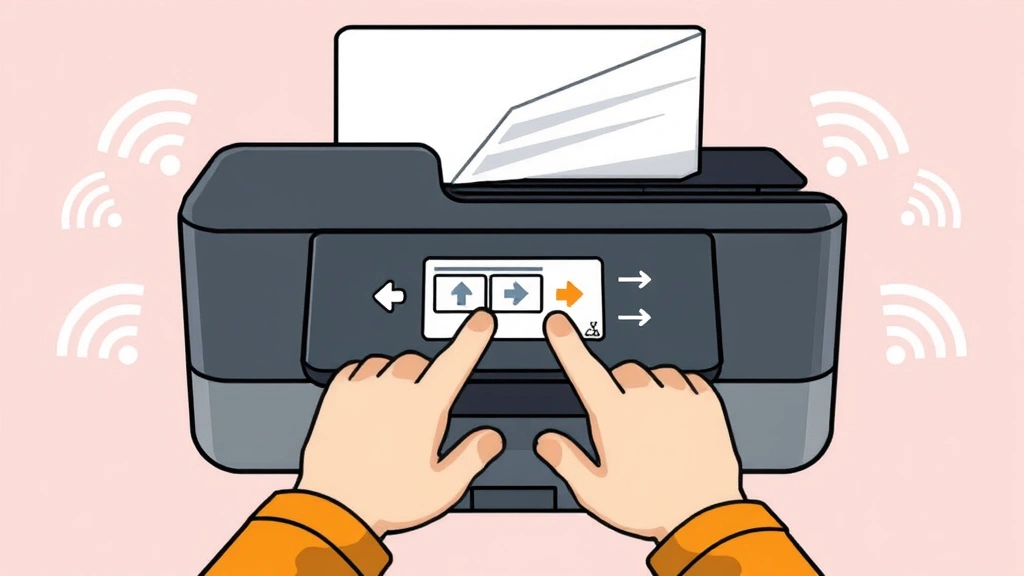
This is the most reliable method and works on basically every WiFi-enabled printer. You’re going to use your printer’s control panel to browse available networks and enter your password manually.
- Access the WiFi menu: On your printer’s display panel, look for a “Menu,” “Settings,” or “Network” button. Press it. You’re looking for WiFi or Network settings.
- Select “Connect to Network” or similar: The exact wording varies by brand, but you’re looking for an option to connect to a wireless network.
- Browse available networks: Your printer will scan and display all WiFi networks in range. Look for your network name (SSID).
- Select your network: Use the arrow buttons to highlight your network name and press “OK” or “Enter.”
- Enter your password: This is where patience helps. You’ll use the printer’s keypad or arrow buttons to enter your WiFi password. It’s tedious, but necessary. Go slow—one wrong character and the connection fails.
- Confirm and wait: Press “OK” or “Connect.” Your printer will attempt to join the network. This usually takes 20-30 seconds.
- Verify connection: Once connected, your printer should display a confirmation message or show the WiFi signal strength on the home screen.
For detailed step-by-step guidance on network configuration, Family Handyman has an excellent breakdown of home network basics that can help if you’re unfamiliar with your router setup.
The Modern Way: Printer App Method
Most printer manufacturers offer apps that make setup brain-dead easy. Download the official app from your printer’s brand (HP Smart, Canon PRINT, Epson iPrint, Brother iPrint&Scan, etc.) on your phone or tablet.
- Download the official app from the Apple App Store or Google Play Store.
- Open the app and look for “Add Printer” or “Setup Printer.”
- The app will scan for printers on your network. Select yours from the list.
- Follow the on-screen prompts. The app usually handles the WiFi connection automatically.
- When prompted, confirm your WiFi network and enter your password through your phone—way easier than using the printer’s tiny keypad.
This method is especially helpful if your printer’s control panel is confusing or if you’re just not comfortable navigating menus. The app walks you through everything step-by-step.
Troubleshooting When Things Go Wrong
Printer not finding your network? Move it closer to your router. WiFi signals weaken with distance and obstacles. Also, make sure your router is actually on and broadcasting. If you recently changed your network name or password, the printer won’t find it under the old credentials.
Printer found the network but won’t connect? Double-check your password. Even one wrong character (including capital letters and special characters) will block the connection. If you’re unsure, temporarily reset your router to factory defaults and use the default password printed on the sticker. You can always change it again after the printer connects.
Connection keeps dropping? This usually means your printer is too far from the router or there’s interference. Try moving the printer closer, or consider a WiFi extender. Also, check if other devices are having WiFi issues. If they are, your router might need a restart (unplug it for 30 seconds, then plug it back in).
Computer can’t find the printer on the network? Your computer and printer need to be on the same network. Make sure both are connected to the same WiFi. Also, you might need to install printer drivers on your computer. Visit the manufacturer’s website, find your printer model, and download the latest drivers. This Old House’s tech guide covers printer driver installation in detail.
Pro Tip: If you’re connecting multiple devices to the same printer, make sure they’re all on the same WiFi network. A computer on the 5GHz band and a printer on the 2.4GHz band won’t see each other. Most routers broadcast both simultaneously—just confirm your devices are on the same one.
For more complex network troubleshooting, Bob Vila’s guide to home network setup has solid advice on diagnosing connection issues.
Print Your First Test Page
Once your printer shows it’s connected to WiFi, it’s time to actually print something. This confirms the connection is real and working.
- From your computer: Open any document or image. Go to File > Print. Select your printer from the list (it should now appear as a network printer, not a USB printer). Click Print.
- From your phone or tablet: Open the printer’s app or use AirPrint (Apple devices) or Google Cloud Print (Android). Select your document and print. The printer should respond within 10-15 seconds.
- From the printer itself: Many printers have a “Print Test Page” or “Network Configuration” option in the menu. This prints a page showing your network settings and IP address—super helpful for troubleshooting.
If the test page prints, you’re officially done. Celebrate. You’ve successfully connected your printer to WiFi. If nothing happens, go back to the troubleshooting section and work through it systematically.
One thing to note: your printer will remember this WiFi network. If you move it to a different location with different WiFi, you’ll need to repeat the setup process. But if you’re staying in the same spot, you’re set for good.
Frequently Asked Questions
Can I connect my printer to WiFi if it’s an older model?
– Probably not without extra hardware. Printers older than 5-7 years typically don’t have WiFi built in. You have three options: buy a WiFi printer (they’re affordable now), use a USB cable to a networked computer, or check if your printer model supports a WiFi card adapter (some brands like HP offer these separately, though they’re pricey).
Why does my printer keep disconnecting from WiFi?
– Usually it’s a signal strength issue. Printers have weaker WiFi antennas than phones or laptops, so they’re picky about distance. Move it closer to your router or install a WiFi extender. Also, some printers go into sleep mode and lose connection—check your printer’s power settings and disable sleep mode if possible.
Do I need to install anything on my computer to print wirelessly?
– You need printer drivers installed on your computer, but not a separate app. Go to your printer manufacturer’s website, find your model, download the drivers, and install them. The drivers tell your computer how to communicate with the printer. Most modern operating systems auto-detect printers on the network, but drivers ensure full compatibility.
Can multiple people print to the same WiFi printer?
– Absolutely. That’s the whole point of WiFi printing. Everyone on your network can print to it simultaneously. The printer queues up jobs and processes them one at a time. Just make sure everyone’s device is on the same WiFi network.
What if I forgot my WiFi password?
– Check the sticker on your router (bottom or back). If you’ve changed the password since setup, you’ll need to reset your router to factory defaults. Hold the reset button for 10-15 seconds. This erases all your custom settings, so you’ll need to set up your WiFi again from scratch. Alternatively, if you have another device connected to WiFi, you can sometimes view the saved password in your device’s network settings.
Is it safe to connect my printer to WiFi?
– Yes, as long as you use a strong WiFi password (which you should anyway). Your printer itself isn’t a security risk—it’s just a device on your network. Use WPA2 or WPA3 encryption on your router (not the old WEP), and you’re fine. For additional security guidance, CISA’s cybersecurity tips include home network security best practices.
Can I print to my WiFi printer from outside my home?
– Some printers support cloud printing (Google Cloud Print, Apple AirPrint via iCloud, HP ePrint, etc.), but it requires additional setup and an internet connection. For most home users, you can only print when you’re connected to the same WiFi network. Check your printer’s documentation to see if it supports remote printing.
My printer shows as connected but won’t print. What’s wrong?
– This is usually a driver issue. Reinstall your printer drivers. Also, check if there’s a print job stuck in the queue—cancel all pending jobs and try again. On Windows, go to Settings > Devices > Printers & Scanners, select your printer, and click “Open queue.” On Mac, go to System Preferences > Printers & Scanners, select your printer, and click “Open Print Queue.”
Do I need a special router for WiFi printing?
– Nope. Any standard WiFi router works. You don’t need anything fancy. If your printer won’t connect, it’s not a router problem—it’s a setup or signal strength issue.


